For the best Downwell performance, use fullscreen, select the highest stable resolution your display offers, enable VSync only if you see tearing, and leave visual effects at their native pixel-art defaults. Downwell is exceptionally light on modern hardware, so the biggest gains usually come from eliminating background-process spikes, bad scaling, controller latency, and refresh-rate mismatches—not from lowering settings that barely cost any GPU power.
That distinction matters. Downwell is a precision roguelike built around falling speed, Gunboots, stomps, and split-second landings. A dramatic graphics downgrade won't make a huge difference because the game deliberately uses a compact pixel-art presentation. A steady frame pace, clean scaling, and responsive input will. The profile below targets maximum FPS and low latency on Windows PC while keeping the game looking exactly as intended.
Best Downwell graphics settings for maximum FPS
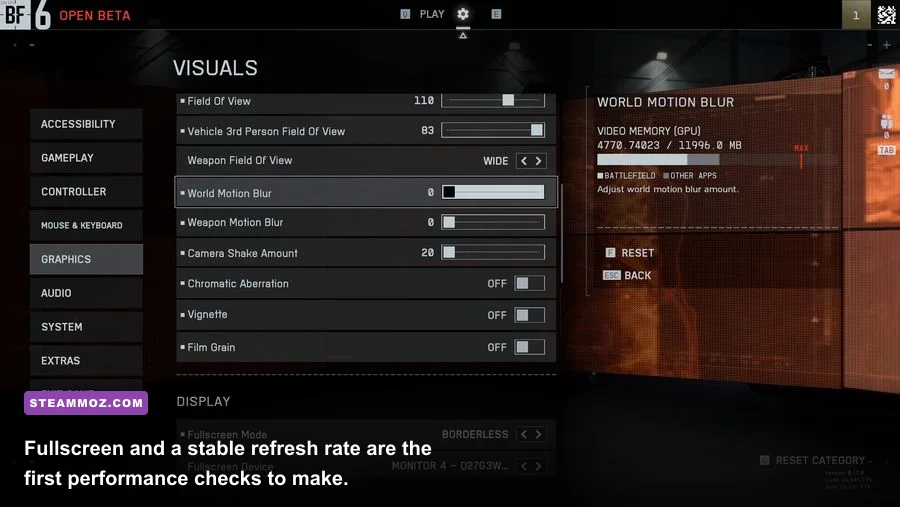
Start with the profile in this table, then adjust only one setting at a time. Downwell's PC build has changed across storefront and operating-system combinations, so you may see slightly different labels for fullscreen, window mode, scaling, or synchronization. The performance priorities stay the same.
| Setting | Recommended Value | FPS Impact | Visual or Input Note |
|---|---|---|---|
| Display Mode | Fullscreen | Low to medium benefit | Usually reduces desktop compositor interference and improves consistency. |
| Resolution | Native display resolution, or the game's cleanest supported scale | Low | Preserves sharp pixel edges; lowering it can make scaling blurrier. |
| VSync | Off for lowest latency; On if tearing is distracting | Low | On can add a frame of latency, while Off may show horizontal tearing. |
| Frame Rate | Highest stable option available | Medium on weak systems | Consistency matters more than chasing an unstable peak number. |
| Pixel Scaling | Integer or nearest-neighbor scaling when available | Negligible | Keeps Downwell's deliberate chunky pixel edges crisp. |
| Post-Processing or Filters | Native/default look | Negligible | Disable extra smoothing only if a launcher, driver, or overlay adds it. |
| Background Overlays | Disable unnecessary overlays | Low to medium | Steam, recording, browser, and GPU overlays can create stutter spikes. |
Fullscreen versus borderless windowed mode
Exclusive fullscreen is the first thing to test if Downwell feels uneven. On newer versions of Windows, borderless windowed mode can perform nearly as well, but it passes through the desktop compositor and makes it easier for notifications, browser video, or a second monitor to interrupt frame delivery. If your display flashes, changes refresh rate, or produces black borders in fullscreen, borderless is a perfectly reasonable fallback.
Don't confuse a higher resolution with a better Downwell experience. The game's sprites and rooms are designed around a low-resolution pixel-art style. Stretching that image to a 1440p or 4K panel can look clean when integer scaling is used, but a non-integer stretch may soften edges. In practice, a sharp 1080p presentation with stable frame pacing is preferable to an unstable high-resolution window.

🎮 Downwell
Looking to experience this game? Grab your digital key directly on our store for $0.74.
View on Steammoz Store →Why Downwell needs stable frame pacing more than raw FPS
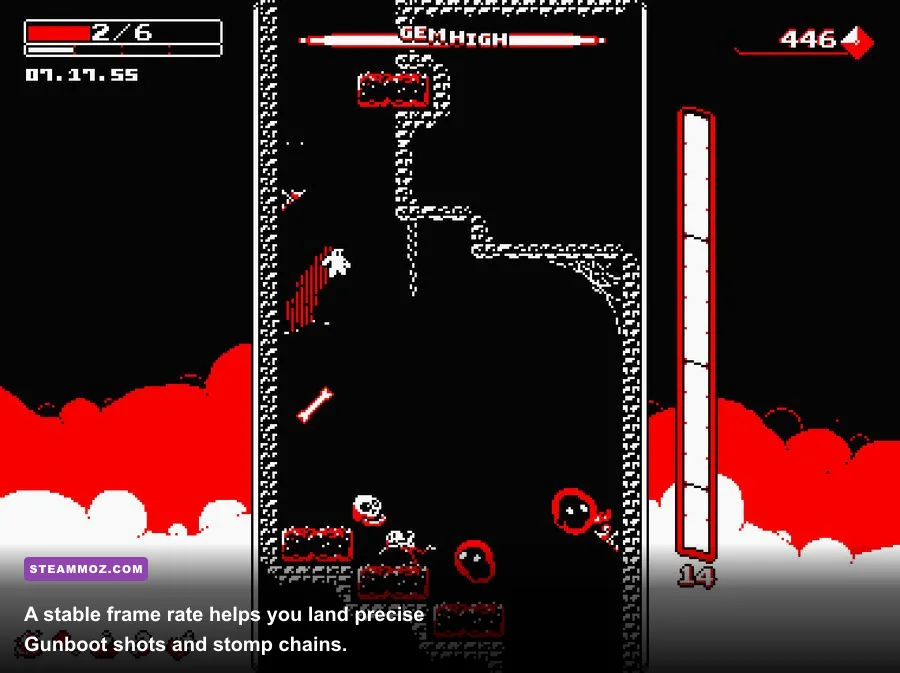
Downwell's action is simple to read but brutally exact. Your character drops automatically, and the Gunboots fire downward or diagonally depending on your movement and aim. You are constantly deciding whether to shoot an enemy, stomp it, land on a platform, or spend limited ammunition to correct your fall. If frames arrive unevenly, your visual read of a bat, spike, or breakable block can be late even when an FPS counter reports a high average.
That is why a locked, stable presentation beats a wildly fluctuating number. On a 60 Hz monitor, a consistent 60 FPS is the sensible target. On a 120 Hz or 144 Hz panel, running at the highest stable option can make scrolling and input feel cleaner, but Downwell's compact design does not suddenly become twice as playable at 144 FPS. If your system oscillates between 60 and 144, test a stable 60 or 120 instead.
| Hardware Situation | Recommended Target | What to Prioritize | What to Avoid |
|---|---|---|---|
| Modern desktop or laptop | Highest stable display refresh | Fullscreen, clean scaling, low background load | Recording overlays and forced smoothing |
| Older integrated graphics | Stable 60 FPS | Fullscreen and fewer running applications | High-resolution desktop scaling conflicts |
| Handheld PC | Stable 60 FPS or a locked lower refresh target | Power profile, frame pacing, controller response | Uncapped FPS draining battery for no useful gain |
| High-refresh monitor | 120 or 144 FPS if genuinely stable | Refresh-rate matching and low latency | VSync plus a fluctuating frame rate |
How to tell stutter from input lag
Stutter looks like the camera or falling character jumps unevenly, often during a new room, an enemy spawn, or an overlay notification. Input lag feels different: you press left or fire, but the response arrives late and consistently. VSync can improve tearing while adding latency; an overlay or power-saving mode can create irregular stutter. Test with VSync off first, then turn it on for comparison. Use the setting that gives you the more reliable timing, not the prettier screenshot.
Steam's FPS counter is useful as a quick check, but it won't explain every hitch. Close it after testing if you want an uncluttered run. For broader PC troubleshooting, our Bionic Dues performance settings guide covers the same process of separating graphics limits from background-task problems.
Windows and GPU tweaks that actually help
Because Downwell's rendering workload is tiny, Windows configuration can matter more than GPU horsepower. Before changing driver profiles, close browser tabs playing video, cloud-sync clients, RGB control software, game launchers, and capture tools. A modern graphics card can render the game easily, but CPU interruptions and overlay hooks can still disturb frame delivery.
Use the right power and refresh settings
On a laptop, connect the charger and select a performance-oriented Windows power mode while testing. Battery-saving profiles can reduce clock speeds or alter presentation behavior. Set the monitor to its intended refresh rate in Windows display settings; a 144 Hz monitor accidentally running at 60 Hz will not make the game slow, but it changes how smooth the descent appears and can make a timing problem harder to diagnose.
NVIDIA and AMD users don't need an aggressive custom profile for Downwell. Leave texture filtering, sharpening, anti-aliasing overrides, and forced scaling at application-controlled defaults. Downwell doesn't need driver-level anti-aliasing. If your driver has a frame limiter, use it only when the in-game limiter behaves badly or your handheld needs a fixed power target.
Disable third-party screen filters and forced integer scaling only if they cause artifacts. Integer scaling is useful when the source image can be enlarged by a whole number, but some driver implementations add borders or handle the game's aspect ratio poorly. The cleanest result is the one with crisp edges, correct proportions, and no flashing during transitions.
Overlays, recording, and compatibility settings
Steam Overlay is normally harmless, but it is worth disabling temporarily if you are chasing a hitch. Do the same with Discord overlay, Xbox Game Bar, GPU performance panels, and recording software. If the issue disappears, re-enable them one by one instead of permanently lowering resolution.
Don't randomly enable Windows compatibility modes. Compatibility settings can fix a particular fullscreen or scaling problem, but they can also introduce odd input behavior. If you use a high-DPI display, test the game's normal behavior first. Only experiment with high-DPI override options when the game appears blurry, incorrectly sized, or offset.
The official Downwell Steam page is the best place to verify the current PC build, supported platform information, and community discussions before applying an old fix. If the game launches but performs inconsistently, compare your result with the Steamoz low-FPS troubleshooting checklist.
Downwell gameplay settings that protect performance and survival
Graphics are only half the performance conversation in Downwell. The settings that make a run feel smooth are valuable because they preserve your ability to read hazards. Turn off anything that obscures the playfield, including unnecessary overlays, cursor capture indicators, notification banners, and recording widgets. The screen is already busy when you combine enemies, bullets, gems, blocks, and falling speed.
Sound is worth keeping enabled. It doesn't increase FPS, but audio cues help you identify shots, enemy contact, and the rhythm of a descent when the screen becomes crowded. Muting the game to gain a negligible performance improvement is a bad trade on any reasonably modern PC. If you need to reduce distractions, lower music separately and keep effects audible.
Gunboots, ammo, and frame-perfect decisions
The Gunboots are your main mobility and damage tool. Firing pauses your downward movement briefly, giving you a tiny window to line up a shot or alter your landing. That interaction is why input consistency matters more than visual fidelity. A stutter while you are trying to fire beneath a platform can turn a safe stomp into a missed landing.
Ammo management also exposes performance problems. A clean run lets you read whether a shot destroyed an enemy, bounced off a wall, or missed into empty space. Downwell rewards landing on enemies to restore ammunition, so a delayed response can force you to spend another bullet and break the resource loop. Keep the display uncluttered and use a stable frame target before blaming a weapon or your route.
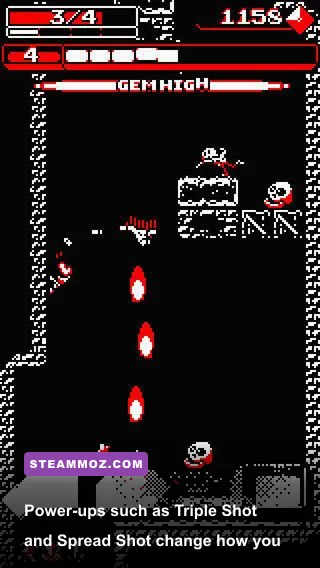
Power-ups change the visual and tactical workload without meaningfully changing the GPU burden. Triple Shot spreads your bullets, Spread Shot widens coverage, Laser has a more focused line, and Machine Gun dramatically changes firing rhythm. Shotgun and Flamethrower can fill a tight room with effects, but these are still lightweight by modern rendering standards. If one power-up seems to trigger a hitch, suspect an overlay, driver issue, or frame-pacing problem before assuming the weapon is too demanding.
Performance profiles for desktop PCs and handhelds
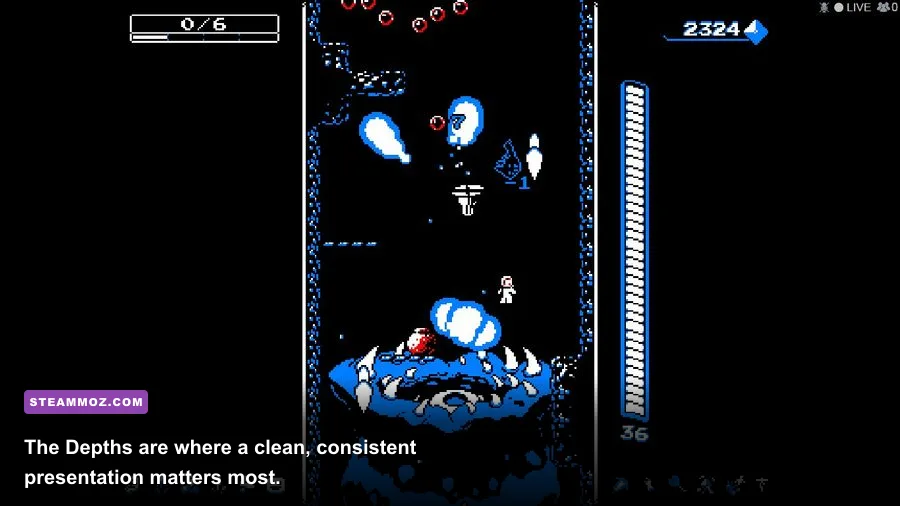
There isn't one perfect Downwell configuration for every machine. A desktop with a high-refresh monitor should chase responsiveness, while a Steam Deck-class handheld benefits from a stable cap and sensible power use. The following profiles are practical starting points rather than arbitrary “low, medium, high” presets, because Downwell doesn't need a conventional modern graphics ladder.
| Profile | Display Setup | Sync and FPS | Best Use |
|---|---|---|---|
| Competitive Precision | Fullscreen, native resolution, clean scaling | VSync off, highest stable target | Desktop players prioritizing immediate Gunboot input. |
| Tear-Free Standard | Fullscreen or borderless, native resolution | VSync on, stable 60 FPS | Most 60 Hz displays and players sensitive to tearing. |
| Handheld Battery | Native handheld resolution, integer scaling if clean | Locked 60 FPS or the device's stable lower target | Longer sessions without wasting power on uncapped frames. |
| Legacy Laptop | Fullscreen, lowest clean supported resolution | Stable 60 FPS target, VSync tested both ways | Older integrated graphics or systems with background contention. |
Steam Deck and similar handhelds
Downwell is a natural handheld game because runs are short, controls are direct, and its pixel-art presentation scales well. Start at the device's native resolution and a 60 FPS cap. If your handheld offers a system-level refresh or frame limiter, don't stack several limiters without testing: an in-game cap, driver cap, and display cap can interact and make input feel sluggish.
For battery life, a stable 60 FPS is usually more sensible than allowing an uncapped renderer to run far beyond what the panel can display. Lower the screen brightness, close unused background tools, and use a balanced power profile. Downwell should not require a high-wattage performance mode. If it does, investigate a launcher, overlay, or system process first.
Fixing crashes, black screens, blur, and sudden FPS drops
When Downwell suddenly runs poorly, work from the least destructive fix to the most invasive. First, restart the game and close overlays. Next, confirm that Windows is using the intended display and refresh rate. Then test windowed and fullscreen modes, VSync on and off, and one clean resolution. Record what changes; changing five options at once makes the real cause impossible to identify.
A reliable troubleshooting order
- Verify the installation. Use Steam's file-verification tool so a damaged or incomplete update isn't mistaken for a graphics problem.
- Remove overlays. Disable Steam Overlay, Discord, Xbox Game Bar, GPU monitoring widgets, and capture software for one test run.
- Reset display behavior. Try fullscreen, then borderless or windowed mode. Check for black borders, incorrect aspect ratio, or blurry scaling.
- Test synchronization. Compare VSync on and off in the same zone. Look for tearing, delayed firing, and uneven scrolling.
- Update carefully. Update your GPU driver and Windows if they are old, but don't assume the newest driver fixes every issue. If the problem began immediately after an update, rolling back may be relevant.
- Check controller software. Steam Input layers, remapping tools, and wireless interference can feel like FPS problems when the real issue is delayed input.
Pay special attention to when the hitch occurs. A pause only during a room transition suggests loading, overlay, or storage activity. A problem that appears whenever you press a particular controller button points toward input software. A visual tear that remains while input feels instant is a synchronization choice, not a failing GPU.
For crash-focused PC steps, our PC crash and low-FPS repair guide offers a useful general sequence. You can also compare older-hardware checks in our legacy PC performance guide. These aren't Downwell-specific fixes, but the diagnostic logic carries over.
The final Downwell max-FPS setup
For most players, the answer is simple: fullscreen, native or cleanly scaled resolution, VSync off if latency matters more than tearing, and a stable frame cap matched to your display. Keep the pixel-art presentation free of forced smoothing, disable overlays while testing, and run the game from a sensible power profile. Don't sacrifice image clarity for a graphics setting that barely changes the workload.
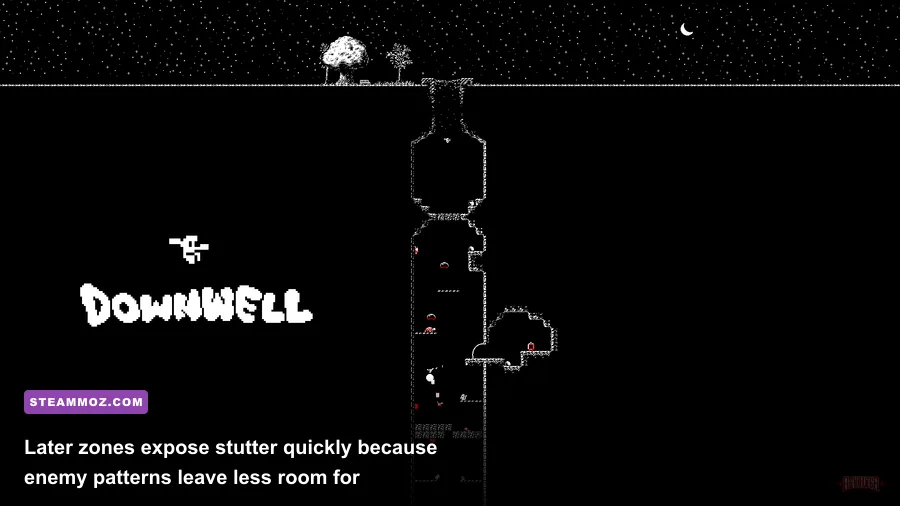
Then test the setup in a real run rather than the title screen. The Underground is useful for checking basic input and scrolling, while the Catacombs, Aquifer, Caverns, and The Depths reveal whether room transitions, hazards, or effect-heavy power-ups create stutter. Try moving, firing, stomping, and changing direction rapidly. If all four actions respond consistently, your setup is ready.
Downwell doesn't need a monster PC or a giant list of “ultra” options. It needs a clean presentation that never gets between you and the next landing. Once frame pacing is stable, the real challenge returns: managing ammo, reading enemy patterns, choosing power-ups, and surviving the drop.
For official game information, check Devolver Digital's Downwell page and the developer's Downwell page. Those sources are safer references than old configuration posts when storefront builds or operating-system behavior changes.