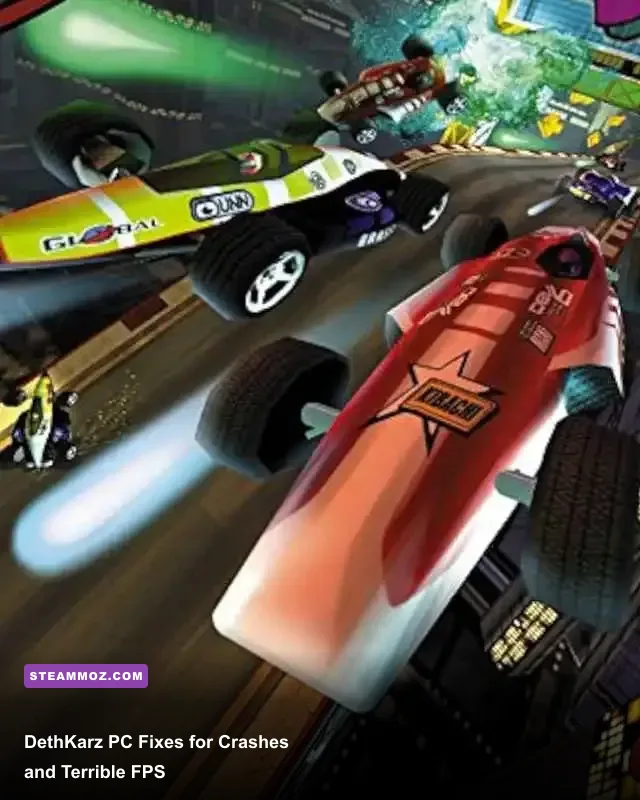
If DethKarz crashes on startup or crawls at single-digit FPS, the reliable fix is to treat it as a legacy DirectDraw game rather than a modern 3D title: install it outside protected Windows folders, run the executable with Windows 98/ME compatibility, disable fullscreen optimizations, and use a DirectDraw wrapper such as dgVoodoo2 when the native renderer misbehaves. For low FPS, start with a 640×480 or 800×600 window, turn down track effects, and cap the game to a stable 30 or 60 FPS instead of chasing an uncapped number.
That sounds excessive for a game released in 1998, but DethKarz is exactly the sort of PC classic that can run worse on a modern system than it did on a Pentium-era machine. Its original renderer expects old DirectX behavior, predictable timer calls, and display modes that current Windows versions emulate imperfectly. A fast GPU doesn't automatically solve that. In some cases, it makes the timing problem more obvious.
This guide focuses on the Windows PC release and covers the fixes in the order that saves the most time. Make a copy of your save folder before changing compatibility settings, wrappers, or configuration files. If you bought the game through a digital storefront, check its support notes first; the DethKarz store listing may include a preconfigured build rather than the original disc executable.
Why DethKarz Crashes on Modern Windows

DethKarz was built around DirectX-era assumptions that Windows 10 and Windows 11 no longer reproduce perfectly. The most common failure is a crash immediately after the splash screen, usually when the game switches from the desktop into an exclusive fullscreen mode. A second common failure appears when the game tries to enumerate old 3D acceleration devices. Modern Windows reports a very different display and driver environment, so the game can select an invalid mode or fail while creating its rendering surface.
There are also permissions issues. Old games often write settings beside the executable or into legacy registry locations. If you install DethKarz under C:\\Program Files, Windows may redirect or block those writes. The result can look like a graphics crash, but the underlying problem is a configuration file that never saves correctly. Installing to a simple path such as C:\\Games\\DethKarz removes that variable.
Before applying a wrapper, confirm that the game itself is intact. Run the storefront’s file verification tool, reinstall to a short folder path, and launch the main executable directly once. Avoid stacking several compatibility utilities immediately. DxWnd, dgVoodoo2, compatibility modes, overlays, and forced driver profiles can each solve one issue while creating another.
| Symptom | Most Likely Cause | First Fix to Try | Why It Helps |
|---|---|---|---|
| Crash before the menu | Fullscreen or DirectDraw initialization | Disable fullscreen optimizations and use compatibility mode | Stops Windows from applying a modern fullscreen presentation path |
| Black screen with sound | Unsupported display mode | Use a windowed launch or wrapper | Prevents an invalid exclusive-resolution switch |
| Settings reset every launch | Write permissions | Move the install to C:\\Games\\DethKarz | Lets the game create and update its legacy configuration files |
| Menus work, race crashes | 3D acceleration or effect rendering | Disable overlays, then test a DirectDraw wrapper | Separates menu rendering from the heavier race renderer |
For broader retro-PC troubleshooting, our guide to running older PC games smoothly covers the same permission and compatibility traps. DethKarz needs more hands-on testing, but the diagnostic principle is identical: change one layer at a time.

🎮 DethKarz
Looking to experience this game? Grab your digital key directly on our store for $2.44.
View on Steammoz Store →The Clean Compatibility Setup That Usually Works
Start with a clean baseline. Find DethKarz.exe, right-click it, open Properties, and use the Compatibility tab. Enable Windows 98/Windows Me compatibility mode, tick Disable fullscreen optimizations, and select Run this program as an administrator only if the game still cannot save settings. Administrator mode should be a test, not your default solution, because it can hide the real permissions problem.
Use 16-bit color only if the game refuses to display correctly. Current Windows versions may expose that option through compatibility settings, but forcing it can make desktop switching more awkward. If it fixes the launch, keep it; if the game already renders correctly, don't add an unnecessary restriction.
Turn off every overlay for the first test: Steam Overlay, Xbox Game Bar, Discord, MSI Afterburner’s on-screen display, and GPU recording software. DethKarz's old fullscreen surface can conflict with injection-based overlays. Also close RGB utilities and hardware monitors temporarily. This isn't superstition—many of these tools hook DirectDraw or Direct3D calls, precisely where DethKarz is most fragile.
Next, launch with a modest resolution. The original game was designed around low-resolution displays, so 640×480 is the best diagnostic mode. Once a race completes without a crash, try 800×600 and then 1024×768. If a higher mode causes instability, the issue isn't your GPU horsepower; it's the old renderer's handling of the requested back buffer.
Keep your desktop scaling at 100 percent for testing, especially on a laptop or a 4K monitor. High-DPI scaling can produce a tiny window, an incorrectly positioned image, or a crash during mode switching. You can restore your normal scaling after finding a stable presentation mode.
Recommended baseline profile
| Option | Starting Value | Performance Effect | Stability Reason |
|---|---|---|---|
| Compatibility mode | Windows 98/ME | Negligible | Emulates older application behavior and timing assumptions |
| Fullscreen optimizations | Disabled | Usually neutral | Avoids modern borderless-fullscreen translation conflicts |
| Resolution | 640×480 | Highest FPS headroom | Uses the display modes the game was built around |
| Color depth | Default; 16-bit only if needed | Small GPU reduction | Can resolve palette and surface-creation failures |
| Overlays | Off during testing | Small CPU/GPU gain | Removes hooks from legacy rendering calls |
How to Use dgVoodoo2 Without Making Things Worse
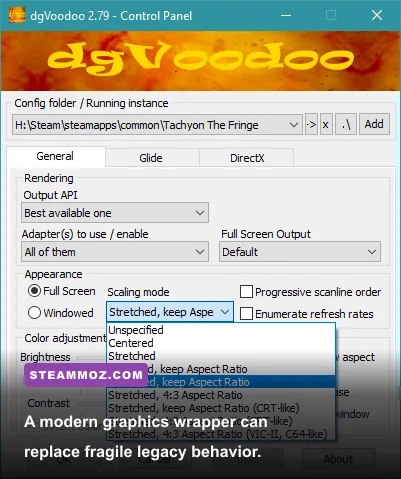
If native DethKarz still crashes, dgVoodoo2 is the most useful next step. Download it from the official dgVoodoo2 repository, extract the archive, and copy the correct 32-bit wrapper DLL into the folder containing the game executable. DethKarz is a 32-bit title, so copying only 64-bit DLLs is a classic mistake. Use the DirectX DLL supplied for the API the game actually calls; don't dump every file from the archive into the game folder.
Open dgVoodooCpl.exe, add the DethKarz folder as a local configuration path, and begin conservatively. Set the output API to Direct3D 11 or the default recommended option, leave resolution scaling disabled, and choose a virtual video card with ample but not absurd video memory. DethKarz doesn't need modern texture features. The wrapper's job is to translate old surfaces safely, not turn a 1998 racer into a 4K remaster.
For the first test, keep forced anti-aliasing, anisotropic filtering, MSAA, sharpening, and texture filtering disabled. Those options can alter how the game handles transparent track effects, and they make it harder to identify the original problem. If the race is stable, add one enhancement at a time. A wrapper that fixes crashes but introduces shimmering or broken lighting is not finished; revert the last change and keep the stable profile.
Do not combine dgVoodoo2 with another DirectDraw wrapper. If you also use DxWnd, turn off its graphics hooking while testing dgVoodoo2. Two translation layers fighting over the same surface is a fast route to a black screen. The same rule applies to unofficial widescreen patches: test the unmodified executable first, then add the patch only after the renderer is stable.
When the wrapper works, you'll usually see one of three improvements: the game reaches the menu consistently, fullscreen no longer produces a black screen, or races stop crashing when effects appear. If none of those happen, remove the wrapper DLL and return to the clean compatibility profile rather than piling on more files.
Best DethKarz Settings for Stable FPS
DethKarz does not behave like a modern racer with a clean, independent render loop. Its physics, camera movement, and visual updates are closely tied to old timing behavior. That means an uncapped game can report a huge number in an overlay while still feeling uneven. Conversely, a stable 30 FPS can feel better than a fluctuating 120 FPS if the game’s timing is being emulated.
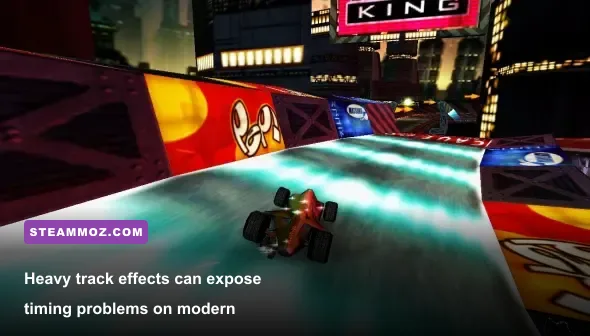
Begin by reducing the options that affect the track rather than the car model. Distant scenery, particle-heavy explosions, reflective surfaces, and lighting effects are more likely to trigger a legacy fill-rate or surface problem. If the game exposes separate detail sliders, lower track or world detail first, then effects detail. Keep car detail higher; reducing it saves less and makes the vehicles look noticeably worse.
Don't assume lowering resolution fixes every stutter. If FPS is low only when you turn sharply or enter a crowded section, the issue may be a CPU timing spike rather than pixel load. In that case, a wrapper, a frame limiter, and disabling background overlays can help more than dropping from 800×600 to 640×480.
| Setting or Profile | Recommended Value | Expected FPS Impact | Visual Trade-Off |
|---|---|---|---|
| Resolution | 800×600 | Low to medium GPU load | Sharper than 640×480 while retaining compatibility |
| Track/world detail | Medium | Medium gain on effect-heavy circuits | Less distant scenery and geometry |
| Effects or particles | Low or medium | Medium to high gain during collisions | Reduced explosions, smoke, and lighting detail |
| Car detail | High | Small performance cost | Preserves the best-looking part of the race |
| VSync | Off initially; test later | Removes possible presentation stalls | May introduce tearing |
| Frame limit | 30 FPS first, then 60 FPS | Improves consistency | Lower cap can feel less fluid but steadier |
Use the Microsoft DirectX End-User Runtime if the installation reports missing legacy components. This package supplies older side-by-side DirectX files; it does not replace your current DirectX version. It also won't fix a broken renderer by itself, so treat it as a dependency repair, not an FPS booster.
Fixing Stutter, Speed Surges, and Input Lag

Not every “low FPS” report is a low-FPS problem. DethKarz can appear to run slowly when its timing loop is disrupted, and it can also run too quickly if an old limiter fails. Watch the car, not just the overlay: if steering becomes sluggish, music slows, and the whole race moves in slow motion, you are seeing a timing or performance stall. If the car accelerates unnaturally and menus fly by, the limiter is likely failing instead.
Use one frame limiter, never three. If dgVoodoo2 is handling presentation, test its frame-rate limit first. If that produces uneven pacing, disable it and use a driver-level limiter through NVIDIA Control Panel or AMD Software. A conservative 60 FPS cap is a sensible target for a modern monitor, but 30 FPS is the better diagnostic cap because it leaves more headroom for sudden effects.
For NVIDIA hardware, create a profile for the DethKarz executable and set Power management mode to Prefer maximum performance only while testing. Don't globally force low-latency modes, image scaling, or enhanced sync. AMD users should similarly avoid global Radeon features until the game is stable. These options are designed for modern rendering queues and can make an old DirectDraw application less predictable.
Disable Windows Game Bar capture and background recording. On laptops, connect the charger and select a performance power plan, but don't disable every power-saving feature permanently. DethKarz is lightweight; the goal is eliminating clock drops during testing, not making the system run hot for a game that barely uses the GPU.
Input lag often comes from borderless scaling or VSync rather than the controller itself. Test keyboard controls in a window first. If steering responds correctly there, experiment with fullscreen presentation after the renderer is stable. A cheap USB gamepad can also introduce its own dead-zone or polling problem, so use the keyboard as a control baseline before blaming the game.
These timing habits are useful across older titles. Steamoz’s guide to settings that make every frame count explains why consistent frame pacing matters more than a flashy peak number, while our Dungeon Siege performance notes cover similar issues with legacy Windows renderers.
Last-Resort Fixes and a Reliable Testing Order
If DethKarz still crashes, isolate the installation rather than guessing. Create a fresh folder, reinstall the game, apply only Windows 98/ME compatibility, and launch at 640×480. Test one complete race. If that works, add your preferred resolution. Then enable a wrapper if necessary. After each change, run the same track for several minutes, including a collision-heavy section. Repeating the same test makes a real improvement obvious.
Check Windows Event Viewer only after the simple fixes are exhausted. Look under Windows Logs and Application for the crash entry, then note the faulting module. A DirectDraw or display-driver module points toward the wrapper or compatibility layer. An audio DLL points somewhere else entirely, such as an old sound backend or an overlay. Don't download a random replacement DLL because a search result tells you to; that is how a minor game problem becomes a system-security problem.
Install current GPU drivers, but if the problem began immediately after a driver update, test the previous stable driver instead. Old games can regress when vendors remove or alter compatibility behavior. The DethKarz PCGamingWiki page is useful for checking known quirks, widescreen notes, and community-tested fixes. Treat community files carefully, keep backups, and prefer documented changes over mystery executables.
Finally, if you own a disc version, verify that the executable is patched to the latest official build available for that release. The game's original publisher history can make support files scattered across old archives, so don't mix a patch from one regional release with another without backing up the original files. Digital editions are usually the cleaner starting point.
The five-minute diagnostic sequence
- Verify or reinstall DethKarz to
C:\\Games\\DethKarz. - Disable overlays and set Windows 98/ME compatibility.
- Turn off fullscreen optimizations and test 640×480.
- Complete one race before changing any graphics option.
- Add dgVoodoo2 only if native DirectDraw still crashes.
- Set a single 30 FPS limiter, then test 60 FPS after stability is proven.
That order matters. It separates permissions, compatibility, presentation, rendering, and timing problems instead of treating “DethKarz low FPS” as one giant mystery. The game is old, but it isn't impossibly fragile. With a clean install, a restrained compatibility profile, and one carefully configured renderer, DethKarz can still deliver smooth, chaotic futuristic racing on current Windows PCs.