
If Deep Rock Galactic: Dwarven Legacy keeps crashing or dropping frames on PC, start with the stable path: verify the Steam files, reset the game's local configuration, update your GPU driver, then launch with DirectX 11 before lowering only the settings that punish frame time. DX11 is usually the safest recovery option; once the game is stable, test DX12 for potentially better performance on newer hardware.
This guide targets the PC build of Deep Rock Galactic and the Dwarven Legacy content or edition label you may see in your Steam library. The underlying problem is usually not one dramatic setting. It is a combination of Unreal Engine shader compilation, volumetric effects, swarm particles, outdated config files, overlays, and a CPU that gets buried when Glyphids flood a tunnel. Fix the cause first, then tune the picture.

Start with the crash fixes that cost nothing

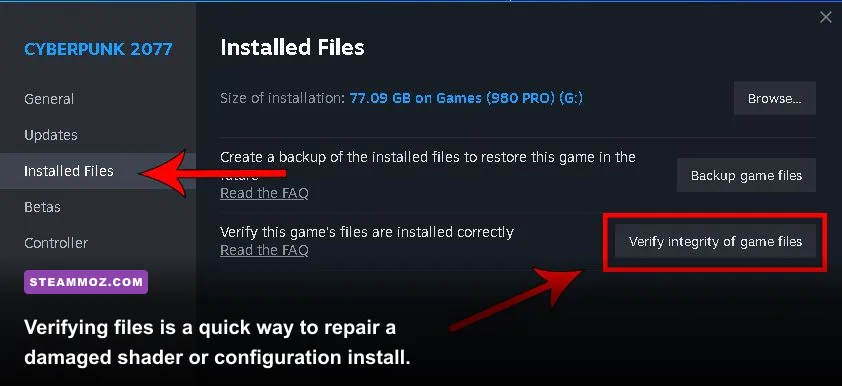
Before changing advanced Windows settings, close the game and make a clean baseline. In Steam, right-click the game, choose Properties, open Installed Files, and select Verify integrity of game files. A failed verification can repair missing pak files, corrupted shaders, or an interrupted update without touching your save progression.
Next, reset the local configuration. Back up the folder first, then open %LOCALAPPDATA%\FSD\Saved\. Rename Config to Config.old rather than deleting it. Deep Rock Galactic will create fresh settings on the next launch. This is particularly useful if the game crashes immediately after changing resolution, switching render APIs, or loading into a mission.
Do not remove your save folder casually. The important file is Player.sav, and Steam Cloud can restore progress, but a manual backup is still smart. If the crash appears after a new driver install, perform a clean GPU driver installation with NVIDIA's Custom Install option or AMD's Factory Reset option. Install the current Game Ready or Adrenalin driver, reboot, and test the game before reinstalling overlays.
Disable Steam Overlay, Discord Overlay, Xbox Game Bar, NVIDIA ShadowPlay, AMD recording, MSI Afterburner monitoring, and RGB utilities for one test mission. Overlay conflicts often look random: the game may reach the Space Rig, then crash when the first mission loads. If stability returns, re-enable services one at a time instead of turning everything back on together.
Use the launch option that matches your hardware
In Steam Properties, General, Launch Options, test -dx11 first. It is the best troubleshooting choice for older cards, unstable DX12 drivers, and systems that crash during shader creation. Remove it later if you want to compare performance. On a modern RTX or RX card with a current driver, try -dx12 after the DX11 baseline. Some systems deliver smoother CPU frame times with DX12, while others suffer hitching during the first few missions.
Use one renderer at a time. Do not stack -dx11 -dx12, and do not keep random launch commands copied from unrelated Unreal Engine games. If both APIs crash, launch with no renderer flag after resetting Config. For startup crashes, also disable Steam Cloud temporarily, launch once, and restore it after confirming that the game reaches the Space Rig.
| Symptom | Most likely cause | First action |
|---|---|---|
| Crash before Space Rig | Bad config, shader cache, or overlay | Rename Config and launch with -dx11 |
| Crash when mission loads | Corrupt asset or driver conflict | Verify files and clean-install the GPU driver |
| Stutter only on first mission | Shader compilation | Finish one low-risk mission before judging performance |
| Crash after alt-tab | Fullscreen or overlay conflict | Use borderless window and disable overlays |

🎮 Deep Rock Galactic: Dwarven Legacy
Looking to experience this game? Grab your digital key directly on our store for $36.14.
View on Steammoz Store →The best low-FPS settings for a stable 60
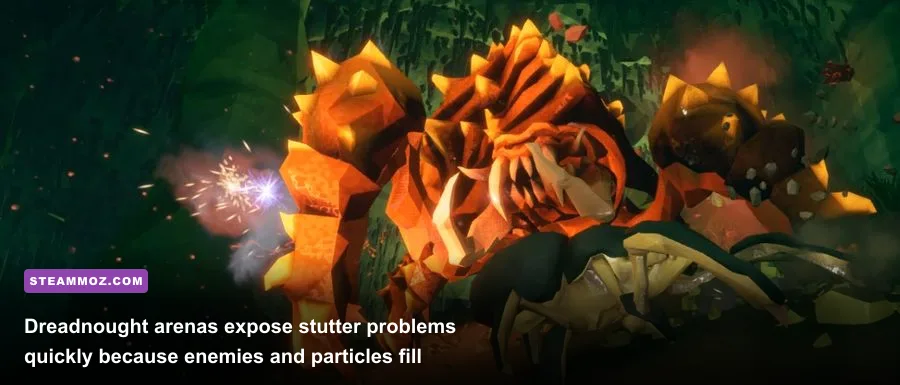
Deep Rock Galactic is deceptively demanding. A quiet tunnel can run beautifully, then a four-player Salvage Operation produces hundreds of enemies, fire effects, frozen particles, flares, terrain debris, and dynamic shadows. That is a frame-time problem, not simply a maximum-FPS problem. Use the table below as a practical 1080p starting profile, then adjust one option at a time.
| Setting | Recommended value | FPS impact | Visual trade-off |
|---|---|---|---|
| Resolution scale | 100%; 85-90% for weak GPUs | Very high | Lower values soften distant cave geometry |
| Anti-aliasing | High or Medium | Medium | Medium reduces edge smoothness |
| Shadow quality | Medium | High | Less definition in tunnels and around machinery |
| Effects quality | Medium | Very high in swarms | Explosions, fire, and particles look less dense |
| View distance | High | Medium | Lower values affect distant cave detail |
| Texture quality | High if VRAM allows | Low to medium | Lower settings blur minerals and weapon surfaces |
| Post-processing | Low or Medium | Medium | Less bloom, depth of field, and screen treatment |
| Ambient occlusion | Off or Low | Medium | Crevices lose some contact shadowing |
| Motion blur | Off | Small | Sharper mouse movement and target tracking |
Lower Effects before Textures. Effects is the setting most likely to rescue a bad swarm fight because it controls the visual workload from explosions, flames, cryo clouds, plasma bursts, and other combat clutter. Texture quality mainly consumes VRAM. If your card has 6GB or more, High textures are normally a better trade than dropping them to Medium.
Resolution scale is the emergency lever. At 1440p, dropping to 90% renders internally at roughly 2304 by 1296 before scaling back to the display resolution. It can recover a large amount of GPU time, but it will not fix a CPU bottleneck caused by enemy simulation. If your GPU usage sits below 90% while frames collapse during a swarm, reduce effects, shadows, and view distance rather than resolution first.
Stop stutter from shaders, CPU spikes, and heat
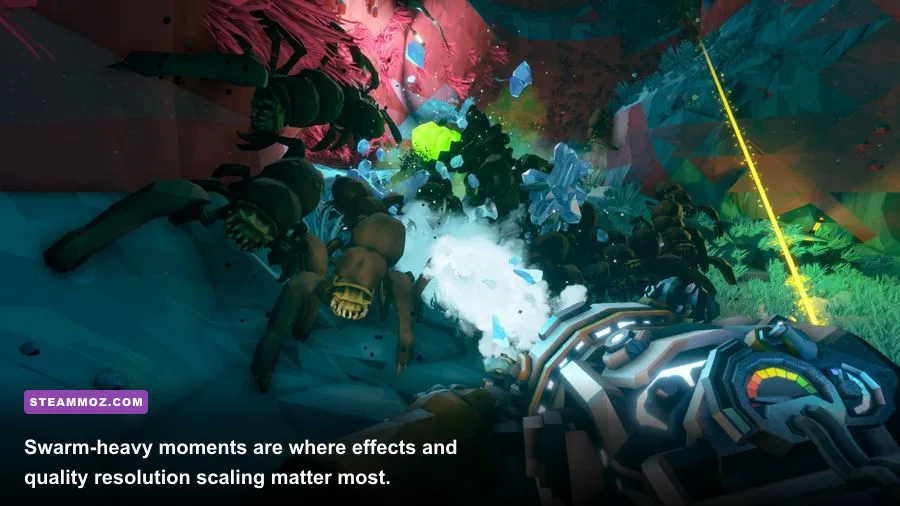
Shader stutter is common after a driver update, a game patch, or the first visit to a biome with unfamiliar materials. The practical fix is patience: launch with DX11, let the game reach the Space Rig, and play a short solo mission in a familiar biome. The first encounter with a new effect may hitch once; repeated hitching every time a Praetorian spits acid points to a broader issue.
Watch GPU usage, CPU usage, clock speed, and temperatures with a lightweight monitor. A GPU locked near 99% means the graphics profile is the limit. A GPU hovering around 60-80% while one or two CPU threads spike means lowering resolution will barely help. Cap the frame rate to a number your system can hold consistently, such as 60, 90, or 120. A locked 60 with stable frame pacing feels far better than a volatile 110 that dives to 45 whenever a Bulk Detonator enters the room.
On laptops, plug in the charger and set Windows Graphics to use the dedicated GPU for the game's executable. Select a High Performance power plan, but don't chase unsafe overclocks. Clean dust from the cooling path, check that fans are spinning, and look for thermal throttling. A card that begins a mission at 1,900 MHz and falls to 1,400 MHz after ten minutes can mimic a software bug.
Keep at least 15 percent free space on the SSD containing Steam and Windows. Disable background downloads, browser video, and capture software while testing. If stutter happens only in multiplayer, compare a solo mission and a hosted mission. Network lag usually creates rubber-banding, not a lower render frame rate, but host-side CPU load can make a busy four-player swarm feel worse on an older processor.
Choose the correct resolution mode
Borderless windowed mode is the safer choice if alt-tab causes crashes or black screens. Exclusive fullscreen can sometimes deliver slightly cleaner frame pacing, but the difference is hardware-dependent. Turn off motion blur and depth of field for competitive visibility. These options do not solve a severe bottleneck, yet they make aiming at a fast Mactera or a Glyphid Menace much easier when frames dip.
Diagnose the mission, class, and effect causing the drop
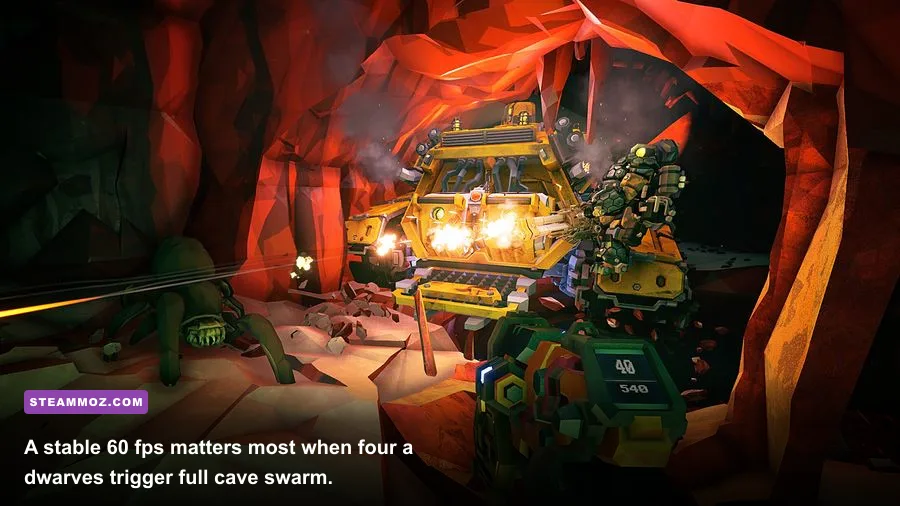
Not every slowdown is a global PC problem. Run the same test with Bosco in a solo mission, then repeat it in a four-player mission. Compare a calm Mining Expedition with a Salvage Operation during uplink, where enemy density and defensive effects are naturally high. If the drop appears only during combat, Effects and Shadows are prime suspects. If it happens while turning through a huge cave, View Distance and CPU simulation deserve attention.
Class equipment can expose the limit. Engineer's LURE grenade, Breach Cutter projectiles, and Shard Diffractor beams can stack particles in a swarm. Driller's CRSPR Flamethrower and Sticky Flames create persistent fire effects, while Cryo Cannon freezes groups with dense visual feedback. Gunner's Thunderhead autocannon and Hurricane rockets add repeated explosions. Scout is usually lighter on effects, making the class useful for a controlled benchmark.
| Test scenario | What it isolates | Settings to change | Useful result |
|---|---|---|---|
| Solo Mining Expedition | Baseline render load | None at first | Shows normal GPU and CPU behavior |
| Four-player Salvage uplink | Enemy and effect spikes | Effects, shadows, post-processing | Reveals swarm-time frame drops |
| Large cave traversal | View distance and CPU load | View distance, resolution scale | Tests rotation and streaming stutter |
| Driller fire build | Persistent particle workload | Effects quality first | Confirms effect-bound GPU drops |
For a reliable test, use the same biome, mission type, and approximate cave depth. Write down the minimum frame rate rather than the peak. If the game crashes only with one class weapon, validate files and remove cosmetic mods or unofficial overlays before blaming the weapon itself.
Last-resort repairs and a clean performance profile
If nothing above works, uninstall the game, reboot, and reinstall it to an SSD. Before reinstalling, rename the %LOCALAPPDATA%\FSD\Saved\Config folder so the old settings cannot return. Check Windows Event Viewer under Windows Logs and Application for the faulting module. A driver DLL suggests the GPU stack; an access violation inside the game points toward files, mods, or configuration.
Keep Windows, chipset drivers, and motherboard BIOS reasonably current, especially on Ryzen systems where old chipset packages can affect scheduling. Avoid registry cleaners and DLL download sites. They rarely fix Unreal Engine crashes and can create a second problem. The official Steam page for Deep Rock Galactic is the right place to confirm supported files and updates, while Ghost Ship Games' official site provides developer news.
For community-tested fixes, consult the officially maintained DRG community wiki, and report repeatable crashes through the Steam community discussions. Include your GPU, CPU, Windows version, renderer, crash timing, and whether a clean Config folder changed anything. That information is far more useful than simply saying the game crashes.
For most rigs, the winning profile is straightforward: 1080p, 100 percent resolution scale, High textures, Medium shadows, Medium effects, Low post-processing, Ambient Occlusion off, motion blur off, and a frame cap at 60 or 90. Start on DX11, confirm a full mission without a crash, then test DX12. If the game still struggles, lower Effects and resolution scale in that order. Those changes preserve the sharp minerals, readable terrain, and chunky dwarf silhouettes that make Deep Rock Galactic feel right while taking pressure off the exact moments when Hoxxes gets loud.
Steamoz readers troubleshooting other PC games can also compare this process with our City of Gangsters crash and low-FPS guide, the GPU-focused Dragonkin settings guide, and our practical PC specifications checklist. The same rule applies across all three: establish a clean baseline, change one variable, and measure the worst frame-time spike instead of chasing a headline FPS number.