If you want the best Deadfall Adventures graphics settings for maximum FPS, start with 1080p fullscreen, VSync off, Anti-Aliasing on Low or Medium, Texture Quality on High, Shadows on Low, and Post Processing on Low. That mix preserves the game’s sharp environments while cutting the settings that cause the largest frame-time spikes in its Unreal Engine 3 corridors and outdoor ruins.
Deadfall Adventures is an older PC shooter, but its performance can still feel oddly uneven on modern hardware. The game dates from 2013, uses Unreal Engine 3, and often runs into engine-level frame pacing quirks rather than raw GPU limitations. A modern graphics card can render it easily, yet crowded jungle fights, torch-lit tombs, and wide desert views may still produce stutter if the wrong settings are left at maximum.
This guide focuses on practical results rather than blindly pushing every slider to Ultra. For context, check the game’s official Steam listing and the publisher information on THQ Nordic’s game page. If you enjoy older atmospheric shooters, our guides to games like F.E.A.R. 2 and games like Far Cry Primal are worth a look too.
The best Deadfall Adventures settings for max FPS
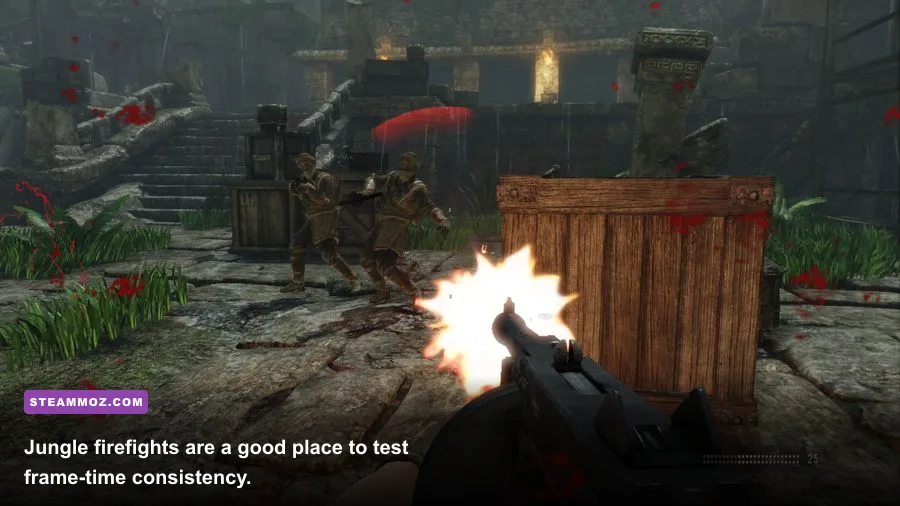
Use the profile below as the baseline for a 60 FPS target. It is deliberately balanced: texture detail stays high because it has a relatively small performance cost, while shadows, ambient occlusion, and post-processing are reduced because they hit both GPU time and frame pacing. If your monitor is 120Hz or faster, this is still the right starting point before chasing a higher cap.
| Setting | Recommended value | FPS impact | Visual trade-off |
|---|---|---|---|
| Resolution | 1920x1080 native | Very high | Best clarity; lower resolution is the largest emergency FPS gain |
| Display mode | Fullscreen | Low | Usually gives steadier frame pacing than borderless or windowed mode |
| VSync | Off | None directly | Removes the 60 FPS ceiling and reduces input latency |
| Anti-Aliasing | Low or Medium | Medium | Some shimmering remains, but geometry stays clean enough at 1080p |
| Texture Quality | High | Low on 4GB-plus GPUs | Keeps stone, cloth, and weapon surfaces detailed |
| Shadow Quality | Low | High | Shadows become softer and less defined, especially around torches |
| Post Processing | Low | Medium to high | Less bloom, depth of field, and cinematic haze |
| Ambient Occlusion | Off or Low | Medium | Less contact shading around rubble and walls |
| Effects Quality | Medium | Medium | Explosions and dust lose some density without looking flat |
Do not lower Texture Quality first. Deadfall Adventures leans heavily on carved walls, painted murals, wooden crates, and weapon models to sell its pulp-adventure atmosphere. Dropping textures from High to Medium often makes the game look noticeably muddy while returning only a small number of frames, especially if your GPU has 4GB or more of VRAM.
Why shadows are the first serious cut
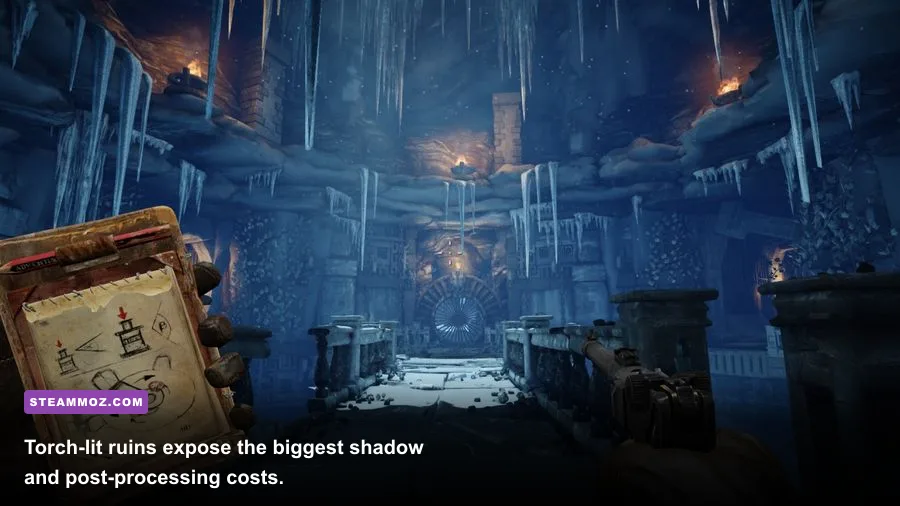
Shadow Quality is the setting I would reduce before almost anything else. The game’s underground temples use multiple dynamic light sources, including torches and fire effects. High shadows force the engine to update more detailed shadow maps as you move through those spaces. Low shadows remove a layer of visual richness, but they also smooth out the dips that are more distracting than the softer image.

🎮 Deadfall Adventures
Looking to experience this game? Grab your digital key directly on our store for $4.99.
View on Steammoz Store →Competitive and visual graphics profiles
There is no multiplayer advantage worth chasing in Deadfall Adventures, but a responsive first-person camera still matters. The game’s shooting is built around iron sights, quick target swaps, and close-range encounters with soldiers, undead enemies, and wildlife. A stable 60 FPS feels substantially better than an unstable 90 FPS that collapses whenever a torch-lit room fills with particles.
| Profile | Core settings | Expected target | Best for |
|---|---|---|---|
| Max FPS | 1080p, AA Low, textures Medium, shadows Low, post processing Low, AO Off | 60 FPS on modest gaming PCs | Older laptops and systems with inconsistent frame times |
| Balanced | 1080p, AA Medium, textures High, shadows Low, post processing Low, AO Low | 60 FPS with better image quality | Most modern entry-level and mid-range PCs |
| Quality | 1080p or 1440p, AA High, textures High, shadows High, post processing High | 60 FPS on stronger GPUs | Players prioritizing atmosphere over latency |
| Low-end rescue | 1600x900 or 1280x720, AA Off, textures Medium, shadows Low, effects Low | 30 to 60 FPS depending on CPU | Integrated graphics and older dual-core systems |
For most players, Balanced is the sweet spot. Keep High textures, use Medium Anti-Aliasing, and leave Shadows and Post Processing on Low. If you are chasing the highest possible number, turn Anti-Aliasing off only after testing Medium. Jagged edges are obvious around weapons, railings, and temple doorways, so the FPS gain is not always worth the rougher image.
At 1440p, avoid trying to compensate for a weak GPU by maxing every other setting. Resolution is already doing most of the visual work. If you cannot hold 60 FPS, drop to 1080p before touching textures. On a 4K display, 1080p may look soft, but it is usually preferable to an inconsistent internal workload in this older engine.
VSync, frame caps, and input feel
Set VSync to Off in the game first. VSync can add a full frame of latency and may lock the experience to 30 FPS when the engine misses a 60 FPS refresh interval. If you see tearing, use your driver’s frame limiter instead and cap the game at 60 FPS, or slightly below your monitor’s refresh rate if you are using adaptive sync.
Deadfall Adventures does not need a huge frame-rate ceiling. A locked 60 FPS gives aiming and camera movement a consistent rhythm, while an uncapped result can expose CPU spikes in scripted sequences. If your PC produces 100 FPS indoors but falls to 55 outdoors, a 60 FPS cap can make the whole game feel more controlled.
How to fix stutter and sudden FPS drops
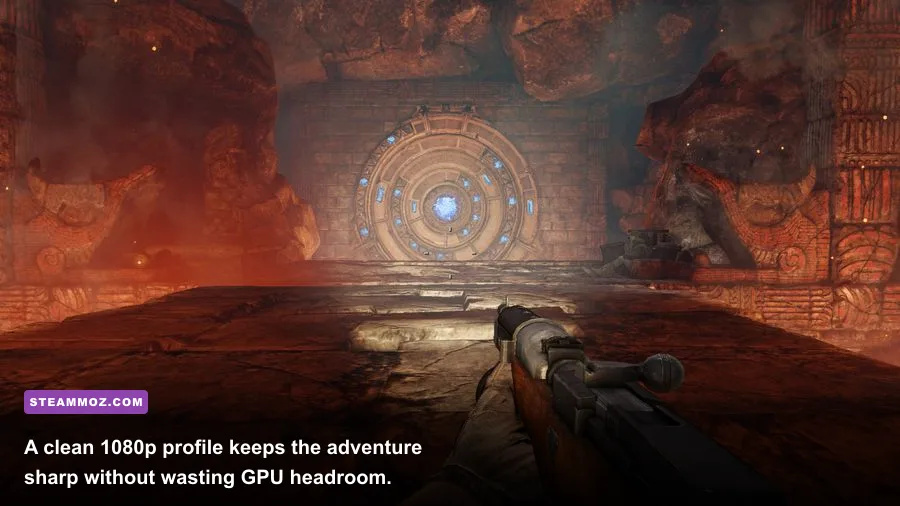
Deadfall Adventures’ most annoying performance issue is often stutter rather than a permanently low average frame rate. The game streams areas as you move between rooms, and the first visit to a new temple section can briefly hitch while textures, effects, and geometry appear. An SSD helps with these transitions, but it cannot completely remove engine-side behavior.
1. Confirm the game is using the correct GPU
On a gaming laptop, open Windows Graphics settings and assign Deadfall Adventures to the high-performance GPU. Older Unreal Engine games can occasionally launch on integrated graphics, particularly after a driver update or when the executable is added manually. Check GPU utilization while playing. If the dedicated GPU remains nearly idle and the integrated chip is busy, the settings menu is not the real problem.
2. Use fullscreen and disable overlays
Run the game in exclusive fullscreen where possible. Disable unnecessary overlays from Steam, Discord, GeForce Experience, Radeon Software, and monitoring tools one at a time. Overlay conflicts are uncommon, but older DirectX titles are more sensitive to hook-based software than modern games. Do not disable every background process blindly; focus on anything that injects an on-screen display.
3. Test shadows and post-processing separately
Make one change at a time and repeat the same route through a demanding area. The large outdoor portions around desert ruins are useful for GPU testing, while torch-heavy interiors are better for shadow and post-processing testing. If Low shadows fix the hitching, keep textures high and stop lowering image quality elsewhere. If the whole game feels slow even in empty corridors, resolution or effects quality is more likely to be the culprit.
4. Watch VRAM and system memory
The original PC requirements are modest by today’s standards, but a system with only 2GB of VRAM should avoid High textures at resolutions above 1080p. Texture streaming can produce hitching when the card runs out of memory, even if average FPS looks acceptable. Close browsers and video apps if you have 8GB of system RAM, since the game itself is old but Windows and modern overlays are not.
For more troubleshooting habits, compare the approach in our A Year of Rain low-FPS settings guide and Bionic Dues performance guide. The games differ technically, but both reward measuring frame-time problems instead of simply turning every option down.
Deadfall Adventures PC requirements and sensible targets
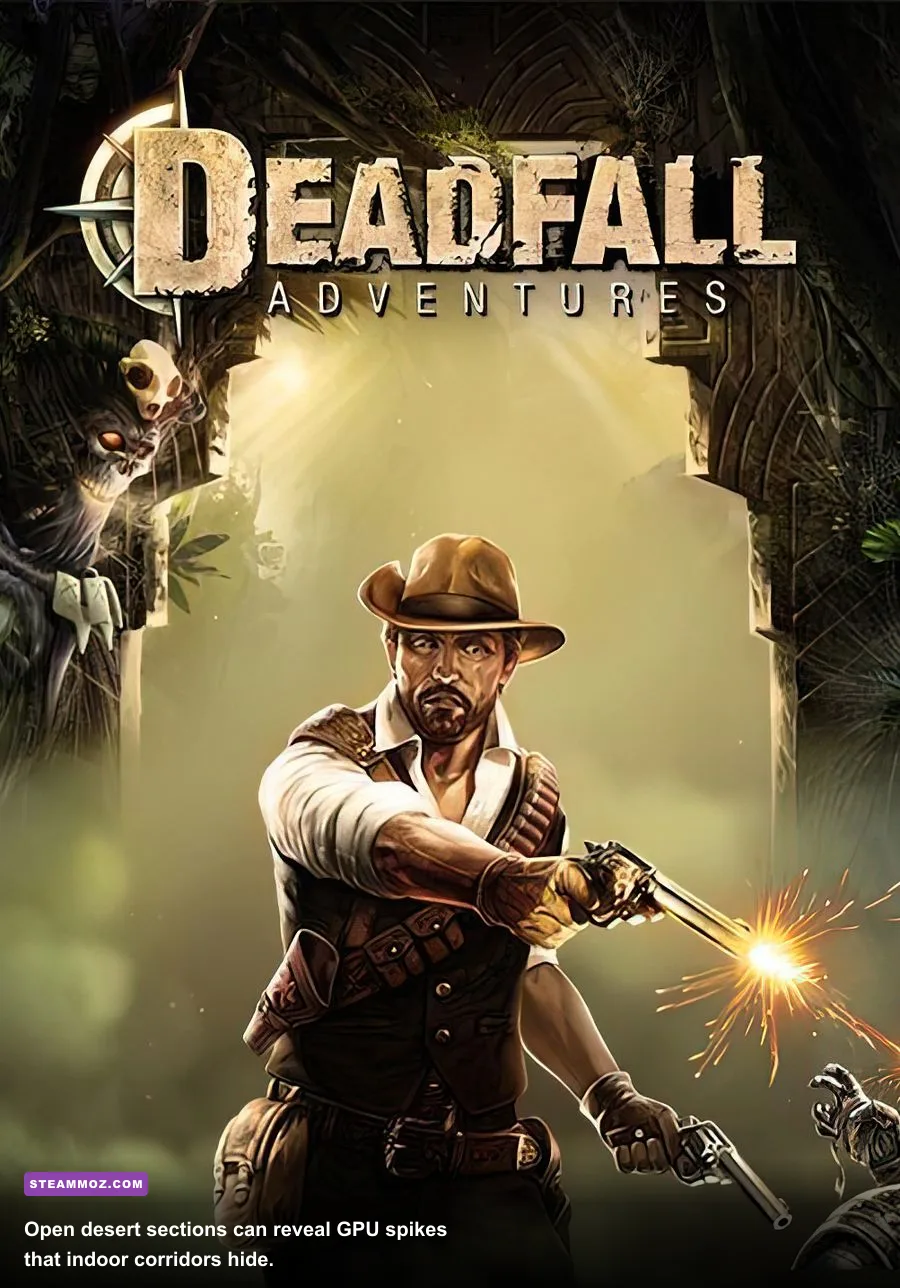
The store listing’s old minimum and recommended specifications are useful for compatibility, not for guaranteeing a modern 60 FPS experience. A machine that technically meets the minimum can launch the game while struggling with high shadows and outdoor effects. The table below translates those legacy requirements into practical graphics targets.
| Component | Legacy minimum | Practical recommendation | Pro-tuned target |
|---|---|---|---|
| CPU | Older 3GHz dual-core class processor | Modern 4-core CPU | Any recent 4-core or better desktop CPU |
| Memory | 4GB RAM | 8GB RAM | 16GB if multitasking or using overlays |
| GPU | GTX 460 or similar era card | GTX 750 Ti, RX 560, or newer | GTX 1060, RX 580, or better for high settings |
| VRAM | Approximately 1GB class | 2GB to 4GB | 4GB-plus for high textures at 1080p |
| Storage | Hard drive works | SSD preferred | SSD with free space for shader and system activity |
| Display target | 720p at 30 FPS | 1080p at 60 FPS | 1440p at 60 FPS with reduced shadows |
CPU limits are easy to misread in this game. A strong graphics card will not fix a processor bottleneck during scripted set pieces or enemy-heavy encounters. If lowering resolution produces almost no FPS improvement, your GPU is probably not the limiting factor. Reduce Effects Quality, close background applications, and use a stable frame cap instead.
Integrated graphics can sometimes run the game at 720p with Low settings, but expectations should stay realistic. Use Low textures if memory is shared, disable Anti-Aliasing, and keep the frame target at 30 FPS if 60 cannot remain stable. A consistent 30 is playable for the exploration sections, though firefights feel much better at 60.
My final 60 FPS setup for Deadfall Adventures
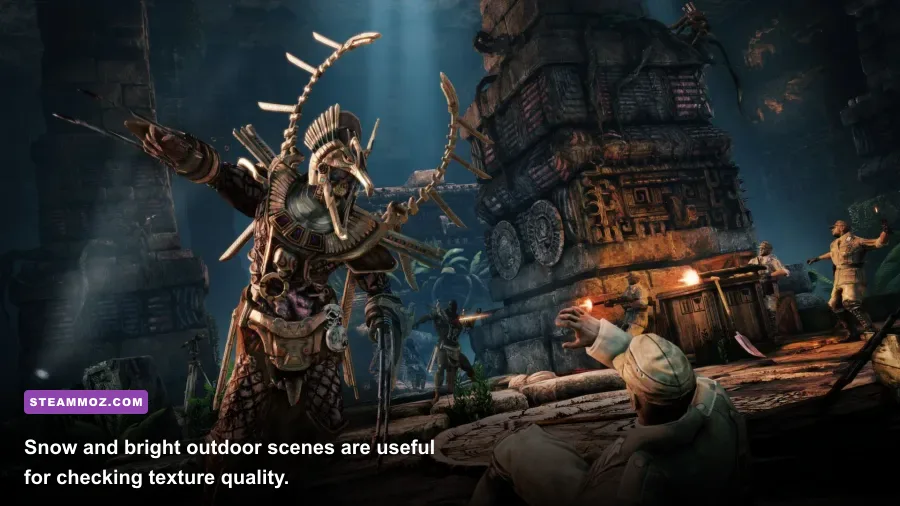
My preferred setup is 1920x1080 fullscreen, VSync Off, Anti-Aliasing Medium, Texture Quality High, Shadow Quality Low, Post Processing Low, Ambient Occlusion Low, and Effects Medium. I would cap the game at 60 FPS through the graphics driver if the monitor supports adaptive sync. This profile keeps the game’s best visual asset—its detailed pulp-adventure environments—intact while removing the expensive effects that contribute the least to readability.
If you still see drops, use this order: lower Effects Quality, disable Ambient Occlusion, switch Anti-Aliasing to Low, and only then reduce textures. If the average FPS is still too low, move from 1080p to 1600x900 or 1280x720. That sequence protects clarity and avoids the common mistake of making the whole game blurry while leaving expensive shadows active.
Finally, do not judge the profile from a quiet corridor alone. Test a torch-lit tomb, a wide exterior around the Egyptian ruins, and a firefight with several enemies on screen. Deadfall Adventures is at its best when the frame rate feels predictable during those transitions. For more performance-focused PC coverage, Steamoz’s Architect Life crash and FPS fixes offer another useful checklist, while the Back 4 Blood performance guide covers hardware targeting in a newer shooter.
The short version is simple: keep textures high, cut shadows and post-processing first, use fullscreen, and cap a stable 60 FPS. That combination gives Deadfall Adventures the responsiveness it needs without stripping away the ancient temples, jungle ruins, and cinematic atmosphere that make its rough-edged adventure worth revisiting.