If Deadfall Adventures keeps crashing, hitching, or dropping into single-digit FPS, the most reliable fix is a clean PC setup: verify the Steam installation, install the legacy DirectX components, run the game in a sensible fullscreen resolution, lower shadows and post-processing first, and cap the frame rate to what your GPU can actually sustain. On modern Windows systems, compatibility mode, driver cleanup, and deleting damaged Unreal Engine configuration files usually solve problems that a simple reinstall misses.
Deadfall Adventures is a 2013 first-person action game built on Unreal Engine 3, and that age matters. Its Steam-era renderer can behave badly with overlays, unusual high-refresh displays, hybrid graphics laptops, and missing legacy runtime files. You don't need a monster PC, either. The official Steam store page lists a dual-core 2 GHz processor, 2 GB of RAM, and a GeForce 8800 GT or Radeon HD 3870 as the minimum target. The recommended specification is still modest by current standards, but modern software layers are where many failures begin.
Start with the fixes that stop most crashes
Before changing graphics settings, make the installation and runtime environment boring. Open Steam, right-click Deadfall Adventures, choose Properties, select Installed Files, and run Verify integrity of game files. A damaged cooked package can cause crashes only when a particular temple, puzzle room, or cinematic loads, so reaching the main menu isn't proof that the install is healthy.
Next, install Microsoft's legacy DirectX package. Deadfall Adventures may use DirectX 9-era components that aren't included in a fully updated Windows installation. The DirectX End-User Runtime Web Installer restores those optional libraries without replacing your current DirectX version. Restart Windows afterward rather than launching immediately.
Do the same for the Microsoft Visual C++ redistributables if the game closes before the menu. Install both x86 and x64 versions where available; a 64-bit Windows installation can still need the x86 package because the game executable is 32-bit. Download them from Microsoft's official Visual C++ Redistributable page, not from a random DLL site.
Disable Steam Overlay, Discord Overlay, GeForce Experience or AMD recording, MSI Afterburner’s on-screen display, and RGB monitoring tools for the first test. Unreal Engine 3 games can crash when an overlay hooks into a DirectX device during a resolution change or video playback. Once Deadfall Adventures is stable, re-enable tools one at a time.
| Fix | What it targets | When to try it | Expected result |
|---|---|---|---|
| Verify Steam files | Corrupt or missing packages | Crashes in one level or cinematic | Stops repeatable loading failures |
| Install legacy DirectX | Missing d3dx and XInput components | Launch crash or black screen | Game reaches the menu correctly |
| Install VC++ runtimes | Missing 32-bit runtime files | Instant desktop exit | Improves startup reliability |
| Disable overlays | Hooking and device conflicts | Crash after Alt-Tab or resolution change | Prevents renderer interruptions |
| Run as administrator | Permission and config-write errors | Settings never save | Allows configuration files to update |

🎮 Deadfall Adventures
Looking to experience this game? Grab your digital key directly on our store for $4.99.
View on Steammoz Store →Repair the Unreal Engine 3 configuration
Deadfall Adventures can inherit a bad resolution, unsupported refresh rate, or corrupted video setting. If it crashes after changing graphics options, close the game and back up its configuration folder before resetting it. Look in Documents\My Games for a Deadfall Adventures folder, then search inside its Config directory for files containing names such as Engine, GameUserSettings, or SystemSettings. The exact filename can vary between Windows versions and Steam builds.
Don't delete the folder immediately. Rename it to Deadfall Adventures Config Backup, launch the game, and let the engine create fresh settings. This resets keybinds and visual preferences but preserves your backup. If the game now starts, the crash was configuration-related rather than a missing executable.
For a first test, use 1920x1080 or 1280x720 at 60 Hz, exclusive fullscreen if available, and a 60 FPS cap. Avoid forcing 4K, ultrawide resolutions, or a 144/165 Hz refresh rate until you know the renderer is stable. Older Unreal games sometimes report a valid display mode that the monitor accepts but the game handles poorly.
On laptops, force the game's executable to use the dedicated GPU. In Windows, open Settings > System > Display > Graphics, add the Deadfall Adventures executable from its Steam installation folder, choose High performance, and relaunch. NVIDIA users can do the same under NVIDIA Control Panel > Manage 3D settings > Program Settings. The Windows setting is often the better choice on newer hybrid systems.
Use compatibility options carefully
Right-click the game executable, open Properties > Compatibility, and test Windows 7 compatibility mode only if current Windows produces startup or video playback crashes. Also test Disable fullscreen optimizations. Don't stack every compatibility checkbox at once: older administrative settings can create input or save-file problems when they aren't needed.
If the game crashes only after Alt-Tab, use borderless windowed mode if the menu offers it, or avoid switching applications during loading screens. That workaround sounds primitive, but it prevents a surprising number of old DirectX device-reset failures.
The best low-FPS settings for Deadfall Adventures
For performance, lower the settings that affect scene-wide lighting and shadow work before touching textures. Deadfall Adventures’ textures are generally inexpensive on a modern GPU, while shadows, ambient occlusion, post-processing, and effects can produce the largest frame-time spikes in crowded ruins or outdoor snow scenes.
| Setting | Recommended value | FPS impact | Visual trade-off |
|---|---|---|---|
| Resolution | 1920x1080; use 1600x900 if needed | Very high | Lower values reduce clarity but help GPU load immediately |
| Texture quality | High on 2 GB-plus VRAM | Low to medium | Keep high unless you see texture pop-in or memory stutter |
| Shadow quality | Medium | High | Softens or reduces dynamic shadows |
| Ambient occlusion | Off or Low | Medium to high | Less contact shading around ruins and objects |
| Post-processing | Medium or Low | Medium | Reduces bloom, blur, and cinematic effects |
| Anti-aliasing | Low or the game's default | Medium | More jagged edges at lower values |
| Effects and particles | Medium | Medium | Less smoke, debris, and explosive detail |
| V-sync | Off for testing; On if tearing bothers you | Variable | Can add latency or lock frames to refresh rate |
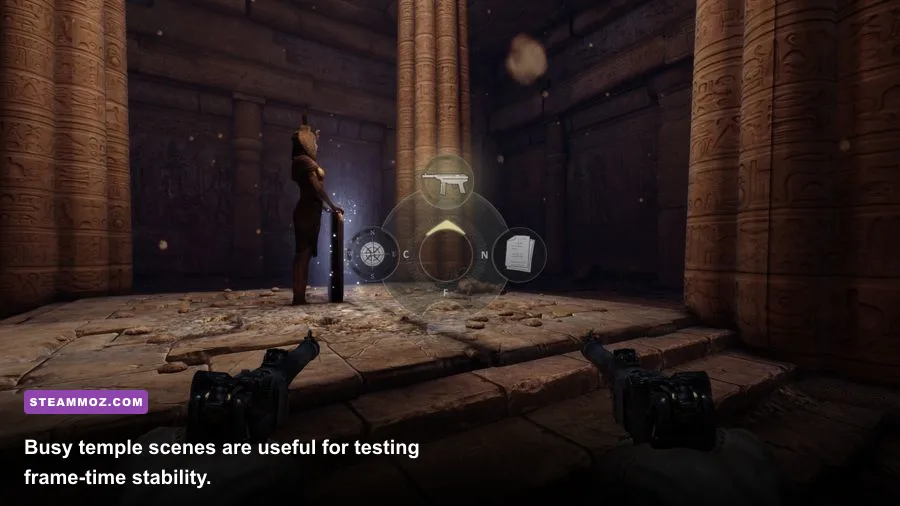
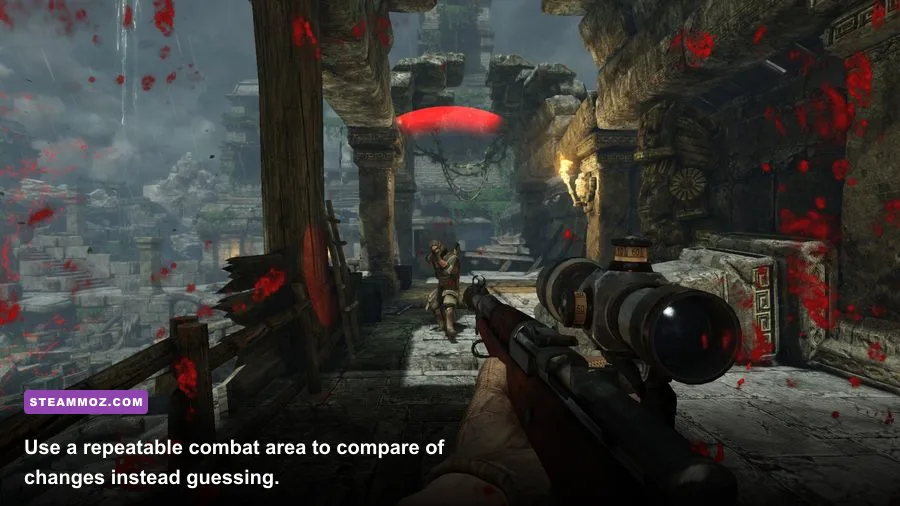
Use the in-game benchmark if your build exposes one. If it doesn't, test the same 60-second route: move through a busy combat area, fire repeatedly, turn toward the largest group of enemies, and repeat the movement after every change. Standing in an empty corridor tells you almost nothing.
Watch frame time, not just the FPS counter. A locked 45 FPS with even frame pacing feels better than a counter jumping between 90 and 35. If your GPU can hold 60 but occasionally dives to 38, cap the game at 45 or 50 with your driver or a frame limiter. Unreal Engine 3 often feels smoother when it has headroom instead of running at 99 percent GPU usage.
Stop stutter caused by drivers, overlays, and power limits
Install a current stable graphics driver, but don't assume the newest driver automatically fixes every old game. If Deadfall Adventures began crashing after a driver update, use the manufacturer's clean-install option or roll back to the previous stable package. NVIDIA provides official driver downloads, while AMD provides its own Radeon support page.
Set the GPU power profile to maximum performance for the game's executable, especially on a laptop. Plug the laptop into AC power, select Windows Best Performance mode, and check temperatures with a tool that doesn't inject an overlay. If the GPU is throttling because it reaches its thermal limit, dropping resolution won't fully solve the problem; clean vents, raise the rear of the laptop, or use a cooling stand.
Texture streaming stutter can also look like low FPS. A mechanical hard drive may pause when Deadfall Adventures loads a new area, even if the average frame rate looks fine. Install the game on an SSD with at least 15 GB of free space, close browsers and launchers, and avoid recording at a high bitrate during testing.
Turn off background capture features such as Xbox Game Bar recording and Steam background recording. They consume disk bandwidth and can fight the game during level transitions. If you use a frame limiter, use one limiter only. Combining V-sync, a driver cap, RTSS, and an in-game cap can create uneven pacing or a stubborn 30 FPS lock.
What to do when crashes happen in specific places
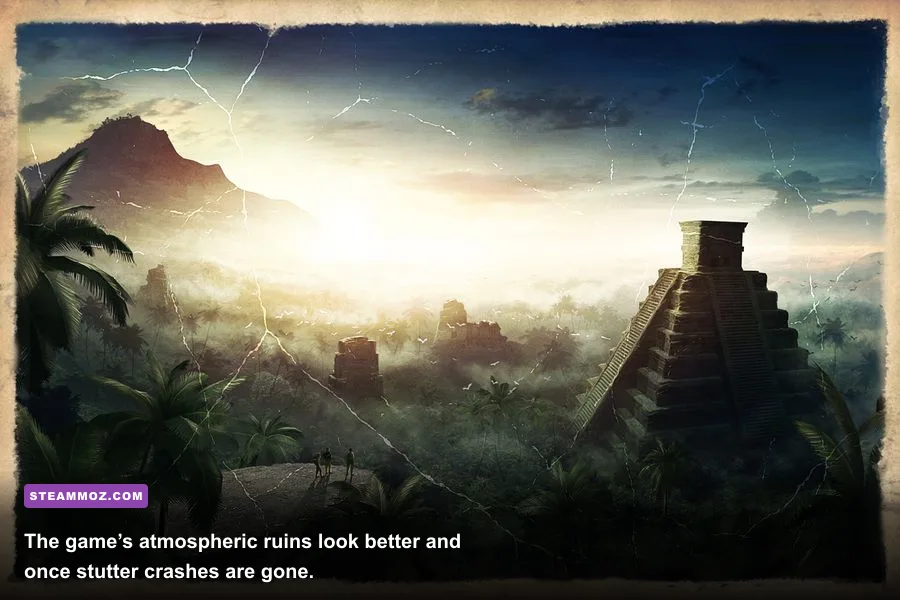
A crash tied to one location usually points to a corrupt asset, a bad configuration, or a driver problem triggered by a particular effect. Write down the exact chapter, room, and action that causes the failure. “Crashes randomly” is much harder to diagnose than “crashes every time the Siberia level loads after the cutscene.”
First, verify files again and reset the configuration folder. Then lower effects, shadows, and post-processing before loading the affected checkpoint. If the game reaches the area at 720p with those options lowered, raise settings one at a time. This identifies whether a specific effect is exposing a renderer fault.
For a crash during a cinematic, disable overlays and try windowed or borderless mode. If the issue survives that test, skip the cinematic only if the game provides a skip option; repeatedly forcing the same broken transition can leave the checkpoint in an awkward state. Loading an earlier checkpoint or replaying the previous section may create a clean save.
Don't use unofficial DLL downloads or “FPS booster” packs. They can replace system libraries, break Steam's file verification, and make a simple runtime issue much worse. If you need a community workaround, compare it against reports on the game's Steam Discussions and keep a backup of every file before editing it.
| Symptom | Most likely cause | Best first test | Fallback |
|---|---|---|---|
| Crash before menu | Runtime or driver issue | Install DirectX and VC++ packages | Reset config and test compatibility mode |
| Crash after changing resolution | Invalid display mode | Rename the config folder | Launch at 1080p or 720p windowed |
| Crash after Alt-Tab | Fullscreen device reset | Disable fullscreen optimizations | Use borderless or avoid Alt-Tab during loads |
| Stutter during area loads | Storage or background capture | Move the game to an SSD | Disable recording and close launchers |
| Low FPS everywhere | Wrong GPU or excessive settings | Force the dedicated GPU | Use the low-FPS profile below |
A stable profile for modern gaming PCs
Start with 1920x1080, fullscreen or borderless, textures on High, shadows on Medium, ambient occlusion Off, post-processing Medium, effects Medium, anti-aliasing Low, and a 60 FPS cap. That profile keeps Deadfall Adventures looking sharp while removing the settings most likely to cause heavy frame-time spikes.
For older hardware around the official minimum, use 1280x720, textures Medium, shadows Low, ambient occlusion Off, post-processing Low, effects Low, anti-aliasing Off, and a 30 FPS cap. The 30 cap is intentional: it prevents constant swings between unstable 40s and 20s, which feel worse during gunfights and platforming.
For a modern mid-range PC, try 2560x1440 only after 1080p is stable. Keep shadows and ambient occlusion conservative, because increasing resolution already multiplies the GPU workload. If you are chasing a locked 120 FPS, Deadfall Adventures may not cooperate consistently due to its older engine and frame-pacing behavior. A stable 60 or 90 is the smarter target.
Finally, restart the game after major changes. Some Unreal Engine 3 options apply only after a full renderer restart, and judging a setting immediately after returning from the menu can give you a false result. Once the game survives a complete chapter, a cinematic, and a few minutes of combat, you have a real fix rather than a lucky launch.
Deadfall Adventures still delivers pulpy temple raids, supernatural puzzles, and loud first-person firefights, but its PC problems need a methodical approach. Verify the files, restore the legacy runtimes, reset broken configuration data, force the correct GPU, remove overlays, and tune shadows before textures. Those steps address the actual failure points instead of throwing random launch commands at an aging game.
If you enjoy troubleshooting older PC releases, Steamoz’s guide to ELEX crash and FPS fixes covers similar driver and configuration traps. For broader performance tuning, see Dragonkin: The Banished settings that make every frame count and our practical PC requirements guide.