For the best Cook Serve Delicious! 2!! graphics settings for max FPS and performance, use fullscreen mode, your monitor's native resolution, VSync only when tearing bothers you, and a stable 60 FPS cap if your system cannot hold a higher refresh rate. This is a lightweight 2D cooking game, so resolution and effects usually cost very little; inconsistent frame pacing, background applications, overlays, and controller latency are the real troublemakers.
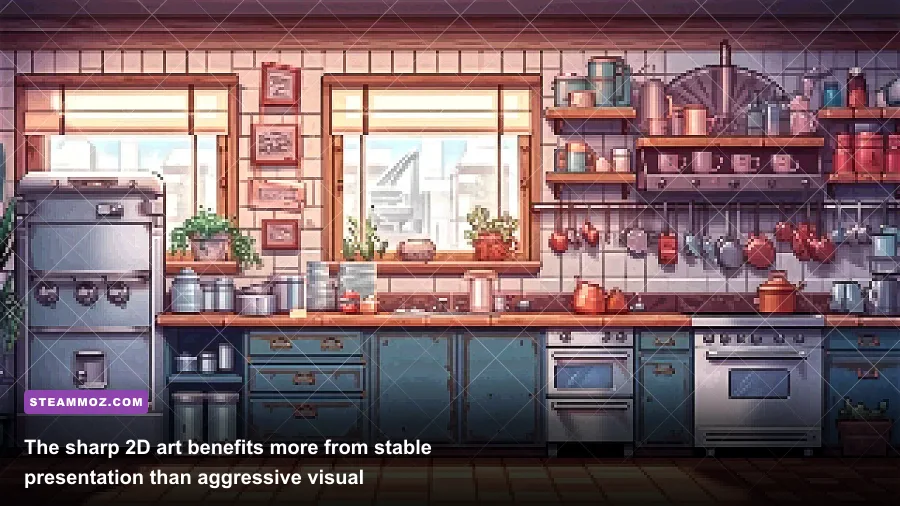
That distinction matters. You aren't tuning a modern 3D blockbuster with texture streaming, ray tracing, or shadow cascades. Cook Serve Delicious! 2!! is built around crisp 2D presentation and extremely fast input. A tiny hitch while chopping, grilling, or entering a long order can be more damaging than a modest average-FPS drop. The goal is not a flashy benchmark number. It's clean, predictable timing during the busiest service rush.
Start With This Max-FPS Settings Profile
Open the game's display and options menus before changing Windows or driver settings. On most modern PCs, the game should run comfortably at 60 FPS at 1080p, and often far beyond that if the display and build allow it. The recommended profile below is deliberately conservative: it removes avoidable synchronization problems while preserving the game's intended pixel-art look.
| Setting | Recommended Value | FPS Impact | Visual or Input Note |
|---|---|---|---|
| Display Mode | Fullscreen | Low to medium benefit | Usually gives the most consistent focus and input behavior. |
| Resolution | Native monitor resolution | Very low on typical hardware | Keeps text and food icons sharp; lowering it can make UI elements blurry. |
| VSync | Off for maximum FPS; On for tearing-free play | Potentially noticeable | Off reduces synchronization delay but may introduce tearing. |
| Frame Rate Limit | 60 FPS, or your display refresh target | Improves consistency | A stable cap is preferable to wild frame-time swings. |
| Quality or Effects | Highest available | Usually negligible | The game has limited 3D-style effects compared with modern PC titles. |
| Window Scaling | 100% or native | Low | Avoids soft scaling around small text and order prompts. |
If your options menu does not expose every setting listed here, don't go hunting for an imaginary “ultra preset.” Different releases and operating systems can present slightly different display controls. The important choices are fullscreen, resolution, synchronization, and whether the game is being forced through a compatibility layer or overlay.
Why 60 FPS Is the Smart Baseline
A locked 60 FPS gives you a frame every 16.67 milliseconds. That is already more than enough for the game's keyboard and controller rhythm, while leaving your system plenty of headroom. A 144 Hz monitor can make the desktop and cursor feel smoother, but the game itself does not suddenly become easier because the panel refreshes faster.
For a 120 Hz or 144 Hz display, test an uncapped mode first. If the frame rate remains steady and input feels clean, keep it. If the counter jumps between 80, 144, and 200 FPS while frame delivery feels uneven, cap it at 60 or 120. In a restaurant rush, consistent timing beats a headline number.

🎮 Cook Serve Delicious! 2!!
Looking to experience this game? Grab your digital key directly on our store for $3.74.
View on Steammoz Store →Which Settings Actually Affect Performance?
Cook Serve Delicious! 2!! is unusually forgiving because its kitchens are mostly 2D scenes. You should not expect a huge gain from dropping resolution from 1080p to 720p. If performance is poor, investigate the software around the game first: recording tools, browser tabs playing video, RGB utilities, Discord overlays, Steam notifications, and aggressive antivirus scans can all create brief interruptions.
| Performance Problem | Most Likely Cause | Best First Fix | Expected Result |
|---|---|---|---|
| Low average FPS | Unusual driver, compatibility, or background issue | Update the GPU driver and test fullscreen | Restores normal rendering behavior. |
| Brief stutters during busy orders | Overlay, recording, notification, or background process | Disable overlays and close unnecessary apps | Improves frame-time consistency. |
| Tearing | VSync disabled with an uncapped frame rate | Enable VSync or use a driver-level cap | Removes horizontal image breaks. |
| Input feels delayed | VSync buffering, wireless interference, or display processing | Test VSync off and use wired input | Sharpens rapid key and controller responses. |
| Blurry image | Non-native resolution or desktop scaling | Return to native resolution and 100% scaling | Keeps small prompts and labels readable. |
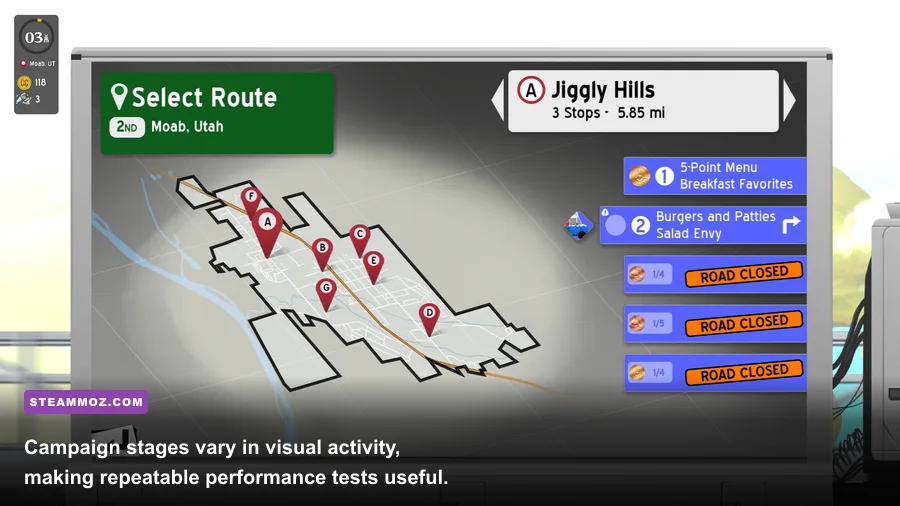
Do one change at a time. Start a service, deliberately create a busy queue, and watch for the moment the game feels late rather than trusting only an FPS counter. The campaign's restaurant stages can differ in activity, so use the same challenging level for every test. A quiet opening shift is a poor benchmark; a packed service with several orders on screen is where a hitch becomes obvious.
Fullscreen, Borderless, and Windowed Mode
Fullscreen is the best first choice for maximum performance because it gives the game direct control of the display path on many systems. Borderless windowed mode is convenient if you regularly switch to a guide, music player, or chat, but it can add compositor behavior and make frame pacing less predictable. Windowed mode is useful for troubleshooting, not usually for the lowest latency.
If fullscreen looks stretched, check your GPU scaling setting. Preserve the aspect ratio rather than stretching a 16:9 image across an ultrawide panel. The art is intentionally clean and readable; a distorted layout can make ingredient icons and order details harder to parse even when the FPS counter looks perfect.
Fix Stutter, Tearing, and Input Delay
Stutter is the most important problem to solve in this game because every action is time-sensitive. Chopping, seasoning, flipping, plating, and serving are all built around quick recognition and accurate input. A 200 FPS reading does not help if the next frame arrives late.
Use a Controlled VSync Test
Run the same service twice: once with VSync off and once with it on. With VSync off, look for tearing as the screen scrolls or updates during a rush. With VSync on, look for added delay when entering rapid sequences. Keep the option that matches your display and tolerance. If your driver supports a frame limiter, cap slightly below the monitor refresh rate when using adaptive synchronization; for example, target 141 FPS on a 144 Hz display.
Older or low-end PCs should simply use VSync on and a 60 FPS target if tearing is distracting. The game is not a competitive shooter, and a stable 60 is a better experience than a fluctuating unlocked rate. If VSync causes obvious delay, turn it off and accept some tearing, or use a driver-level limiter instead.
Remove Hidden Sources of Hitching
- Disable the Steam Overlay temporarily and retest. You can find overlay controls in the game's Steam properties.
- Turn off Discord, Xbox Game Bar, GeForce Experience, Radeon, and screen-recording overlays while diagnosing stutter.
- Close browser video, cloud-sync clients, launchers, and hardware-monitoring utilities before a long session.
- Use a wired controller or keyboard when possible. Wireless battery warnings and connection polling can create distractions at the worst moment.
- Install the game on a healthy drive and allow Steam to verify files if behavior changed after an update.
For broader troubleshooting, Steamoz's guide to fixing crashes and low FPS covers the same Windows-side checks that can help here. The specific game is different, but the practical diagnostic order is sound: drivers, overlays, files, power mode, then deeper compatibility changes.
Low-End PC and Laptop Performance Setup
This game should run on modest hardware, so a poor result on an older laptop usually points to power management or presentation rather than raw GPU weakness. Play while plugged in, set Windows power mode to Best Performance, and make sure the game uses the intended graphics adapter if the laptop has integrated and discrete GPUs.
| Hardware or Situation | Recommended Profile | Target | Why It Works |
|---|---|---|---|
| Modern desktop | Native resolution, fullscreen, VSync off or adaptive | Highest stable refresh | Leaves enough headroom for overlays and background tasks. |
| Older integrated graphics | Fullscreen, native 720p or 1080p, VSync on | Stable 60 FPS | Reduces tearing without chasing unnecessary peak FPS. |
| Older laptop on battery | Plug in, Best Performance, close background apps | Stable 60 FPS | Avoids CPU and GPU clock reductions. |
| Ultrawide monitor | Native supported resolution or aspect-ratio-preserving mode | Stable display timing | Prevents stretched artwork and odd scaling. |
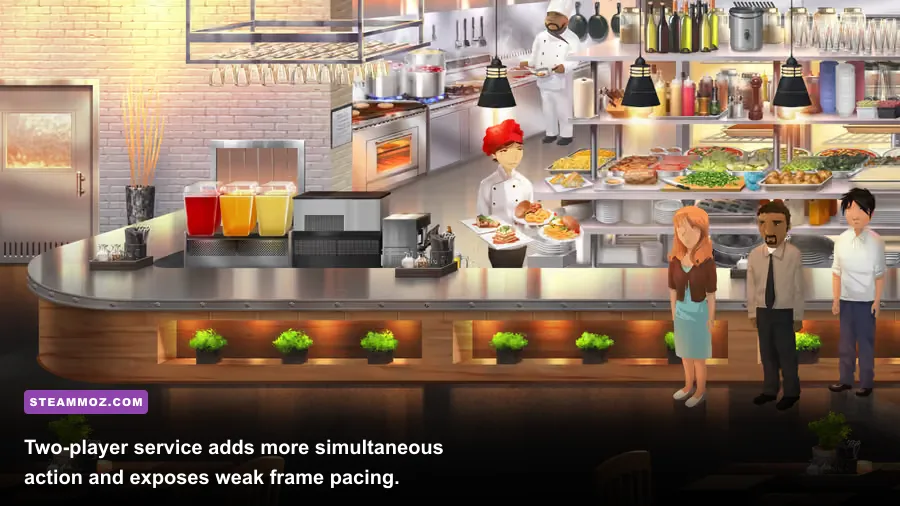
| Two-player local co-op | Use the same profile, disable overlays | Stable 60 FPS | More simultaneous input and activity makes hitching easier to notice. | </tbody></table></div>