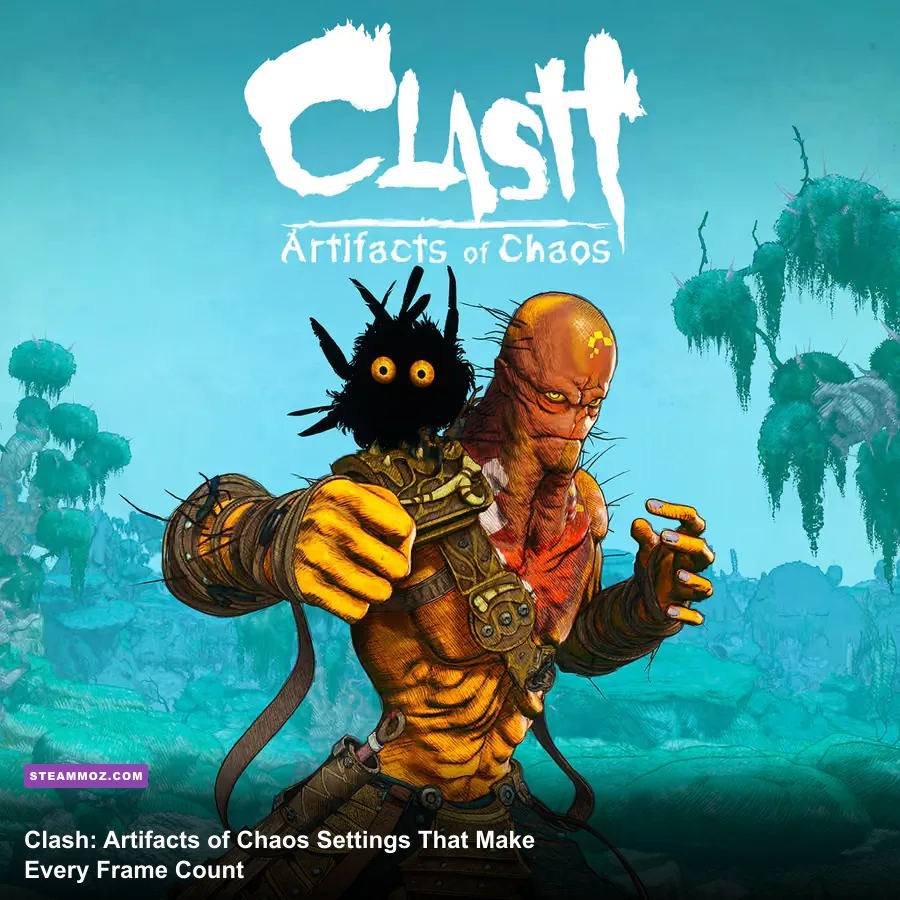
The best Clash: Artifacts of Chaos settings for max FPS are Medium textures, Low shadows, Medium effects, Low foliage, Medium view distance, and disabled motion blur, film grain, depth of field, chromatic aberration, and lens flare. Keep resolution at your monitor's native output, use a 60 fps cap if your PC cannot hold a stable 90 or 120, and lower resolution scale only after cutting shadows and foliage. Those changes protect image quality while attacking the settings most likely to cause stutter in Zenozoik's forests, ruins, and ritual arenas.
Clash is not a twitch shooter, but unstable frame pacing still hurts. Pseudo's close-range fights depend on reading animation tells, swapping between his combat stances, and timing defensive movement. A sudden hitch during a heavy attack or a crowded encounter can turn a clean counter into a missed dodge. This guide focuses on the PC version and separates genuine performance gains from settings that merely make the game look worse.
Use This Competitive FPS Profile First

Start with the profile below, then adjust it around your hardware. The target is a steady frame rate rather than a headline peak. If your display is 60 Hz, a locked 60 fps with consistent frame times will feel considerably better than a fluctuating 75–95 fps result. On a 120 Hz panel, aim for a stable 90 or 120 only if your GPU can sustain it through dense outdoor areas.
| Setting | Recommended value | FPS impact | Visual trade-off |
|---|---|---|---|
| Resolution | Native monitor resolution | Very high if reduced | Best clarity; lower only as a last resort |
| Resolution scale | 100% | Very high | 80–90% is a useful emergency cut |
| Texture quality | Medium or High | Low to medium | Mostly VRAM usage, not raw GPU load |
| Shadow quality | Low | High | Less contact detail around Pseudo and scenery |
| Effects quality | Medium | Medium to high | Less impact and combat-effect density |
| Foliage quality | Low | High outdoors | Thinner grass and less environmental detail |
| View distance | Medium | Medium | More distant objects disappear sooner |
| Anti-aliasing | Medium or High | Low to medium | Lower values produce shimmer on foliage |
| Post-processing | Medium | Low to medium | Reduced cinematic lighting and filtering |
| Motion blur | Off | Small | Cleaner camera movement and combat reads |
| Film grain, chromatic aberration, lens flare | Off | Small | Sharper, less stylized image |
| Depth of field | Off | Small to medium | Less cinematic background blur |
| V-Sync | Off with VRR; On without VRR | Variable | Prevents tearing, but may add latency |
That profile deliberately leaves textures at Medium or High. Texture quality usually fills video memory rather than hammering the GPU every frame. If you have a graphics card with 6GB or more of VRAM, High textures are worth testing. If you see texture pop-in, hitching when entering new areas, or sudden stalls after loading, Medium is the safer choice.

🎮 Clash: Artifacts of Chaos
Looking to experience this game? Grab your digital key directly on our store for $2.99.
View on Steammoz Store →Which Settings Actually Deliver the Biggest Gains?
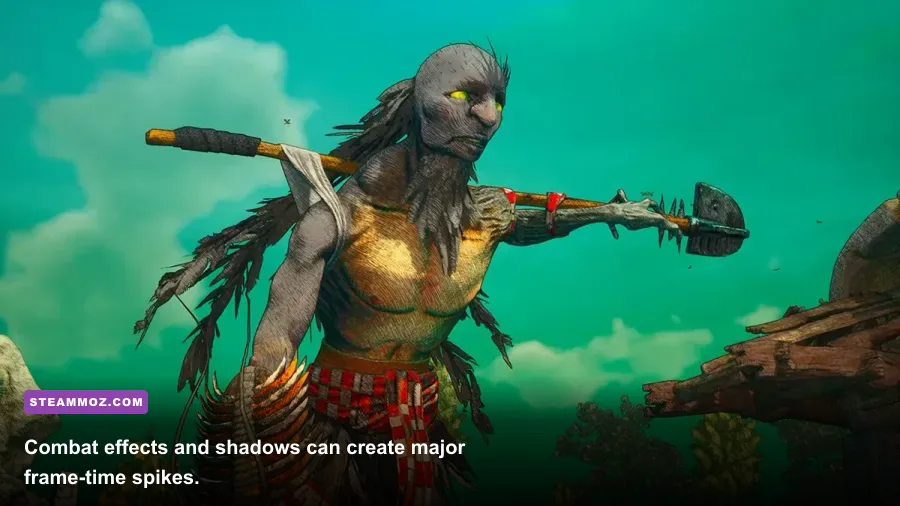
Shadows, foliage, effects, and resolution scale are the four controls to attack first. Shadows have to be calculated across outdoor geometry and moving characters, while foliage combines alpha-heavy vegetation with a large visible area. In practical terms, Low shadows and Low foliage often produce a better improvement than dropping textures from High to Low.
Effects quality matters most during fights involving several enemies, fire, dust, magical flashes, and impact particles. Clash's combat is built around readable motion, so don't automatically force Effects to its lowest value. Medium is the sweet spot: it cuts the heaviest bursts without stripping every hit of visual feedback. If your frame rate collapses only during combat, lower Effects before resolution.
View distance is more complicated. Low can help CPU-limited systems because fewer objects remain active and visible, but it can also make the world look like it is assembling in front of you. Medium is the sensible starting point. Push it to High only when your GPU has headroom and outdoor traversal remains smooth.
Anti-aliasing and post-processing are relatively cheap compared with shadows and foliage, although their cost varies by resolution. Keep anti-aliasing at Medium or High if shimmering bothers you. Turn off film grain, chromatic aberration, lens flare, and motion blur immediately; their performance savings are modest, but the clearer image makes Pseudo's attacks easier to read.
| Problem | First setting to change | Second change | Why it works |
|---|---|---|---|
| Low FPS in forests | Foliage: Low | Shadows: Low | Reduces alpha vegetation and outdoor shadow calculations |
| Stutters during large fights | Effects: Medium | Textures: Medium | Reduces particle bursts and VRAM pressure |
| GPU at 99% constantly | Resolution scale: 90% | Post-processing: Low | Reduces pixel and shader workload |
| CPU frame-time spikes | View distance: Medium | Foliage: Low | Limits scene and object processing |
| Blurry or smeared image | Motion blur: Off | Resolution scale: 100% | Restores clarity before sacrificing detail |
Best Profiles for Low-End, Mid-Range, and High-End PCs

Don't copy a high-end preset just because your average FPS looks fine in a quiet area. Zenozoik's performance changes sharply between open paths, dense vegetation, enclosed ruins, and combat arenas. Test every profile in the same demanding route for a meaningful comparison. The opening areas are useful for checking traversal stutter, while a busy fight is better for testing effects and frame-time consistency.
| Hardware target | Resolution target | Profile | Expected priority |
|---|---|---|---|
| Older 4-core CPU or GTX 900-series class GPU | 1080p, 60 fps cap | Low preset; Medium textures; 80–90% scale | Stable frame pacing over sharpness |
| Mainstream 1080p PC | 1080p, 60–90 fps | Medium preset; Low shadows and foliage; 100% scale | Keep combat effects readable |
| Modern 1440p PC | 1440p, 60–120 fps | High textures; Medium shadows; Medium foliage; 100% scale | Use VRR and cap below the refresh ceiling |
| High-end 4K PC | 4K, 60 fps | High textures; Medium shadows; Medium effects | Reduce scale or shadows before textures |
| Steam Deck-class hardware | 1280×800, 30 fps | Low preset; Medium textures; 80% scale | Lock the frame rate and control heat |
For older GPUs, resolution scale is the cleanest emergency lever. Try 90% before 80%; the difference is noticeable, especially in menus and character silhouettes. A stable 45 or 60 fps cap is preferable to leaving the game uncapped and allowing the GPU to bounce between heavily different frame times.
On a modern 1440p system, don't waste performance chasing Ultra-style shadows unless you genuinely prefer the extra contact shading. High textures, native resolution, and Medium shadows typically create a much more attractive image than Low textures with expensive shadows. If you're checking whether your machine clears the game's official target, compare against the Clash: Artifacts of Chaos Steam listing, but treat published requirements as a starting point rather than an FPS guarantee.
Fix Stutter Before Chasing Average FPS
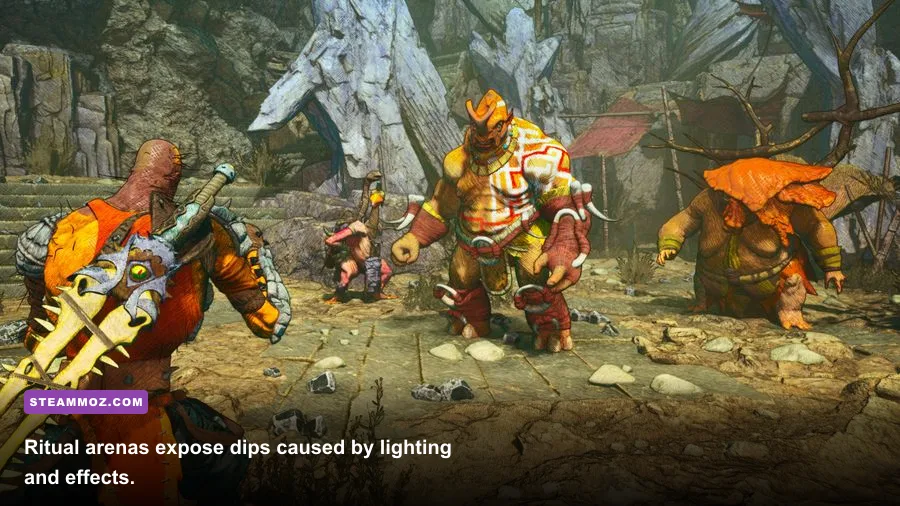
Average FPS hides the problem many Clash players actually feel: inconsistent frame delivery. A counter showing 70 fps can still feel rough if the game repeatedly pauses for 100-millisecond spikes. Use an overlay such as Steam's performance display or your GPU software and watch frame time while moving through foliage, entering a new area, and fighting several opponents.
First, install the game on an SSD if possible. Streaming open environments from a hard drive can amplify traversal hitching, especially when new textures and geometry appear. Close browsers, launchers, recording tools, and RGB utilities that consume memory or wake the CPU in the background. Update your GPU driver, but avoid changing several driver options at once; you want to know which adjustment helped.
Use V-Sync based on your display. With FreeSync or G-SYNC, disable in-game V-Sync if your setup already handles synchronization correctly, then cap FPS a few frames below the panel's maximum refresh rate. Without variable refresh, V-Sync can remove tearing, though it may add input delay. A frame-rate cap through the driver or RTSS can provide steadier pacing than letting the game render as fast as it can.
Shader compilation and first-run stutter may settle after you revisit areas and repeat common effects. That doesn't mean every hitch is harmless. If stutters continue across repeated routes, lower Effects, Textures, and View Distance one step at a time. Check the official ACE Team page and Steam Community discussions for patch-specific reports before assuming your hardware is at fault.
Make Combat Clearer Without Making Clash Ugly
Performance tuning should serve the combat. Pseudo can change between weapons and combat approaches, and the game asks you to recognize attack timing rather than simply mash through enemies. Motion blur and depth of field are the first cinematic effects to remove because they soften the exact animation details you need to see. Film grain and chromatic aberration can also obscure silhouettes at lower resolutions.
Keep Effects at Medium unless combat remains GPU-bound. The lowest setting may improve a bad one-percent low, but it can make impacts and environmental effects look noticeably flatter. Keep anti-aliasing at Medium if possible, since jagged foliage and shimmering edges are more distracting during camera movement than a moderate shadow reduction.
Brightness and display calibration deserve attention too. Dark caves and ruined interiors can look dramatically different depending on the panel. Raise brightness only enough to distinguish environmental detail; over-brightening crushes the mood and can make lighting contrast look worse. If your monitor has an aggressive sharpening filter, disable it before raising in-game sharpening, since stacked sharpening creates noisy vegetation and armor edges.
For more general performance habits, our guides to Dragonkin: The Banished settings and real-world PC requirements cover the same approach: find the expensive settings, measure frame time, and avoid blindly dropping every option to Low.
My Final Recommended Setup for Most Players
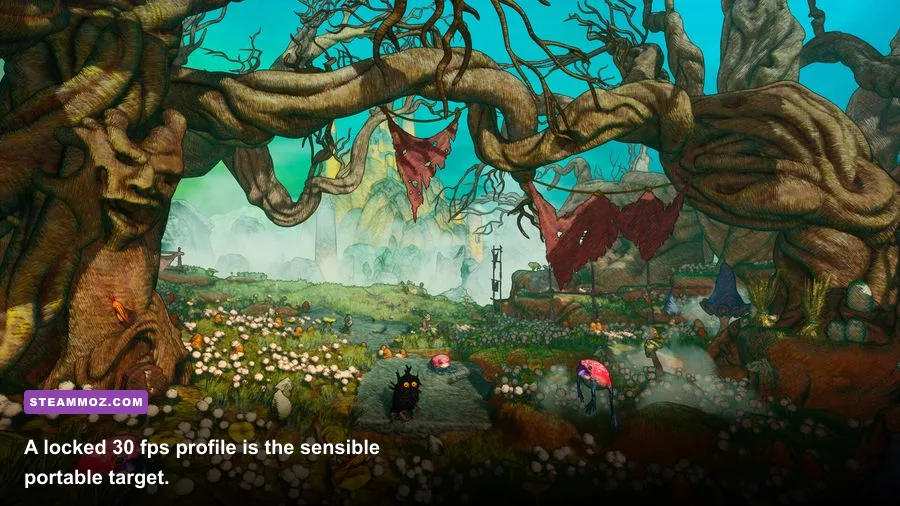
For the majority of 1080p and 1440p PCs, use native resolution, 100% resolution scale, Medium textures, Low shadows, Medium effects, Low foliage, Medium view distance, Medium anti-aliasing, and Medium post-processing. Disable motion blur, film grain, chromatic aberration, lens flare, and depth of field. Cap the game at the highest refresh rate you can hold through both open-world traversal and a busy combat encounter.
If performance is still below target, reduce resolution scale to 90%, then lower Effects to Low. If that isn't enough, drop View Distance one step. Leave textures alone until you confirm VRAM pressure is causing the hitching; sacrificing texture detail first is usually the wrong move. On Steam Deck-class hardware, accept a locked 30 fps profile, use Low foliage and shadows, and avoid uncapped rendering that simply drains battery for inconsistent frames.
Finally, test after every major change in the same section of Zenozoik. Clash: Artifacts of Chaos rewards a stable image more than a flashy preset, and a clean 60 fps makes Pseudo's close-range encounters feel dramatically more deliberate. For additional RPG optimization advice, see our Dins's Curse survival tips and Dungeon Siege performance-focused coverage. The winning setup isn't the one with every slider at maximum; it's the one that keeps Zenozoik sharp, readable, and smooth when the screen gets busy.