Chicken Assassin: Reloaded crashing on PC is usually fixable without reinstalling Windows or throwing away your save. Start by verifying the Steam files, updating your GPU driver, disabling overlays, and forcing the game to use the dedicated graphics processor. If the game launches but runs badly, use a 60 FPS cap, lower resolution and scaling first, then test fullscreen, borderless, and compatibility settings one at a time. That order matters because it separates broken files from Windows display conflicts and genuine hardware limits.
This is an older, lightweight PC release, so a modern gaming machine should not need aggressive visual compromises. The catch is that older games can react badly to newer Windows builds, high-DPI desktop scaling, hybrid laptop graphics, overlay hooks, and unusual refresh rates. Chicken Assassin: Reloaded may appear frozen when it is actually waiting on a display-mode change, or crash after a few minutes because an overlay has injected itself into the game. Work through the checklist below in sequence rather than changing ten settings at once.
Start With the Fixes That Stop Most Crashes
Before touching graphics settings, create a clean baseline. Close Chicken Assassin: Reloaded, exit Steam completely, reboot Windows, and launch the game with every non-essential overlay turned off. This quick reset clears a surprising number of failed launches caused by a stuck Steam process or an overlay that did not unload correctly.
1. Verify the Steam installation
Open Steam, right-click Chicken Assassin: Reloaded in your library, choose Properties, open Installed Files, and select Verify integrity of game files. Steam will compare the local installation with its depot and replace missing or damaged files. Wait for the process to finish completely; launching while it is still checking can leave the repair incomplete.
Verification is especially important if the crash began after moving the game to another drive, restoring a backup, using a third-party antivirus quarantine, or interrupting an update. It will not normally remove personal saves, but backing up the game's save folder before deeper troubleshooting is still sensible. If verification reports a file replacement every time you run it, check the drive for errors and make sure security software is not immediately quarantining the same file.
2. Update the correct driver, then restart
Install the latest stable driver for your NVIDIA, AMD, or Intel GPU from the manufacturer's official support page. Avoid stacking a driver update on top of a dozen other changes. Install it, select the clean-install option if the installer provides one, and restart Windows. A reboot matters because the new display driver is not fully active until the graphics stack reloads.
On a laptop, make sure both the integrated and dedicated GPU drivers are current. A mismatch can leave Steam launching the game through the integrated chip while Windows reports that a powerful GPU is available. In Windows, go to Settings > System > Display > Graphics, add the game's executable if it is not listed, choose Options, and select High performance. Do not guess the executable if several files are present; use Steam's Browse local files command to identify the actual game application.
3. Remove overlay and hook conflicts
Temporarily disable the Steam Overlay in the game's Steam properties. Also turn off Xbox Game Bar, Discord's overlay, NVIDIA App or GeForce Experience overlay, AMD Adrenalin overlay, MSI Afterburner and RivaTuner Statistics Server. These tools are useful, but each can hook into an older DirectX or windowed-rendering path. If the crashes stop, re-enable them individually until you find the culprit.
Do the same with aggressive antivirus features, RGB utilities, screen recorders, reshade injectors, and motherboard monitoring suites. Add the verified game folder as an antivirus exclusion only if you trust the installation and understand the security trade-off. Never download a random replacement DLL from a file-sharing site. Missing-runtime errors should be repaired through official Microsoft packages, not by copying unverified files into the game directory.
| Crash Symptom | Likely Cause | First Action | What Success Looks Like |
|---|---|---|---|
| Nothing happens after Play | Broken files, blocked executable, overlay conflict | Verify files and disable overlays | The game reaches its first menu reliably |
| Crash during a loading transition | Display mode, driver, or injected utility conflict | Use a single monitor and windowed mode | Loading completes without returning to desktop |
| Black screen with audio | Unsupported resolution or refresh-rate handshake | Reset display settings and test borderless/windowed mode | Video appears while audio continues normally |
| Crash after several minutes | Overlay, unstable overclock, heat, or background conflict | Disable hooks and return hardware to stock settings | Longer sessions remain stable |

🎮 Chicken Assassin: Reloaded
Looking to experience this game? Grab your digital key directly on our store for $1.49.
View on Steammoz Store →Fix Windows Compatibility and Display-Mode Crashes
If verification and driver updates do not help, treat the problem as a Windows presentation issue. Older PC games often behave better with conservative display settings than with a modern desktop's 144 Hz, HDR, variable-refresh, multi-monitor setup. Change one item at a time and keep notes so you can undo a bad combination.
Use windowed mode as the diagnostic profile
Start with the game's own windowed option if it provides one. Windowed mode avoids the exclusive-fullscreen handshake that can fail when Windows, the monitor, and the driver disagree about resolution or refresh rate. Once the game is stable, test borderless fullscreen. If borderless works but exclusive fullscreen crashes, keep borderless; the tiny latency difference is less important than a reliable game.
For the first test, use your desktop's native resolution and a standard 60 Hz refresh rate. Temporarily disconnect the second monitor and disable HDR and variable refresh rate. These are not permanent recommendations; they are isolation steps. Reintroduce your normal display features after the game has launched and completed a full session.
Apply compatibility settings carefully
Right-click the executable, choose Properties, and open Compatibility. Test Run this program as an administrator only if the game cannot write to its own configuration or save location. Administrator mode is not a universal performance fix and can create permission mismatches with Steam. More useful tests are disabling fullscreen optimizations and overriding high-DPI scaling behavior. Windows 10 and Windows 11 expose these options through Change high DPI settings.
Do not immediately force Windows 7 or Windows XP compatibility mode. Compatibility layers can fix a launch problem, but they can also break input, audio, or rendering on a game that already runs under modern Windows. Test one compatibility checkbox, launch, play for ten minutes, and remove it if nothing improves.
Reset a corrupted configuration
A damaged settings file can make the game crash before its menu appears. Use Steam's local-files browser and look for configuration files in the installation directory, or check the game's folder under your Windows user profile and AppData. Back up anything you find before renaming it. Rename the suspected settings file or folder rather than deleting it. The next launch should generate a fresh configuration, letting you determine whether the old resolution, audio device, or fullscreen flag was responsible.
If the game uses a launcher, choose its safest resolution and window mode first. If it has no launcher, use the game's documented Steam launch options only; random commands copied from unrelated games can produce a worse result. The official Steam troubleshooting guidance is a better reference for launch failures than anonymous DLL-download pages.
Build a Stable Low-FPS Profile for Chicken Assassin
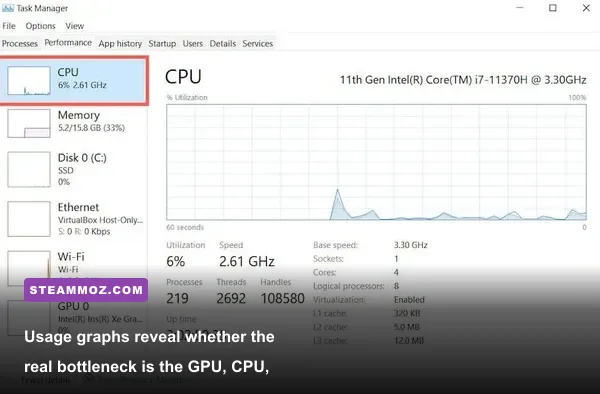
When Chicken Assassin: Reloaded runs but feels choppy, first identify whether the issue is low average FPS or uneven frame pacing. An on-screen counter may report 100 FPS while the game still feels rough because frames arrive irregularly. Use Steam's performance overlay or a trusted monitoring tool after disabling every other overlay. Watch GPU usage, CPU usage, clock speed, temperature, and frame time during the same busy combat section.
For a lightweight game, a stable 60 FPS cap is a strong starting point. If your display is 120 Hz or faster, do not assume the game benefits from an uncapped frame rate. Older engines can tie animation, input, or timing to frame delivery. Test 60 FPS first, then 120 only if the game remains stable and movement behaves normally. A locked 60 generally feels better than swings between 45 and 180.
| Setting | Recommended Value | FPS Impact | Visual or Stability Note |
|---|---|---|---|
| Resolution | Native desktop resolution first; 1280×720 for testing | High at lower-end GPU limits | Lower it only after confirming the GPU is the bottleneck |
| Display Mode | Borderless or windowed | Low | Usually safer than exclusive fullscreen during diagnosis |
| Frame Rate | 60 FPS cap | Improves consistency | Reduces timing spikes and unnecessary GPU load |
| V-Sync | On for tearing; off for latency testing | Low to moderate | Use one frame limiter, not several stacked together |
| Anti-Aliasing | Off or the lowest available option | Moderate on older GPUs | Often the cleanest sacrifice at lower resolutions |
| Shadows and Effects | Low or medium | Moderate to high | Lower these before texture quality |
| Texture Quality | Medium or high if VRAM allows | Low on capable GPUs | Textures affect memory more than raw frame rate |
| Background Apps | Close browsers, recorders, and launchers | Variable | Prevents CPU, RAM, and overlay contention |
Read the bottleneck instead of guessing
If GPU usage sits near 95–100 percent and lowering resolution raises FPS, the graphics processor is limiting performance. Lower resolution, anti-aliasing, shadows, and effects in that order. If GPU usage is low but one CPU core is busy, resolution changes will barely help. Close background applications, disable recording, use the High Performance Windows power mode, and check that the CPU is not thermal-throttling.
If frame time spikes appear when effects or enemies fill the screen, reduce effects and shadows before textures. If spikes occur when opening menus or switching areas, suspect storage, antivirus scanning, or a configuration problem rather than raw GPU power. Install the game on an SSD if possible, keep at least 10 percent free space on the drive, and let Windows finish pending updates before testing.
Power and laptop checks
Plug in a laptop and set Windows to a performance-oriented power mode. In NVIDIA Control Panel or AMD Software, create a profile for the game's executable rather than globally forcing every game to maximum power. Remove GPU and CPU overclocks while troubleshooting. Even a previously stable undervolt can fail after a driver update, and a small instability often looks like a game-specific crash.
Stop Stutter, Input Lag, and Random Freezes
Not every “low FPS” report is a low-FPS problem. A game can render smoothly while the desktop compositor, wireless controller, or background recorder causes delayed input. Start a clean test with a wired keyboard and mouse, no capture software, and the controller disconnected. If the game suddenly feels responsive, reconnect devices one at a time.
Use a consistent frame-time target
At 60 FPS, each frame has roughly 16.67 milliseconds to arrive. You do not need to obsess over a perfect graph, but large spikes are visible as hitching. Avoid using the game's limiter, a driver limiter, and RivaTuner simultaneously. Pick one limiter. If the built-in cap is unreliable, use the driver-level limiter; if both behave poorly, test uncapped briefly to identify whether the limiter itself is causing the hitch.
V-Sync can remove tearing but may add latency or produce a sharp drop when the game misses its refresh window. Test it in a repeatable scene. On a fixed 60 Hz display, V-Sync plus a stable 60 FPS cap is a sensible starting profile. On a variable-refresh monitor, enable the monitor feature only after the game is stable, then compare frame pacing with and without it.
Check Windows scaling and focus behavior
High-DPI scaling can make an older game render at an unexpected internal size or repeatedly renegotiate its window. Set Windows display scaling to its normal value for a test, apply the high-DPI override to the game executable if necessary, and avoid dragging the game between monitors with different scaling percentages. Disable notifications, Game Bar recording, and Focus Assist pop-ups during testing.
For more general context on how PC settings affect frame pacing, Steamoz's Dragonkin settings breakdown and Drawful 2 performance guide cover the same diagnostic principles in other PC games.
Last-Resort Repairs and a Reliable Test Plan
If the game still crashes after the standard fixes, stop repeatedly launching it and run a controlled repair. First, record the exact failure: does it crash before the menu, when loading a level, during combat, or when closing? Note whether the error is a desktop crash, a black screen, a freeze, or a Steam cloud conflict. Different symptoms point to different layers of the PC stack.
Repair the Windows components the game may use
Install official Microsoft Visual C++ Redistributable packages supported by the game and make sure DirectX components are current through Windows Update. Use Microsoft's System File Checker instructions if Windows itself reports damaged system files. Run DISM /Online /Cleanup-Image /RestoreHealth from an elevated Command Prompt only if you are comfortable following Microsoft's documentation, then restart and test again.
Do not install unofficial “performance patches” until the unmodified game works. Mods, DLL wrappers, widescreen fixes, and ReShade can be excellent, but they add variables. Return to a vanilla Steam installation first. The official Chicken Assassin: Reloaded Steam page is the right place to check the supported platform, community discussions, and current installation details. If the store page or developer posts a specific launch argument, use that before community-made replacements.
Run a clean, repeatable test
After each repair, use the same sequence: reboot, launch Steam, start the game with overlays off, load the same area, play for 15 minutes, and record the result. Re-enable one feature at a time afterward. This catches the common situation where the game appears fixed until Discord, a capture utility, or a high-refresh display mode returns.
| Test Stage | Configuration | Pass Condition | Next Move |
|---|---|---|---|
| Clean launch | Verified files, overlays off, windowed mode | Reaches menu without a crash | Load a save and test gameplay |
| Stable gameplay | 60 FPS cap, native resolution, stock hardware | Completes a 15-minute session | Restore preferred display features |
| Performance check | Monitor GPU, CPU, temperature, and frame time | No sustained throttling or major spikes | Adjust only the bottleneck setting |
| Feature restore | Re-enable one overlay or monitor feature | No new crash or hitch | Continue, or remove the offending feature |
Keep your expectations realistic: a performance fix should make Chicken Assassin: Reloaded stable and consistent, not magically turn an old engine into a modern 240 FPS showcase. The winning profile for most PCs is verified files, current drivers, no injected overlays, borderless or windowed mode, a 60 FPS cap, and conservative effects. If that profile works, you have isolated the problem and can safely add visual features back. For broader troubleshooting ideas, Steamoz's ELEX PC fixes guide and Dins's Curse tips are useful comparisons for older PC releases.
Finally, report repeatable crashes through the game's Steam community or official support channel with your Windows version, GPU model, driver version, display mode, exact crash point, and whether verification changed anything. A precise report gets better help than “it crashes.” Most players will never need that step, though: follow the repair order, keep the test profile simple, and Chicken Assassin: Reloaded should be far less temperamental on a modern PC.