Yes, most modern PCs can run Fire! without breaking a sweat. Daedalic Entertainment's hand-drawn adventure is built around illustrated environments, animated characters, and compact puzzle scenes rather than demanding 3D rendering. The official Steam listing asks for only a dual-core processor, 2 GB of RAM, an older DirectX 9-class graphics card, and roughly 3 GB of storage. For a smooth 1080p experience, a modern Intel Core i3 or AMD Ryzen 3 with integrated graphics and 4 GB of memory is already more than enough.
That makes Fire! a particularly safe pick for laptops, office PCs, Steam Deck-style handhelds, and older gaming rigs. The bigger question isn't whether your computer has a powerful GPU; it's whether your operating system, display scaling, drivers, and available storage line up with a game released during the Windows 7 era. Here's the practical breakdown, including the official minimum target, a sensible modern recommendation, and the settings worth changing if the game behaves badly.
Fire! system requirements at a glance
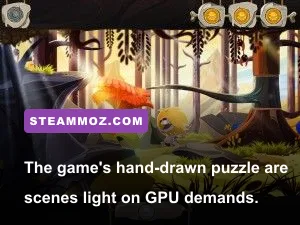
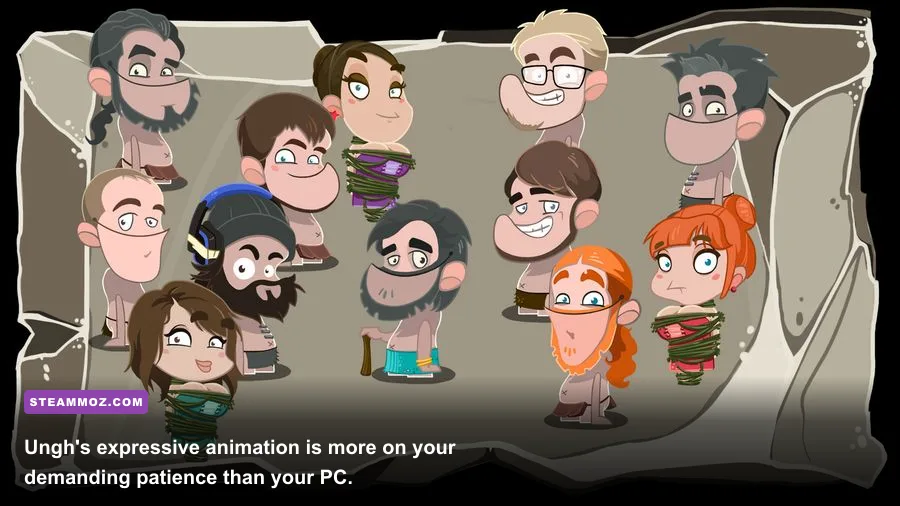
Fire! follows Ungh, a clumsy Stone Age caveman who gets fired from his village's watch after falling asleep. The adventure then turns into a colorful hunt for fire, with point-and-click puzzles spread across hand-painted environments. That design has a direct impact on performance: the game generally loads small scenes, uses limited real-time effects, and doesn't ask your graphics card to stream a huge open world.
The official Fire! Steam page lists a very old baseline. The requirements below reproduce the useful hardware categories while separating the published minimum from the configuration I would actually recommend today. The “recommended” column isn't a higher official specification; it's a practical target that gives Windows, background applications, and modern display resolutions more breathing room.
| Component | Official minimum | Practical recommended PC | Why it matters |
|---|---|---|---|
| Operating system | Windows 7 | Windows 10 or Windows 11 64-bit | Newer systems provide better driver and compatibility support |
| Processor | 2 GHz dual-core CPU | Intel Core i3 or AMD Ryzen 3 | Helps with scene loading and background Windows tasks |
| Memory | 2 GB RAM | 4 GB RAM or more | Prevents paging when browsers and launchers are open |
| Graphics | DirectX 9-class GPU, such as GeForce 8600 GT or Radeon HD 2600 | Intel UHD Graphics, Radeon Vega 6, or any newer discrete GPU | Enough for the game's illustrated 2D and light 3D presentation |
| DirectX | DirectX 9.0c | DirectX 12-compatible Windows installation | Modern Windows versions retain support for the required runtime components |
| Storage | Approximately 3 GB available space | 4 GB free on an SSD | Leaves room for updates, shader files, and save data |
Don't overread the age of those components. A GeForce 8600 GT is ancient by current standards, but it establishes how undemanding the rendering workload is. Almost any desktop or laptop bought in the last decade should outperform it. If your machine has an Intel HD 4000, Intel UHD 620, AMD Vega integrated graphics, or newer, the GPU side is comfortably covered.
For the original listing and publisher information, check the Daedalic Entertainment website alongside the Steam specification panel. Store pages can occasionally change their wording after operating-system updates, so the live listing is the final authority if your installation shows a different requirement.

🎮 Fire!
Looking to experience this game? Grab your digital key directly on our store for $0.99.
View on Steammoz Store →Minimum specs versus recommended specs explained
The minimum configuration should be treated as a “the game launches and remains playable” target, not a promise of flawless performance on every modern monitor. A 2 GHz dual-core processor and 2 GB of RAM were reasonable in the mid-2010s, but Windows itself now consumes more memory. If you boot Fire! with Chrome, Discord, a capture utility, and a dozen launcher processes running, a 2 GB machine can begin swapping to disk.
What the minimum PC can realistically do
On a system close to the official minimum, target the game's native 720p or 900p resolution first. The artwork should remain readable, but you may see slower transitions between puzzle areas and brief pauses when a new scene loads. Those pauses are more likely to come from a mechanical hard drive or limited system memory than from the GPU itself.
A dual-core CPU also leaves little room for background work. Close browser tabs, disable unnecessary overlays, and let Steam finish downloads before launching. If the game is installed on a nearly full hard drive, freeing several gigabytes can improve general Windows responsiveness even if it doesn't directly increase the frame rate.
Why the recommended target is intentionally modest
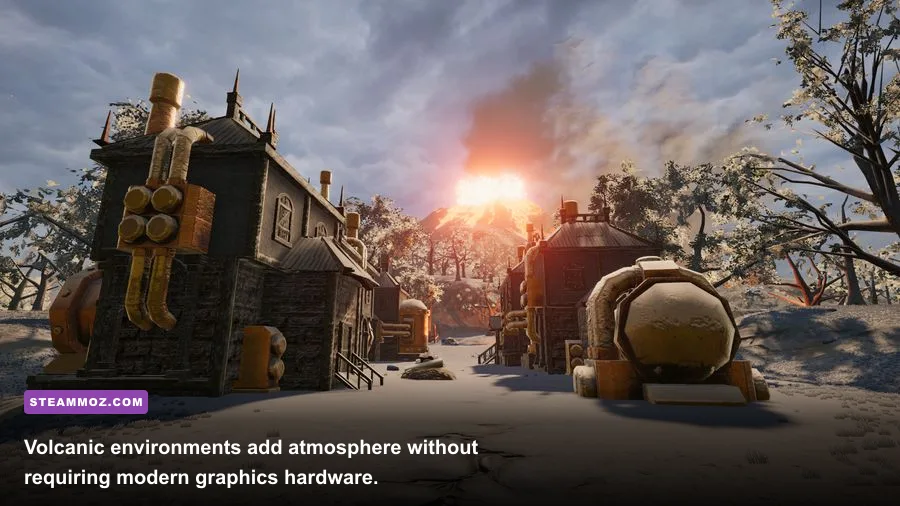
A current entry-level processor matters mainly because it gives the game a clean environment. Four or 8 GB of RAM is enough to keep the operating system from fighting the game for memory. Integrated graphics are fine because Fire! doesn't rely on advanced lighting, ray tracing, volumetric fog, or high-resolution texture packs.
If you can run a browser-based video stream at 1080p, you likely have enough graphics power for Fire!. That comparison isn't a benchmark, but it illustrates the scale of the workload. The title's visual identity comes from art direction and animation, not from expensive shader effects.
| PC profile | Likely resolution | Expected experience | Best adjustment |
|---|---|---|---|
| Official-minimum dual core, 2 GB RAM, old DX9 GPU | 720p to 900p | Playable, with possible loading pauses | Close background apps and use a lower display resolution |
| Office laptop with Intel HD 4000 or newer | 900p to 1080p | Comfortable for puzzle gameplay | Use native resolution and disable overlays if stutter appears |
| Modern Intel UHD or AMD Vega laptop | 1080p | Smooth in normal scenes | Keep frame pacing stable with an FPS cap if available |
| Dedicated GPU from the GTX 750 Ti/Radeon R7 era or newer | 1080p and above | GPU headroom is effectively irrelevant | Prioritize display scaling and fullscreen behavior |
For comparison, the hardware conversation is very different in demanding modern releases. Our guide to Deadfall Adventures PC specs covers a much heavier first-person adventure, while City of Gangsters crash and low-FPS fixes shows why optimization advice depends heavily on a game's engine and workload.
Best graphics settings for Fire! on low-end PCs
Fire! doesn't offer the enormous graphics menu found in a modern AAA game. That's good news: there are fewer settings to wrestle with, and the meaningful gains come from choosing a sensible resolution, using the correct fullscreen mode, and fixing Windows compatibility problems. Start with the native resolution of your display, then work down only if transitions feel sluggish or the interface appears scaled incorrectly.
| Setting or adjustment | Recommended value | Performance impact | Visual trade-off |
|---|---|---|---|
| Display resolution | Native 1080p; 900p or 720p on old hardware | Low to moderate | Lower values make artwork and text softer |
| Display mode | Fullscreen first; borderless if fullscreen misbehaves | Low | Borderless may improve Alt-Tab convenience |
| V-Sync | Enable if tearing is visible | Small latency and frame-pacing cost | Cleaner camera movement and scrolling |
| Texture quality | Highest available setting | Very low on modern GPUs | Preserves the painted environment detail |
| Anti-aliasing | Highest available setting, or off on the minimum PC | Low to moderate | Off may produce slightly rougher edges |
| Steam Overlay | Disable only if stutter or crashes occur | Usually negligible | You lose the in-game overlay and screenshot shortcut |
| Windows compatibility mode | Try Windows 7 compatibility only when needed | No direct FPS benefit | Can fix launch or display issues on newer Windows builds |
Don't blindly drop every setting to Low. With an illustrated adventure, the visual cost of reducing resolution is often more noticeable than the performance gain. Texture quality usually has little effect on frame rate here, so keep it high and lower resolution only after testing fullscreen behavior and background applications.
If the game opens in a tiny window, shows a black screen, or refuses to remember your resolution, verify the files through Steam first. Then update your integrated-graphics driver directly through Intel or AMD rather than relying exclusively on Windows Update. On laptops, plug in the charger and select the Windows Best performance power profile; aggressive battery-saving modes can throttle even a very capable integrated GPU.
How Fire! performs on laptops and handheld PCs
This is where Fire! is at its most appealing. The game is a natural fit for modest laptops because its scenes are compact and its controls don't demand a high-refresh competitive setup. A recent office notebook should handle 1080p comfortably, while older machines with Intel HD graphics can still be viable if you accept a lower resolution and close memory-heavy applications.
On handheld PCs, the main challenge isn't raw performance. It is interface scale. Point-and-click adventures can feel awkward when a game's menus were designed around a mouse and a larger display. Use the handheld's trackpad or a mapped right stick for cursor control, and keep a physical mouse nearby if you want the most precise experience. A 30 FPS cap is perfectly reasonable for Fire!; puzzle timing and cursor movement don't benefit meaningfully from 120 FPS.
Battery life should also be excellent compared with a modern 3D game. Set the handheld's TDP conservatively, avoid forcing a high refresh rate, and use the lowest brightness that keeps the painted scenes comfortable to read. If the game has trouble with a particular Proton version on SteamOS, try a current stable Proton release before experimenting with older compatibility layers.
For broader low-end tuning ideas, our Dragonkin graphics-settings guide explains how to separate genuine GPU bottlenecks from frame-pacing and display problems. The principle applies here too: measure the issue before sacrificing image quality.
Fire! installation and troubleshooting checklist
Because Fire! was designed for older versions of Windows, compatibility is more likely to be the source of trouble than insufficient hardware. Work through these fixes in order rather than installing random DLL files from the internet.
1. Check the installation and storage
Leave at least 4 GB free on the installation drive even though the listed requirement is roughly 3 GB. In Steam, open the game's Properties, choose Installed Files, and select “Verify integrity of game files.” This replaces damaged or incomplete files without touching your save folder in the normal case.
2. Update the correct driver
For Intel graphics, use Intel's official driver assistant or your laptop manufacturer's support page. For AMD and Nvidia cards, use the matching official driver package. A driver that is technically new but supplied by an incompatible laptop vendor can sometimes create worse results, so use the manufacturer's recommended package if a generic update causes visual glitches.
3. Fix scaling and fullscreen problems
If the game looks blurry or appears stretched, right-click its executable, open Properties, select Compatibility, and test the high-DPI scaling override. Set scaling to “Application” first. If that makes the interface too small, return the option to Windows-controlled scaling and try borderless mode instead. Take a screenshot after each change so you know which setting helped.
4. Remove conflict sources
Disable third-party overlays from Discord, MSI Afterburner, recording software, and GPU utilities one at a time. These overlays rarely cause a performance problem in such a light game, but older DirectX titles can react badly to injected interfaces. Also disconnect unusual controllers temporarily if the game freezes during startup; a faulty input device or remapping layer can look like a graphics crash.
5. Keep expectations realistic
The minimum specification doesn't guarantee support for every ultrawide resolution, HDR mode, or 4K scaling setup. If you own a 1440p or 4K monitor, 1080p with integer-friendly scaling will usually look cleaner than an unusual custom resolution. The art remains charming at lower output resolutions, and the actual puzzle experience matters far more than pushing the game beyond its original display targets.
Players shopping for similarly lightweight adventures can also browse our Children of Silentown guide and Crossing Souls character guide. Neither requires a modern gaming tower, but both benefit from the same sensible approach: keep the image readable, avoid unnecessary overlays, and prioritize a stable, comfortable setup.
Final verdict on Fire! PC requirements
Fire! is an easy game to run by today's standards. The official minimum target of a 2 GHz dual-core CPU, 2 GB of RAM, a DirectX 9-class graphics card, and around 3 GB of storage is low enough to include many old laptops and basic desktops. A modern Core i3, Ryzen 3, Intel UHD iGPU, or AMD Vega iGPU with 4 GB or more of RAM is the safer recommendation, especially on Windows 10 or Windows 11.
Buy or install it if your PC struggles with contemporary 3D releases: the GPU requirement is tiny, the storage footprint is manageable, and 1080p play should be comfortable on almost any recent machine. Just remember that old-game quirks—fullscreen scaling, overlays, drivers, and compatibility settings—can matter more than raw frame rate. Get those basics right, and Ungh's chaotic search for fire should run smoothly without demanding a single hardware upgrade.
Bottom line: if your PC can handle everyday 1080p video and was released within the last ten years, it almost certainly has enough power for Fire!. Check the live Steam system requirements, keep a few gigabytes free, and start at native resolution before changing anything.