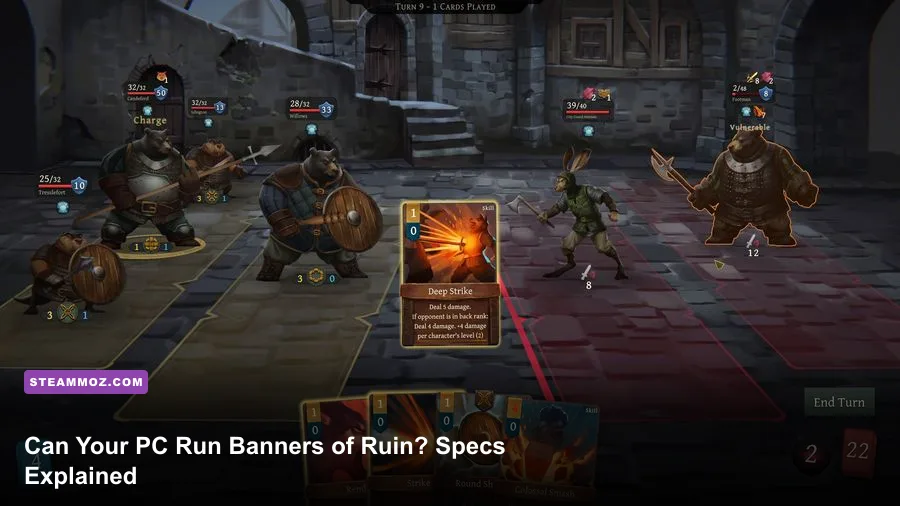
Banners of Ruin runs comfortably on older gaming PCs. The official Steam listing asks for a 2 GHz processor, 4 GB of RAM, a GeForce 8800 GT or Radeon HD 3870-class graphics card, DirectX 10, and roughly 2 GB of storage at minimum. Its recommended target rises to a 2.4 GHz CPU, 8 GB of memory, and a GeForce GTX 660-class GPU with DirectX 11. In practical terms, almost any modern integrated GPU or entry-level laptop should handle this turn-based deckbuilding RPG, provided your drivers and operating system are current.
That low barrier is good news, but the numbers still deserve a closer look. Banners of Ruin is built around card resolution, status effects, animated attacks, and a busy party interface rather than enormous open worlds or ray-traced scenery. You don't need a new graphics card to enjoy it. You do need enough headroom for Windows, Steam, overlays, and background apps, especially on an older laptop with only 4 GB of system memory.
Official Banners of Ruin minimum and recommended specs
The table below reflects the Windows requirements published on the game's Steam storefront. Treat the minimum column as the floor for launching and playing, not a promise of perfect frame pacing while several effects, overlays, and background applications are active. The recommended column is the more sensible target if you're buying or upgrading a PC today.
| Component | Minimum | Recommended | What it means today |
|---|---|---|---|
| Operating system | Windows 7 | Windows 10 | Windows 10 or Windows 11 is the safest choice for current drivers and Steam support |
| Processor | 2 GHz CPU | 2.4 GHz CPU | A modern dual-core laptop CPU is already well above the listed target |
| Memory | 4 GB RAM | 8 GB RAM | 8 GB leaves room for Steam, browsers, Discord, and Windows background tasks |
| Graphics | GeForce 8800 GT or Radeon HD 3870 equivalent | GeForce GTX 660 equivalent | Modern integrated graphics should generally exceed the minimum GPU class |
| DirectX | DirectX 10 | DirectX 11 | Use the current DirectX runtime and updated graphics drivers |
| Storage | 2 GB available space | 2 GB available space | Allow extra room for updates and Windows temporary files |
There are two details worth highlighting. First, the storage requirement is tiny: the game needs only about 2 GB, so even a nearly full SSD can usually accommodate it. Still, don't run an SSD with just a few hundred megabytes free. Windows uses free space for caching and updates, and a cramped drive can make every game feel less responsive.
Second, the listed operating systems are old. Windows 7 appears in the minimum specification because the game was designed to support it, but that doesn't mean Windows 7 is a smart installation choice in 2026. Unsupported operating systems introduce driver, security, launcher, and overlay problems that have nothing to do with the game's rendering demands. For a clean setup, use a fully updated Windows 10 or Windows 11 machine.
You can verify the storefront information on the official Banners of Ruin Steam page, then compare its lightweight profile with our guide to Drawful 2 PC specs. The two games have very different visual styles, but both show why a small install size doesn't automatically mean every old laptop will deliver smooth frame pacing.

🎮 Banners of Ruin
Looking to experience this game? Grab your digital key directly on our store for $3.99.
View on Steammoz Store →What those PC requirements really mean for performance
The GTX 660 recommendation looks intimidating only if you compare the name rather than the age of the hardware. That card launched in 2012. Current integrated solutions such as Intel Iris Xe, AMD Radeon 680M, and newer Radeon 780M graphics are in a completely different performance generation. They should have enough power for a 2D-focused title like Banners of Ruin at 1080p, although laptop power limits and memory configuration can change the result.
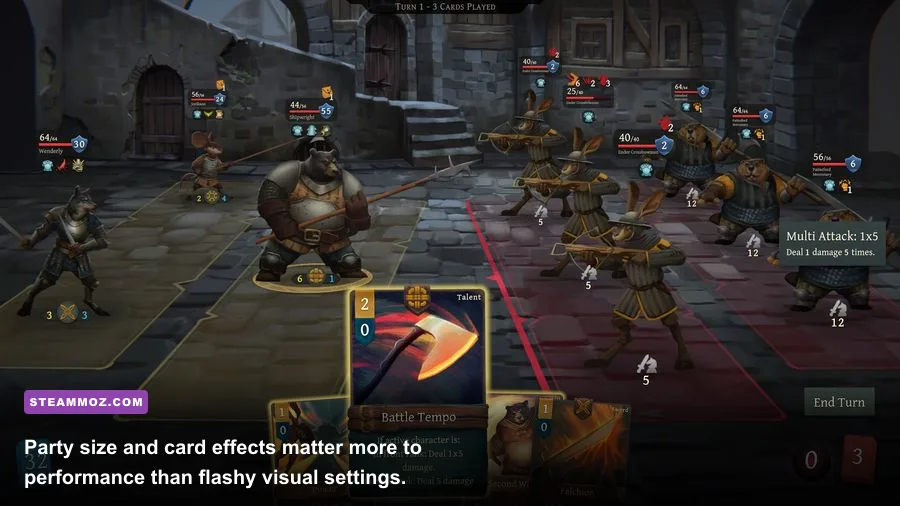
The CPU requirement is even less demanding. Banners of Ruin doesn't simulate a huge world full of independent NPCs. Its heavier moments come from card effects, combat animations, tooltips, and interface updates. A recent Intel Core i3, AMD Ryzen 3, or Apple-silicon Mac through a compatible version is far beyond the official 2 GHz baseline. On an older dual-core system, you may notice a pause when a large chain of effects resolves, but that is more likely to be game logic or asset loading than a permanent graphics bottleneck.
RAM is the specification most likely to affect the overall experience. At exactly 4 GB, Windows and Steam can consume a substantial portion before the game starts. A browser with multiple tabs, Discord, cloud-sync software, and an antivirus scan can push the system into paging. When that happens, the game may technically run while menus feel sticky and transitions hitch. Eight gigabytes is the practical sweet spot; 16 GB is comfortable if you multitask or stream.
Minimum hardware versus a sensible modern target
| PC profile | Expected experience | Recommended approach | Main limitation |
|---|---|---|---|
| Older 2 GHz dual-core, 4 GB RAM, 8800 GT-class GPU | Playable at modest resolution and settings | Close background apps and use a capped frame rate | Memory pressure and older drivers |
| Modern office laptop with integrated graphics and 8 GB RAM | Comfortable 1080p play in most situations | Use native resolution and disable unnecessary overlays | Thermal throttling on thin laptops |
| Budget gaming PC with GTX 660-class or newer GPU | Excellent performance with plenty of headroom | Run native resolution and prioritize readability | None significant for this game |
| Modern gaming desktop with 16 GB RAM | Effectively effortless at normal monitor refresh rates | Use your monitor's native resolution and a stable cap | High-refresh gains are limited by the game's presentation |
Don't confuse a high refresh-rate monitor with a requirement. A 144 Hz display can make scrolling and cursor movement feel smoother, but Banners of Ruin's turn-based structure doesn't demand the response time of a competitive shooter. A stable 60 frames per second is more than enough for combat decisions, card targeting, and reading status changes. If your machine occasionally dips during a dramatic effect chain, you'll feel it far less than you would in a twitch-action game.
For another perspective on troubleshooting older PCs, our ELEX crash and FPS fixes cover the useful basics: update the GPU driver, disable conflicting overlays, check files, and watch temperatures. Those steps apply here too, even though Banners of Ruin is dramatically easier to run.
Best Banners of Ruin graphics settings for smooth play
Banners of Ruin doesn't offer the enormous settings menu found in a modern AAA release. That is a benefit on weak PCs because there are fewer hidden switches to diagnose. Start at your monitor's native resolution, then adjust display mode and effects only if you see hitching or distracting frame-time spikes. The goal isn't to chase 200 FPS; it is to keep the board, card text, and status icons sharp and consistently responsive.
| Setting or adjustment | Recommended value | Performance impact | Visual or gameplay note |
|---|---|---|---|
| Resolution | Native 1080p when possible | Low to moderate | Sharper card text and cleaner icons; reduce to 900p or 720p only on very old hardware |
| Display mode | Fullscreen or borderless | Low | Fullscreen can help older systems avoid desktop-composition hiccups |
| Effects and animations | High on modern PCs, lower on minimum hardware | Moderate during effect-heavy turns | Lower settings can reduce visual clutter and frame-time spikes |
| Frame-rate cap | 60 FPS | Reduces unnecessary GPU load | A stable cap suits turn-based combat better than an unstable uncapped rate |
| V-sync | On if you see tearing | Low, with possible input latency | Turn it off if tearing is absent and you want the lowest latency |
| Steam overlay | Off for troubleshooting | Small but system-dependent | Disable it temporarily if menus hitch or the game fails to launch |
On a minimum-spec machine, begin with 1280x720 or 1600x900 if native 1080p causes visible stutter. That reduction lowers the number of pixels the GPU must draw, but it won't fix a memory shortage. If the game stutters after switching between battles and menus, close Chrome, video players, RGB utilities, and capture software before lowering resolution further.
On a modern integrated GPU, keep 1080p enabled. The game uses small cards, portraits, icons, and text, so aggressive scaling can make the interface fuzzy without delivering a meaningful benefit. If your laptop has a 120 Hz or 144 Hz panel, set a 60 FPS cap first. Integrated graphics often waste power rendering far more frames than the game needs, which can raise temperatures and cause later throttling.
V-sync is a preference rather than a universal recommendation. Enable it if horizontal tearing appears during map movement or menu transitions. Disable it if you notice sluggish cursor response and your display supports adaptive sync. Either way, judge the setting by frame pacing, not by a large number in an FPS counter.
Why readability matters more than maximum FPS
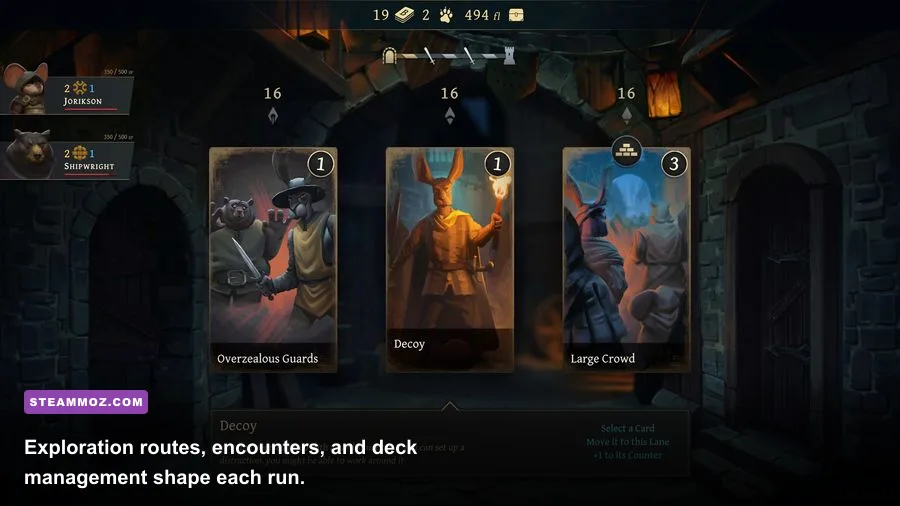
Banners of Ruin asks you to track health, armor, card costs, buffs, debuffs, and turn order at the same time. A blurry 720p image can be more damaging than a brief frame-rate dip because it makes critical information harder to parse. Keep native resolution whenever your GPU can maintain a stable 30 or 60 FPS. Reduce effects before sacrificing the clarity of the combat interface.
This is the opposite of optimizing a fast shooter. Our guide to Dragonkin settings focuses on squeezing every frame from action combat, while Banners of Ruin rewards a calm, readable setup. Let the game breathe; your win rate won't improve because a card animation runs at 300 FPS.
Can a laptop, Steam Deck, or integrated GPU run it?
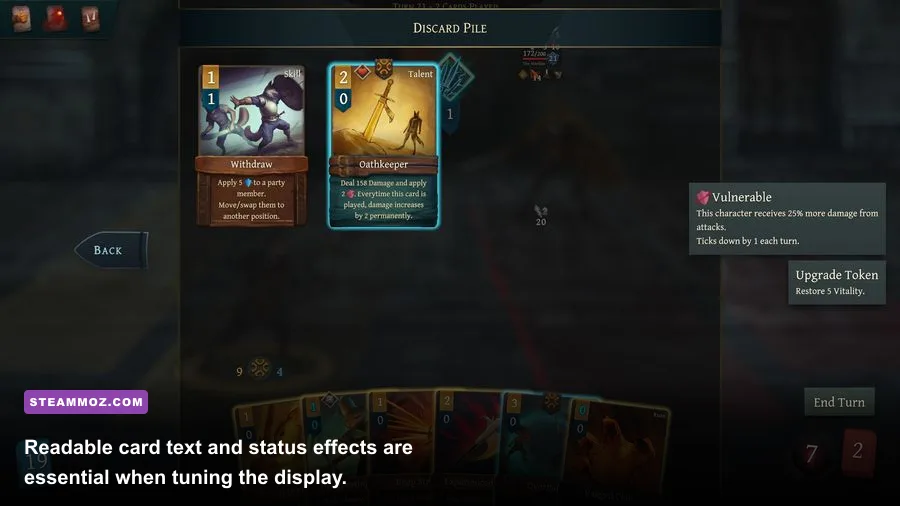
Yes, Banners of Ruin is a strong fit for modest laptops and handheld PCs. Its official GPU baseline is far below current entry-level hardware, and its turn-based format is forgiving when a system briefly dips below a locked target. A laptop with 8 GB of RAM and a recent integrated GPU should be the practical baseline for hassle-free portable play.
Steam Deck owners should expect the game to be an easy workload. The Deck's AMD APU is newer and substantially more capable than the listed GeForce 8800 GT minimum. A 60 FPS cap is sensible for battery life, while a lower cap can extend playtime during long runs. Keep the game's resolution at the handheld's native 1280x800 when text looks crisp; forcing a higher internal resolution is unlikely to make the card interface meaningfully better.
The more important handheld questions are controls, sleep-resume behavior, and text scale. Card games can expose small-font problems more quickly than action games. If a tooltip feels cramped, use the platform's magnification tools rather than sacrificing frame rate. Also give the game a few seconds after waking from sleep before clicking rapidly through menus. That avoids mistaking asset reloading for a crash.
On Windows laptops, connect the charger for the most consistent performance. Battery profiles can lower CPU clocks and integrated-GPU power, producing sporadic pauses even when average FPS looks fine. Set the game to the high-performance graphics profile in Windows, update the laptop manufacturer's chipset package, and check that the machine isn't running in a silent or battery-saver mode.
Players comparing lightweight RPGs may also enjoy Steamoz's look at Dungeon Siege's modern PC experience. It is a very different game, but the same rule applies: older software can run beautifully when you eliminate background conflicts and avoid treating minimum specifications as a comfort guarantee.
Installation and troubleshooting checklist
If your computer meets the requirements but Banners of Ruin won't launch, don't immediately assume the GPU is too weak. The game is small enough that common PC issues are usually configuration, permissions, driver, or overlay problems. Work through the following sequence before replacing hardware.
1. Install the game on a healthy drive
Leave more than the stated 2 GB free, ideally several gigabytes on the same drive as Steam's library. A nearly full system drive can interfere with shader caches, temporary files, and Windows updates. If the game is installed on an external hard drive, test it on an internal SSD or another library location to rule out disconnects and slow wake times.
2. Verify the installation
Open Steam, right-click Banners of Ruin, choose Properties, select Installed Files, and run Verify integrity of game files. This replaces damaged or incomplete assets without requiring a full reinstall. It is particularly useful after an interrupted update or a system crash.
3. Update drivers and Windows
Install a current driver for NVIDIA, AMD, or Intel graphics, then restart the PC. On laptops, use the manufacturer's approved package if a generic driver causes brightness, sleep, or display-mode problems. Keep Windows updated too, but avoid starting a major update while diagnosing a launch failure.
4. Test without overlays
Temporarily disable the Steam overlay, Discord overlay, Xbox Game Bar, MSI Afterburner statistics, and recording software. These tools hook into the rendering pipeline and can cause black screens, focus loss, or menu hitching. Re-enable them one at a time after the game is stable.
5. Check scaling and fullscreen behavior
If the window opens off-screen, flashes, or immediately minimizes, try borderless mode or reset the display configuration. Windows display scaling above 100 percent can also make an older game's interface behave strangely. Don't permanently disable high-DPI scaling unless you actually need to; test one change at a time so you know what solved the problem.
| Symptom | Likely cause | First fix | Escalation |
|---|---|---|---|
| Game does not launch | Damaged files, overlay conflict, old driver | Verify files and disable overlays | Reinstall runtime components and update Windows |
| Stutter between turns | 4 GB RAM, background apps, thermal throttling | Close apps and use a 60 FPS cap | Upgrade to 8 GB RAM or check temperatures |
| Blurry cards or text | Non-native resolution or scaling | Return to native display resolution | Test fullscreen and Windows DPI settings |
| Screen tearing | V-sync disabled | Enable V-sync or adaptive sync | Use a stable frame cap through the GPU driver |
| Crashes after waking a laptop | Driver state or sleep-resume conflict | Restart the game and update graphics drivers | Disable aggressive battery and sleep profiles |
For official support context, check the Banners of Ruin Steam discussions and the Goblinz Studio official website. The game's Steam community hub is also useful for spotting platform-specific issues and workarounds reported by players.
Bottom line: if your PC has a modern dual-core processor, 8 GB of RAM, and any reasonably recent integrated or dedicated GPU, Banners of Ruin should be an easy install. The official minimum of 4 GB RAM and a 2 GHz CPU is enough for the game itself, but 8 GB and Windows 10 or 11 provide a much smoother everyday experience. Keep the resolution readable, cap the frame rate at 60, close troublesome overlays, and you'll have more than enough performance to focus on building a lethal deck and surviving the next encounter.