
If you want the best Buffet Knight - Decadent Full Course performance, start with a 60 FPS target, use fullscreen or borderless at your monitor's native resolution, lower shadows and effects before texture quality, and disable expensive post-processing that adds little during combat. On a mid-range gaming PC, the balanced profile below is the safest starting point; on Steam Deck or older integrated graphics, the performance profile trades a little image sharpness for steadier frame pacing.
That distinction matters. Buffet Knight can look perfectly smooth while standing in an empty room and then hitch when enemies, food pickups, particles, lighting changes, and UI effects arrive together. A high average FPS number won't rescue a game that pauses for a fraction of a second during a dodge or attack. The goal here is not to make the counter as large as possible. It's to make every encounter feel predictable.
Start With the Right FPS Target

Before changing individual options, decide what “good performance” means for your hardware. A 60 FPS cap is the sensible target for most systems because it gives the game a consistent frame-time budget of 16.67 milliseconds per frame. If your PC can hold 120 FPS in the busiest areas, that is worthwhile on a high-refresh monitor, but chasing 120 in a quiet room while dropping to 70 during a packed fight will feel worse than a stable 60.
Use a repeatable test route. Load the same save, enter a busy combat area, trigger the largest group of enemies you can safely gather, and watch for the worst one-percent lows rather than only the average. Walk through the same room three times after changing a setting. The first run may include shader compilation or asset streaming, so it is not a reliable comparison.
| Hardware Target | Resolution | FPS Cap | Recommended Goal |
|---|---|---|---|
| Modern mid-range GPU | Native 1080p or 1440p | 60 or 90 FPS | Hold the cap through crowded encounters |
| Older dedicated GPU | 1080p | 60 FPS | Prioritize stable frame pacing over effects |
| Integrated graphics | 900p or 720p | 30 or 60 FPS | Reduce resolution scale if available |
| Steam Deck | 1280x800 | 40 or 60 FPS | Use 40 FPS if 60 cannot stay locked |
Cap FPS in the game's menu if the limiter is stable. If the in-game cap produces uneven pacing, use your GPU driver's limiter instead. With a VRR display, cap a few frames below the panel's maximum refresh rate. For example, a 60Hz adaptive-sync display benefits from a 58- or 59-FPS cap, while a 120Hz display can use 117 or 118 FPS if the hardware can sustain it.
Do not automatically enable V-Sync and an external limiter together. That combination can add latency or create a second queue of frames. Test V-Sync on and off in a real fight, not while staring at the title screen. If tearing is distracting and the game is locked to your display refresh, V-Sync is usually the cleaner choice.

🎮 Buffet Knight - Decadent Full Course
Looking to experience this game? Grab your digital key directly on our store for $4.99.
View on Steammoz Store →The Best Buffet Knight Graphics Settings
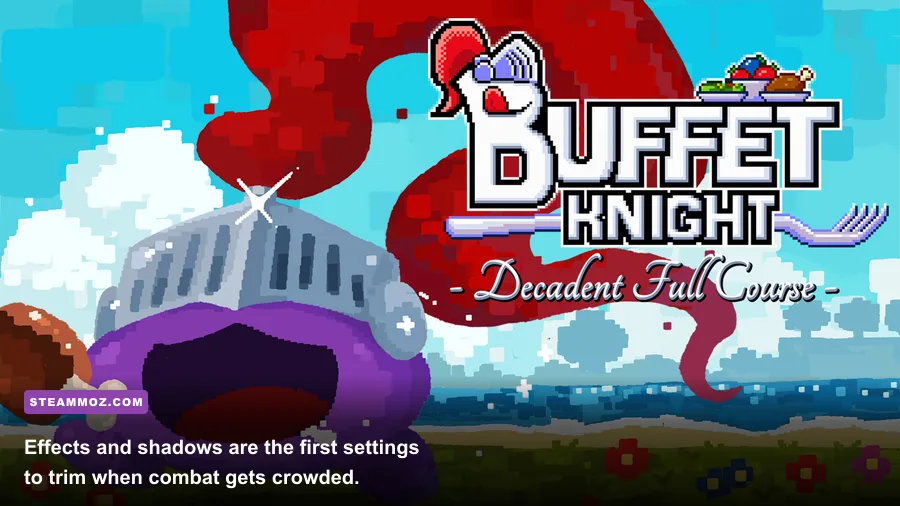
These values are the best first-pass settings for max FPS without turning the game into a blurry mess. The exact menu names can vary between builds, so treat “low,” “medium,” and “high” as the equivalent quality choices shown by your installation. Texture quality is deliberately higher than shadows and effects: textures mostly affect VRAM capacity, while shadows, particles, ambient occlusion, and reflections are more likely to consume GPU time every frame.
| Setting | Balanced Value | FPS Impact | Visual Trade-Off |
|---|---|---|---|
| Display mode | Fullscreen or borderless fullscreen | Low | Fullscreen may reduce overhead; borderless is easier for alt-tabbing |
| Resolution | Native 1080p | Very high | Lowering it improves GPU performance but softens the image |
| Resolution scale | 100%; 85–90% on weak GPUs | Very high | Lower values reduce internal render resolution |
| Textures | High with 4GB+ VRAM; medium below that | Low to medium | Lower quality makes surfaces look flatter |
| Shadows | Low or medium | High | Shadow edges and small-object shadows lose definition |
| Effects or particles | Medium | High in combat | Less glow, smoke, sparks, and impact clutter |
| Ambient occlusion | Low or off | Medium to high | Corners and objects lose some contact shading |
| Reflections | Low or off | Medium | Shiny surfaces and reflective details become simpler |
| Anti-aliasing | Medium or the lowest temporal option | Medium | Lower settings produce more jagged edges |
| Motion blur | Off | Small | Sharper movement and less visual smearing |
| Depth of field | Off or low | Small to medium | Backgrounds look less cinematic but remain clearer |
| Bloom | Low or off | Small | Bright effects lose some soft glow |
Start by lowering shadows, effects, and ambient occlusion. Those settings usually deliver the best frames-per-second gains per visual sacrifice. Leave textures alone until you see VRAM usage climbing or notice hitching while moving between rooms. If the game offers a texture streaming or asset quality setting, reducing that can help older graphics cards more than lowering every option at once.
Resolution scale deserves special attention. Dropping from 100% to 90% renders fewer pixels while keeping the display output at the same resolution, which is often a better compromise than switching a 1080p monitor to 720p. At 80% or lower, fine UI text and distant enemy silhouettes may become noticeably soft. Use that range only when your GPU is the clear bottleneck.
Motion blur is almost always safe to disable for this kind of action game. It will not usually transform a 30-FPS machine into a 60-FPS machine, but turning it off improves readability during quick movement and makes stutter easier to identify. Depth of field and bloom are similar: their performance cost may be modest, yet removing them makes combat information easier to read.
What to Lower First When FPS Drops
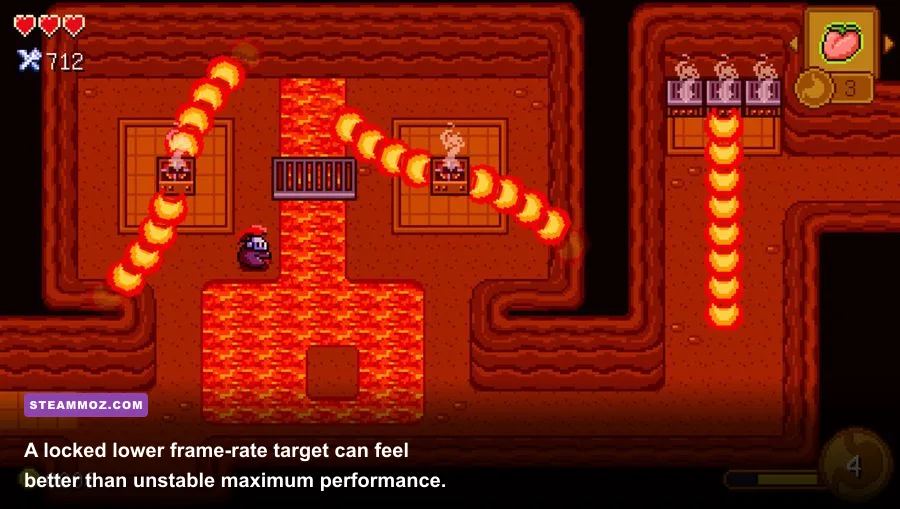
Performance problems usually fall into two categories. A GPU-bound system is working too hard to render each frame; a CPU-bound system cannot prepare the next frame quickly enough because of simulation, enemy logic, draw calls, or background tasks. The fix is different, and guessing wastes time.
If lowering resolution scale gives you a large FPS increase, the GPU is the problem. Keep textures at a sensible level, then reduce shadows, reflections, effects, and ambient occlusion. If changing resolution barely moves the counter, the CPU may be limiting performance. In that case, lowering visual quality across the board will not do much. Close browser tabs, recording tools, RGB utilities, launchers, and overlays, then test again.
Watch frame time if your overlay supports it. At 60 FPS, a smooth frame takes about 16.67ms. A graph that sits near 16ms but spikes to 40ms explains a hitch even if the average counter still says 58 or 60. Sudden spikes when entering a room suggest asset streaming or shader compilation. Spikes only when many enemies attack point toward CPU simulation, effects, or a game-side performance issue.
| Symptom | Likely Bottleneck | First Change | Second Change |
|---|---|---|---|
| FPS rises sharply after lowering resolution | GPU | Reduce resolution scale to 90% | Lower shadows and effects |
| Resolution changes barely matter | CPU or engine | Close overlays and background apps | Lower crowd, simulation, or view-distance options if available |
| Short hitch when entering new rooms | Streaming or shader compilation | Install the game on an SSD | Allow the first run to build shaders |
| Only particle-heavy attacks cause drops | Effects or GPU bandwidth | Set effects to low or medium | Disable bloom and ambient occlusion |
| Image looks sharp but feels uneven | Frame pacing | Use a 60-FPS cap | Test V-Sync or VRR separately |
That SSD advice is not magic, but it helps with asset access and reduces the chance that a slow mechanical drive compounds a streaming hitch. Keep enough free space for the operating system and shader cache. Updating a graphics driver can also help, though “latest” is not automatically “best”; if a problem begins immediately after a driver update, a clean reinstall or rollback is worth testing.
Disable Steam Overlay, Discord Overlay, Xbox Game Bar capture, and GPU instant replay one at a time rather than switching everything off permanently. Overlays can affect frame pacing, input latency, or fullscreen behavior, but they are not always the culprit. This troubleshooting approach mirrors the practical process in Steamoz's Bionic Dues settings guide and the crash-focused advice in Beacon Pines PC fixes.
Low-End PC and Steam Deck Profiles
For an older laptop or integrated GPU, begin at 1280x720 or 1600x900, depending on the display. Use a 75–85% resolution scale if the option exists, low shadows, low effects, ambient occlusion off, reflections off, and medium textures only if memory allows it. A locked 30 FPS target can be the right answer on hardware that repeatedly swings between 35 and 55. The controls will feel less immediate than 60 FPS, but consistent timing is far more comfortable than constant hitching.
On Steam Deck, the native 1280x800 output is a sensible starting point. Use a 40-FPS cap when the game can hold it in heavy fights; 40 FPS gives a 25ms frame budget and often feels substantially smoother than an unstable 30. If the frame rate cannot stay above 40, lock 30 and avoid wasting battery on settings the small screen barely reveals. Lower shadows and effects before textures, and use a lower resolution scale only after those changes.
Do not confuse a low GPU clock with a broken game. The Deck may reduce clocks when a frame-rate cap is active, which saves battery. Judge the result by frame pacing, fan noise, temperature, and play time. If you are using a community Proton version or launch option, remove custom tweaks while benchmarking so you know which change helped.
| Profile | Resolution Scale | Textures | Shadows | Effects | Target |
|---|---|---|---|---|---|
| Quality 60 | 100% | High | Medium | Medium | 60 FPS |
| Balanced 60 | 90–100% | Medium or high | Low | Medium | Stable 60 FPS |
| Low-end PC | 75–90% | Medium | Low | Low | 30–60 FPS |
| Steam Deck | 85–100% | Medium | Low | Low | 30 or 40 FPS |
For more PC-focused comparisons, Steamoz's Aragami: Nightfall FPS settings and A Year of Rain performance guide use the same useful principle: identify the bottleneck before lowering settings blindly.
Final Testing Checklist for Smooth Performance
Once the menu looks right, test the game in a way that reflects actual play. Restart Buffet Knight after major graphics changes, because some engines do not fully rebuild render resources until a new session. Confirm that the selected resolution and frame cap remain active after returning from the Steam Overlay. Then enter a late or crowded area and repeat your movement, attacks, dodges, and menu transitions.
- Record a baseline. Note resolution, average FPS, one-percent lows, GPU usage, CPU usage, and whether the game is installed on an SSD.
- Change one group at a time. Lower shadows and effects together, test, then try resolution scale. This makes the winning change obvious.
- Check the worst scene. A quiet room is not a benchmark. Use the busiest combat encounter available to your current save.
- Choose a cap. Use 60 only if the game can hold it. Otherwise test 40 on Steam Deck or 30 on weak hardware.
- Verify image clarity. Make sure enemy silhouettes, pickups, and UI text remain easy to read at your chosen scale.
- Save the profile. Capture screenshots of the menu or write down every value so a driver update or settings reset does not send you back to square one.
Also check the game's official updates before assuming your PC is at fault. The Buffet Knight Steam listing is the best place to check patch notes, system requirements, community reports, and developer replies. Steam's official troubleshooting guidance is also useful for verifying files and resolving launch problems. If the developer maintains a separate support channel, use the link listed on that official store page rather than relying on random optimization packs.
The short version is simple: keep textures as high as your VRAM allows, cut shadows and effects first, disable motion blur, use resolution scale carefully, and lock the frame rate to what the busiest encounter can sustain. Buffet Knight - Decadent Full Course feels best when attacks and movement arrive on time, not when every surface is rendered at maximum quality. Find that stable frame-time floor, and the game becomes much easier to read, react to, and enjoy.