For the best Borderlands 2: Commander Lilith & the Fight for Sanctuary performance, use 1080p fullscreen, disable VSync, set Texture Quality and Game Detail to High, turn off Ambient Occlusion and Depth of Field, keep Dynamic Shadows on only if your GPU has headroom, and disable PhysX Effects on NVIDIA cards below the GTX 1060 class. This profile preserves the DLC’s sharp cel-shaded look while cutting the settings that cause the biggest frame-time spikes.
The Commander Lilith expansion is still built on Unreal Engine 3, so modern hardware can deliver very high frame rates—but the engine has a few old-PC quirks. Explosions, elemental clouds, dense foliage, and large enemy groups can hit performance much harder than a quiet view of Sanctuary. A locked 60 or 120 fps is usually better than an unstable 200 fps target, especially during firefights where frame pacing matters more than a flashy counter.
🎮 Get Borderlands 2: Commander Lilith & the Fight for Sanctuary
Ready to dive in? Grab your copy today for just $4.94.
Check OfferStart with the right Borderlands 2 performance profile

Before changing individual options, select your native monitor resolution and use exclusive fullscreen rather than windowed or borderless mode. Borderlands 2’s fullscreen mode generally gives Windows less opportunity to interfere with frame pacing, while borderless is convenient for multitasking but can introduce inconsistent delivery on some systems.
Set Framerate Smoothing to Off if you want a hard external cap through your GPU driver or a tool such as RTSS. If you leave smoothing enabled, the game can attempt to manage its own range and make input feel less consistent. For a 60 Hz display, cap at 60 fps or 59.94 fps; for 120 Hz, 120 fps is a sensible target. Avoid chasing 240 fps unless your system stays there during combat, not just while staring at an empty wall.
| Setting | Recommended Value | FPS Impact | Visual Note |
|---|---|---|---|
| Resolution | Native 1080p or 1440p | High | Lower only when GPU usage remains near 99% |
| Display Mode | Fullscreen | Low | Usually gives the cleanest frame pacing |
| VSync | Off | None to moderate | Enable only to remove tearing |
| Framerate Smoothing | Off | None | Use a driver or RTSS cap instead |
| FOV | 90–95 | Moderate at high values | Higher FOV shows more geometry and enemies |
| Texture Quality | High | Mostly VRAM | Keep high unless you see texture pop-in |
FOV deserves special attention. The default view can feel cramped with a mouse, but pushing it to 110 increases the amount of world the engine must draw. A 90–95 FOV is the sweet spot for most players. If you use a 16:9 monitor, 95 feels noticeably more comfortable without needlessly increasing the rendering workload.

🎮 Borderlands 2: Commander Lilith & the Fight for Sanctuary
Looking to experience this game? Grab your digital key directly on our store for $4.94.
View on Steammoz Store →The settings that actually cost your frames

Texture Quality is not the same thing as overall performance. It mainly affects how much VRAM the game uses. High is appropriate for most graphics cards with 2GB or more VRAM at 1080p, while Medium is safer for older 1GB cards. Dropping textures on a GPU with enough memory usually sacrifices clarity without fixing CPU-side dips.
Game Detail is more influential because it controls scene complexity and draw distance. High keeps Pandora’s distant props, structures, and terrain readable. Set it to Medium if your GPU load is low but your frame rate still falls in busy outdoor scenes; that pattern often points to CPU or engine limitations rather than raw shader power.
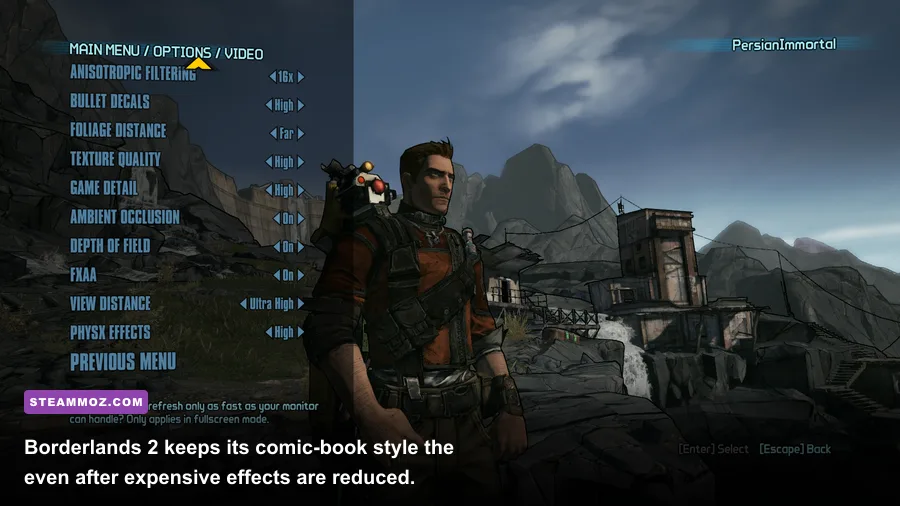
Ambient Occlusion is one of the easiest cuts. It adds contact shadows under crates, rocks, characters, and environmental edges, but its screen-space calculation can create a surprisingly large hit in crowded areas. The difference is subtle during combat, so Off is the best max-FPS choice. Depth of Field should also be Off: it blurs the background during aiming and cinematic moments, costs performance, and can make distant loot harder to identify.
| Graphics Option | Max-FPS Setting | Typical Performance Effect | What You Give Up |
|---|---|---|---|
| Game Detail | High, Medium for weak CPUs | Moderate to high | Distant geometry and scene density |
| Dynamic Shadows | Medium GPU: Off; modern GPU: On | Moderate | Moving character and object shadows |
| Ambient Occlusion | Off | Moderate | Subtle grounding around objects |
| Depth of Field | Off | Low to moderate | Cinematic blur |
| Bullet Decals | Low or Medium | Low | How long impacts remain on surfaces |
| Anisotropic Filtering | 8x or 16x | Very low | Almost nothing at modern resolutions |
| PhysX Effects | Off or Low | Very high in explosions | Extra cloth, debris, smoke, and particles |
| View Distance | High, Medium on CPU-limited systems | Moderate | Far-away objects and terrain detail |
Dynamic Shadows are a judgment call. They improve readability in areas such as the Dust and the Burrows, and the visual difference is obvious when enemies move through bright interiors. On a GTX 1060, RX 580, or newer card, keep them On and test a chaotic fight. On integrated graphics or older GTX 750 Ti-class hardware, Off is the cleaner choice.
Anisotropic Filtering is the free upgrade. Use 16x if the menu allows it, or force it through your driver. It sharpens floors, roads, and angled surfaces at distance with almost no measurable hit on current hardware. Bullet Decals can stay Medium; Low is worthwhile only if dozens of impacts accumulate during long sessions.
PhysX is the biggest trap for max FPS
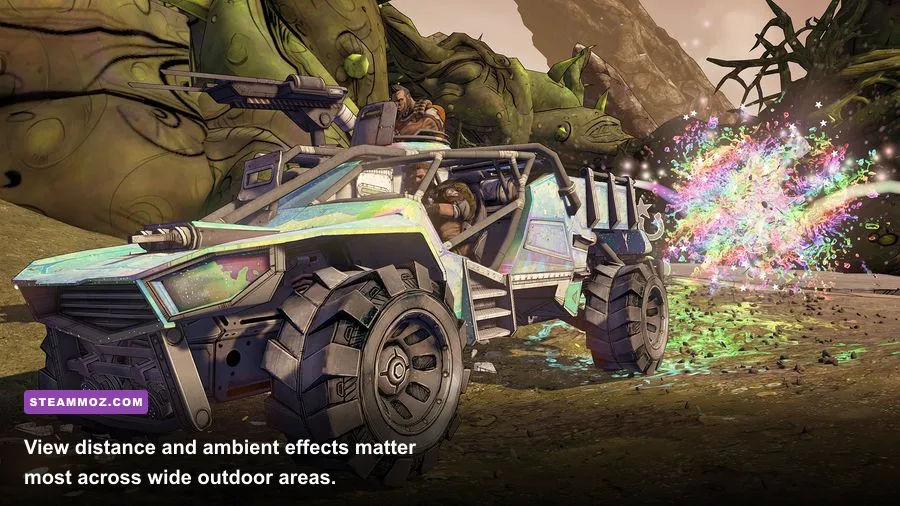
PhysX Effects are responsible for some of the most dramatic drops in Commander Lilith. The setting adds extra cloth simulation, smoke, debris, sparks, and fluid-like particles. Those effects look excellent when Maya throws explosive elements into a room, but they can overwhelm a CPU or create severe stutter when several enemies die simultaneously.
On NVIDIA hardware, Low can be acceptable because supported GPUs may process the workload. On AMD cards, Intel integrated graphics, and older NVIDIA models, set PhysX to Off first. Do not judge it by walking around Sanctuary; test it in a crowded encounter with elemental weapons, Badass enemies, and multiple barrels. That is where the setting earns—or loses—its frame budget.
Commander Lilith’s enemies also make frame pacing more important than average FPS. The expansion throws fire, corrosive clouds, and bright projectile effects across narrow arenas. If your counter says 90 fps but the game repeatedly hitches to 35 during those effects, lowering PhysX and Ambient Occlusion will feel better than raising the average by another ten frames.
For a stable competitive-style setup, use Off PhysX, Off Ambient Occlusion, Off Depth of Field, High textures, High filtering, Medium shadows, and a frame cap matching your monitor. For a prettier setup on a modern desktop, turn Dynamic Shadows and PhysX to Low, then keep a cap that your worst combat scenes can sustain.
Three tested profiles for different gaming PCs
These profiles are starting points, not magic numbers. Borderlands 2 can be CPU-limited even when the GPU is barely working, particularly at 1080p with a very high frame-rate target. Watch GPU utilization, CPU thread activity, and frametime graphs while fighting—not while standing in an empty menu.
| Hardware Target | Core Settings | Expected Goal | Best Use |
|---|---|---|---|
| Integrated graphics or older laptop | 900p or 720p, textures Medium, detail Medium, shadows Off, AO Off, PhysX Off | 30–60 fps | Stable play on low-power systems |
| GTX 750 Ti / GTX 960 / RX 560 class | 1080p, textures High, detail High, shadows Off, AO Off, PhysX Off | 60 fps cap | Reliable combat performance |
| GTX 1060 / RX 580 class | 1080p, textures High, detail High, shadows On, PhysX Low, AO Off | 60–120 fps | Sharper visuals with controlled effects |
| RTX 2060 / RX 6600 or newer | 1440p, textures High, detail High, shadows On, PhysX Low or Medium | 90–144 fps | High-refresh displays |
These are sensible ranges rather than guarantees because driver versions, mods, resolution scaling, and CPU speed all matter. The original game’s official Steam listing confirms how old the baseline hardware is, but modern high-refresh play exposes engine behavior that the original minimum specifications never anticipated.
If your GPU is below 90% usage while FPS dips, lower Game Detail, View Distance, and your frame cap before reducing resolution. If GPU usage sits at 98–100%, reduce resolution or use a lower resolution scale if your launcher supports it. That distinction prevents the classic mistake of making the entire image blurry to solve a CPU bottleneck.
Fix stutter after changing the graphics menu
After applying settings, completely restart the game. Borderlands 2 occasionally behaves differently until a new session loads, and shader or texture behavior can look worse during the first few minutes of a run. Test in the same demanding location each time—The Burrows, Helios Fallen, and Haderax’s arena are better benchmarks than Sanctuary’s quiet hub.
Keep your graphics driver current, but don't assume the newest driver automatically fixes every Unreal Engine 3 quirk. Disable overlays one at a time, especially recording software and hardware-monitoring overlays, if frametimes become erratic. Steam’s file verification is also worth running after crashes or corrupted textures; use the official Steam Support troubleshooting tools if the client reports damaged files.
Borderlands 2 also stores configuration files under its documents folder. Back up your settings before editing anything. Advanced users sometimes change engine values for texture streaming or frame smoothing, but random copy-pasted config tweaks can cause pop-in, input delay, or broken effects. Change one value, test it, and keep a clean backup. Our broader PC crash and FPS fixes guide follows the same controlled approach, while Dragonkin’s performance settings guide explains why frametime stability beats headline FPS.
Finally, remember that Commander Lilith is an add-on to the existing Borderlands 2 ecosystem, not a new graphics technology showcase. Its comic-book art remains strong with AO, DOF, and PhysX disabled. For the most dependable result, use 1080p fullscreen, High textures, High detail, 16x filtering, Medium or Off shadows, AO Off, DOF Off, PhysX Off, and a sensible cap. If you want extra polish, add Dynamic Shadows first; only enable PhysX after your worst firefights stay smooth. The official Borderlands site has broader franchise information, while the Commander Lilith Steam page covers the expansion itself.