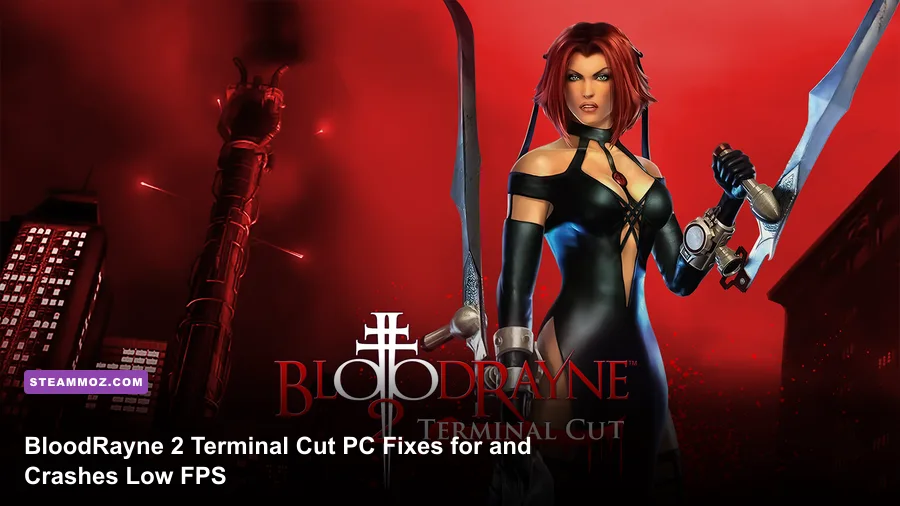
If BloodRayne 2: Terminal Cut crashes, freezes, or runs with ugly low FPS on PC, start with a clean launch: verify the Steam installation, disable overlays, run the game at a sensible resolution, and cap it to a stable 60 FPS. This is an older action game with a modernized release layered over legacy PC behavior, so stability usually improves more from removing conflicts than from lowering every setting.
Terminal Cut is still the same aggressively stylish adventure starring Rayne, the dhampir heroine slicing through the Shroud with wrist blades, firearms, and supernatural abilities. That matters because its performance problems aren't always GPU problems. Overlay hooks, unusual refresh rates, controller software, corrupted configuration data, and old fullscreen behavior can all cause trouble before the game reaches the first fight.
Before changing anything, note your Windows version, GPU driver, display resolution, refresh rate, and whether the crash happens at startup, during loading, or in a particular level. That small record makes it much easier to identify the real culprit instead of piling random compatibility tweaks on top of one another.
Start with the fixes that solve most crashes
First, open the game's official Steam page and confirm you're launching Terminal Cut rather than an old executable or a desktop shortcut pointing to the wrong install. Then open Steam's Properties menu, choose Installed Files, and select Verify integrity of game files. Let the process finish completely; don't launch while Steam is still reacquiring files.
Next, disable the common injectors one at a time. Turn off Steam Overlay for the game, then temporarily disable Discord Overlay, NVIDIA App or GeForce Experience overlay, AMD Adrenalin overlay, Xbox Game Bar, MSI Afterburner overlay, and ReShade. Rayne's game may launch with an overlay enabled, but a hook that works in a modern DirectX title can still trigger a black screen or crash here.
Set the game executable to run as administrator only if normal launching fails, and avoid combining that option with Steam's administrator setting. Also try disabling fullscreen optimizations through the executable's Compatibility tab. If the game crashes immediately after a Windows update, Windows 7 compatibility mode is worth testing; Windows XP compatibility mode is a last resort, not a default recommendation, because it can create new audio, input, or resolution problems.
| Symptom | Most likely cause | First fix to try | Escalation |
|---|---|---|---|
| Crash before the main menu | Overlay, damaged file, or display mode conflict | Verify files and disable overlays | Reset configuration and test borderless/windowed mode |
| Crash when loading a save | Corrupt save or unstable frame-time spike | Try another save and cap FPS | Back up saves, then test a fresh profile |
| Black screen with audio | Fullscreen or refresh-rate mismatch | Use windowed mode and a standard resolution | Disable fullscreen optimizations |
| Controller disconnect crash | Conflicting input layers | Use Steam Input or unplug extra devices | Close controller remappers and virtual drivers |
For more general PC troubleshooting habits, our guide to ELEX crash and FPS fixes covers the same useful order of operations: repair the install, remove overlays, then tune performance.

🎮 BloodRayne 2: Terminal Cut
Looking to experience this game? Grab your digital key directly on our store for $5.99.
View on Steammoz Store →Reset bad settings without deleting your saves
A broken resolution or refresh-rate value can trap Terminal Cut in a crash loop. Close the game and Steam, then back up your save folder before touching configuration files. Search the game's installation folder and your Windows user folders for files named with terms such as config, settings, or options. The exact location can vary with the release and Windows setup, so don't delete files blindly.
Rename a suspected configuration file instead of removing it. Adding “.old” to the filename gives you a safe rollback and forces the game to create a fresh profile on its next launch. If the game starts afterward, rebuild your settings gradually: choose a normal 16:9 resolution, set windowed or borderless mode first, and only then test exclusive fullscreen.
Keep your display refresh rate at 60, 120, or 144 Hz while troubleshooting rather than using an unusual custom value. Terminal Cut's action is much more comfortable with consistent frame pacing than with a wildly fluctuating counter. If your monitor is ultrawide, test 1920x1080 first. Once the game is stable, you can experiment with higher resolutions and aspect ratios.
Don't overwrite saves while diagnosing a crash. Rayne's campaign is divided across substantial levels, and a damaged save can make one specific loading screen look like a graphics failure. If only one save crashes while a new game works, keep the backup, test an earlier save, and avoid repeatedly loading the problematic slot until you've isolated the issue.
The best Terminal Cut settings for stable 60 FPS
Terminal Cut is not demanding by modern standards, but that doesn't mean maxing everything is automatically wise. The goal is stable frame delivery during crowded fights, not a high number in an empty corridor. Start at your monitor's native resolution, use the game's highest texture option your GPU can comfortably handle, and reduce effects only after checking frametimes in combat.
| Setting | Recommended value | FPS impact | Visual trade-off |
|---|---|---|---|
| Resolution | Native, or 1920x1080 for testing | High | Lowering it improves GPU load but softens the image |
| Texture quality | High | Low to medium | Lower settings make environments and characters blurrier |
| Shadows | Medium | Medium to high | Reduces contact-shadow detail in busy scenes |
| Anti-aliasing | Use the lowest clean option | Medium | More jagged edges at lower levels, especially on blades |
| Bloom and post-processing | Medium or off for testing | Low to medium | Less glow around lights and supernatural effects |
| VSync | Off in-game if using an external cap | Variable | External control can reduce uneven frame pacing |
| FPS limit | 60 FPS, or 30 FPS on weak hardware | Improves consistency | A cap prevents sudden spikes and drops |
For a modest laptop, use 1600x900 or 1280x720, medium textures, medium shadows, low anti-aliasing, and a locked 30 FPS. That profile often feels better than an unstable 50-to-90 FPS range. On a modern desktop, keep textures high, use native resolution, and cap at 60 FPS first. If frame pacing is flawless, test 120 FPS; don't assume every animation or physics interaction benefits from an uncapped rate.
An external limiter such as RTSS can help when the in-game limiter produces uneven delivery. Set the cap slightly below the refresh rate for adaptive-sync displays—for example, 58 or 59 FPS on a 60 Hz panel—and compare it with a straightforward 60 FPS cap. Change only one variable at a time. If you use NVIDIA Control Panel or AMD Adrenalin, create a profile for the Terminal Cut executable rather than applying global driver settings.
Our frame-rate settings guide for Dragonkin explains the same principle: identify whether the GPU, CPU, or frame pacing is the bottleneck before turning down image quality.
What to do when FPS drops during combat
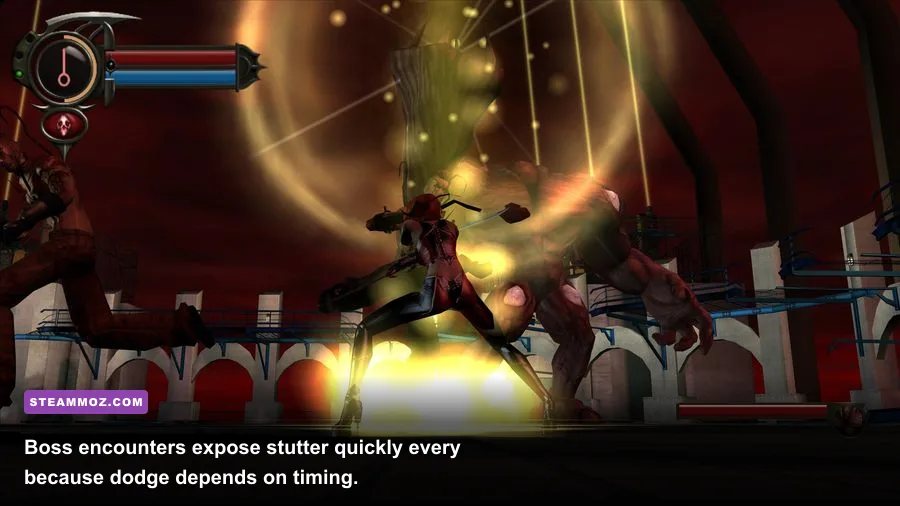
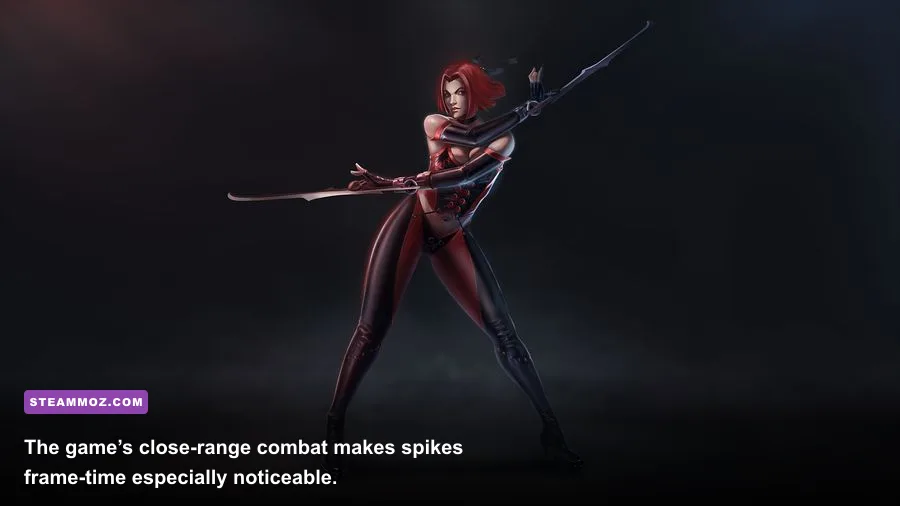
Combat drops are especially noticeable in BloodRayne 2 because the game encourages rapid blade chains, acrobatic movement, and crowd control. If the counter looks fine while standing still but collapses when Rayne enters a large fight, shadows, post-processing, and background applications are better suspects than texture memory.
Watch GPU utilization and CPU utilization with a lightweight monitor. GPU usage near 99 percent means resolution or effects are the first levers. Low GPU usage paired with a stuttering game points toward CPU scheduling, background tasks, driver overlays, or the old engine's frame pacing. Close browsers with video playback, RGB control panels, capture software, and hardware monitoring overlays while testing.
Use Rayne's abilities as a practical stress test. Trigger Aura Vision in a crowded area, fight multiple enemies with the wrist blades, and move through a location with several light sources. If the slowdown appears only when effects stack, lower bloom or post-processing. If it appears when many enemies animate at once, lock the game to 30 or 60 FPS and reduce shadows before sacrificing textures.
Don't judge the fix from a quiet hallway. Revisit the same combat-heavy section after each change and compare how quickly the game recovers after a large effect or camera turn. Consistent 60 FPS is the target; a brief 58 FPS dip is harmless, while repeated stutters every time Rayne spins through a group signal a frame-time problem.
Controller, audio, and driver conflicts worth checking
Terminal Cut's controller support can become messy when Steam Input, DS4Windows, reWASD, virtual Xbox drivers, and a physical gamepad all present devices simultaneously. Disconnect extra controllers, wheels, fight sticks, and virtual devices. Then enable Steam Input for the game and test one controller profile. If that makes the controls worse, disable Steam Input and use the controller's native mode instead—running both layers together is the usual mistake.
Update your GPU driver through the official NVIDIA driver page or AMD support page, but don't automatically assume the newest driver is best. If the issue began immediately after an update, a clean reinstall or rollback can be more useful. Intel integrated graphics users should install the latest driver offered for their exact processor or laptop model.
Audio crashes deserve their own check. Set Windows audio to a standard 16-bit, 44.1 kHz or 48 kHz format, disable spatial audio, and turn off third-party enhancements. Bluetooth headsets add another layer of switching between headset and stereo profiles, so test with wired audio if the game freezes during cutscenes or loading.
For additional platform-specific context, Steam's official troubleshooting support is useful for installation and launch problems. It won't provide a magic Terminal Cut patch, but it does help rule out account, download, and library issues.
A clean troubleshooting order that saves time
Use this sequence rather than changing ten options at once. Verify files, disable every overlay, unplug extra input devices, launch in windowed mode at 1920x1080, and cap the game to 60 FPS. If it works, re-enable features individually. Start with Steam Overlay, then your controller layer, then higher resolution. The moment the crash returns, you've found the conflict.
| Step | Action | Success signal | Keep it? |
|---|---|---|---|
| 1 | Verify Steam files | No missing or reacquired files | Always |
| 2 | Disable overlays and capture tools | Stable launch and fewer freezes | Until the game is proven stable |
| 3 | Reset configuration safely | Menu loads without a black screen | Rebuild settings gradually |
| 4 | Use 1080p, medium effects, and a 60 FPS cap | Stable combat frametimes | Keep as the baseline profile |
| 5 | Test input and audio separately | No disconnect or cutscene crash | Remove conflicting software |
| 6 | Change driver or compatibility options | Problem disappears consistently | Document the working setting |
If nothing works, reinstall to a new Steam library folder, launch once before restoring backed-up saves, and check whether a fresh profile behaves differently. Avoid downloading random DLL files or unofficial “FPS booster” packs; they can replace system libraries, introduce malware, and make a simple compatibility issue much harder to diagnose.
Terminal Cut is at its best when its speed stays predictable. Give it a clean launch environment, a sensible 60 FPS target, and enough time to test real combat rather than menus. Those steps fix the majority of crashing and low-FPS cases without sacrificing the sharp, chaotic rhythm that makes Rayne worth revisiting.
If you enjoy tuning older PC games, Steamoz's Dungeon Siege classic-PC review and Drawful 2 performance guide offer more practical advice for getting aging releases running cleanly on modern hardware.