If Blasphemous 2 keeps crashing or crawling below 60 FPS on PC, start with the boring fixes that actually work: update your GPU driver, verify the Steam installation, disable overlays, use exclusive fullscreen, and cap the frame rate to a stable value. After that, lower effects-heavy settings before touching resolution. The game is a 2D Metroidvania, but its animated particles, lighting, transitions, and crowded boss arenas can expose driver, overlay, shader, and frame-pacing problems that raw GPU power alone won't solve.
This guide separates genuine performance fixes from internet folklore. You'll get a clean troubleshooting order for crashes, a practical graphics profile for weak and mid-range PCs, and a way to tell the difference between low FPS, stutter, controller lag, and a broken save or installation. For official compatibility information, compare your system with the Blasphemous 2 Steam page and check updates from The Game Kitchen.

Start With These Five PC Fixes
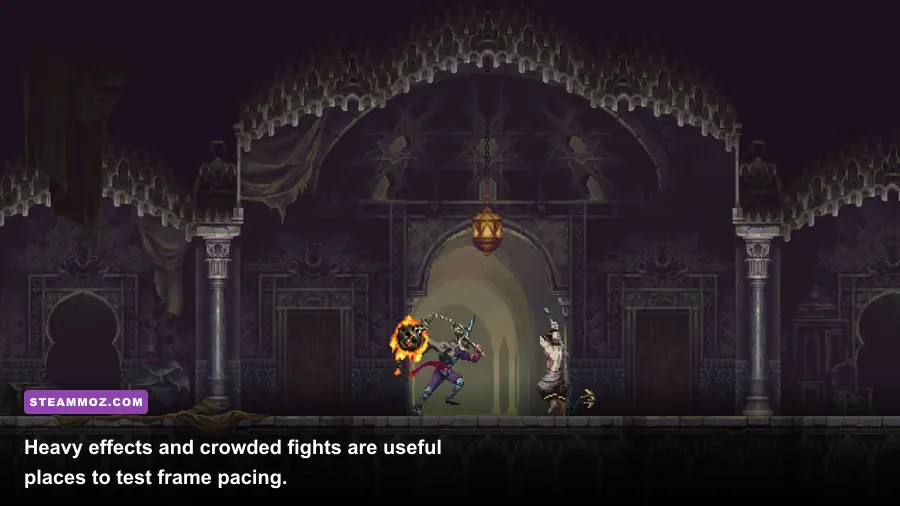
Before changing a dozen settings, close the game and work through this short sequence. It fixes the most common causes of Blasphemous 2 crashing, black screens, and sudden drops after an update.
- Restart Steam and the PC. This sounds painfully obvious, but it clears a stuck Steam overlay process, a suspended graphics driver, and a failed shader cache. Don't launch the game immediately after waking a laptop from sleep.
- Verify the game files. In Steam, right-click Blasphemous 2, choose Properties, open Installed Files, then select Verify integrity of game files. Steam will replace damaged or missing files without deleting your save. This is especially important after a patch or interrupted download.
- Update the graphics driver cleanly. Install the current Game Ready driver for NVIDIA cards or Adrenalin driver for AMD cards. If crashes began directly after a driver update, rolling back one stable version is smarter than repeatedly reinstalling the newest package. Laptop users should use the manufacturer-approved driver if a generic update causes display switching problems.
- Turn off overlays temporarily. Disable Steam Overlay, Discord Overlay, Xbox Game Bar, NVIDIA or AMD recording overlays, MSI Afterburner/RivaTuner OSD, and ReShade. These hooks can collide with fullscreen presentation or input handling. Re-enable them one at a time after the game is stable.
- Launch with one display and one controller. Disconnect unused gamepads, racing wheels, virtual controllers, and USB audio devices. Also test with HDR disabled in Windows if you get a black screen. A clean launch makes it much easier to identify a conflict.
Don't start by deleting random folders or downloading replacement DLL files. Those “fixes” often create a second problem and can put your save at risk. If the game crashes before the main menu, run Steam as normal, not as administrator, and test the executable after removing third-party launch arguments.

🎮 Blasphemous 2
Looking to experience this game? Grab your digital key directly on our store for $7.49.
View on Steammoz Store →Use a Stable Graphics Profile Before Chasing 120 FPS
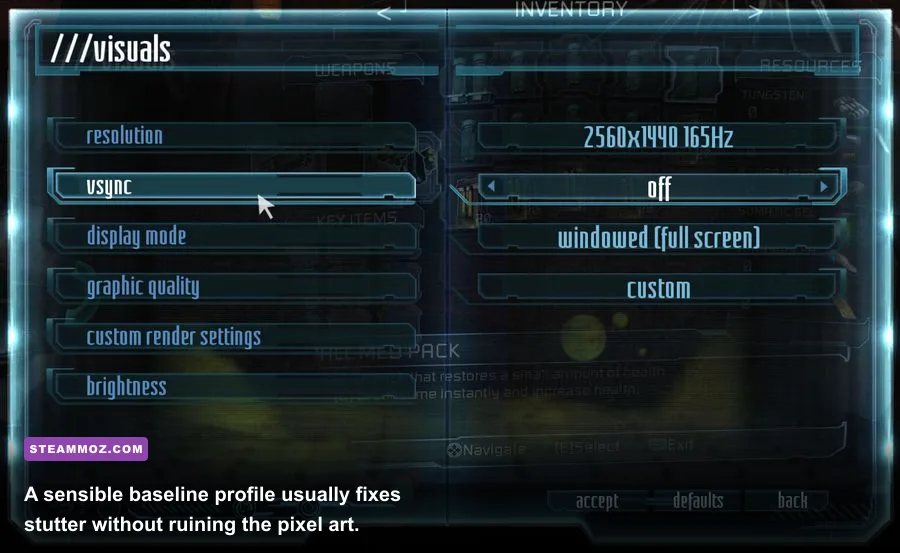
Blasphemous 2's pixel art doesn't need extreme settings to look excellent. The target should be consistent frame delivery, not a giant number in an overlay. Start at your monitor's native resolution, select fullscreen, enable VSync if you see tearing, and cap the game at the highest rate your PC can hold in the busiest room. A locked 60 FPS feels far better than a wildly fluctuating 90-140 FPS.
| Setting or symptom | Recommended value | FPS impact | Visual or stability note |
|---|---|---|---|
| Display mode | Fullscreen | Low to medium benefit | Often reduces desktop compositor interference and improves frame pacing. |
| Resolution | Native; 1920x1080 for testing | High on integrated GPUs | Lower only after effects and background apps are addressed. |
| VSync | On if tearing appears | Small latency cost | Can make a stable 60 FPS look much smoother. |
| Frame-rate limit | 60 FPS, or 30 FPS on weak hardware | Reduces spikes | A cap prevents unnecessary GPU heat and uneven pacing. |
| Effects and particles | Medium or Low | Medium to high | Prioritize this in effects-heavy fights and crowded rooms. |
| Shadows and lighting | Medium | Medium | Good compromise; low settings can flatten the atmosphere. |
| Post-processing | Low or Medium | Low to medium | Useful first cut when stutter follows screen effects. |
| Background applications | Close browsers and recorders | Low to high on 8 GB RAM | Browsers can trigger hitching when memory pressure is high. |
If your copy exposes fewer graphics controls than this table, that isn't a problem. Use the options that are actually present; don't install an unofficial config editor just to unlock a setting. The biggest practical wins are fullscreen, a sensible cap, reduced effects, and eliminating overlays.
Three profiles that make sense
For an integrated GPU or an older laptop, use 1280x720 or 1600x900, Low effects, Low post-processing, VSync on, and a 30 FPS cap. A consistent 30 is perfectly playable for exploration and platforming, though the game feels sharper at 60 during parries and aerial attacks.
For a GTX 1050 Ti, GTX 1650, RX 570, or similar system, use 1920x1080, Medium effects, Medium lighting, fullscreen, and a 60 FPS cap. This is the sensible baseline rather than an apology of a setting. For a GTX 1060, RX 580, RTX 2060, RX 5600 XT, or better, use native 1080p or 1440p, High where available, and test an uncapped mode only after confirming that frame pacing remains clean.
Fix Crashes, Black Screens, and Freezes
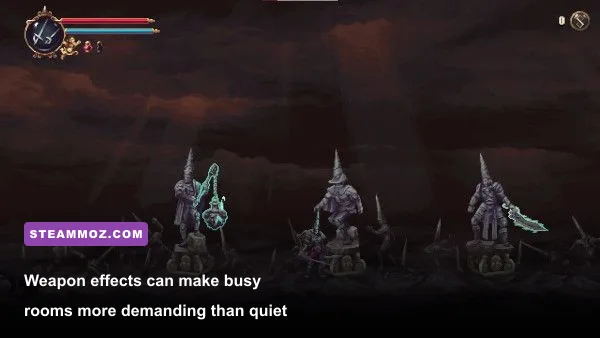
Crashes need a different process from low FPS. A slow game is usually overloaded or badly paced; a crash is more often a file, driver, overlay, permission, or compatibility problem. Make one change at a time and launch the same way after each test.
When it crashes on startup
Verify the files first, then disable every overlay. If that fails, open the game's Steam properties and remove custom launch options. Test windowed or borderless mode if fullscreen gives you a black screen. Windows can also retain a bad HDR or multi-monitor state, so temporarily disable HDR and unplug the second display. Once the game reaches the menu, restore those features individually.
Right-click the executable, open Properties, select Compatibility, and avoid blindly enabling compatibility modes. Windows 8 compatibility, forced administrator mode, and “Disable fullscreen optimizations” can help one machine and hurt another. Treat them as controlled experiments, not universal cures. If you use a laptop, set Windows Graphics settings to assign Blasphemous 2 to the high-performance GPU rather than the integrated chip.
When it crashes during a room transition
Room transitions and save interactions are useful clues. If the crash happens in the same area every time, verify files again and remove mods, reshade presets, or custom texture packs. Keep at least one manual backup of your save before experimenting. The safest route is to copy the game's save folder to another location, then test whether a fresh profile reaches the problem area.
Do not delete the original save to “reset” the issue. If a new profile works while the old one crashes, report the reproducible location and steps through the official Steam discussions or the developer's support channels. Include your GPU, driver version, Windows version, whether overlays were active, and the exact area—“it crashes sometimes” is much harder to investigate than “it crashes entering the Choir of Thorns after teleporting from the Sacred Entombments.”
When it freezes or closes after alt-tabbing
Borderless mode can be more forgiving for frequent alt-tab use, while exclusive fullscreen can deliver cleaner frame pacing. Test both. Avoid alt-tabbing during loading or a room transition, and turn off browser hardware acceleration if a video or stream is running on another monitor. Also check Windows Event Viewer only after the practical fixes; it may confirm a display-driver reset, but it rarely provides a magical one-click solution.
Stop Stutter and Uneven Frame Pacing
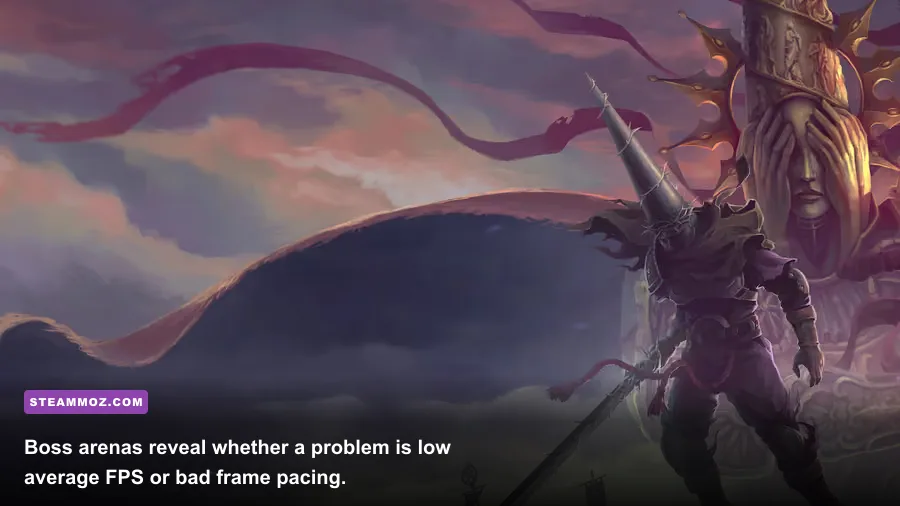
Low FPS is easy to spot. Stutter is trickier: the counter may say 60 while movement still feels like it is catching on invisible nails. That usually points to frame-time spikes, background activity, shader compilation, or a refresh-rate mismatch.
First, choose a cap that your PC can hold everywhere—not just in a quiet section of The Sacred Entombments. Test a demanding room, a boss arena, and a fast screen transition. If 60 dips to 48, cap at 45 or 30 instead. On a 120 Hz display, a 60 FPS cap can still look excellent if VSync and frame pacing cooperate; an unstable 70-110 FPS range often looks worse.
Second, watch GPU usage and temperatures. If GPU usage sits near 99 percent, reduce resolution or effects. If usage is low while FPS falls, the limiter may be the CPU, a background process, or a presentation issue. Close browsers with many tabs, cloud-sync clients, RGB utilities, and recording software. On 8 GB systems, memory pressure is particularly noticeable when Steam, Discord, and a browser are all open.
Third, use Windows power settings sensibly. Plug in laptops, select a performance-oriented power mode, and make sure the game isn't running on battery-saving graphics. Don't disable every CPU security feature or apply unsafe overclocks for a 2D game. Blasphemous 2 benefits more from stable clocks and a clean background than from a risky extra few percent.
| What you observe | Likely cause | Best first test | Expected result |
|---|---|---|---|
| GPU at 95-100%, FPS drops in effects | Rendering load | Lower effects, lighting, then resolution | Higher minimum FPS during busy combat. |
| GPU below 70%, regular hitches | Background task or frame pacing | Close overlays, browser, recorder; cap FPS | Fewer spikes without major image loss. |
| 60 FPS counter, jerky movement | Refresh or VSync mismatch | Test fullscreen and VSync; try a fixed cap | Smoother camera and attack timing. |
| Short freeze after entering rooms | Asset or shader loading | Verify files and let the area load once | Later visits should hitch less. |
| Performance worsens over time | Heat or power throttling | Check temperatures and fan profile | More consistent clocks after cooling. |
Check Your Hardware and Windows Setup
Blasphemous 2 is not a demanding 3D blockbuster, but that doesn't mean every PC configuration is equal. Its published Steam requirements list 8 GB of RAM and older dedicated graphics hardware, yet integrated graphics, low-power laptop CPUs, unusual driver packages, and very high-resolution displays can still create trouble. Treat the listed minimum as a floor for playable settings, not a promise of locked 60 FPS in every scenario.
| PC tier | Practical target | Suggested profile | What to watch |
|---|---|---|---|
| Integrated graphics laptop | 30 FPS | 720p, Low effects, fullscreen, cap 30 | Shared memory, battery mode, and heat. |
| GTX 1050 Ti / RX 570 class | Stable 60 FPS at 1080p | Medium effects and lighting, cap 60 | Driver age and background RAM usage. |
| GTX 1060 / RX 580 class | 60 FPS at 1080p | High or Medium-High where available | Frame pacing at uncapped rates. |
| Modern mid-range GPU | 60 FPS at 1440p or higher | Native resolution, test High settings | Monitor refresh, VSync, and unnecessary uncapped load. |
Install the game on an SSD if possible. An SSD won't magically increase the maximum frame rate, but it can shorten transitions and reduce the pain of asset-loading hitches. Keep Windows, Steam, and the driver current, but don't update all three at once when troubleshooting; you want to know which change mattered.
For more PC troubleshooting habits, Steamoz's guide to ELEX crash and FPS fixes follows the same useful principle: isolate the variable before reaching for extreme tweaks. The same goes for our Dragonkin settings guide, especially its advice on frame caps and background processes.
Test the Fix Without Guessing
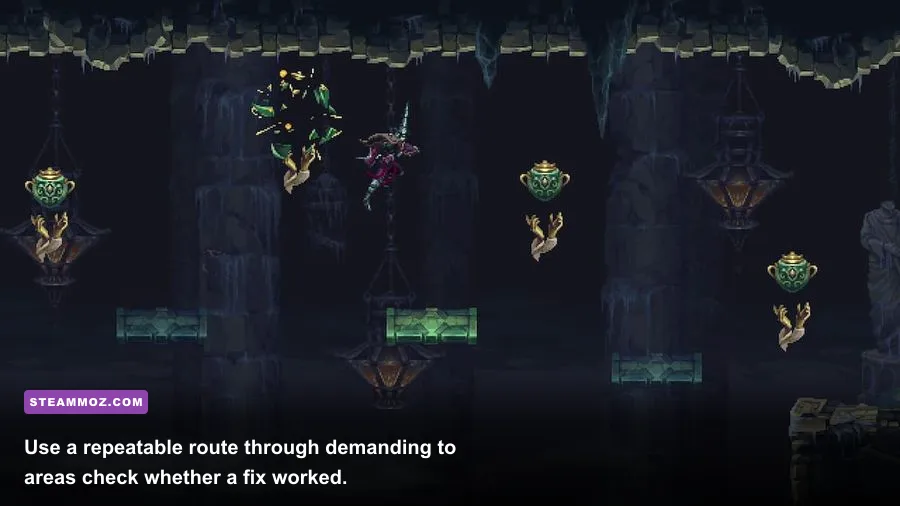
Changing settings randomly makes PC troubleshooting feel haunted. Use a repeatable test instead. Start from the same save, travel through the same two or three rooms, perform a few attacks, and enter a demanding arena. Record the result with Steam's performance overlay or a lightweight tool—but turn the overlay off if it causes crashes.
- Launch after a full reboot with overlays disabled.
- Confirm the game is using the dedicated GPU and the intended display resolution.
- Test fullscreen at a 60 FPS cap for five minutes.
- Repeat with effects reduced one step, leaving resolution unchanged.
- Only then compare borderless mode, VSync, or a higher refresh target.
Keep a tiny note of average FPS, the lowest noticeable dip, and whether the issue is a crash, hitch, input delay, or tearing. If lowering resolution changes nothing, stop lowering it: your bottleneck is probably not the GPU. If disabling overlays fixes the crash, restore them one by one until you find the offender. This method is less dramatic than editing registry keys, but it gets you to a real answer much faster.
Also remember that Blasphemous 2's combat rewards clean input timing. A low-latency 60 FPS profile is preferable to chasing 144 FPS if the latter introduces uneven frame delivery. The Penitent One's parries, jumps, and weapon swaps should feel predictable; visual smoothness is only useful when the controls arrive consistently.
When Nothing Works
If verification, driver testing, overlay removal, and a clean graphics profile don't solve the problem, gather evidence before reinstalling. Record the exact crash point, save location, display mode, GPU model, driver version, Windows build, and whether a fresh save behaves differently. Check the game's Steam news and official patch announcements for known issues, and consult Team17 support for a formal report.
A reinstall is reasonable only after verifying files and backing up saves. Uninstall through Steam, restart Windows, reinstall to an SSD if available, and launch with no mods, overlays, or custom launch options. If the new installation crashes in exactly the same place, that points away from missing files and toward a driver, hardware, or game-specific bug.
The reliable order is simple: verify, update or roll back the driver, remove overlays, select the correct GPU, use fullscreen, cap the frame rate, reduce effects, and test methodically. Blasphemous 2 doesn't need a giant pile of secret launch commands. It needs a stable presentation path—and once that path is clean, the Penitent One's grim pilgrimage is far less likely to be interrupted by a desktop crash.
If you're troubleshooting other difficult PC releases, our PC requirements guide and Dungeons 3 tips guide offer similarly practical ways to separate real fixes from wasted effort.