The best Blades of Fire graphics settings for max FPS are a 60 FPS-focused mix of High textures, Medium shadows, reduced effects, and DLSS or FSR set to Quality. Turn off motion blur, depth of field, and chromatic aberration, then lower volumetric effects and view distance before touching textures. That combination keeps Aran de Lira's armor, forged weapons, and environmental detail sharp while cutting the settings most likely to cause stutter in busy areas.
Blades of Fire is a demanding third-person action game, and a flat average frame rate doesn't tell the whole story. Combat depends on reading attack direction, switching weapon forms, and reacting to enemy telegraphs. A 55 FPS average with ugly frame-time spikes can feel worse than a locked 45 or 60 FPS. The profiles below are built around that reality, with separate recommendations for 1080p, 1440p, and high-end systems.
The Best Blades of Fire Settings for Max FPS
Start with the Quality preset, but don't leave it untouched. Presets often spend too much GPU power on shadows, volumetrics, reflections, and post-processing while giving you little visible benefit during a frantic fight. Textures are the exception: they mostly consume VRAM rather than raw GPU time, so High is usually the sweet spot on cards with 8GB or more.
| Setting | Recommended Value | FPS Impact | Visual Trade-Off |
|---|---|---|---|
| Resolution | Native or 90% render scale | Very high | Lower scale softens fine geometry |
| Upscaling | DLSS Quality, FSR Quality, or TSR Quality | High | Small loss of distant clarity |
| Textures | High | Low to medium | Keep weapon and armor detail |
| Shadows | Medium | High | Less contact-shadow definition |
| Effects | Medium | Medium to high | Fewer particles and reduced glow |
| View Distance | High at 1080p, Medium at 1440p | Medium | More distant objects can appear later |
| Volumetrics or Fog | Low or Medium | High in misty areas | Less atmospheric depth |
| Reflections | Medium | Medium | Less accurate wet-surface detail |
| Motion Blur | Off | Small | Cleaner camera movement |
| Depth of Field | Off | Small | Less cinematic focus blur |
| Chromatic Aberration | Off | Small | Sharper image edges |
If the game offers separate global illumination or lumen-style lighting controls, set them to Medium before reducing textures. Dynamic lighting can be expensive in outdoor spaces, while texture quality is what preserves the look of forged blades and character equipment. If your GPU has 6GB of VRAM, use Medium textures at 1440p and watch for texture streaming hitching.

🎮 Blades of Fire
Looking to experience this game? Grab your digital key directly on our store for $31.99.
View on Steammoz Store →Best 1080p, 1440p, and 4K Performance Profiles
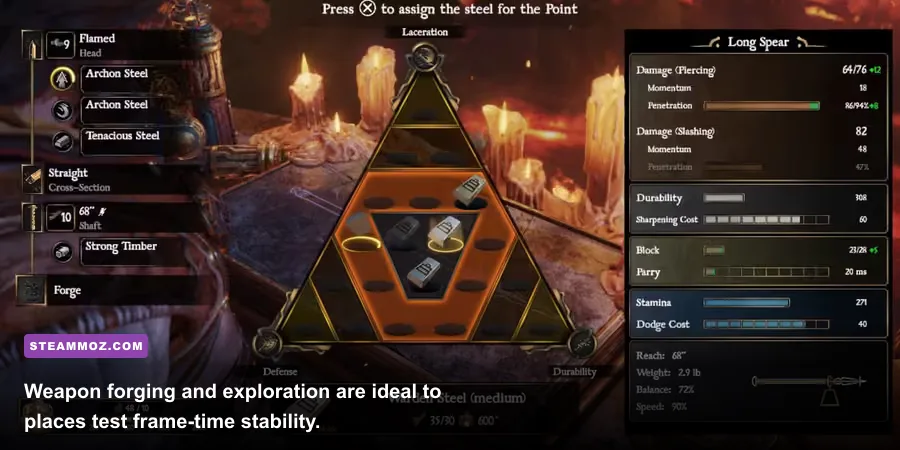
Your target resolution changes the best answer. At 1080p, the processor can become the limit once the GPU is no longer rendering a heavy native image. At 1440p, upscaling gives a larger performance gain, and at 4K, a balanced preset with reconstruction is practically mandatory unless you're using a top-end graphics card.
| Target | Resolution Strategy | Core Settings | Realistic Goal |
|---|---|---|---|
| 1080p competitive feel | Native or DLSS/FSR Quality | High textures, Medium shadows, Low volumetrics | 60 FPS with better consistency |
| 1440p balanced | DLSS/FSR Quality or Balanced | High textures, Medium effects, Medium reflections | 60 FPS on upper-midrange hardware |
| 1440p budget | DLSS/FSR Balanced | Medium textures, Low shadows, Low effects | 40-60 FPS depending on GPU |
| 4K quality | DLSS/FSR Performance or Balanced | High textures, Medium lighting, Low volumetrics | 30-60 FPS on high-end hardware |
For a 60 Hz monitor, cap the game at 60 FPS if your system frequently swings between 58 and 75. A stable cap reduces heat, fan noise, and frame-time variation. On a 120 Hz or 144 Hz display, try a 72, 90, or 120 FPS cap only after confirming that the GPU can hold it in exploration, combat, and forge areas. Don't judge performance from an empty corridor; test during a multi-enemy encounter where effects and animation overlap.
Nvidia users should begin with DLSS Quality. AMD cards should start with FSR Quality, while TSR Quality is worth testing if temporal shimmer appears around fences, foliage, or thin weapon edges. Balanced modes are useful at 1440p and 4K, but at 1080p they can make Aran's blade silhouettes look noticeably soft. Frame generation, if available in your build, should come after the base frame rate is stable; it can't fix sluggish input or poor 1% lows.
Which Settings Should You Lower First?
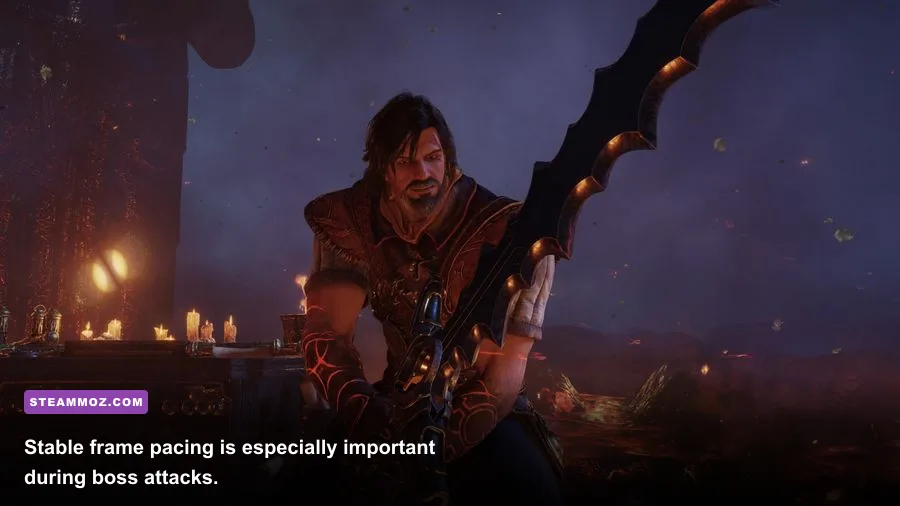
Shadows are usually the first major cut. Blades of Fire's combat arenas contain complex characters, weapons, and environmental lighting, so high shadow quality can cost a surprising amount for a detail you rarely study while blocking an attack. Medium shadows retain grounding beneath enemies without turning every encounter into a GPU stress test.
Volumetrics are next. Fog and light shafts look excellent in atmospheric areas, but they can punish performance when the camera faces a large outdoor vista. Lowering them won't affect the clarity of enemy animations as much as lowering resolution or upscaling quality. Effects quality also deserves attention because sparks, impact flashes, smoke, and magical-looking combat feedback can cause sudden drops when several enemies attack together.
| Performance Problem | First Adjustment | Second Adjustment | What to Watch |
|---|---|---|---|
| GPU usage stays near 99% | Use Quality upscaling | Lower shadows and volumetrics | GPU frame time and temperature |
| GPU usage is low but FPS drops | Lower view distance | Close background apps | CPU frame time and core load |
| Brief traversal hitching | Keep textures within VRAM | Install on SSD | VRAM allocation and disk activity |
| Combat effect slowdowns | Lower effects | Lower reflections | 1% low FPS during encounters |
| Image looks blurry | Raise upscaling mode | Disable excess sharpening | Thin geometry and motion detail |
Don't immediately drop every option to Low. That makes the image flat while often failing to solve a CPU-bound slowdown. Texture quality, anisotropic filtering, and model detail are generally better places to spend your visual budget. If the menu exposes foliage or environment detail separately, reduce those after shadows and volumetrics, particularly at 1440p.
PC Requirements and the Biggest Bottlenecks
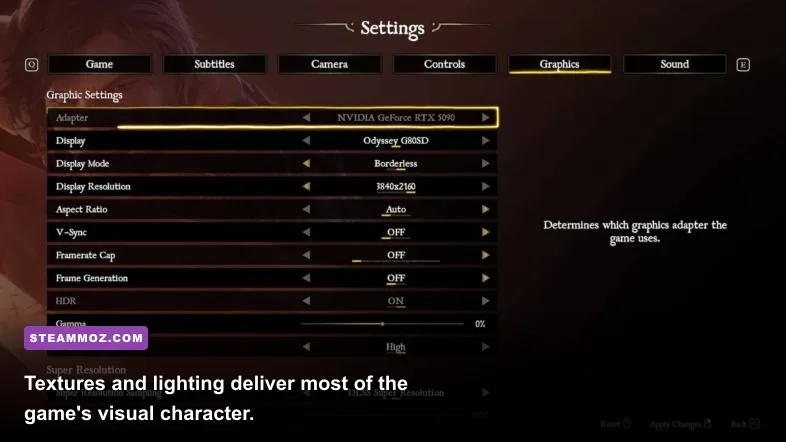
Steam's listed requirements put the minimum target around a Core i5-8400 or Ryzen 5 2600, 12GB of memory, and a GeForce GTX 1060 6GB or Radeon RX 5600 XT-class GPU. The recommended tier rises toward a Core i5-11600 or Ryzen 5 5600X, 16GB of RAM, and an RTX 3070 or RX 6800-class card. Treat those figures as a starting point, not a promise of locked 60 FPS at native resolution.
| Hardware Area | Minimum-Class Approach | Recommended Approach | Pro-Tuned Choice |
|---|---|---|---|
| GPU | 1080p, upscaling Balanced, Medium preset | 1440p, Quality upscaling, High textures | Native or Quality upscaling with High textures |
| VRAM | 6GB: Medium textures | 8GB: High textures | 12GB or more: High textures at 1440p |
| System RAM | 12GB, close background apps | 16GB dual-channel | 32GB for multitasking and capture |
| Storage | SSD strongly preferred | NVMe SSD | NVMe with ample free space |
| CPU | Cap to 30-45 FPS if needed | Target a stable 60 FPS | Raise view distance only after testing |
An SSD matters more than many graphics sliders because traversal can stream new areas, materials, and character data. Keep the game updated through its official Steam listing and install current GPU drivers. If you see stutters despite reasonable FPS, check whether VRAM is full, whether shader compilation is occurring, and whether another application is recording or indexing the drive.
CPU-limited performance needs a different fix. Lowering output resolution won't help when the processor is busy preparing enemies, animation, and world logic. Set View Distance and environment detail to Medium, cap the frame rate, and disable browser overlays, RGB utilities, and unnecessary launchers. Windows Game Mode and a clean fullscreen or borderless test can also reveal whether background scheduling is involved.
How to Test Your Settings Properly
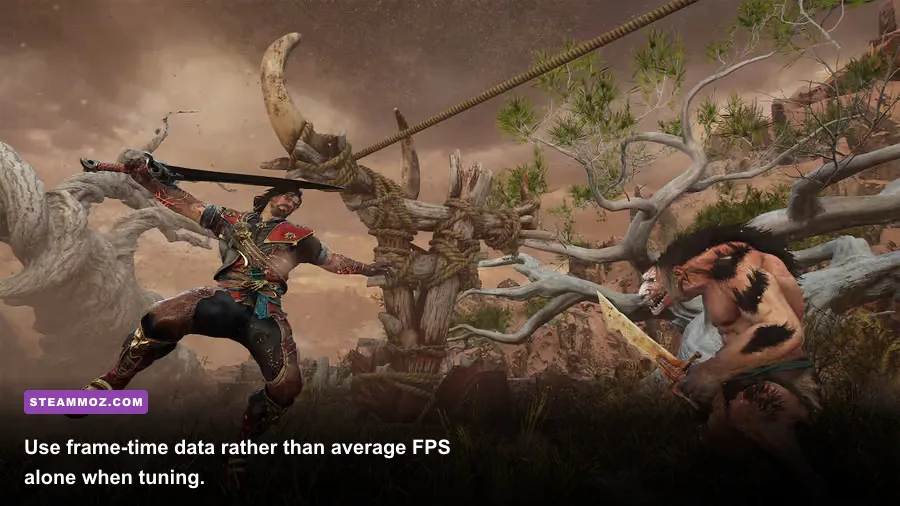
Use a repeatable route instead of changing options after every random dip. Load a save in a visually busy outdoor area, sprint through a traversal section, visit a forge, and then fight a group containing several enemies. Repeat the same route after each adjustment. The goal is not simply the highest number in the corner; it's a frame-time graph without large spikes when the camera turns or combat effects fill the screen.
- Set the target first. Choose 30, 45, 60, or an unlocked refresh-rate target before tuning image quality. A locked 45 FPS can be an excellent compromise on a midrange laptop.
- Choose reconstruction. Start with DLSS or FSR Quality. Compare it with TSR at the same resolution and keep the option with cleaner weapon edges and fewer shimmering lines.
- Reduce the expensive trio. Lower shadows, volumetrics, and effects one step at a time. These usually produce more FPS than dropping textures.
- Check the 1% lows. If the average rises but combat still feels uneven, revert the change and cap lower. Consistency beats a flashy peak.
- Save a visual baseline. Take a screenshot near a forge and in a dark interior. This makes it easier to spot muddy textures, crushed shadows, or excessive sharpening later.
For more PC tuning ideas, Steamoz's Dragonkin settings guide covers the same performance-first mindset, while the ELEX PC fixes guide is useful when instability goes beyond graphics quality. Also check MercurySteam's official game page and 505 Games' Blades of Fire page for patches and support information.
My final recommendation is simple: use High textures, Medium shadows, Medium effects, Low or Medium volumetrics, Quality upscaling, and a sensible FPS cap. That profile preserves the personality of Aran de Lira's forged arsenal and the game's dark fantasy environments without wasting performance on effects you won't notice while defending against the next incoming strike.