If Blackguards 2 crashes on startup, freezes during a battle, or crawls below a comfortable frame rate, the reliable fix is usually a combination of clean game files, modern compatibility settings, a capped frame rate, and fewer overlays. Start by verifying the Steam installation, updating or clean-installing your GPU driver, disabling overlays, and running the game through a conservative 1080p profile. Those steps solve most problems without sacrificing the game’s tactical visuals.
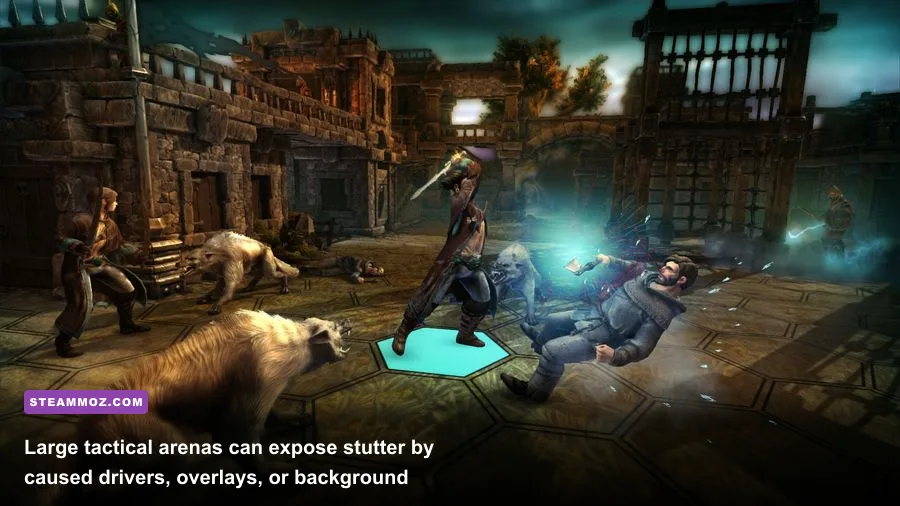
Blackguards 2 is an older Windows RPG built around grid-based battles, destructible environments, traps, summoned creatures, and busy combat arenas. That matters because a low frame rate is not always a raw GPU problem. Driver translation, fullscreen behavior, Windows scaling, shader compilation, and background overlays can all cause hitching in a game that should otherwise be easy to run. If you’re coming back to the sequel after playing another classic RPG, our Dungeon Siege performance guide covers many of the same compatibility headaches.
Fix Blackguards 2 Crashes Before Changing Graphics
Don’t begin by randomly lowering every option. A crash is normally caused by corrupted files, an incompatible display mode, missing runtime components, or an overlay hooking into the game. Work through the following sequence, launching Blackguards 2 after each major change so you know which fix actually worked.
1. Verify the Steam installation
Open Steam, right-click Blackguards 2, choose Properties, open Installed Files, and select Verify integrity of game files. Steam will replace missing or damaged files. This is especially important if the game crashes after a patch, a mod experiment, or a forced shutdown during saving.
Do not delete your save folder before testing. Verification normally leaves saves alone, but backing up your campaign is smart. Look for the game’s save data in its Steam user-data folders and copy it to another drive. If the crash only happens when loading one particular mission, a damaged save may be involved rather than the entire installation.
2. Remove overlay conflicts
Disable the Steam Overlay first by opening the game’s Steam properties and turning off Enable the Steam Overlay while in-game. Also close Discord Overlay, GeForce Experience or NVIDIA App overlay, AMD Adrenalin overlay, MSI Afterburner’s RivaTuner Statistics Server, and recording software such as OBS. These tools inject into the rendering pipeline, and older games are much less tolerant of several hooks running at once.
3. Repair the Windows runtime environment
Install the current Windows updates, then install the Microsoft Visual C++ Redistributable packages offered by Microsoft, particularly the x86 package. A 64-bit version of Windows can still need 32-bit runtime files because older games often use 32-bit libraries. Avoid downloading DLL files from random websites; that creates a security risk and rarely fixes the underlying problem.
For official references, keep the Blackguards 2 Steam page and Daedalic Entertainment’s official site bookmarked. If you use a non-Steam edition, check its own launcher and support documentation instead of mixing files between releases.
| Symptom | Most Likely Cause | First Fix to Try | What Not to Do |
|---|---|---|---|
| Crash before the main menu | Overlay, display mode, or missing runtime | Disable overlays and verify files | Do not replace random DLL files |
| Crash when loading a save | Damaged save or corrupted mission data | Test an earlier save and verify files | Do not overwrite every backup |
| Black screen with audio | Fullscreen or resolution conflict | Try borderless/windowed mode | Do not repeatedly force-close during saving |
| Crash after several battles | Overlay hook, driver issue, or memory pressure | Clean-install the GPU driver | Do not run multiple monitoring overlays |

🎮 Blackguards 2
Looking to experience this game? Grab your digital key directly on our store for $0.99.
View on Steammoz Store →Use Compatibility Settings on Windows 10 and 11
Blackguards 2 predates current Windows display and scaling behavior, so compatibility settings can make a bigger difference than a new GPU. Find the game executable through Steam’s Browse local files command. Right-click the main executable, select Properties, open Compatibility, and test these options one at a time.
High-DPI scaling is a frequent culprit
Select Change high DPI settings, enable Override high DPI scaling behavior, and test Application first. If the game looks soft or the window is badly sized, try System instead. High-DPI scaling can produce a strange combination of a tiny game window, cropped menus, or a black screen on 1440p and 4K monitors.
Next, test Disable fullscreen optimizations. Windows’ fullscreen optimization layer can create inconsistent frame pacing in older DirectX titles. If that makes no difference, turn it back off. Compatibility troubleshooting works best as controlled testing, not by checking every box at once.
Choose a sensible display mode
Start with 1920×1080 in borderless or windowed mode. Exclusive fullscreen may provide slightly lower latency, but it can also trigger resolution changes, alt-tab crashes, and monitor handshake issues. If borderless fixes the crash, keep it; Blackguards 2 is turn-based, so the small latency trade-off is barely noticeable.
Also check Windows display scaling. A 125% or 150% desktop scale is fine, but older interfaces sometimes calculate window dimensions incorrectly. Temporarily testing at 100% scaling can confirm whether the desktop compositor is involved.
Best Blackguards 2 Graphics Settings for Stable FPS
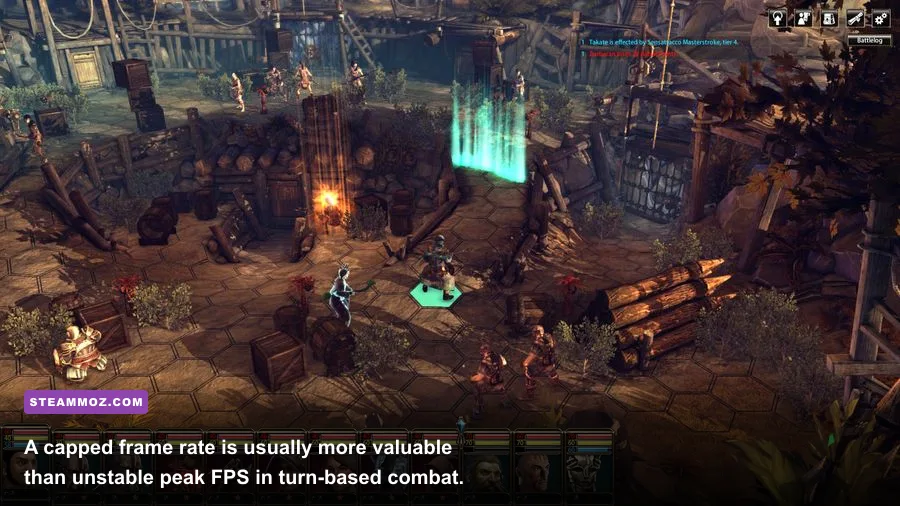
Blackguards 2 is not a modern ray-tracing workload. If the game runs badly, the useful goal is stable frame pacing rather than an enormous FPS number. Cap the game at 60 FPS if your display supports it, or use 30 FPS on very old hardware. A locked 60 feels dramatically better than jumping between 45 and 100 FPS with constant hitching.
| Setting | Recommended Value | FPS Impact | Visual Trade-Off |
|---|---|---|---|
| Resolution | 1920×1080 | High at 1440p or 4K | Best balance for older GPUs |
| Display Mode | Borderless or windowed for testing | Low to medium | Can reduce fullscreen crashes |
| Texture Quality | High if VRAM allows | Low on most systems | Preserves character and arena detail |
| Shadows | Medium | Medium to high | Usually the first major visual cut |
| Anti-Aliasing | Medium or off if stuttering | Medium | Edges look slightly harsher |
| Effects | Medium | Medium during busy battles | Less visual clutter from spells and hazards |
| Frame Rate | 60 FPS cap | Improves consistency | Prevents unstable spikes and drops |
Lower shadows before textures. Tactical arenas can contain several units, fire effects, traps, and environmental objects, so shadow calculations may create sudden dips when the camera moves across the battlefield. Textures generally consume video memory without heavily affecting frame rate, while shadows and effects can hit the GPU every frame.
If the menu does not provide a frame-rate limiter, use NVIDIA Control Panel or AMD Adrenalin to set a per-game cap. For NVIDIA, add the game executable under Manage 3D settings and set Max Frame Rate to 60. For AMD, create a Blackguards 2 profile and use the available frame-pacing or Radeon Chill controls. Don’t stack several limiters; use one method only.
Stop Stutter Caused by Drivers and Background Apps
Low FPS and stutter aren’t identical. If the counter says 60 but the game pauses every few seconds, investigate frame-time spikes. Start with a clean GPU driver installation. NVIDIA users can select the clean installation option during setup; AMD users can use the factory-reset option in the installer. A clean driver is worth trying if Blackguards 2 worked before a major driver update.
Close browsers with hardware acceleration, RGB control panels, animated wallpaper tools, and aggressive antivirus scans while testing. These programs may not reduce average FPS much, but they can interrupt a short tactical turn with ugly micro-freezes. Windows Game Mode can remain enabled, but test Xbox Game Bar recording separately if you notice hitching whenever you press a capture shortcut.
Check Task Manager while the game is running. If CPU usage is low but one core is repeatedly spiking, the issue may be engine-side or related to background software rather than GPU power. If memory usage is close to the system limit, shut down browsers and launchers. The historical Steam requirements list Windows Vista SP2 or later, 4 GB of RAM, DirectX 10-class graphics, and around 20 GB of storage, but meeting those old requirements doesn’t guarantee perfect behavior on a modern desktop.
For more PC troubleshooting techniques, see Steamoz’s ELEX crash and FPS fixes and the Dragonkin settings guide. The games differ technically, but the workflow—verify, isolate overlays, clean drivers, then tune settings—is the same.
Final Troubleshooting Order for Blackguards 2
If you want the shortest reliable route, follow this order and stop as soon as the problem disappears:
- Back up your Blackguards 2 saves.
- Verify the game files through Steam.
- Disable Steam, Discord, GPU, recording, and monitoring overlays.
- Launch at 1920×1080 in borderless or windowed mode.
- Set shadows and effects to medium, keep textures high, and cap the game at 60 FPS.
- Apply high-DPI override and disable fullscreen optimizations if Windows scaling causes a black screen or immediate crash.
- Clean-install your NVIDIA or AMD graphics driver.
- Install the required x86 Visual C++ runtime and complete Windows updates.
- Test an earlier save if one campaign mission consistently crashes.
| Profile | Resolution | Core Settings | Best For |
|---|---|---|---|
| Stable 60 | 1920×1080 | Textures High, Shadows Medium, Effects Medium, 60 FPS cap | Most modern integrated and entry-level gaming PCs |
| Low-End Rescue | 1280×720 or 1600×900 | Textures Medium, Shadows Low, Effects Low, 30–60 FPS cap | Older laptops and integrated graphics |
| Visual Priority | 2560×1440 | Textures High, Shadows High, Effects Medium, 60 FPS cap | Discrete GPUs with stable frame times |
Most importantly, don’t judge the fix from the title screen alone. Load a real campaign battle with multiple units, effects, traps, and environmental objects, then pan the camera across the arena. That is where unstable shadows, overlays, and frame pacing problems reveal themselves. Once the game survives several battles and save-load cycles, you’ve likely found a dependable configuration rather than a temporary lucky launch.
If you’re still exploring older strategy RPGs, our guides to Disciples: Liberation secret locations and Dungeons 3 campaign tips are useful companions. For Blackguards 2 specifically, a verified installation, compatibility-aware display mode, and conservative 60 FPS profile are the combination most likely to turn crashes and low FPS into a smooth tactical campaign.