
The best Art of Rally Australia settings are 1080p, Fullscreen, 60 FPS, medium shadows, low-to-medium foliage, and anti-aliasing enabled without stacking expensive post-processing effects. Start with the Balanced profile below, then adjust resolution scaling or shadows first. Australia’s open horizons, dense roadside vegetation, and long sightlines make frame-time consistency more important than chasing a flashy peak FPS number.
That matters because art of rally is all about rhythm. A sudden hitch while you’re setting up a Scandinavian flick into a tightening corner can ruin a clean stage, even if the FPS counter says 90 most of the time. The target here isn’t just maximum frames; it’s stable delivery, clear road detail, and low input latency through the Australia stages.
The game’s low-poly look can fool you into assuming every setting is cheap. It isn’t. Shadows, foliage, reflections, ambient occlusion, and resolution are the settings that usually create the biggest GPU load. Motion blur, depth of field, bloom, and chromatic aberration are less important for raw performance, but they can make braking points harder to read. Turn them off for competition and bring them back for replay screenshots.
Use These Art of Rally Australia Profiles First
Before changing individual options, pick a profile that matches your hardware and display. The values below are aimed at the PC version, with a 60 FPS baseline. If you’re using a 120Hz or 144Hz monitor, the High-FPS profile is a better starting point, but don’t sacrifice frame-time stability just to make the counter look impressive.
| Profile | Target Hardware | Resolution and Cap | Recommended Preset |
|---|---|---|---|
| Competitive | Integrated graphics or older laptop GPU | 900p or 1080p, 60 FPS cap | Low preset, medium textures, low shadows, effects off |
| Balanced | GTX 1060, RX 580, or modern integrated GPU | 1080p, 60 FPS cap | Medium preset, medium shadows, medium foliage |
| High-FPS | GTX 1660 Super, RX 5600 XT, or better | 1080p or 1440p, 90–144 FPS | High textures, medium shadows, low post-processing |
| Visuals | RTX 2060, RX 6600, or better | 1440p, 60–120 FPS | High preset, high textures, medium or high foliage |
The Balanced profile is the sweet spot for most players. Keep textures at High if your graphics card has 4GB or more of VRAM; texture quality usually affects VRAM capacity more than raw rendering speed. If you see hitching when entering a new section, drop textures one step and test again. A consistent 60 feels much better than an unstable 75.
Use an in-game limiter if the game provides one. If your frame pacing still looks uneven, set a driver-level cap a few frames below your display refresh rate: 58 FPS for a 60Hz screen, 72 FPS for 75Hz, or 117 FPS for 120Hz. V-Sync can remove tearing, but it may add a touch of latency. For a controller, that trade-off is usually acceptable; for a fast wheel setup, test both options on the same Australia stage.
🎮 art of rally: australia
Looking to experience this game? Grab your digital key directly on our store for $6.29.
View on Steammoz Store →Every Graphics Setting Ranked by FPS Impact
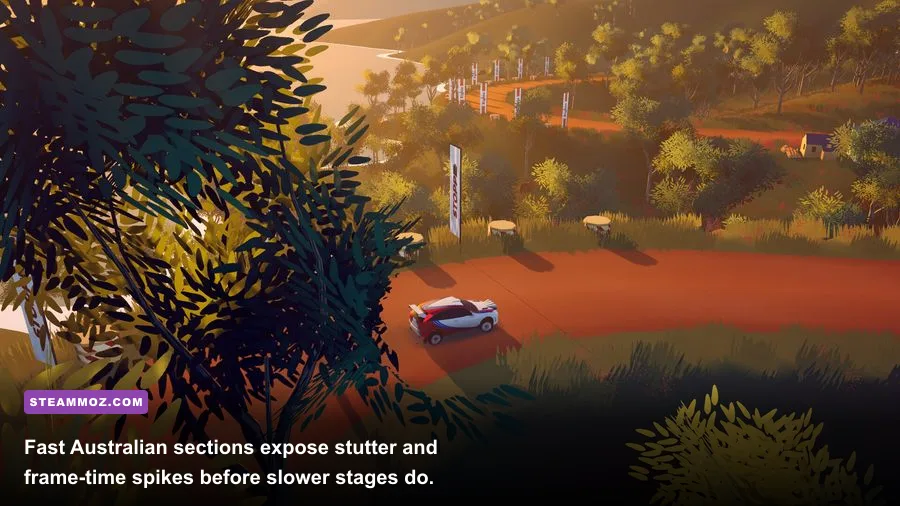
Don’t lower everything blindly. Art of Rally’s visual style depends on clean color blocks, strong shadows, and distant landscape shapes. The table shows where your performance budget actually goes and what you lose when you reduce each option.
| Setting | Recommended Value | FPS Impact | Visual and Gameplay Note |
|---|---|---|---|
| Resolution | Native 1080p; 900p for weak GPUs | Very High | Largest performance lever; lower only after other fixes. |
| Texture Quality | High with 4GB+ VRAM | Low to Medium | Mostly affects VRAM and texture clarity. |
| Shadow Quality | Medium | High | High values look great but can hurt dense outdoor scenes. |
| Ambient Occlusion | Medium or Off | Medium to High | Adds grounding under cars, trees, and roadside objects. |
| Foliage or Vegetation | Medium | Medium to High | Australia’s vegetation makes this more expensive than it looks. |
| Reflections | Low or Medium | Medium | Low is hard to notice during a race and steadier in wet-looking scenes. |
| Anti-Aliasing | Medium or High | Low to Medium | Keep it enabled to reduce shimmering on fences and road edges. |
| Post-Processing | Low | Low to Medium | Lower values improve clarity and reduce effect clutter. |
| Motion Blur | Off | Small | Cleaner braking references and sharper replay captures. |
| Depth of Field | Off during races | Small | Primarily a cinematic effect for menus and replays. |
| Bloom and Chromatic Aberration | Off or Low | Small | Little competitive value; can soften the image. |
Resolution, anti-aliasing, and image clarity
Resolution is the blunt instrument. If your GPU is pinned near 99 percent, dropping from 1440p to 1080p can deliver a dramatic improvement. If you’re already at 1080p, try 900p before destroying shadows and foliage. The game’s stylized geometry remains readable at 900p, especially on a smaller laptop panel.
Anti-aliasing deserves a little more care. Turning it off may produce a few extra frames, but thin fence posts, telephone wires, guardrails, and distant tree lines can shimmer badly while you’re driving. That visual noise makes corner entries harder to judge. Medium anti-aliasing is usually the right compromise. If you still need performance, keep AA at Low before dropping the resolution.
Shadows, ambient occlusion, and foliage
Shadows are the first major quality setting to reduce in Australia. High shadows add depth to roadside trees and car shading, but the cost spikes when the camera sees a wide outdoor area. Medium retains the important contact shadows beneath your car and barriers while trimming the distance and precision of shadow rendering.
Ambient occlusion is subtler. It helps the car sit on the road rather than looking pasted onto it, and it gives rocks, posts, and guardrails extra separation. Keep it at Medium if you have headroom. On a laptop or integrated GPU, turning it Off is less damaging than reducing the resolution.
Foliage is the sneaky setting. Australia’s eucalyptus trees and roadside vegetation can fill a large portion of the frame, particularly in stages with sweeping bends and long visibility. Medium foliage normally preserves the scene’s character. Low foliage is the right move when your FPS drops in the middle of a stage rather than at the starting line. That pattern usually points to vegetation and shadow workload, not your CPU alone.
Why Australia Needs a Different Performance Tune
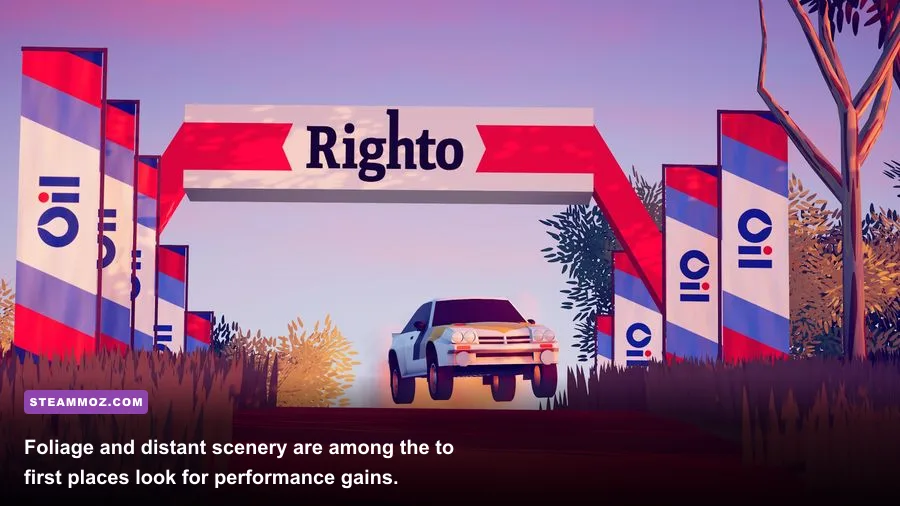
Short, technical stages can hide performance problems because the camera sees less of the world. Australia’s stages are much better stress tests. Long straights expose distant terrain, high-speed sections stream new scenery quickly, and broad corners keep tree lines and shadows in view for longer. If you’re tuning only in a tight hairpin, you may think the setup is perfect until the game hits an open section.
Test in three places: the starting grid, the fastest visible straight, and a section with dense vegetation. Drive each area twice in the same weather and time-of-day conditions. Watch the minimum FPS and frame-time graph if your overlay supports it. A drop from 60 to 52 for one moment is less worrying than repeated swings between 60 and 48 every time the camera turns.
There’s also a control reason to prioritize stable frame times. Rally driving depends on tiny visual cues: the road’s camber, the car’s weight transfer, a crest hiding the next turn, and the moment the rear begins to rotate. Stutter makes those cues arrive unevenly. You may blame the car’s grip or your controller dead zone when the real problem is inconsistent rendering.
CPU limits versus GPU limits
Lowering resolution only helps when the GPU is the bottleneck. If your GPU usage is low but the frame rate refuses to rise, the CPU may be handling scene preparation, physics, or background tasks. In that case, reducing shadows, foliage distance, and reflections can help more than moving from 1080p to 720p.
Close browsers, launchers, recording tools, and hardware-monitoring utilities you don’t need. Windows Game Mode is worth leaving enabled, and updating your GPU driver can fix shader compilation behavior. Avoid judging performance immediately after changing several settings; drive a complete stage and watch for the first-time stutter that can happen while assets or shaders are being prepared.
The Best Competitive Setup for Clearer Rallying
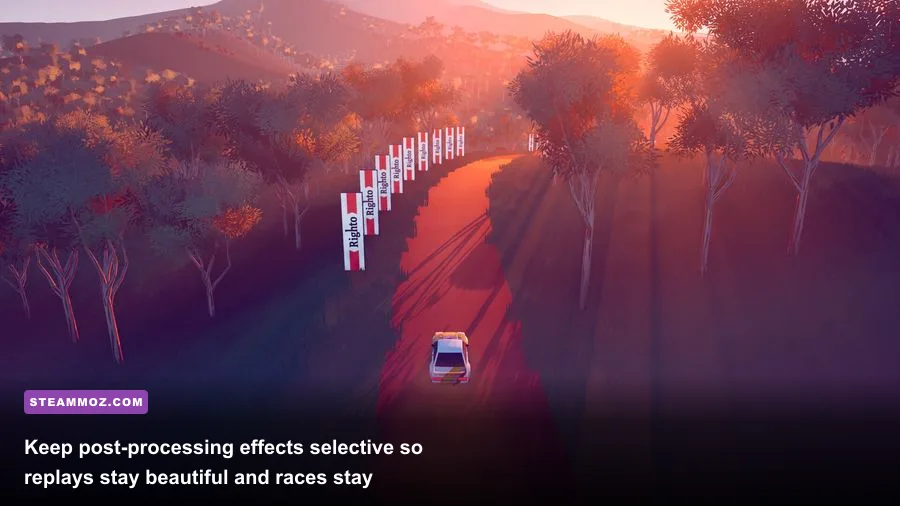
Maximum FPS isn’t automatically the best racing image. Some cinematic effects actively hide information. Motion blur can smear the road edge during a direction change, depth of field can soften distant braking references, and chromatic aberration adds colored fringing around the image. They’re attractive in a replay camera, but they’re distractions when you’re chasing a clean time.
| Option | Race Setting | Replay Setting | Reason |
|---|---|---|---|
| Motion Blur | Off | Low or On | Sharper road edges and signage during races. |
| Depth of Field | Off | On | Useful for cinematic focus, not corner reading. |
| Bloom | Low or Off | Medium | Preserves highlights without washing out the road. |
| Chromatic Aberration | Off | Optional | Removes colored edge distortion. |
| Camera Shake | Low | Default | Less visual fatigue over a full championship event. |
| V-Sync | On for tearing; Off for lowest latency | On | Choose based on display behavior and controller feel. |
Set your display to its highest supported refresh rate in Windows, then verify that the game is using the correct resolution and refresh mode. Fullscreen usually gives the cleanest presentation, while borderless is more convenient for alt-tabbing. If borderless produces inconsistent frame pacing, switch back to exclusive Fullscreen and retest.
Don’t confuse a graphics problem with input settings. A controller with a large dead zone can make the car feel lazy, while an overly sensitive stick makes small corrections twitchy. Tune the controller after the image is stable. You’ll get a much clearer read on steering sensitivity when every frame arrives on time.
Steam Deck and Laptop Tweaks That Actually Help
On Steam Deck, target a locked 40 FPS at 40Hz if you want a smoother compromise than 30 FPS. Use 1280×800, cap the frame rate through SteamOS, keep textures at Medium, and set shadows and foliage to Low or Medium. A locked 40 is often more satisfying than an unstable 60 because rally inputs feel consistent through rapid direction changes.
For older laptops, connect the charger, use the high-performance power profile, and make sure the game is running on the dedicated GPU rather than integrated graphics. A cooling pad won’t magically add performance, but preventing thermal throttling can preserve a stable frame rate during longer sessions. If the first stage feels smooth and the fourth stage feels worse, monitor temperatures before changing every graphics option.
Storage can matter for hitching too. Installing the game on an SSD won’t raise average FPS, but it can reduce asset-streaming pauses when the stage loads scenery quickly. Keep some free space on the drive and avoid recording high-bitrate gameplay while testing. Capture software can introduce the exact frame-time spikes you’re trying to eliminate.
For more PC optimization reading, Steamoz’s guide to Dragonkin: The Banished settings covers the same useful approach: identify the expensive settings instead of blindly selecting Low. If you’re checking whether a smaller machine can handle a game, compare it with our real PC requirements breakdown.
Final Australia Settings Checklist
Start with 1080p Fullscreen, a 60 FPS cap, Medium shadows, Medium foliage, Medium ambient occlusion, Low reflections, and Medium anti-aliasing. Keep textures High if your GPU has enough VRAM. Disable motion blur, depth of field, and chromatic aberration. Then run an Australia stage from the grid through its fastest open section and check the frame-time behavior.
- If the GPU is fully loaded: lower resolution or resolution scale, then shadows.
- If the GPU is not fully loaded: reduce foliage distance, reflections, and background applications.
- If the image shimmers: restore anti-aliasing before raising texture quality.
- If the game stutters while turning: test foliage, shadows, texture memory, and SSD installation.
- If input feels delayed: test V-Sync off, then use a sensible frame cap.
- If racing feels visually tiring: disable blur, depth of field, bloom, and chromatic aberration.
For official reference, check the Art of Rally Steam page, the developer’s Funselektor Games website, and the game’s Steam Community hub for platform-specific patches and player testing.
Australia rewards a calm, repeatable setup. You don’t need every slider at Ultra to enjoy the scenery; you need the road to stay sharp and the car’s movement to arrive predictably. Once your frame rate is locked, you can focus on the things that actually set fast times: braking before the crest, rotating the car without overcommitting, and trusting the next call instead of chasing a prettier FPS counter.
If you enjoy tuning your approach across different games, Steamoz also has practical guides for Dins Curse survival priorities and DeltaZeal’s starting build. The principle is the same: remove the friction first, then spend your attention on mastering the game.