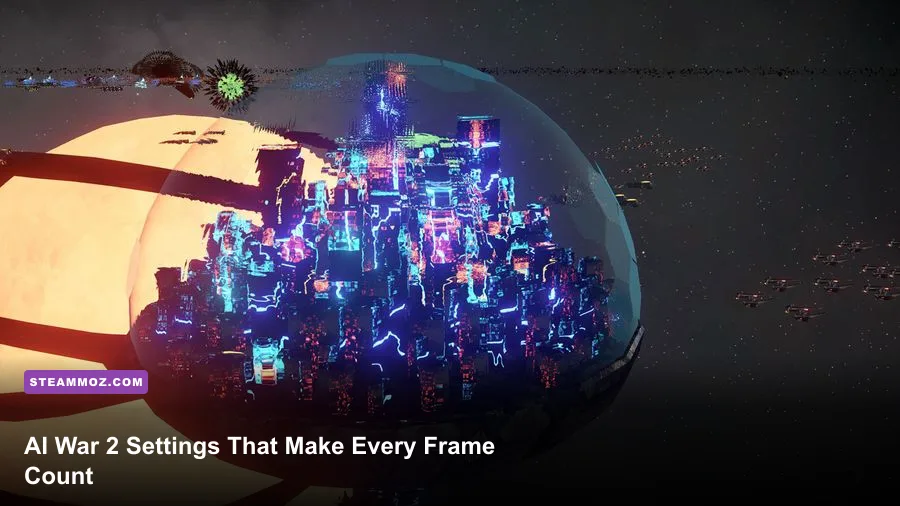
The best AI War 2: The Neinzul Abyss graphics settings are a performance-first mix: use your monitor’s native resolution, disable VSync if you want the lowest input latency, reduce visual effects before lowering resolution, and cap the frame rate to a stable value your PC can hold. AI War 2 is a 2D grand-strategy game, but its enormous fleets, projectile fields, explosions, pathfinding, and late-game simulation can still punish a weaker CPU or integrated GPU. The Neinzul Abyss does not need a separate visual preset; the practical goal is to keep the galaxy readable while protecting frame pacing during giant battles.
This guide focuses on the settings that actually matter, not mythical ultra presets that barely change the picture. It also separates two different problems: rendering slowdown, where the GPU is drawing too many effects, and simulation slowdown, where the CPU is processing hundreds or thousands of units. The first can be fixed in the graphics menu. The second needs smarter zooming, pausing, fleet management, and a realistic frame-rate target.
Before changing anything, check the official AI War 2 Steam page and confirm that both the base game and The Neinzul Abyss DLC are updated. Patches can alter behavior, and modded installations may expose different visual loads.
Start With This Max-FPS Preset
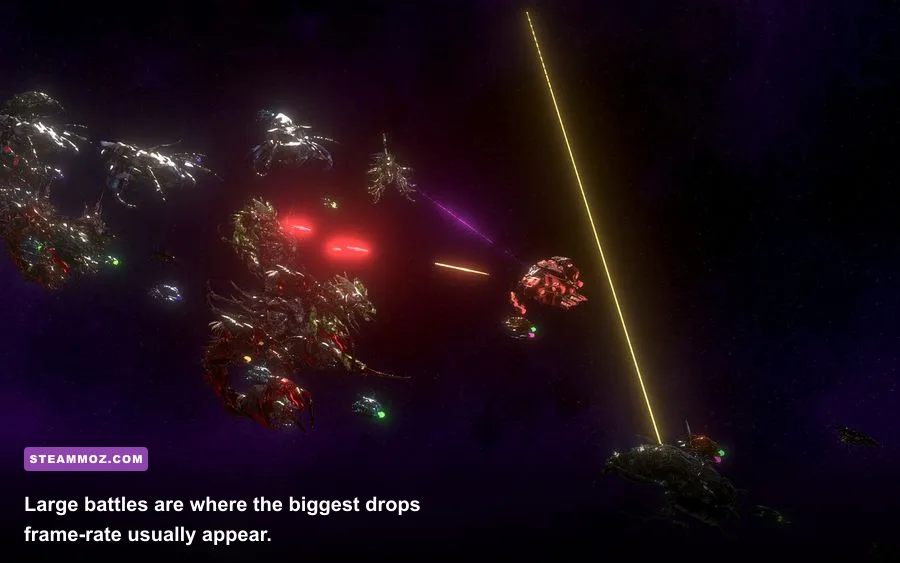
For most desktop PCs, the best starting point is a native-resolution, full-screen profile with decorative effects reduced and interface scaling left comfortable. Do not immediately drop from 1440p to 720p. AI War 2’s units, attack arcs, labels, and tactical icons occupy a relatively small portion of the screen, so a blurry image can make the game harder to read without fixing a CPU-bound slowdown.
Use full screen when you want the most consistent presentation and borderless or windowed mode when you regularly switch to a wiki, Discord, or fleet-planning notes. Full screen can reduce desktop compositor overhead, although the difference is usually smaller than the impact of battle effects. If your monitor is 60 Hz, a stable 60 FPS target is sensible. On a 120Hz or 144Hz display, 120 or 144 FPS may look nice while panning, but the game’s late-game simulation may not sustain it.
| Setting | Recommended Value | FPS Impact | Visual Note |
|---|---|---|---|
| Resolution | Native monitor resolution | Medium GPU impact | Best clarity for small units and tactical icons |
| Display mode | Full screen | Low to medium | Usually gives the cleanest frame pacing |
| VSync | Off for lowest latency | None to low | Enable it only if tearing bothers you |
| Frame limit | 60 FPS, or a stable personal target | Reduces spikes | A cap is better than wildly fluctuating frames |
| Effects and particles | Low or reduced | High in large battles | Explosions become less distracting, but combat stays readable |
| Background and decorative detail | Low or medium | Low to medium | Galaxy depth is reduced while tactical information remains |
| UI scale | 100% or the smallest readable value | Low | Changing it rarely solves a real performance problem |
That profile is also a good baseline for troubleshooting. Change one option, load the same save, and watch the frame-time behavior while moving across a crowded sector. If the rate barely changes after lowering effects, your PC is probably simulation-bound rather than GPU-bound.

🎮 AI War 2: The Neinzul Abyss
Looking to experience this game? Grab your digital key directly on our store for $3.99.
View on Steammoz Store →The Settings That Actually Move Your FPS

AI War 2’s biggest visual spikes usually come from the number of things being drawn at once: weapon fire, impact flashes, explosions, shields, selected-unit markers, and the dense visual clutter around contested planets. The Neinzul Abyss can make these moments feel especially busy because every additional faction, fleet, and hostile interaction adds more information to the screen.
Effects, particles, and combat feedback
Lower effects first. This is the safest performance cut because it removes decorative intensity rather than strategic information. You still need to see where a fleet is, which planet is under attack, and whether a defensive line is holding. Reducing particle density may make individual projectiles less dramatic, but it should not erase the core tactical signals.
If your options menu separates explosion quality from particle density, reduce both before touching texture or resolution settings. Explosions are short-lived, but dozens can overlap during an assault on a fortified world. The frame-rate hit arrives exactly when the screen is busiest and you most need responsive camera movement.
Resolution and scaling
Resolution is a powerful GPU lever, but it is not a universal fix. Lower it when your GPU is sitting near full utilization, especially on a laptop running at 4K or a high-resolution ultrawide. Try one step down rather than an extreme reduction. A 2560x1440 display can often benefit from testing 1920x1080; a 4K monitor can test 2560x1440.
Keep the desktop and game aspect ratio matched. Stretching a 16:9 image across an ultrawide panel can distort the map and make unit positioning less trustworthy. If the game offers a render-scale option, reduce that before changing the output resolution, because it can preserve a sharper interface while lowering GPU workload.
VSync and frame caps
VSync prevents tearing by synchronizing presentation with your monitor, but it can add latency and may produce uneven feeling when the game cannot hold the display refresh rate. Turn it off if you prefer direct camera response or use a driver-level adaptive sync feature if your monitor supports it.
A frame cap is often the better choice for AI War 2. A locked 60 FPS feels smoother than a counter bouncing between 45 and 100, especially while dragging the camera across a galaxy. On a weaker machine, a stable 30 FPS cap can be perfectly playable for a pause-friendly strategy game. The important thing is consistent frame time, not a screenshot-friendly number.
| Symptom | Likely Limit | First Change | What Not to Do |
|---|---|---|---|
| GPU usage stays near 95–100% | Rendering load | Reduce effects, particles, or resolution | Do not blame the AI simulation immediately |
| GPU usage is low but FPS collapses in huge fights | CPU simulation or draw-call overhead | Lower the frame cap and reduce battlefield clutter | Do not expect 720p to fix a CPU bottleneck |
| Camera tears while panning | Sync mismatch | Enable VSync or adaptive sync | Do not raise every quality option at once |
| Menus feel sluggish only after long sessions | Background apps, memory pressure, or mods | Close overlays and test an unmodded save | Do not assume The Neinzul Abyss is defective |
For comparison, the troubleshooting approach used in our City of Gangsters low-FPS guide applies here too: identify whether the issue is rendering, simulation, overlays, or a damaged configuration before making random changes.
Best Profiles for Low-End PCs, Laptops, and Steam Deck
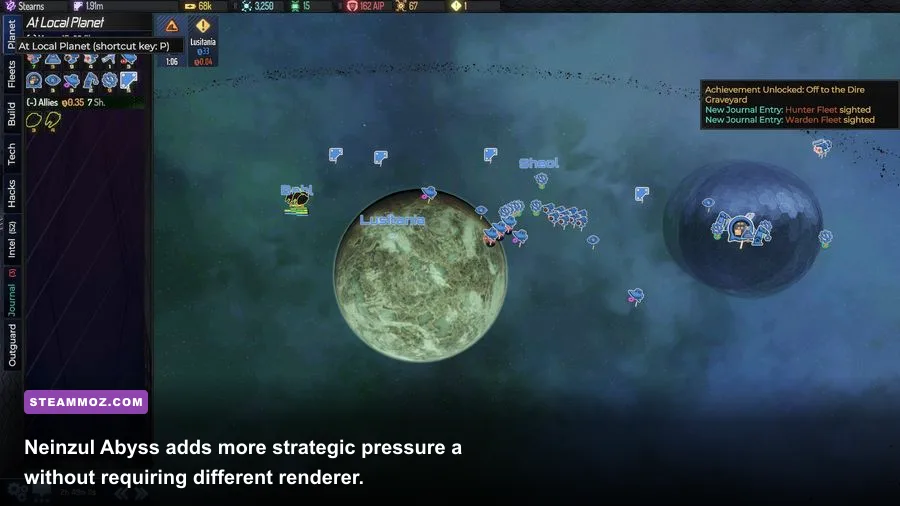
A low-end profile should protect clarity first. AI War 2 is not a cinematic action game, so you can sacrifice background decoration and effect intensity without sacrificing the strategic layer. Keep the resolution high enough that planet names and fleet markers remain readable, then lower the options that create transient visual load.
Low-end laptop profile
Use 1280x720 or 1600x900 only if native resolution performance is poor. Set effects and particles to low, use a 30 or 60 FPS cap, and close browser tabs, recording software, RGB utilities, and launcher overlays. Integrated graphics borrow system memory, so eight gigabytes of RAM can become uncomfortable once the operating system and background applications are active.
Mainstream desktop profile
At 1080p or 1440p, medium background detail and reduced combat effects are a strong compromise. A modern four-core or six-core CPU should handle ordinary sectors well, but the late game can still become simulation-heavy. Keep the cap at 60 FPS unless testing proves your machine can hold something higher in the saves you actually play.
Steam Deck profile
On Steam Deck, start at 1280x800 with a 30 FPS cap. If the image is stable and battles remain comfortable, test 40 FPS with the display set to 40Hz. The Deck’s 800p panel is a much better fit than forcing a higher render target, and a cap reduces unnecessary power draw during quiet planning periods.
Do not chase a constant 60 FPS on every late-game save. Steam Deck performance can depend heavily on the number of active entities and effects, not just the chosen resolution. For broader handheld troubleshooting, our Dragonkin performance settings guide covers the same practical rule: a stable cap usually beats an ambitious refresh target.
| Hardware Target | Resolution | Effects | Frame Cap | Expected Priority |
|---|---|---|---|---|
| Integrated graphics laptop | 1280x720 or native if stable | Low | 30–60 FPS | Stable frame time and readable UI |
| 1080p mainstream PC | 1920x1080 | Low or medium | 60 FPS | Balanced clarity and battle responsiveness |
| 1440p gaming PC | 2560x1440 | Medium, effects reduced | 60–120 FPS | Keep large fleet fights consistent |
| 4K desktop | 3840x2160 or 2560x1440 | Low or medium | 60 FPS | Reduce GPU load before sacrificing readability |
| Steam Deck | 1280x800 | Low | 30 or 40 FPS | Battery life and predictable pacing |
Why Late-Game Slowdown Is Not Always a Graphics Problem

Here is the trap: you lower resolution, turn off every effect, and the late-game stutter remains. That usually means the CPU is spending time simulating the galaxy rather than drawing it. AI War 2 tracks huge numbers of units, orders, defenses, projectiles, and AI decisions. The Neinzul Abyss is part of that strategic ecosystem, so a crowded campaign can become heavier even when the screen looks visually simple.
Test this properly. Save before a large engagement, pause the game, zoom out, and compare performance while the battle is idle versus actively running. If the frame rate returns when the simulation is paused, graphics settings will only provide limited relief. If the rate remains poor while paused and the camera is over a dense combat scene, rendering is the more likely culprit.
Reduce simulation pressure through play
Pause during fleet coordination instead of leaving dozens of groups issuing conflicting movement orders. Clear abandoned skirmishes, avoid leaving unnecessary fleets circling hostile planets, and use the game’s automation tools carefully. More units on the map means more decisions, and more simultaneous combat means more work even when many ships are off-screen.
Zooming out can also help your PC, but it is not magic. A wide strategic view may draw more objects and labels than a focused local view. During a huge assault, use a practical zoom level that shows the engagement without displaying every distant fight in the same visual field.
Mods deserve their own test. Disable cosmetic mods, UI overlays, reshade tools, Steam recording features, and third-party monitoring overlays temporarily. Start a clean campaign or an older save and compare. If the clean session runs well, re-enable modifications one at a time. The process is less glamorous than reinstalling, but it finds the culprit faster.
Our PC performance checklist for Deadfall Adventures makes the same distinction between hardware limits and configuration problems. The lesson carries over: monitor CPU and GPU usage rather than trusting the FPS counter alone.
Recommended Test Routine and Final Settings
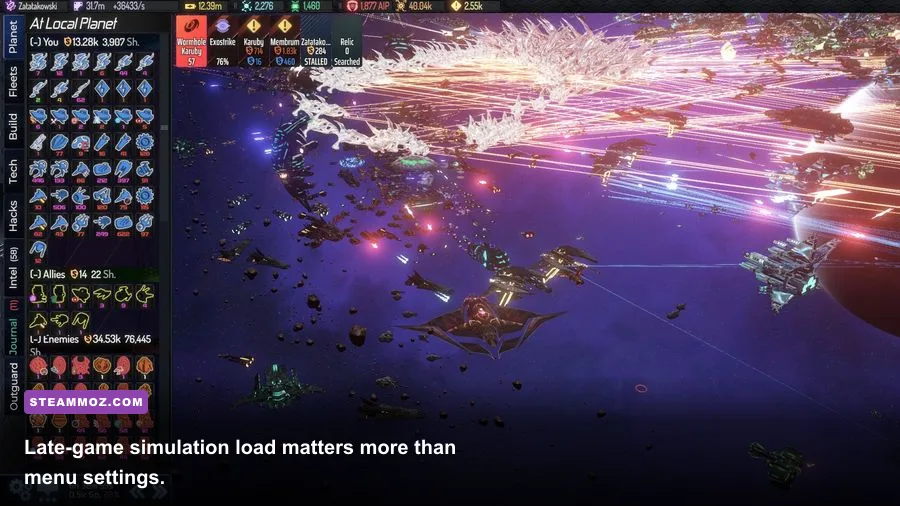
Use a repeatable test instead of changing six options and guessing. Load the same campaign save, wait until the galaxy finishes updating, then pan across the same fleet or contested planet for roughly one minute. Record the average FPS and, more importantly, whether the camera hitches when combat effects appear. Repeat after each major change.
- Reset to a known baseline. Select native resolution, full screen, medium quality, and a 60 FPS cap. This gives you a fair comparison point.
- Check utilization. Watch CPU and GPU load with a lightweight monitor. High GPU usage points toward resolution and effects; low GPU usage during a collapse points toward simulation or CPU scheduling.
- Lower effects first. Test particles, explosions, combat animation, and decorative background detail before reducing resolution.
- Set a realistic cap. Choose 60 FPS on a capable desktop, 40 FPS on a well-tuned Steam Deck, or 30 FPS when stability matters more than speed.
- Test the worst save. A quiet opening sector proves almost nothing. Your final profile should survive a crowded Neinzul Abyss battle, not just the first tutorial minutes.
- Save the profile. Write down the values or capture a screenshot. That makes future troubleshooting much less painful after a driver update or configuration reset.
| Target | Resolution | Effects | VSync | Cap | Best Use |
|---|---|---|---|---|---|
| Maximum clarity | Native | Medium | On if tearing appears | 60 FPS | Desktop monitors and normal campaigns |
| Maximum performance | Native or one step lower | Low | Off | 60 FPS | Large battles and weaker GPUs |
| Low-end stability | 1280x720 or native | Low | Off | 30 FPS | Integrated graphics laptops |
| Steam Deck balance | 1280x800 | Low | Off or adaptive | 30–40 FPS | Handheld play and long sessions |
The short version is simple: keep resolution high enough for tactical readability, reduce effects before image quality, cap the frame rate, and diagnose CPU simulation separately from GPU load. The Neinzul Abyss doesn’t demand a special graphics overhaul; it demands a stable profile that remains comfortable when the galaxy turns into a storm of fleets and fire.
If you want more PC tuning ideas, Steamoz’s Dins Curse survival tips and Don’t Be Afraid 2 performance coverage are useful reminders that smooth play comes from matching settings to the actual workload. For official patch notes and technical updates, keep an eye on Arcen Games’ official site and the official Arcen wiki.