For the best AETHUS FPS without making the game look rough, start at 1080p, use a 90% render scale, set textures to High, shadows to Low, effects to Medium, volumetrics to Low, ambient occlusion to Low or Medium, and disable motion blur, film grain, chromatic aberration, and depth of field. That combination usually protects image clarity while cutting the settings that hammer frame time. If your GPU still struggles, lower render scale to 80% before dropping textures, and cap the game to a stable 60 or 90 fps rather than chasing an erratic peak.
AETHUS can feel perfectly smooth while exploring and then stumble during a crowded fight, a dense hub, or a scene filled with particles. That difference matters more than the number you see while standing still. The profiles below are built around frame-time stability: fewer sudden spikes, cleaner camera movement, and enough visual quality that the game doesn't look like it has been smeared with vaseline.
Before changing anything, check the current build on the official Steam listing for AETHUS. Menu names and upscaling options can change between patches, so treat the exact label in your installed version as the final authority. For a broader look at diagnosing PC stutter, Steamoz's guide to fixing crashes and low FPS is also worth keeping nearby.
AETHUS best settings for max FPS
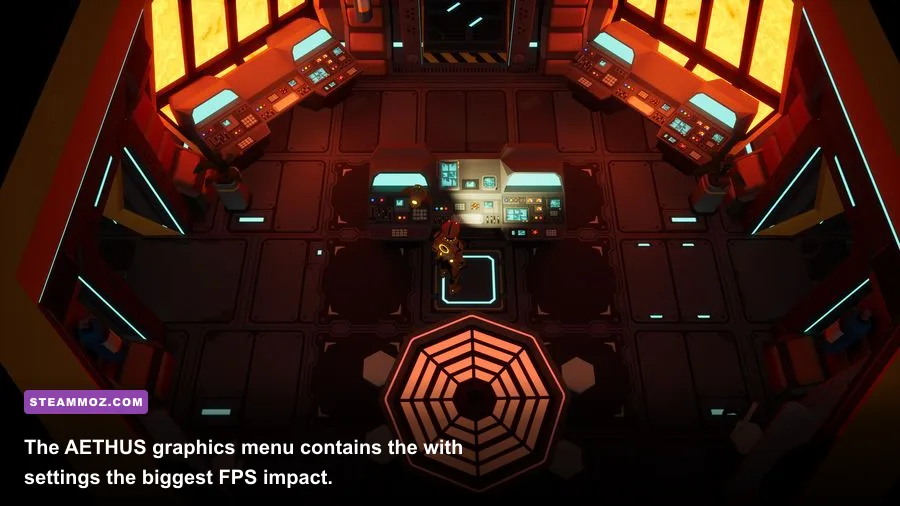
The fastest route to more frames is not turning every option to Low. Several settings barely change GPU load, while others can double the time required to render a frame. Start with the table below, apply the profile, then test in the busiest playable area you can reach. A quiet hallway is a terrible benchmark because it hides the exact performance problem you are trying to solve.
| Setting | Recommended value | FPS impact | Visual trade-off |
|---|---|---|---|
| Display mode | Exclusive fullscreen, if available | Low to medium | Can reduce desktop-compositor overhead and improve input consistency |
| Resolution | 1920x1080 for mid-range GPUs | Very high | Lowering resolution makes the entire image softer |
| Render scale | 90%; 80% for weak GPUs | Very high | Reduces internal detail while keeping the output resolution unchanged |
| Texture quality | High with 6GB or more VRAM | Low, unless VRAM is full | Lower settings make surfaces visibly muddy |
| Shadow quality | Low | High | Shorter, softer, and less detailed shadows |
| Effects quality | Medium | Medium to high | Less detail in sparks, smoke, and impact effects |
| Volumetric quality | Low | High | Fog, haze, and light shafts lose depth |
| Ambient occlusion | Low or Medium | Medium | Contact shadows become less pronounced |
| View distance | Medium | Medium | Distant geometry and props appear later |
| Anti-aliasing | High-quality temporal option | Low to medium | Lower values produce shimmer and jagged edges |
| Motion blur | Off | Small | Sharper camera movement and less visual smearing |
| Film grain | Off | Negligible | Cleaner image with less artificial noise |
| Chromatic aberration | Off | Negligible | Removes colored fringing around the screen edges |
There is a useful order here. Reduce volumetrics and shadows first, then effects and view distance. Keep textures High until you see obvious hitching when turning the camera or entering a new area. Texture quality mostly consumes VRAM rather than raw shader power, so lowering it on a graphics card with plenty of spare memory often costs image quality for very little FPS.
Render scale is the emergency lever. At 90%, AETHUS renders at 1728x972 internally when your output is 1920x1080. At 80%, the internal image is 1536x864. That is a substantial reduction in pixel workload, but it also makes fine wires, foliage, and distant edges less stable. Use 90% first. Drop to 80% only when the GPU is clearly the bottleneck and your frame rate remains below target.

🎮 AETHUS
Looking to experience this game? Grab your digital key directly on our store for $14.99.
View on Steammoz Store →Best AETHUS presets for different PCs

Don't copy a preset blindly from someone with a completely different graphics card. AETHUS performance depends on both GPU rendering time and CPU-side scene work. A powerful GPU paired with an older six-core processor may still suffer in busy areas, while a modest GPU can deliver a clean 60 fps if you use 1080p and sensible effects settings.
| Target hardware | Resolution and scale | Core preset | Realistic target |
|---|---|---|---|
| Entry-level GPU, 4GB VRAM | 1080p, 75-80% | Textures Medium, shadows Low, effects Low, volumetrics Low | Stable 45-60 fps |
| Mainstream 6GB GPU | 1080p, 90-100% | Textures High, shadows Low, effects Medium, volumetrics Low | Stable 60-90 fps |
| Upper-midrange 8GB GPU | 1440p, 80-90% | Textures High, shadows Medium, effects Medium, volumetrics Low | Stable 60-90 fps |
| High-end GPU | 1440p or 4K, 100% | Textures Ultra or High, shadows Medium, effects High | High refresh with occasional heavy-scene dips |
| Steam Deck-class hardware | 800p, 60-75% | Textures Low or Medium, shadows Low, effects Low, volumetrics Low | Locked 30-40 fps |
Best 60 FPS profile
For a conventional gaming PC, use 1080p output, 90% render scale, High textures, Low shadows, Medium effects, Low volumetrics, Medium ambient occlusion, Medium view distance, and the game's best temporal anti-aliasing option. Turn off every camera effect that adds blur. This profile is the sweet spot because it preserves the surfaces and character detail you actually look at while removing expensive lighting depth from the background.
If your monitor supports variable refresh rate, cap AETHUS a few frames below the panel's maximum. A 60Hz display should use a 58 or 59 fps cap; a 120Hz display can use 117 or 118; a 144Hz display can use 141 or 142. The point is to keep the renderer inside the VRR window. A consistent 58 fps feels far better than bouncing between 45 and 75 with repeated frame-time spikes.
Best high-FPS profile
Competitive players and anyone using a 120Hz or 144Hz screen should use 1080p, 80-90% render scale, Low shadows, Low volumetrics, Low ambient occlusion, Medium textures, Low effects, and Medium view distance. Keep anti-aliasing at Medium or High if shimmering bothers you, because a jagged image can make moving targets harder to read than a small drop in average FPS.
Don't assume a higher refresh target is automatically better. If AETHUS spends 12 milliseconds rendering one frame and 22 milliseconds rendering the next, a displayed average of 58 fps can still feel awful. Your goal should be a flat frame-time graph. Use the game's FPS counter or a tool such as MSI Afterburner to watch the 1% lows, not just the headline number. A useful starting target is 60 fps with 1% lows above roughly 50, or 90 fps with lows above roughly 75.
Which AETHUS settings should you lower first?
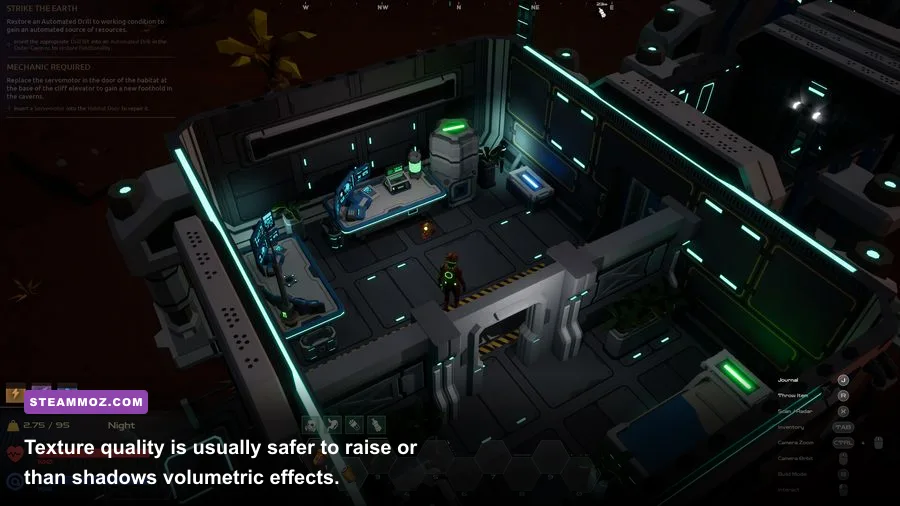
When AETHUS is slow, identify the type of slowdown before making random changes. If GPU usage sits around 95-99% and lowering resolution immediately adds frames, you have a GPU limit. If GPU usage is low while one CPU thread is heavily loaded and the frame rate refuses to rise, you're dealing with a CPU or engine limit. The fix is different: GPU limits respond to scale, shadows, and effects; CPU limits respond more to view distance, crowd simulation, background applications, and frame caps.
| Symptom | Likely bottleneck | First change | Why it works |
|---|---|---|---|
| GPU usage stays at 98-100% | GPU-bound rendering | Lower render scale from 100% to 90% | Removes pixels from every frame |
| GPU usage is under 85% during stutter | CPU, streaming, or shader compilation | Lower view distance and close background apps | Reduces scene submission and interruptions |
| Turning the camera causes hitching | VRAM pressure or asset streaming | Lower textures one step and check VRAM | Reduces texture residency and streaming spikes |
| Fights cause sudden drops | Effects, shadows, or volumetrics | Set effects Medium and volumetrics Low | Limits particles, transparencies, and fog passes |
| Image shimmers at distance | Weak anti-aliasing or low scale | Raise anti-aliasing before raising shadows | Improves edges without the cost of full resolution |
| Average FPS is high but motion feels uneven | Frame pacing or uncapped rendering | Use a frame cap inside the VRR range | Stops the GPU from constantly hitting unstable peaks |
Textures, VRAM, and stutter
Texture quality is the setting most players misunderstand. High textures don't necessarily make the GPU calculate more lighting; they mainly allocate more video memory. If AETHUS has a VRAM indicator, leave a safety margin rather than filling the bar completely. Once the card runs out of comfortable VRAM, streaming can cause pauses, late-loading surfaces, and hitching when you rotate quickly.
On a 4GB card, Medium textures are the safer starting point. On 6GB, High is usually reasonable at 1080p. An 8GB card can generally handle High at 1440p, but resolution, anti-aliasing, and texture packs all consume memory together. If lowering textures fixes stutter but barely changes average FPS, that confirms a memory problem rather than a raw rendering-power problem.
Shadows and volumetrics
Shadows are expensive because they require extra scene renders from one or more light viewpoints. Volumetrics are similarly costly because fog and light shafts are calculated through many screen regions, often at reduced internal resolution and then blended with the final image. That's why Low volumetrics can produce a bigger improvement than dropping a texture preset from Ultra to Medium.
Keep ambient occlusion at Low before disabling it entirely. The setting gives characters, walls, and objects a sense of contact with the ground. Turn it off only if you need the last few frames or if the effect produces obvious dark halos. In most scenes, Low AO is a better visual compromise than Low shadows plus no AO.
Upscaling, frame generation, and latency in AETHUS

If your version of AETHUS offers an upscaler, test it at 100% output resolution with the quality mode that matches your target. At 1080p, Quality or a 90% custom scale is usually preferable to an aggressive Performance mode, because the latter can make thin geometry shimmer and can turn distant movement into a noisy blur. At 1440p, Quality or Balanced may be a more practical compromise depending on your GPU.
Upscaling improves performance by rendering fewer pixels internally and reconstructing the final image. It does not remove every cost: shadows, CPU scene submission, asset streaming, and some effects still need to be processed. That means an upscaler won't solve a CPU-bound town or hub area. It can, however, be extremely effective when your GPU is pinned at full usage.
| Feature | Recommended starting point | Performance benefit | Warning |
|---|---|---|---|
| Native resolution | Use when already above target FPS | Lowest | Best clarity, highest pixel cost |
| Temporal upscaling Quality | Best first choice at 1080p or 1440p | Medium | May ghost around fast movement |
| Temporal upscaling Balanced | Use when Quality misses the target | High | More shimmer and softness |
| Temporal upscaling Performance | Only for weak GPUs or 4K | Very high | Fine detail can collapse noticeably |
| Frame generation | Use only with a strong base frame rate | High displayed FPS | Does not remove base latency and can add artifacts | </tr
| Sharpening | Low to medium | None | Too much creates ringing around edges |