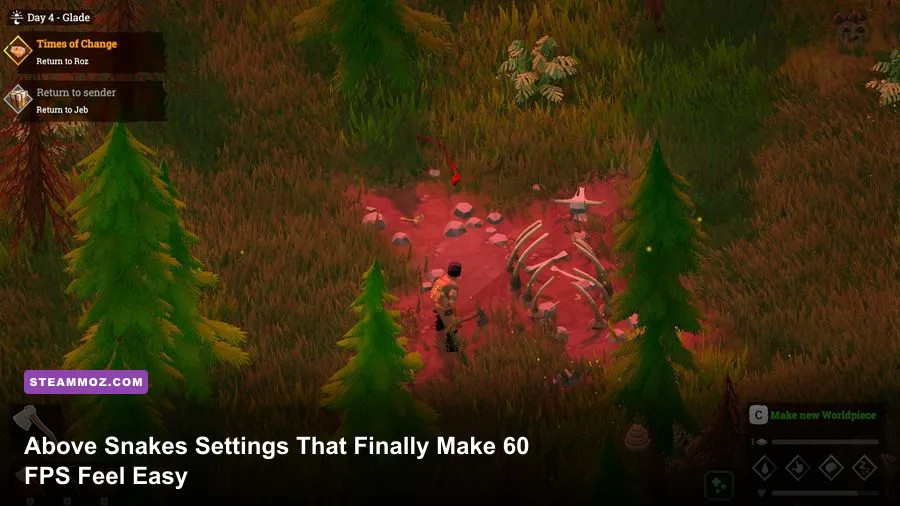
The best Above Snakes graphics settings for max FPS are High textures, Medium view distance, Low shadows, Low foliage, Medium effects, and 100% resolution scale. On a PC near the game's recommended hardware, that mix is the sweet spot: it preserves the hand-painted look while cutting the settings that cause the biggest drops when new islands load, foliage fills the screen, or a crowded base comes into view. If you need a locked 60 FPS, lower shadows and effects before touching textures or resolution.
Above Snakes is not a twitch shooter, so chasing a ridiculous 144 FPS makes less sense than eliminating stutter and keeping camera movement consistent. Its world is built from floating islands that appear, connect, and expand as you explore. That makes frame pacing especially important. A profile that averages 75 FPS but repeatedly falls into the 30s feels worse than a carefully tuned 60 FPS cap.
This guide is based around the PC version of Above Snakes on Steam, including the game's Unreal Engine presentation, island transitions, crafting bases, and late-game areas with heavier foliage and lighting. Before changing anything, update your GPU driver, close browser tabs using hardware acceleration, and let the game finish any first-time shader work. Those simple steps can prevent you from mistaking shader compilation stutter for a bad graphics preset.
The best Above Snakes settings for max FPS
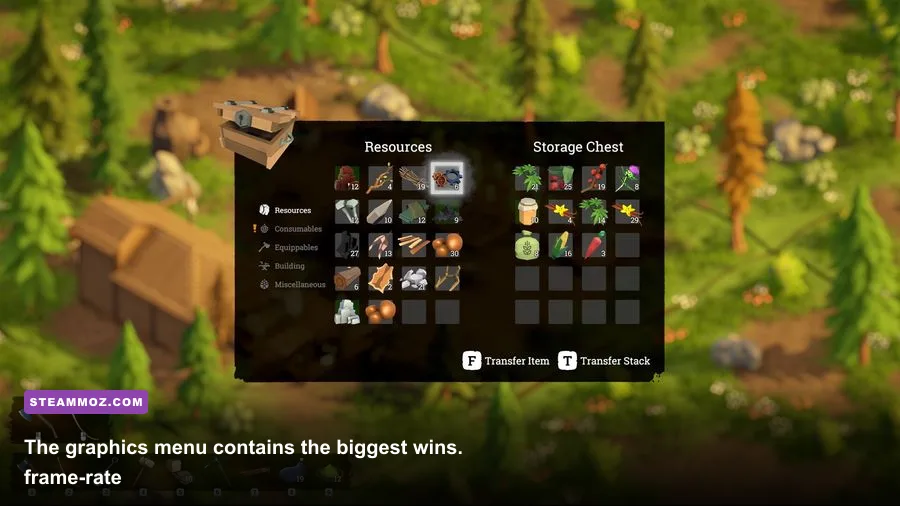
Start with the table below rather than blindly selecting Low. Above Snakes gets much of its atmosphere from textures, materials, and color grading. Dropping every option to its minimum makes the world look flat without necessarily fixing the worst dips. Shadows, foliage, view distance, and effects are the settings that usually deserve the first cuts.
| Setting | Recommended Value | FPS Impact | Visual Trade-Off |
|---|---|---|---|
| Resolution | Native monitor resolution | Very high if lowered | Keep native for a sharper image |
| Resolution Scale | 100%; 90% for weak GPUs | High | Lower values soften terrain and UI |
| Textures | High | Low to medium | Uses more VRAM, preserves surface detail |
| View Distance | Medium | Medium to high | More distant scenery fades sooner |
| Shadows | Low | High | Less contact depth around buildings and trees |
| Foliage | Low or Medium | High in dense areas | Grass and small plants look thinner |
| Effects | Medium | Medium | Less dramatic particles and combat effects |
| Anti-Aliasing | Medium or High | Low to medium | High reduces jagged island edges |
| Post Processing | Low or Medium | Low to medium | Less bloom, depth, and cinematic softness |
| V-Sync | Off with VRR; On without VRR | Variable | Controls tearing versus latency |
| Motion Blur | Off | Small | Cleaner camera movement and combat visibility |
Textures are the setting most players cut too early. They primarily consume video memory rather than relentlessly hammering the GPU every frame. If your graphics card has 6GB or more of VRAM, High textures are a sensible starting point. If you see texture pop-in, sudden hitching, or a performance collapse after exploring several islands, try Medium textures before lowering resolution. A memory bottleneck often feels like a graphics problem but responds better to reducing texture quality.
Resolution scale is the blunt instrument. At 90%, the game renders at roughly nine-tenths of your selected horizontal and vertical resolution, reducing the total pixel workload to about 81% of native. That can produce a meaningful GPU gain, but the trade-off is visible softness. Use 90% at 1440p if you need help; at 1080p, lowering it can make the game's small crafting and inventory text noticeably fuzzy.

🎮 Above Snakes
Looking to experience this game? Grab your digital key directly on our store for $6.24.
View on Steammoz Store →Use these profiles for 1080p, 1440p, and low-end PCs
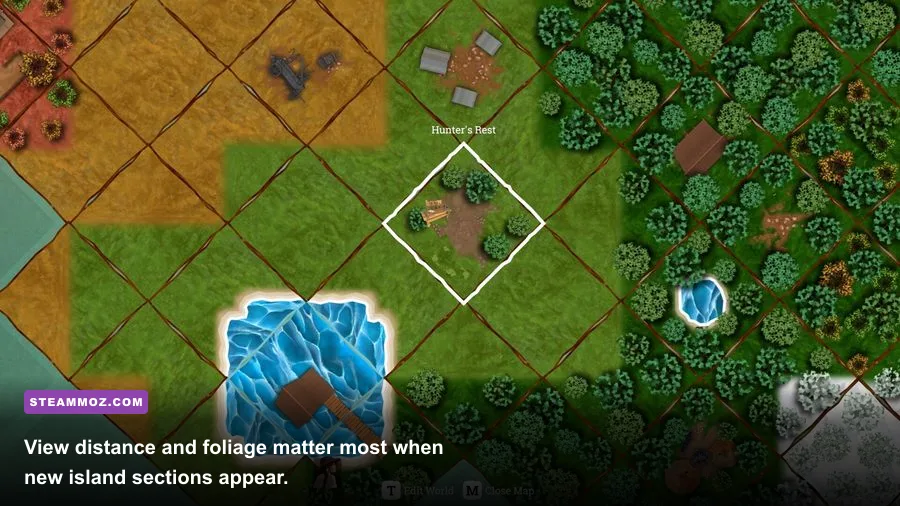
There is no single perfect preset because Above Snakes scales differently depending on whether your limit is the GPU, processor, or video memory. The game's recommended PC specification points toward a mid-range gaming system, while older four-core processors can struggle when the world expands and your base fills with placed objects. Use your hardware class as the starting point, then verify the result in the busiest area you can reach.
| Target | Resolution Profile | Key Settings | Expected Result |
|---|---|---|---|
| Entry-level 1080p | 1920x1080, 90-100% scale | Textures Medium, Shadows Low, Foliage Low, View Distance Low | Best chance at a stable 30-60 FPS |
| Balanced 1080p | 1920x1080, 100% scale | Textures High, Shadows Low, Foliage Medium, View Distance Medium | Strong visual quality with a stable 60 FPS target |
| High-refresh 1080p | 1920x1080, 100% scale | Textures High, Shadows Low, Foliage Low, Effects Medium | Higher average FPS with reduced scene detail |
| Balanced 1440p | 2560x1440, 90-100% scale | Textures High, Shadows Low, Foliage Low, View Distance Medium | Sharper image while protecting GPU headroom |
| Visual-quality 1440p | 2560x1440, 100% scale | Textures High, Shadows Medium, Foliage Medium, Effects High | Best image quality if your GPU has room |
| CPU-limited system | Native resolution | View Distance Low, Foliage Low, Shadows Low, textures unchanged | Fewer world objects and less simulation pressure |
For a balanced 1080p setup, use High textures, Medium anti-aliasing, Medium view distance, Low shadows, Medium foliage, Medium effects, Low post processing, and Motion Blur Off. Cap the game at 60 FPS if your monitor supports a 60Hz refresh rate. A cap prevents the GPU from running flat-out in quiet areas, leaving useful headroom for island generation and sudden combat.
At 1440p, resolution is usually the first wall. Keep textures High, but begin at 90% resolution scale and Low shadows. If the image remains sharp enough, you will gain more consistent performance without the harsh blur caused by dropping all the way to 75% or 80%. Owners of a VRR monitor should leave V-Sync off and use a frame cap a few frames below the display's maximum refresh rate. Without VRR, V-Sync On is preferable to tearing across the horizon.
On older GPUs, do not expect Low settings to solve every issue. Above Snakes still has to stream islands, process crafting objects, and draw the environment. If the GPU graph shows spare capacity while FPS remains low, the processor is probably the bottleneck. In that case, lowering textures does almost nothing. Lower View Distance and Foliage instead, then reduce the frame cap to 30 or 45 FPS for a steadier experience.
Which settings cause the biggest frame drops?
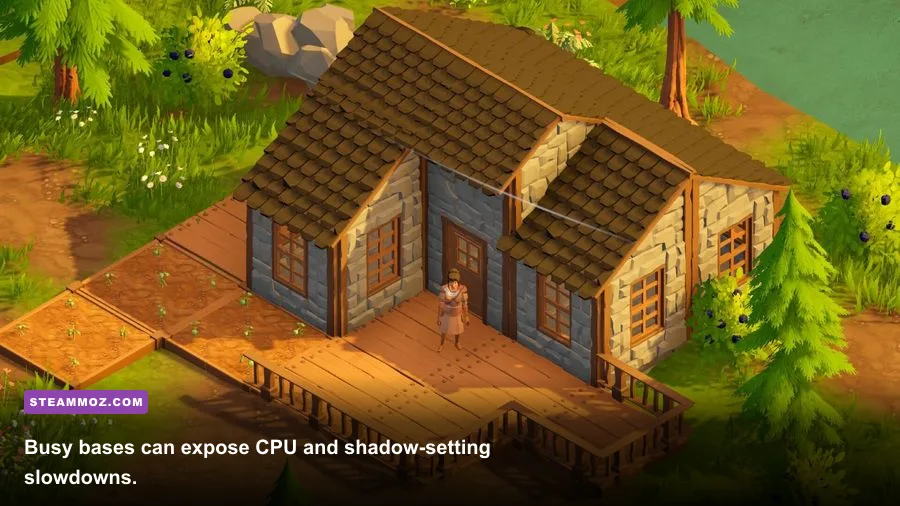
Shadows are the first major cut. Dynamic shadows require extra rendering work for terrain, buildings, trees, and character models, and their cost becomes obvious around a developed base. Low shadows still give you basic depth cues, while Medium adds nicer grounding beneath structures. High is difficult to justify when the goal is max FPS because the improvement is subtle during normal exploration.
Foliage behaves similarly, but it can be more unpredictable. Dense grass and small plants add many individual objects to the scene. Walking into a green island can produce a sharper dip than standing in an empty crafting area. Set Foliage to Low if you are chasing a fixed 60 FPS, or Medium if your GPU has enough overhead and you want the world to feel fuller. This setting is especially valuable on laptops, where sustained heat can cause clock-speed drops after several minutes.
View Distance deserves a little more nuance. Lowering it reduces the number of distant island elements, trees, and structures rendered at once. That helps both GPU load and, in some scenes, CPU submission work. However, Low can make distant objects appear abruptly as you move across the ocean or assemble new sections of the world. Medium is the best compromise. Only use High when your frame-time graph is already comfortable.
Effects affects the visual noise around weather, environmental events, fire, and combat. Medium retains the important feedback without turning every particle burst into a performance spike. If a fight or storm causes the frame rate to collapse while ordinary exploration is smooth, reduce Effects first. Do not confuse this with input lag: particles can lower frame rate, but they do not change the game's underlying combat timing.
Post Processing is a lower-impact cut, but Low can make the image look cleaner. Bloom and depth effects add atmosphere around bright lights and distant scenery, yet they can also make the picture appear softer. Turn Motion Blur off separately if the menu exposes it. Above Snakes has a lot of camera movement while sailing between islands, and blur can make that movement feel slower than it really is.
Anti-aliasing should stay at Medium or High unless you are desperate. Island edges, rope lines, fences, and foliage can shimmer at Low, particularly at 1080p. The frame-rate gain is usually smaller than the gain from shadows or foliage. This is one of those settings where a tiny performance saving costs more visual clarity than it is worth.
How to test performance without fooling yourself
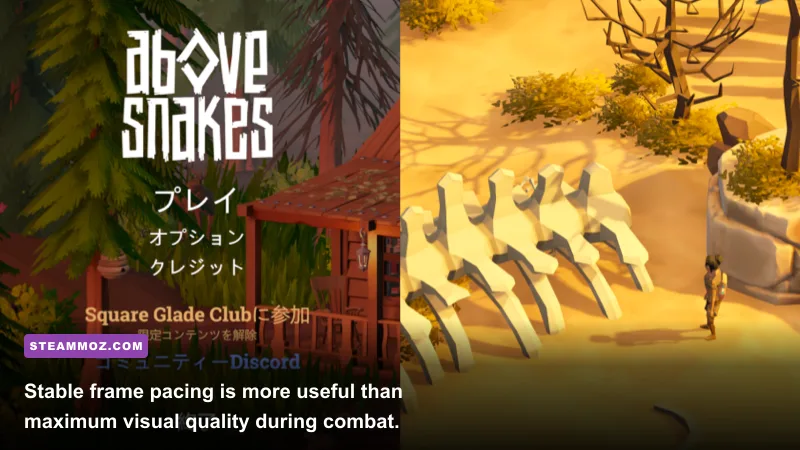
Changing a preset in a quiet menu area tells you almost nothing. Test Above Snakes in three situations: moving across a newly generated island, standing near your busiest base, and entering combat with several objects and effects on screen. These scenes expose different limits. Exploration tests streaming and view distance, base building tests CPU and shadow work, and combat tests effects plus frame pacing.
Use a monitoring overlay such as Steam's performance display, NVIDIA's overlay, AMD Adrenalin, or MSI Afterburner. Watch average FPS, the 1% low, GPU utilization, VRAM use, and temperatures. The 1% low matters more than the headline average. If you average 80 FPS but the 1% low sits near 35, the game will feel uneven when turning the camera.
| Symptom | Likely Limit | First Change | Why It Helps |
|---|---|---|---|
| GPU at 95-100%, low FPS | Graphics workload | Resolution scale, shadows | Reduces pixels and dynamic lighting cost |
| GPU below 80%, FPS still low | CPU or streaming | View Distance, Foliage | Reduces objects submitted and drawn |
| Stutter when entering islands | Streaming or shader compilation | Textures Medium, close background apps | Reduces VRAM pressure and interruptions |
| Combat-only drops | Particles and effects | Effects Medium or Low | Limits burst rendering cost |
| Image looks blurry | Low scale or post processing | Return scale to 100%, lower post processing | Preserves native sharpness |
| Screen tearing | Refresh synchronization | Enable V-Sync or VRR | Keeps frames aligned with the display |
Change one setting at a time and repeat the same route. If you lower three options together, you will never know which one fixed the drop. Start with Shadows, then Foliage, then View Distance. If those changes barely move the numbers, test resolution scale. This order keeps the image attractive while targeting the settings with the clearest returns.
Also give the game a minute after loading a save. The first visit to an area may include asset and shader work that will not repeat on the next pass. If every visit stutters, investigate drivers, storage, background applications, and VRAM pressure. Installing the game on an SSD can help asset streaming, although it cannot transform a CPU-limited machine into a high-refresh system.
Final competitive-quality setup for Above Snakes

For most players, this is the profile I would actually use: native resolution, 100% scale, High textures, Medium anti-aliasing, Medium View Distance, Low Shadows, Low Foliage, Medium Effects, Low Post Processing, Motion Blur Off, and V-Sync Off when using VRR. Cap the frame rate at 60 for a normal monitor, or at a stable value your PC can hold everywhere. If 60 is impossible, a consistent 30 FPS is better than an unlocked range that swings wildly.
There is no need to sacrifice the game's strongest visual feature—its distinctive floating-island art—to gain performance. Keep textures High when VRAM allows it, and spend your compromises on lighting, foliage density, and distant geometry. That approach maintains the material detail on crafted structures, terrain, and character equipment while trimming the expensive background work the eye notices less.
If you are still tuning a demanding PC game, Steamoz's guide to settings that make every frame count has the same practical focus on frame pacing. Our breakdown of real PC requirements is also useful when a system appears to meet a game's listed specs but struggles in actual play. For broader survival-game fundamentals, compare these performance habits with the early-game advice in 10 tips that save your first town.
Finally, keep expectations realistic. The official Square Glade Games site and the game's Steam page are the best places to check for patches, system changes, and developer updates. Settings can smooth the experience, but a very old CPU, insufficient VRAM, or thermal throttling may still produce dips. Tune for the lowest demanding scene you regularly encounter, cap the result, and Above Snakes becomes far more comfortable to explore for hours.