If A Boy and His Blob keeps crashing, freezing on launch, or dropping frames on PC, the reliable fix is to verify the Steam install, disable overlays, run the game in a stable windowed or borderless mode, and cap the frame rate to your monitor’s refresh target. After that, use Windows compatibility settings only if the crash continues; lowering every visual option usually won’t solve the real problem.
WayForward’s 2009 Wii adventure arrived on PC as a 2016 release, and that history matters. This isn’t a modern DirectX 12 game with a giant settings menu. It’s a 2D puzzle-platformer built around fixed animation timing, controller input, and a relatively old PC wrapper. A powerful graphics card can still produce uneven frame pacing if an overlay, fullscreen handshake, or background capture tool interferes.
The good news is that A Boy and His Blob is light enough to run well on modest hardware. The bad news is that its age makes the usual “update everything and turn settings to Low” advice surprisingly ineffective. Follow the fixes in order, testing the same forest or cave section after every change so you can identify the culprit instead of randomly changing five things at once.
Start with the fixes most likely to work
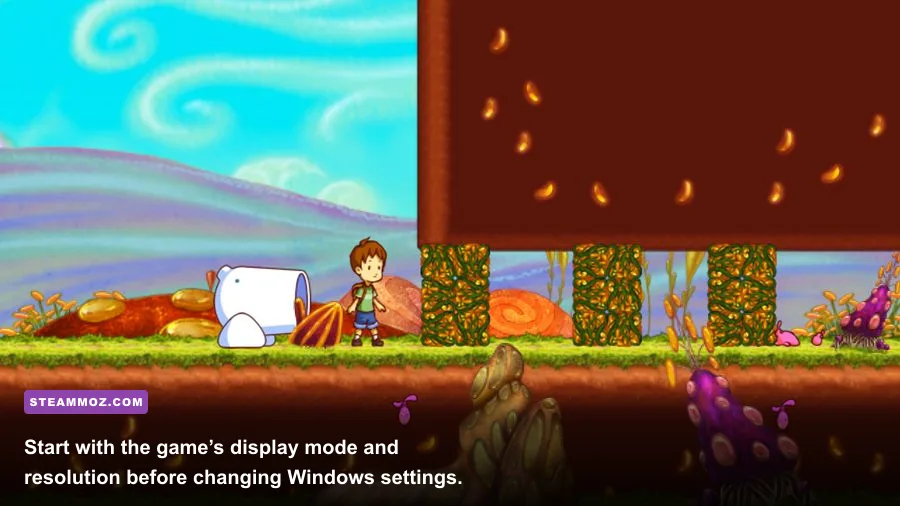
Before touching advanced Windows options, close the game completely and make a clean baseline test. Launch it from Steam, use the default resolution, and play for five minutes rather than judging performance from the title screen. A stable menu does not prove the game is stable; loading a new room, triggering Blob’s transformation animation, or moving through a scene with several foreground layers can expose a frame-time problem.
- Restart Steam and the PC. This clears a stuck overlay process, suspended controller utility, or failed fullscreen state.
- Verify the installation. In Steam, right-click A Boy and His Blob, choose Properties, open Installed Files, and select Verify integrity of game files. One damaged archive can explain repeat crashes during the same level transition.
- Disable Steam Overlay. Open the game’s Steam properties and turn off Enable the Steam Overlay while in-game. Also close Discord Overlay, Xbox Game Bar, AMD Adrenalin overlay, NVIDIA App overlay, MSI Afterburner’s OSD, and recording software for the first test.
- Unplug unnecessary USB devices. Keep only your keyboard, mouse, and intended controller connected. Older games can react badly to virtual gamepads created by reWASD, DS4Windows, or controller-emulation software.
- Reboot after changing display mode. If the game crashed while switching between fullscreen and desktop, Windows may retain a broken resolution state until the process and driver are restarted.
These are the same first-line habits that help with other older PC releases, including the troubleshooting approach in our City of Gangsters crash and FPS guide. They’re boring fixes, but file verification and overlay removal solve a remarkable number of “random” crashes.
Use a controlled test instead of guessing
Pick one repeatable route: enter a forest stage, use Blob as a trampoline, cross one checkpoint, and load the next screen. If the game crashes at exactly the same transition, suspect corrupt files, a bad save, or a compatibility problem. If it crashes in different places, suspect overlays, drivers, unstable overclocks, or a controller utility.
| Symptom | Most likely cause | First action | What success looks like |
|---|---|---|---|
| Crash before the title screen | Overlay, display mode, missing runtime | Disable overlays and launch windowed | Menu loads consistently |
| Crash during a level transition | Damaged files or save data | Verify files and test a new save | The same transition completes |
| Short freezes every few seconds | Frame pacing, capture software, background task | Close monitoring and recording tools | Frame delivery becomes even |
| Low FPS everywhere | Wrong resolution, driver profile, power mode | Check resolution and Windows power settings | Stable target FPS in multiple rooms |

🎮 A Boy and His Blob
Looking to experience this game? Grab your digital key directly on our store for $3.49.
View on Steammoz Store →Fix crashes, black screens, and launch failures
A black screen followed by a desktop return usually points to the game failing during display initialization rather than running out of GPU power. Force a safer presentation mode first. In the game’s Steam properties, use the launch option -windowed if the normal fullscreen mode fails. If that works, choose a supported resolution inside the game, close it normally, and then remove the launch option to see whether fullscreen now behaves.
Don’t stack random commands from old forum posts. The PC release is not a DirectX 12 title, so options intended for modern Unreal Engine games won’t help. Also avoid compatibility modes that change color handling or disable modern input unless you have a specific reason. Right-click the game executable, open Properties, select Compatibility, and test Disable fullscreen optimizations. Apply Windows 7 compatibility mode only if the game still refuses to launch on your installation.
Windows security can create a less obvious failure. Controlled Folder Access or third-party antivirus may block the game from writing configuration or save data. Add the game’s installation folder as an allowed app only if you trust the installation, and never download replacement DLL files from unofficial sites. For the legitimate release, the safest starting point is the official Steam page for A Boy and His Blob.
Test the save separately
If a new game works but your existing file crashes at one particular stage, the save may be damaged. Back up the save folder before removing anything. Search Windows for the game’s local save data, copy that folder to your desktop, and then test with a fresh profile. Do not delete the backup until you’ve confirmed whether the problem follows the save.
This distinction matters because the game’s level progression is built around individual story stages and collectible hunting. A broken profile can make one stage appear “unplayable” even though the executable itself is healthy. If a new save loads correctly, replaying the affected area may be safer than restoring the damaged file immediately.
Stop low FPS and uneven frame pacing
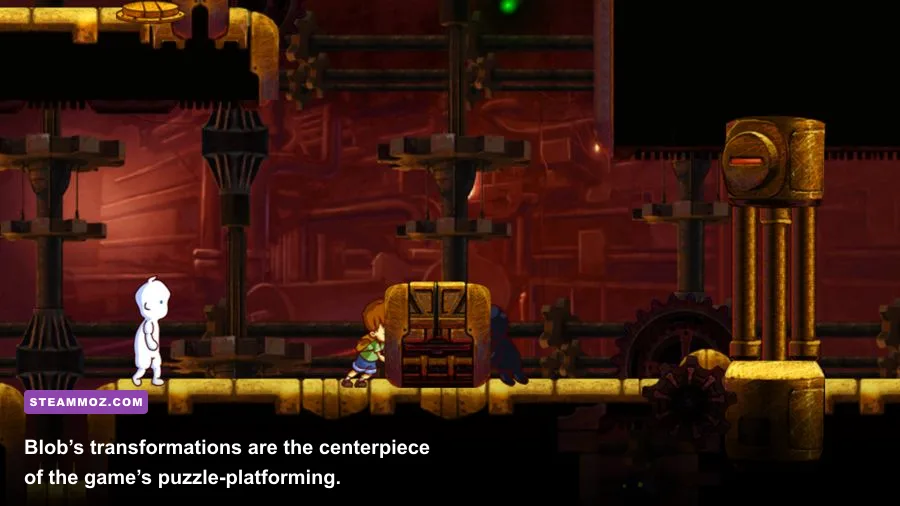
For this game, low FPS and stutter are not always the same problem. A frame counter may report a respectable number while the game still feels jerky because frames arrive unevenly. That’s especially noticeable when the boy jumps onto Blob’s trampoline, when Blob changes into a ladder or cannon, and when a room transition briefly streams the next scene.
First, set your desktop and game resolution to the monitor’s native value, then test borderless or windowed mode. If fullscreen is smooth, keep it. If fullscreen causes hitching, borderless is often the better compromise on Windows 10 and Windows 11. Avoid running the game at an unnecessarily high render resolution through GPU scaling; a 4K desktop can make an old title render more pixels than you expect.
Next, cap the frame rate. Use your GPU driver’s per-application profile or a trusted limiter such as RTSS. Choose a target your system can hold continuously: 60 FPS for a 60 Hz display, 120 FPS for a 120 Hz display, or 58-59 FPS if an external limiter produces cleaner pacing on a 60 Hz setup. The goal is consistency, not a large number in the corner.
| Setting or profile | Recommended value | Expected performance impact | Visual or input note |
|---|---|---|---|
| Resolution | Native monitor resolution | High if set above native target | Best image clarity; reduce only for testing |
| Display mode | Borderless or stable fullscreen | Usually small | Borderless avoids many alt-tab failures |
| Frame cap | 60 FPS or a stable monitor target | Can reduce spikes | Smoother than an uncapped, uneven frame rate |
| V-Sync | On if tearing appears | Small to moderate latency cost | Useful when the limiter alone leaves tearing |
| GPU scaling | Off unless required | Varies by driver | Prevents unexpected scaling behavior |
| Background capture | Off while testing | Can be significant on older CPUs | Re-enable only after frame pacing is clean |
If your copy exposes only a small number of graphics options, that’s normal. Don’t expect a Low preset to fix a CPU-side hitch caused by an overlay. Our guide to settings that make every frame count covers the same principle: change the setting connected to the bottleneck, not the one that merely looks convenient.
Check power, drivers, and hidden GPU selection
On a laptop, plug in the charger and set Windows to Best performance while testing. In Windows Settings, open System, then Display, Graphics, add the game executable, and select the high-performance GPU if your machine has integrated and dedicated graphics. A 2D game can still be assigned to the wrong adapter after a Windows update.
Update your graphics driver through NVIDIA, AMD, or Intel’s official support channel, but don’t assume the newest driver is automatically better. If stutter began immediately after a driver update, a clean driver installation or rollback is worth testing. Reset any GPU overclock, undervolt, frame-generation feature, or forced shader enhancement before diagnosing the game itself.
Make controllers and input stop causing freezes
A Boy and His Blob is much better with a controller because Blob’s transformations and the boy’s movement are designed around quick directional input. However, multiple input layers can produce double presses, menu loops, or apparent freezes. Start with one physical controller and Steam Input in a single mode. If Steam Input is enabled, don’t simultaneously run DS4Windows unless you specifically need its remapping.
For an Xbox controller, connect it before launching the game and test with Steam Input enabled. For a PlayStation controller, try Steam Input first; if the prompts or buttons behave incorrectly, test the controller with Steam Input disabled and no other emulator running. Keep the configuration that produces one button press per action.
Wireless adapters and Bluetooth can also create short stalls when Windows repeatedly disconnects and reconnects a device. Test with a wired connection. Turn off rumble temporarily if the game crashes at a transformation or cutscene, then restore it after the session is stable. This isn’t a universal fix, but it isolates an unusual hardware or driver fault without changing the game files.
Why transformations can expose problems
Blob isn’t just a companion model. He changes into tools including a trampoline, ladder, hole, cannon, anvil, shield, and rocket, and each transformation can trigger animation, sound, and controller events together. If your crash happens immediately after feeding Blob a jelly bean, test keyboard input and disable overlays before blaming the transformation itself. The game logic is usually fine; the failure is more often a bad input hook or a corrupted asset loaded at that moment.
Use the right Windows compatibility profile
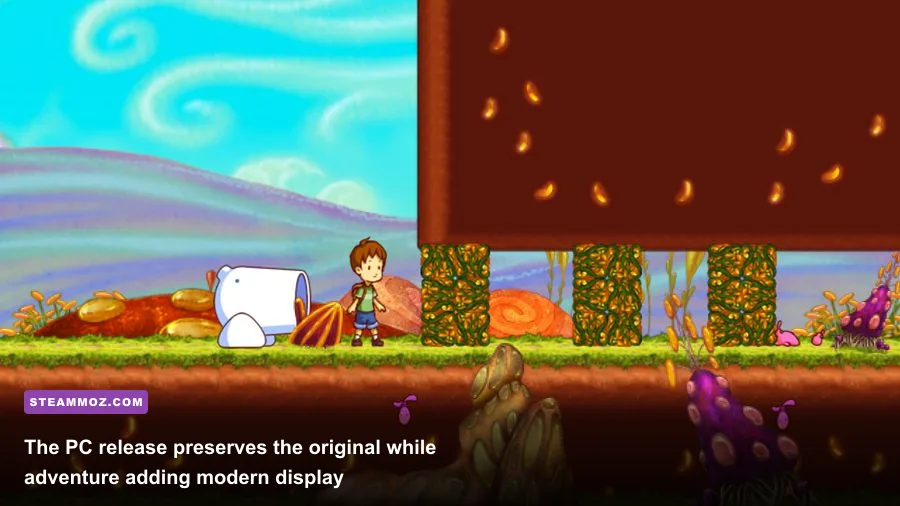
Compatibility settings should be a late-stage tool, not your first move. If verification, overlays, display mode, and drivers haven’t helped, locate the game executable through Steam’s Browse local files command. Open its properties and test Disable fullscreen optimizations. Launch the game, play through a complete stage, and record whether the crash returns.
High-DPI scaling can create an oversized window or strange black borders on high-resolution displays. In the executable’s Compatibility settings, open Change high DPI settings, enable the override, and let Application handle scaling. Use this only when the window is visibly mis-scaled; it won’t improve ordinary FPS performance.
Do not run the game as administrator unless Windows is clearly denying access. Administrator mode can create a second set of save permissions and make later troubleshooting harder. Likewise, don’t install “FPS booster” tools or replace system libraries. For official support information and publisher news, check WayForward’s official website and the Steam Community discussions.
| PC component or option | Minimum practical target | Recommended setup | Pro-tuned profile |
|---|---|---|---|
| Operating system | Supported modern Windows installation | Fully updated Windows 10 or 11 | Clean reboot before testing |
| Processor | Any recent dual-core CPU | Modern quad-core laptop or desktop CPU | No aggressive power-saving mode |
| Graphics | Integrated graphics with current driver | Dedicated or recent integrated GPU | Correct high-performance GPU selected |
| Memory | At least 4 GB available | 8 GB system RAM | Close browsers and capture tools |
| Storage | Healthy Steam installation | SSD with free space for updates | Verify files after moving the install |
| Display profile | Native resolution, windowed test | Borderless or stable fullscreen | Locked 60 FPS with clean frame pacing |
A clean troubleshooting order that saves time
Here’s the order I’d use on a fresh Windows installation: verify the files, disable every overlay, disconnect virtual controllers, launch windowed, select the correct GPU, cap the frame rate, and only then test compatibility settings. After each change, replay the same room or stage. If the problem disappears, undo the last change once to confirm it was responsible.
If the game still crashes, create a new save and test it. If both saves fail, reinstall the game to a different library location and check Windows Event Viewer for the faulting module. A graphics-driver module points toward the GPU stack; an input or overlay DLL points toward a hook; the game executable itself makes file verification and compatibility testing more important.
For additional older-PC troubleshooting, our guides to Deadfall Adventures PC requirements and Decadence-era PC game fixes are useful companions. The same rule applies here: keep the installation clean, remove software that injects into the game, and prioritize stable frame delivery over maximum settings.
Once the game launches reliably, keep a working profile backed up. Record your resolution, display mode, frame cap, controller mode, and overlay state in a note. That takes less than a minute and makes future driver updates painless. A Boy and His Blob doesn’t need a powerful rig; it needs a predictable one. Give it a clean install, a stable display mode, one input layer, and a locked frame-rate target, and Blob’s trampoline jumps should feel as smooth on a modern PC as they did on the original adventure.