The best Fields of Glory graphics settings for maximum FPS are a native 1080p or 1440p resolution, exclusive fullscreen, medium shadows, high terrain, and reduced anti-aliasing. Fields of Glory II is not a modern GPU stress test, but huge battles can still produce uneven frame times when shadows, unit detail, and effects are pushed too far. Start with the optimized profile below, then adjust resolution scaling and shadows first. Those two options usually deliver the cleanest performance gain without making formations difficult to read.
This guide focuses on Fields of Glory II, including its Medieval-era content and large custom battles. The exact wording of some options can change between the base game, expansions, and display modes, so treat “quality” sliders as the closest matching option in your installation. The game is turn-based, but that doesn't make smooth performance irrelevant: camera movement, deployment screens, zooming over hundreds of models, and replay viewing all benefit from stable frame pacing.
The Best Fields of Glory Settings for Max FPS
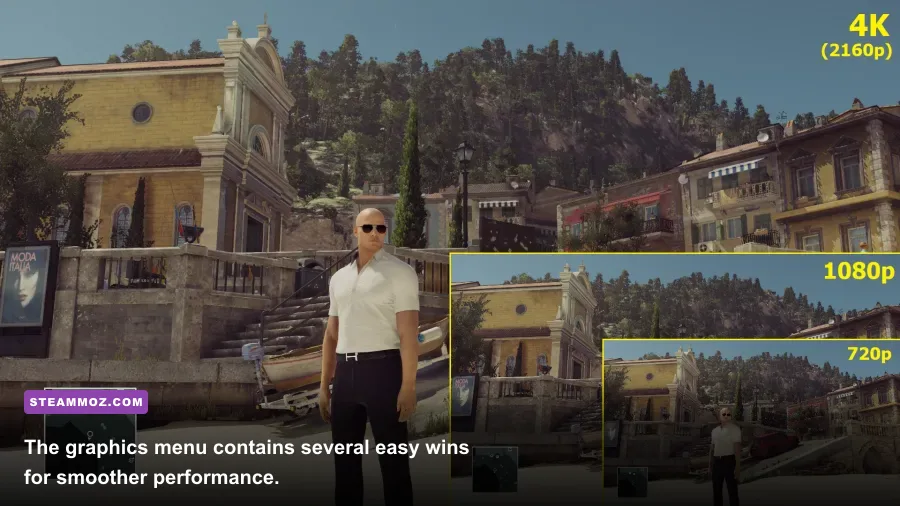
Use this profile if your priority is the highest practical frame rate while keeping the battlefield sharp enough to identify cavalry, light infantry, terrain elevation, and disrupted units. Fields of Glory II's tactical information is mostly conveyed through counters, formation shapes, banners, and color, so you can lower decorative effects more aggressively than terrain quality.
| Graphics Setting | Recommended Value | Expected FPS Impact | Visual Trade-Off |
|---|---|---|---|
| Display Mode | Fullscreen | Low to medium gain | Usually improves frame pacing and minimizes desktop compositing. |
| Resolution | 1920×1080 or native 1440p | High at 4K | Lower resolution is the fastest GPU-side adjustment. |
| Anti-Aliasing | 2x or medium | Medium | Edges become slightly more jagged, especially on spear lines. |
| Shadow Quality | Medium | Medium to high | Less definition under units and around trees. |
| Terrain Quality | High | Low to medium | Keeps hills, fields, and elevation changes readable. |
| Unit Quality | Medium or high | Medium in huge battles | Lower detail is most noticeable while zoomed in. |
| Effects | Medium | Low to medium | Less smoke, dust, and impact decoration. |
| Vegetation | Medium | Low | Fewer or simpler trees and ground details. |
| Anisotropic Filtering | 4x or 8x | Very low | Preserves texture clarity at oblique camera angles. |
| V-Sync | Off for testing; On if tearing bothers you | Variable | Off lowers latency, while On can stabilize presentation. |
Don't automatically set every option to Low. That approach often damages the battlefield's visual hierarchy while saving only a handful of frames. High terrain with medium shadows is a much better compromise than low terrain with maximum shadows. If your monitor is 1440p, native resolution normally looks better than a blurry 1080p image stretched across the panel, but 1080p remains the strongest choice for older integrated graphics.
For context, players tuning other strategy games can also compare our A Year of Rain low-FPS settings guide and Cossacks 3 PC performance breakdown. The lesson is similar: large armies create spikes that a simple average-FPS counter won't always reveal.

🎮 Fields of Glory
Looking to experience this game? Grab your digital key directly on our store for $1.39.
View on Steammoz Store →Which Settings Actually Affect Performance?

Resolution is the blunt instrument. Moving from 2560×1440 to 1920×1080 renders roughly 44 percent fewer pixels, so it can rescue a laptop GPU immediately. It won't fix a CPU-limited battle, though. If the frame rate stays almost identical after dropping resolution, the bottleneck is probably unit simulation, draw-call overhead, or background software rather than the graphics processor.
Shadows are the first quality setting to cut
Shadows are expensive because the game has to calculate extra scene information for terrain, trees, buildings, and formations. The difference between High and Medium is often difficult to notice during normal tactical zoom, while the performance gain is much easier to feel when the camera sweeps across a crowded deployment zone. Low shadows are worth using on integrated graphics, but Medium is the sweet spot for most dedicated GPUs.
Anti-aliasing has a surprisingly visible cost
Anti-aliasing smooths the thin edges of weapons, banners, and unit models. At 1080p, maximum anti-aliasing can soften the image without making formations meaningfully easier to read. Use 2x or the middle preset first. If you play at 1440p or 4K, lower AA is less painful because the higher pixel density already reduces shimmering.
Terrain quality is worth protecting
Terrain isn't only cosmetic in Fields of Glory II. Hills, rough ground, fields, woods, and roads help you understand movement routes and battlefield shape at a glance. Keep terrain High unless you're desperate for every last frame. Lower unit quality or effects before sacrificing the visual landmarks that support tactical decisions.
Unit quality matters during zoomed-in inspection
Unit detail becomes expensive when the camera is close to a massive line of infantry or cavalry. It has less impact while you're viewing the entire battlefield from a distance. If your FPS collapses during close-ups but remains healthy during deployment, reduce Unit Quality one step and keep Terrain Quality high. This is a better targeted fix than lowering resolution across the entire game.
| Symptom | Likely Bottleneck | First Change | Second Change |
|---|---|---|---|
| FPS improves after lowering resolution | GPU rendering load | Lower resolution or AA | Reduce shadows |
| FPS barely changes at lower resolution | CPU, simulation, or draw calls | Lower unit quality | Close background applications |
| Stutter appears during camera sweeps | Frame pacing or asset streaming | Use fullscreen | Lock FPS below your normal average |
| Close-ups are slow but overview is fine | Unit models and shadows | Lower Unit Quality | Lower Shadow Quality |
| Menu is smooth but battles dip | Battlefield scene complexity | Test a large custom battle | Reduce effects and vegetation |
Best Profiles for Low-End, Mid-Range, and High-End PCs
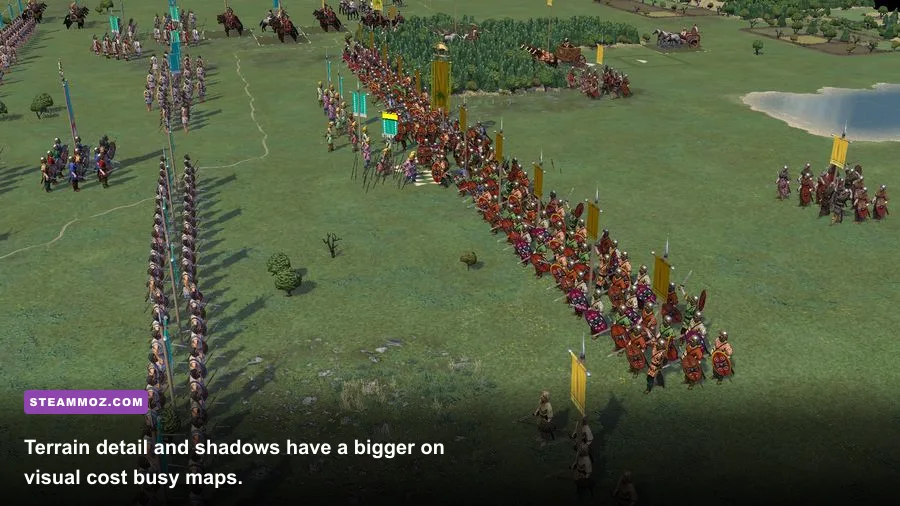
Fields of Glory II has modest system requirements compared with current 3D games, but “can launch” and “runs smoothly in a 500-unit battle” are very different targets. The profiles below are designed around the demanding scenario rather than the easy one: a large battle, plenty of terrain, frequent camera movement, and several formations visible at once.
| Hardware Target | Resolution | Quality Profile | Practical FPS Goal |
|---|---|---|---|
| Integrated graphics or older laptop | 1280×720 or 1600×900 | Low shadows, medium units, low effects, medium terrain, 2x AA | 30–45 FPS with fewer spikes |
| Entry-level dedicated GPU | 1920×1080 | Medium shadows, high terrain, medium units, medium effects, 2x–4x AA | 45–60 FPS |
| Mainstream gaming PC | 1920×1080 or 2560×1440 | High terrain, medium/high units, medium shadows, 4x AA | 60–100 FPS |
| Modern high-end PC | Native 1440p or 4K | High settings, reduced AA if needed, medium shadows for large battles | 60 FPS minimum in heavy scenes |
The low-end profile is intentionally conservative. A locked 30 FPS feels better than a wildly fluctuating 25–55 FPS presentation, especially when dragging the camera over a dense line. If your system can hold 45 FPS, cap the game around 40 or 45 with your GPU driver's frame limiter. A slightly lower ceiling reduces sudden frame-time swings and avoids unnecessary heat on a laptop.
On a high-end system, don't assume maximum settings guarantee perfect smoothness. Older strategy engines can become CPU-limited when they need to draw many separate units. A powerful graphics card may sit below full utilization while one processor thread does the heavy lifting. That is normal behavior and explains why lowering resolution sometimes achieves nothing.
How to Test FPS Without Fooling Yourself
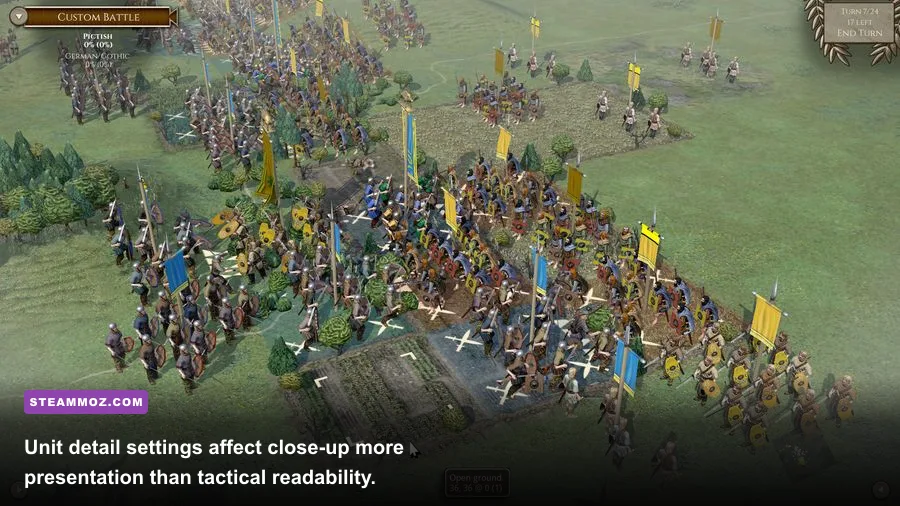
Benchmarking Fields of Glory II with an empty scenario gives you a false sense of security. Build a repeatable test using a large custom battle or a campaign battle with numerous visible formations. Start at the deployment screen, pan from one edge of the battlefield to the other, zoom from overview to unit level, and then advance through a turn with cavalry movement and combat effects on screen.
Record three numbers if your overlay supports them: average FPS, the one-percent low, and frame time. The one-percent low matters most here because a brief hitch while rotating the camera is more distracting than a steady 50 FPS. A stable 45 FPS is perfectly playable for a turn-based battlefield. Chasing 144 FPS is usually wasted effort unless you also use the PC for faster real-time games.
A reliable five-minute test
- Restart the game and load the same large battle each time.
- Wait several seconds after loading before recording results.
- Pan across the full map twice at overview distance.
- Zoom into the densest infantry formation and rotate the camera.
- End or advance a turn, then record the lowest sustained result.
Change one setting at a time. If you lower resolution, shadows, and effects together, you won't know which adjustment solved the problem. Keep notes, particularly if you alternate between the base game and Medieval content. Map density, weather, vegetation, and army size can create very different workloads.
For a broader PC troubleshooting routine, Steamoz's Architect Life crash and low-FPS fixes and Beacon Pines PC performance guide cover useful steps such as driver cleanup, overlays, and verifying installed files.
Windows and Driver Tweaks That Help Frame Pacing
Before changing advanced system settings, update the game through its official Steam listing and install a current graphics driver. Then verify the files through Steam's Properties menu if the game suddenly stutters after an update. Corrupted or partially updated assets can look like a graphics problem even when the selected settings are sensible.
Disable overlays you don't use. Steam, Discord, recording software, RGB utilities, browser video, and GPU monitoring tools can all add small amounts of overhead. One overlay rarely destroys performance, but several together can worsen frame pacing on an older CPU. Keep a single FPS monitor for testing, then turn it off for normal play.
On a laptop, connect the charger and select the manufacturer's performance profile. Windows power saving can hold the CPU or GPU below its normal clocks, creating dips that look like a game-engine limitation. Also check that the game is assigned to the dedicated GPU in Windows Graphics settings if your laptop has both integrated and discrete graphics.
V-Sync deserves a practical approach. Use it if tearing is obvious during camera movement, but turn it off while diagnosing performance. If your monitor supports variable refresh rate, enable that at the display level and cap FPS a few frames below the refresh ceiling. If not, a sensible in-game or driver cap is preferable to letting the frame rate bounce constantly.
Finally, leave texture filtering at 4x or 8x unless you're on very old hardware. Anisotropic filtering has a tiny performance cost on modern GPUs and keeps roads, fields, and terrain textures readable when the camera is angled. It is one of the last settings worth cutting.
The Final Performance Setup for Fields of Glory
For most players, the winning configuration is simple: native 1080p or 1440p, fullscreen, high terrain, medium shadows, medium unit quality, medium effects, 2x or 4x anti-aliasing, and 4x or 8x anisotropic filtering. This preserves the tactical clarity that makes Fields of Glory II work while removing the effects most likely to cause dips during huge engagements.
If FPS still falls, lower shadows first, then unit quality, then resolution. If the average remains unchanged after those steps, stop chasing GPU settings and investigate CPU load, background applications, power limits, and battle size. The engine may simply be simulation-limited in that particular scenario.
Keep the official Slitherine Fields of Glory II page and the Fields of Glory II: Medieval page handy for patch and expansion information. The game's age is part of its charm, but it also means smoothness comes from smart compromises rather than blindly selecting Ultra. Set the battlefield up for stable frame times, and the moment-to-moment command experience becomes dramatically cleaner.
That is the real target: not an impressive FPS number in an empty menu, but a steady camera, readable terrain, and no ugly hitch when an entire line of troops moves into contact.