The best Cthulhu: The Cosmic Abyss - R'lyeh Edition settings are 1080p or 1440p resolution, a 60-fps cap, medium shadows, reduced volumetrics, and DLSS or FSR on Quality. Keep textures on High if your graphics card has at least 8GB of VRAM, turn ray tracing off unless you have substantial GPU headroom, and lower effects before sacrificing resolution. That combination delivers the cleanest image-to-performance balance in the underwater investigation adventure.
R'lyeh Edition does not change the core performance target, so owners of the deluxe package should tune the game exactly like the standard PC release. The big gains come from controlling volumetric fog, shadows, reflections, and post-processing rather than blindly dropping every option to Low. This matters in a game built around dark corridors, submerged ruins, flashlight beams, and dense atmospheric effects: a technically fast image can still look awful if the fog turns into mush.

The Best Performance Profile at a Glance
Before chasing individual settings, choose a performance target. A locked 60 fps is the sensible baseline for most systems because it gives investigation, camera movement, and any close-range danger a consistent feel. A 120-fps target is worthwhile on a powerful desktop, but only if the GPU can hold it in the most demanding underwater areas rather than merely touching it in empty corridors.
| Target | Resolution | Upscaling | Recommended Hardware Class |
|---|---|---|---|
| 60 fps balanced | 1080p | DLSS/FSR Quality | Modern six-core CPU and mid-range GPU |
| 60 fps sharp | 1440p | DLSS/FSR Quality or Balanced | Recent RTX 3060 Ti, RTX 4060 Ti, RX 6700 XT class |
| 90-120 fps | 1080p | DLSS/FSR Balanced | High-end GPU with strong CPU headroom |
| 4K cinematic | 2160p | DLSS/FSR Performance | RTX 4080/4090 or RX 7900 XTX class |
| Portable play | 1280x800 or 1280x720 | FSR Balanced/Performance | Steam Deck-class hardware at 30 fps |
Use the in-game benchmark if available, but don't stop there. Walk through a visually busy R'lyeh area, rotate the camera through fog, and revisit an interior scene with several light sources. Those moments reveal the real worst-case frame time. A graph that reports 60 fps while delivering frequent 25-millisecond spikes will feel less responsive than a genuinely locked 50 or 55 fps presentation.

🎮 Cthulhu: The Cosmic Abyss - R'lyeh Edition
Looking to experience this game? Grab your digital key directly on our store for $34.99.
View on Steammoz Store →Recommended Cthulhu: The Cosmic Abyss Graphics Settings

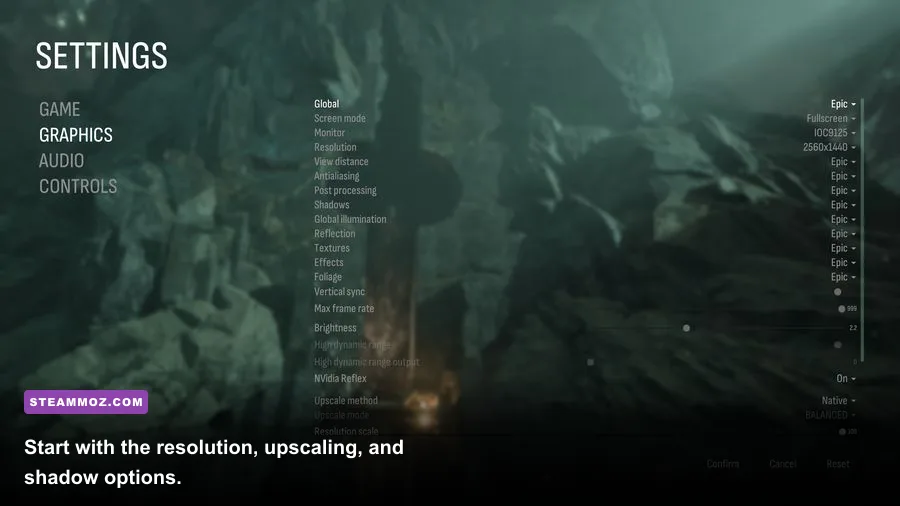
Start from the following profile, then adjust only one setting at a time. The exact label can differ slightly between patches or display modes, but the performance logic remains the same. The goal is to protect texture quality and internal resolution while cutting expensive lighting and atmosphere effects that are difficult to notice during movement.
| Setting | Recommended Value | Estimated FPS Impact | Visual Note |
|---|---|---|---|
| Display mode | Fullscreen or borderless | 0-3% | Fullscreen can reduce desktop compositor interference. |
| Resolution | Native 1080p/1440p | Very high | Keep native output when possible; use upscaling first. |
| Frame rate limit | 60 fps or display refresh minus 3 | Lower heat | A cap improves frame pacing and prevents wasted GPU work. |
| V-Sync | Off with VRR; On without VRR | Negligible | Use G-Sync or FreeSync when your monitor supports it. |
| Upscaler | DLSS Quality or FSR Quality | High gain | Quality mode keeps thin cables and distant edges cleaner. |
| Frame generation | Off below 60 base fps | High gain on supported GPUs | Useful for smoothness, but it cannot fix poor input latency. |
| Textures | High | Low to medium | Reduce only when VRAM usage causes hitching. |
| Shadows | Medium | Medium to high | One of the safest cuts in dark environments. |
| Effects | Medium | Medium | Controls particles, sparks, water splashes, and combat clutter. |
| Volumetrics/fog | Medium or Low | High in underwater areas | The best first cut for GPU-limited systems. |
| Reflections | Medium | Medium to high | Lower this before textures; glossy water is expensive. |
| Ambient occlusion | High or Medium | Low to medium | Medium retains convincing contact shadows. |
| Post-processing | Medium | Low | Lower to reduce blur, bloom, and heavy image treatment. |
| Motion blur | Off | Small gain | Sharper camera movement and easier inspection of clues. |
| Film grain/chromatic aberration | Off | Small gain | Cleaner text and less noisy dark detail. |
Why volumetrics should be your first compromise
Fog and underwater haze create the game's mood, but they also force the GPU to calculate layers of translucent pixels across much of the screen. In a brightly lit corridor, lowering volumetrics may barely register. In an open R'lyeh vista with shafts of light and murky distance, the same change can rescue double-digit frame rates. Set it to Medium first. If the GPU remains pinned at 99 percent, try Low before lowering resolution.
Shadows are the second major lever. High shadows look attractive in screenshots, yet their extra cascade distance and filtering often deliver a poor return during play. Medium preserves the silhouette and contact-shadow information you need to read spaces while reducing both rendering cost and occasional spikes when moving between indoor and outdoor areas.
DLSS, FSR, Frame Generation, and Image Quality
If you have an Nvidia RTX card, choose DLSS Quality at 1440p or 1080p. At 4K, DLSS Balanced is usually the better starting point. AMD and Intel users should select FSR Quality first, then move to Balanced only if the frame rate still misses your target. Don't jump straight to Performance mode: dark environments make shimmering, crawling edges, and unstable fine detail especially obvious.
Upscaling changes the internal render resolution, so it is more effective than lowering individual visual settings when the GPU is the bottleneck. It won't help much if your processor is limiting the game. Check GPU utilization during a heavy scene: 95-99 percent means reduce GPU settings or use a stronger upscaler; much lower utilization with stutter points toward CPU load, shader compilation, background applications, or streaming behavior.
Frame generation deserves a cautious recommendation. It can make camera movement look substantially smoother when your conventional frame rate is already around 60 fps. It cannot turn an unstable 35 fps into responsive 120 fps. The generated frames sit between real frames, so input still follows the base rate. For a horror game with deliberate movement, I prefer a stable 60 fps without frame generation to a flashy but laggy 100 fps counter. If you use it, pair it with a cap and disable it immediately if you notice ghosting around cables, particles, or moving silhouettes.
For Nvidia-specific troubleshooting, the official DLSS documentation explains supported modes and frame-generation behavior. AMD users can compare supported options through the official FidelityFX Super Resolution page.
CPU, VRAM, and Stutter Fixes
Not every hitch is a graphics-setting problem. Texture streaming and shader compilation can cause pauses even when average fps looks healthy. Install the game on an SSD, update your GPU driver, close browser tabs and recording software, and let the game sit in a demanding area for several minutes after a driver update. The first traversal may be rougher than later passes as shaders and assets settle.
| Symptom | Likely Limitation | First Fix | Second Fix |
|---|---|---|---|
| GPU stays at 99% | GPU-bound | Lower volumetrics and reflections | Use DLSS/FSR Balanced |
| GPU below 85%, one CPU core spikes | CPU-bound | Cap fps at 60 | Close background apps and lower crowd/detail options |
| Sharp freezes when entering rooms | Streaming or shader hitch | Move the game to an SSD | Update drivers and allow shader processing |
| Textures look blurry or pop in | VRAM pressure or low texture pool | Lower textures one step | Reduce resolution scale only if necessary |
| Dark image looks smeared | Upscaler/post-processing | Use Quality mode | Disable motion blur and film grain |
VRAM is the hidden trap. High textures usually don't destroy average fps; they produce asset swaps and hitching once memory runs short. If your card has 6GB, Medium textures are the safer choice at 1440p. With 8GB, High is reasonable, but monitor memory usage after entering a large area. Cards with 12GB or more can generally keep textures high while reducing volumetrics and reflections for performance.
Windows Game Mode should remain enabled, and hardware-accelerated GPU scheduling is worth testing rather than treating as a guaranteed fix. Disable overlays from Steam, Discord, GeForce Experience, or Radeon Software one by one if you suspect inconsistent frame pacing. For more PC troubleshooting ideas, Steamoz's guide to fixing crashes and low FPS and the performance-focused Dragonkin settings guide cover the same diagnostic workflow.
Best Settings for Low-End PCs and Steam Deck
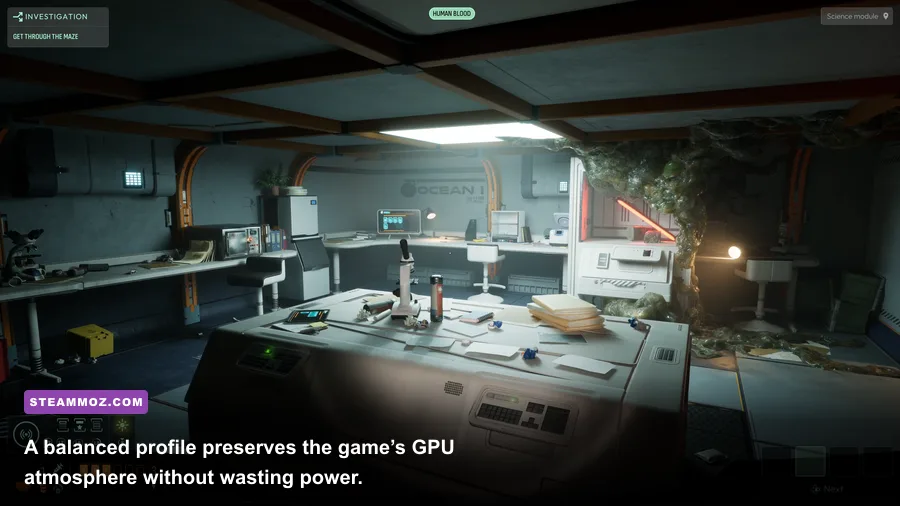
On a low-end desktop, begin at 1920x1080 with FSR Balanced, Medium textures, Low shadows, Low volumetrics, Medium effects, and Low reflections. Cap the game at 30 or 45 fps rather than allowing a wildly unstable unlocked frame rate. A locked 30 fps is perfectly playable for a slow investigation game and will feel considerably better than swings between 28 and 55.
Steam Deck requires more compromise. Use 1280x800, FSR Performance or Balanced, a 30-fps cap, Low shadows, Low volumetrics, Low reflections, and Medium textures if memory remains stable. A 40-fps target can work in lighter interiors, but it is not the profile I'd recommend for the entire campaign. The deck's limited GPU bandwidth is better spent on a consistent 30 fps than on a sharp image that collapses in fog-heavy scenes.
Turn off motion blur, film grain, and chromatic aberration on every system. These effects are especially unpleasant on a small screen and can make clues harder to inspect. If the game offers a field-of-view slider, leave it near default before chasing performance; wider FOV increases the amount of geometry and atmosphere visible at once, and it can create an unnecessary GPU hit.
Final 60 FPS Checklist
Apply the changes in this order: select fullscreen or borderless mode, choose native resolution, enable DLSS or FSR Quality, cap at 60 fps, then set shadows, volumetrics, and reflections to Medium. Test a busy underwater section. If the GPU is still maxed, lower volumetrics to Low and switch upscaling to Balanced. If stutter remains while GPU usage is low, investigate the CPU, storage drive, overlays, and shader compilation instead of dropping image quality further.
For a high-end rig, the best-looking sensible profile is native 1440p, Quality upscaling, High textures, Medium shadows, Medium volumetrics, High ambient occlusion, Medium reflections, and a 60 or 90 fps cap. For a mainstream PC, use 1080p, Quality upscaling, High textures if VRAM allows, and Medium across the expensive effects. Those profiles preserve the details that sell the cosmic-horror atmosphere without letting fog and reflections eat the entire frame budget.
Keep an eye on patches through the game's official Steam listing and publisher updates from NACON. Performance can shift after shader, lighting, or upscaling changes. Steamoz's guides to checking whether your PC can run demanding games and tuning expectations for older PC releases are also useful reference points.
The short version is simple: protect resolution and textures, cut volumetrics first, keep shadows at Medium, and don't trust frame generation to repair a weak base frame rate. Cthulhu: The Cosmic Abyss is at its best when the darkness stays detailed and the camera stays steady. These settings get you much closer to that balance.