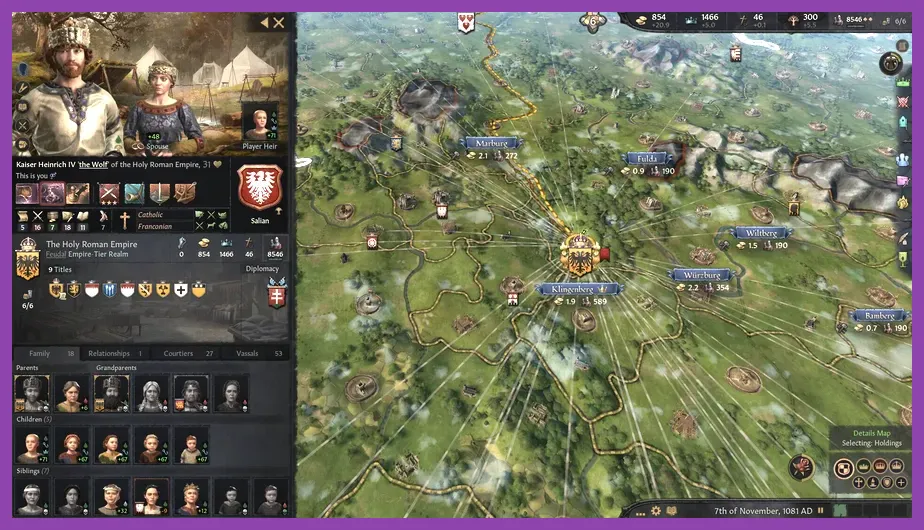
For the best Crusader Kings 3 FPS, use 1080p fullscreen, VSync off, FXAA, Textures on High, Shadows on Low, Water on Low, Terrain on Low, Objects on Medium, Trees on Medium, Post Effects on Low, Bloom and Ambient Occlusion off, and Render Scale at 100%. This combination preserves the map’s important borders, armies, and character models while cutting the settings that cost the most frames. If the late game still slows down, the limitation is probably Crusader Kings 3’s CPU-heavy simulation rather than your graphics card.
That distinction matters. CK3 is not a conventional action game where a high frame rate alone solves every performance problem. The renderer handles the map, lighting, character scenes, and armies, but the game’s daily calculations also process every realm, character, war, court, and succession event. A 144Hz monitor can make camera movement feel smoother, yet it cannot force year 1200 to advance as quickly as year 867 on an older processor. The settings below target both visible FPS and the stutter that appears while zooming across a crowded map.
Best Crusader Kings 3 Settings for Maximum FPS
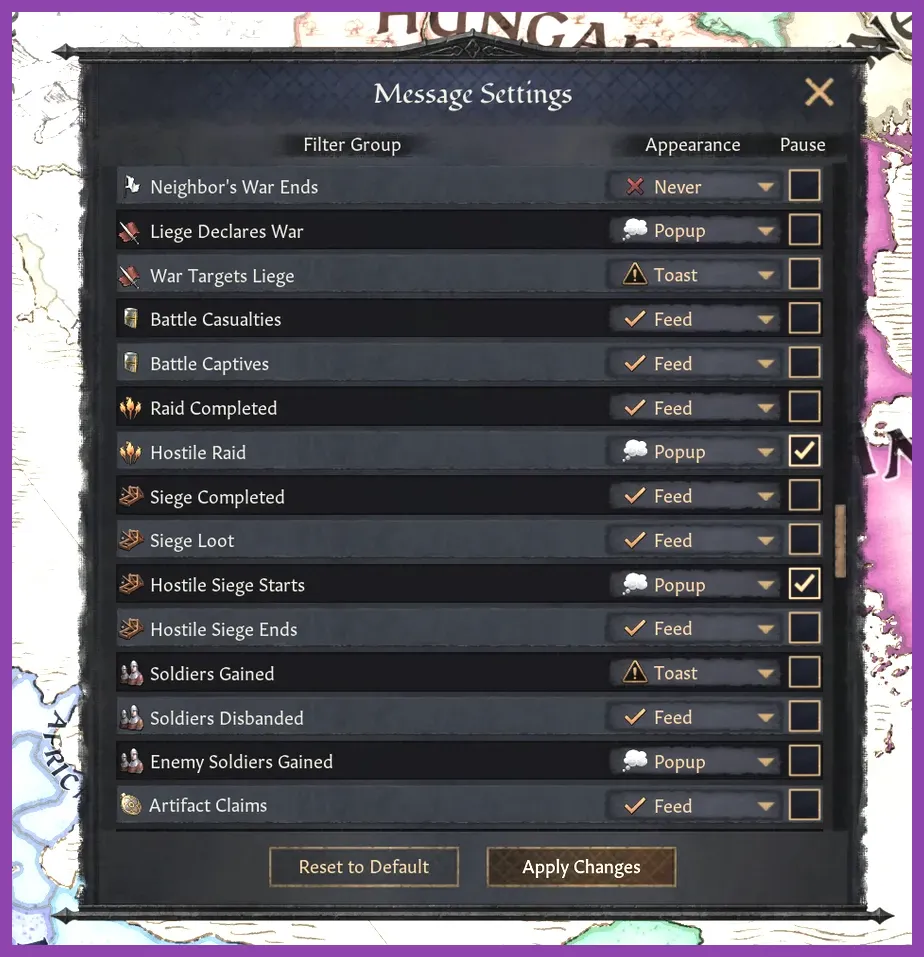
Start with this maximum-FPS profile in the game’s Graphics menu. It is designed for a gaming PC that needs consistent performance at 1080p, especially during wars and dense late-game campaigns.
| Setting | Recommended value | Performance reason |
|---|---|---|
| Display Mode | Fullscreen | Reduces desktop compositor overhead and improves frame pacing. |
| Resolution | 1920×1080 | Lower pixel count gives the GPU more headroom. |
| VSync | Off | Removes the frame-rate ceiling and avoids added input latency. |
| Anti-Aliasing | FXAA | Cheaper than higher-quality anti-aliasing options. |
| Texture Quality | High | Textures mostly use VRAM, so High preserves clarity at a modest cost. |
| Shadow Quality | Low | One of the easiest settings to reduce during map movement. |
| Water Quality | Low | Useful for coastal realms and large bodies of water. |
| Terrain Quality | Low | Reduces detail across the constantly visible strategic map. |
| Object Quality | Medium | Maintains readable holdings, buildings, and map props. |
| Tree Quality | Medium | Stops forests from looking excessively flat without a major hit. |
| Post Effects | Low | Limits extra processing during map transitions and close views. |
| Bloom | Off | Removes a visual effect with no strategic benefit. |
| Ambient Occlusion | Off | Reduces shading calculations around terrain and objects. |
| Character Shadows | Off | Helps court scenes and character-focused events. |
| Anisotropic Filtering | 4x | Keeps angled terrain readable without the cost of maximum filtering. |
| Render Scale | 100% | Prevents hidden supersampling from wasting GPU performance. |
Keep Textures at High unless your graphics card has limited VRAM or CK3 produces texture hitching. Lowering textures to Medium can help a 4GB GPU, but it generally does not fix simulation slowdown. Likewise, do not lower resolution before reducing Shadows, Terrain, Water, and Post Effects. Those options are the better first cuts because they affect rendering workload without making every label and province border harder to read.
Best 1080p, 1440p, and Low-End Profiles
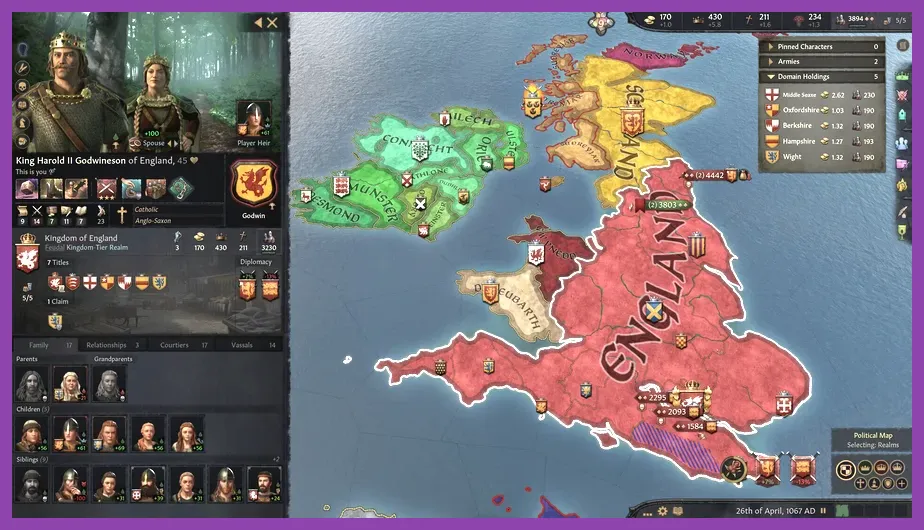
1080p balanced profile
For a mainstream system such as a six-core Ryzen 5 or Core i5 paired with a GTX 1660, RTX 2060, RX 5600 XT, or newer, use 1920×1080, Fullscreen, VSync Off, FXAA, Textures High, Shadows Medium, Terrain Medium, Water Low, Objects Medium, Trees Medium, Post Effects Low, Bloom Off, Ambient Occlusion Off, and Render Scale 100%. This is the best everyday profile if you want attractive map detail and strong movement performance without turning CK3 into a flat board.
1440p quality-performance profile
At 2560×1440, use Textures High, Shadows Low, Terrain Low, Water Low, Objects Medium, Trees Medium, Post Effects Low, FXAA, and Render Scale 85-90%. An 85% render scale produces a substantial GPU reduction while keeping the interface sharp because menus and text are normally composited separately. If your graphics card has at least 8GB of VRAM, test Textures at High; if you see repeated stutters when zooming, switch to Medium before lowering anything else.
Low-end laptop profile
For integrated graphics or an older laptop GPU, select 1280×720 or 1600×900, Fullscreen, VSync Off, FXAA, Textures Medium, Shadows Low, Terrain Low, Water Low, Objects Low, Trees Low, Post Effects Low, Bloom Off, Ambient Occlusion Off, Character Shadows Off, and Render Scale 75-85%. Use 75% only when the GPU is the bottleneck. At that point the map will look softer, but the reduced pixel workload can make camera movement much steadier.
Cap the frame rate only after testing. If your machine fluctuates between 45 and 80 FPS, a 60 FPS cap can produce a more stable experience than leaving the game uncapped. Use the in-game cap if available, or your GPU driver’s per-application limiter. Do not enable both a driver cap and VSync blindly; that combination can add latency or produce uneven frame pacing.
Which Settings Affect FPS the Most?
Shadows should be your first reduction. CK3 constantly displays terrain, holdings, armies, and characters, and shadow quality increases the work required across those scenes. Moving from High to Low often delivers a more noticeable improvement than dropping Texture Quality, particularly when zoomed close to a duchy capital.
Terrain and Water are next. The map is the game’s primary visual surface, so terrain detail remains active for almost the entire campaign. Water quality matters less in landlocked regions but becomes more useful around the Mediterranean, the Baltic Sea, and the English Channel. If you play as Alfred of Wessex, a Norse ruler in Scandinavia, or a Mediterranean empire, Low water settings are an easy universal win.
Objects and Trees affect how much detail is drawn around holdings and landscapes. Medium is a good compromise because it retains the visual identity of castles and forests. Move both to Low on an entry-level GPU, but leave Textures at High if VRAM allows it. Texture quality changes surface clarity; it does not usually reduce the number of objects the engine must process.
Anti-aliasing and Render Scale determine image sharpness and GPU load. FXAA is the practical performance choice, while Render Scale is the emergency slider. Lower it in five-percent steps rather than jumping immediately to 50%. Below roughly 80%, province borders, army icons, and tooltips can become noticeably blurred during movement.
Ambient Occlusion, Bloom, and Character Shadows are safe sacrifices. None of them improves decision-making, army visibility, or interface readability. Turning them off is especially worthwhile on laptops, where reducing heat can prevent the processor from throttling after an hour-long session.
How to Reduce Late-Game Stutter and Simulation Slowdown
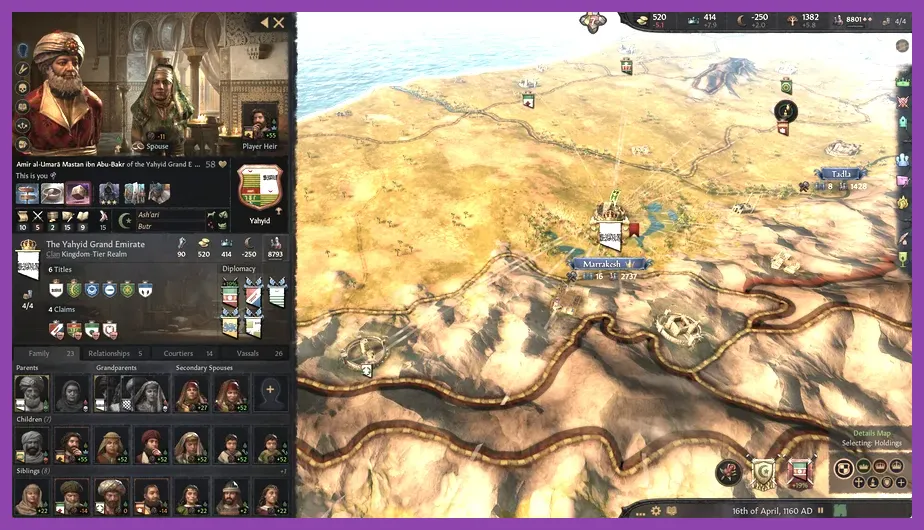
Graphics settings cannot fully solve a campaign that slows after several centuries. CK3’s simulation tracks thousands of living characters, titles, marriages, pregnancies, plots, wars, and AI decisions. When the in-game day advances slowly or the speed controls feel delayed, open the performance overlay if your build provides one and compare GPU usage with CPU usage. A GPU sitting below full utilization while the game stutters is a strong sign that simulation performance is the limit.
Use the right campaign settings
Ironman itself is not a magic FPS killer, but frequent autosaves can cause short pauses. Set autosave frequency to Monthly only if you need maximum recovery protection; Quarterly or Yearly reduces save-related interruptions for a normal campaign. Monthly saves are sensible for Ironman, achievement attempts, and difficult starts such as 867 Asturias, but they can be felt on a hard drive.
Install CK3 on an SSD, preferably an NVMe drive, and keep several gigabytes free. An SSD does not increase the number of daily AI calculations, but it improves loading, save operations, and the small hitch caused by loading portraits, map assets, and event scenes. Close browsers, launchers, and recording tools if system memory is tight. CK3 benefits from available RAM when a campaign has accumulated a large character database.
Manage campaign scale, not just graphics
Large multiplayer games, total-conversion mods, and huge late-game empires naturally create more work. A 1066 campaign reaching the Mongol invasions can feel heavier than a fresh 867 start because the world has accumulated characters and titles. If you are benchmarking hardware, use the same date, camera position, game speed, and save file rather than comparing a new campaign with a 300-year-old one.
Check mod compatibility after every major patch. A cosmetic map mod may be harmless, but expanded character, population, trade, or event systems can increase script processing. Disable mods one at a time and reproduce the same stutter. The official Crusader Kings 3 Steam discussions are useful for checking whether a performance issue appeared after a specific patch or mod update.
Windows and GPU Settings for Better Frame Pacing
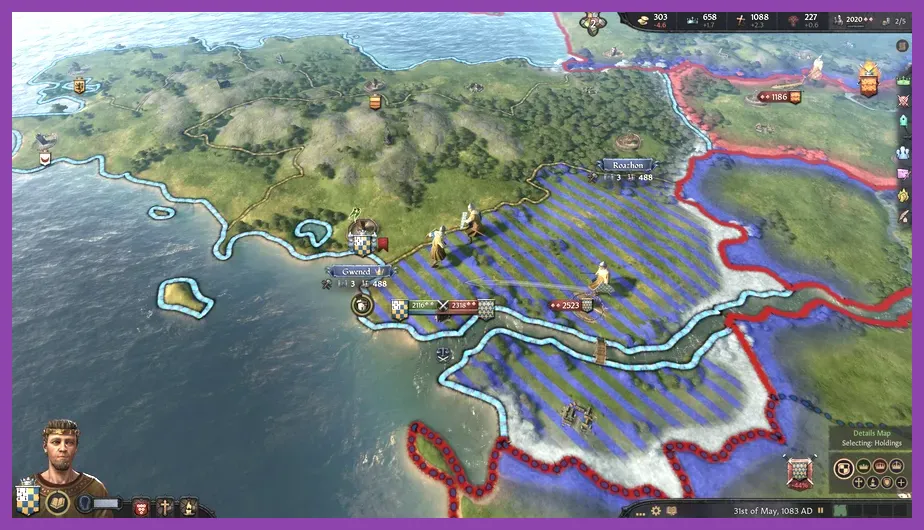
Set Windows to the High Performance or Balanced power plan on a desktop, and use the manufacturer’s Performance mode on a gaming laptop. Battery Saver can reduce CPU clocks and make CK3 appear to lose performance even when the graphics preset is unchanged. Keep the laptop plugged in, make sure the game uses the dedicated GPU, and avoid testing while the system is installing updates or compiling shaders.
In NVIDIA Control Panel or AMD Software, create a profile for CK3 rather than changing global settings. Use the current stable graphics driver, leave texture filtering at the driver default, and disable forced sharpening if the image becomes noisy. If you use G-SYNC or FreeSync, enable the display technology and cap FPS a few frames below the monitor’s refresh rate—for example, 58 FPS on a 60Hz panel or 141 FPS on a 144Hz panel. If tearing is not a concern, VSync Off gives the lowest latency.
Windows Game Mode can remain enabled. Disable unnecessary overlays from Discord, GeForce Experience, Xbox Game Bar, and motherboard utilities if they cause hitching. Overlay software is not automatically harmful, but multiple frame counters and capture hooks make troubleshooting harder. Test one clean session before blaming the game engine.
Do not use random launch commands copied from old Paradox games. CK3’s supported behavior changes with patches, and an obsolete command can do nothing or create instability. For reliable troubleshooting, use the official Crusader Kings 3 support hub and verify your installed build before applying technical fixes.
How to Test Your CK3 FPS Improvements
Use a repeatable test instead of judging performance from a single quiet province. Load a late-game save with several active wars, zoom from the world view into a dense region such as northern Italy, the Low Countries, or the British Isles, and pan across multiple capitals. Pause first to test rendering, then run the game at Speed 3 or Speed 4 for at least two minutes to expose simulation and frame-pacing problems.
Read the result correctly
If GPU usage rises and FPS improves when you lower Render Scale, resolution, or anti-aliasing, your graphics card is the bottleneck. Keep Textures High if VRAM is stable and reduce Render Scale only as far as needed. If GPU usage remains low while the game advances slowly, lower settings will produce limited gains. Focus on SSD storage, background applications, cooling, campaign scale, and mod testing instead.
If FPS is acceptable while paused but falls during Speed 3 or Speed 4, that is normal evidence of simulation load rather than a pure rendering issue. If FPS drops whenever you zoom toward a capital, shadows, objects, trees, and character shadows are the most relevant options. If stutters happen exactly during autosaves, change the save frequency or move the installation to an SSD.
For most players, the strongest final setup is 1080p fullscreen, FXAA, High textures, Low shadows, Low terrain, Low water, Medium objects, Medium trees, Low post effects, disabled Bloom, disabled Ambient Occlusion, disabled Character Shadows, 4x anisotropic filtering, and 100% render scale. That profile keeps Crusader Kings 3’s essential information readable while removing expensive decoration. You can compare your result with the official Crusader Kings III Steam page for system requirements, then consult the Paradox Interactive game page for current support and patch information.
Finally, save your working preset and change one option at a time. CK3 campaigns last for dozens of hours, so stable frame pacing is more valuable than a brief peak-FPS increase. A readable map at a consistent 45-60 FPS will make succession planning, war declarations, and character management feel better than a sharper preset that stutters whenever your dynasty expands.