The best Cosmic Express settings are simple: run the game at your monitor's native resolution, use fullscreen or borderless mode, enable V-Sync if you want a perfectly stable presentation, and leave every visual option at its maximum. Cosmic Express is a lightweight 2D puzzle game, so resolution and background applications matter far more than texture, shadow, or anti-aliasing sliders. On a modern PC, the realistic target is a locked 60 FPS with practically no image-quality sacrifice.
That answer sounds almost too easy, but it matters because Cosmic Express doesn't behave like a modern 3D release. Draknek & Friends built the game around a compact puzzle board, animated trains, alien passengers, stations, and a bright illustrated presentation. There are no enormous open-world assets, ray-traced reflections, or GPU-heavy volumetric effects to tune. If you're chasing maximum FPS, the smart approach is to confirm the display mode, remove frame-pacing problems, and avoid changing settings that don't meaningfully exist.
This guide focuses on the Steam PC version and covers the practical choices that can affect smoothness on an older laptop, handheld PC, or high-refresh monitor. For the official listing, check the official Cosmic Express Steam page. You can also compare the philosophy here with Steamoz's Dragonkin performance settings guide, although Cosmic Express needs dramatically less tuning.
The Best Cosmic Express Settings for Maximum FPS
Start with the profile below. It is the best all-purpose setup for a desktop, laptop, or Steam Deck-style handheld. The goal isn't to make Cosmic Express look aggressively worse; the game is already light enough that you should preserve its clean art and readable passenger animations.
| Setting | Recommended Value | FPS Impact | Visual Note |
|---|---|---|---|
| Display Mode | Fullscreen, or borderless if fullscreen causes issues | Low to medium | Fullscreen can reduce desktop compositor interference; borderless is easier for alt-tabbing. |
| Resolution | Native monitor resolution | Low on most PCs | Keeping native resolution preserves sharp text and track edges. |
| Refresh Rate | Highest stable refresh rate | None by itself | A 120Hz or 144Hz display helps responsiveness, but it does not force the game to render at that rate. |
| V-Sync | On for a stable 60 FPS; off for testing or lowest latency | Low | On removes tearing. Off can expose the game's real frame rate and may reduce latency. |
| Frame Limit | 60 FPS, or your display's stable refresh target | Can improve consistency | A cap prevents unnecessary rendering and keeps fans quieter. |
| Anti-Aliasing | Highest available option | Negligible | Cosmic Express has no demanding 3D geometry to smooth. |
| Quality Preset | High or maximum | Negligible | There is little reason to sacrifice the game's colorful presentation. |
| Background Apps | Close browsers, launchers, and overlays you don't need | Medium on old hardware | This is often more useful than lowering visual quality. |
One important caveat: the exact menu can vary between operating systems and game builds. Some players will see only basic display controls rather than a full modern graphics panel. Don't waste time hunting for nonexistent shadow-quality or texture-quality options. If a setting isn't present, your GPU is not secretly waiting for a hidden performance breakthrough.
Use 60 FPS as the sensible target
Cosmic Express is a puzzle game, not a competitive shooter. A locked 60 FPS gives you fluid train movement, clean passenger animations, and reliable mouse input without asking the system to render hundreds of redundant frames. If you have a 144Hz monitor and the game remains perfectly stable above 60, you can experiment with a higher cap, but the practical difference is tiny.
For a low-end laptop, 60 FPS is still the correct first target. If the game dips, don't immediately reduce resolution. First check whether the drop happens only while the game window is being resized, when an overlay appears, or during a background task. Cosmic Express's actual puzzle board is so light that persistent low performance usually points to configuration, power management, or an unrelated system process.

🎮 Cosmic Express
Looking to experience this game? Grab your digital key directly on our store for $4.49.
View on Steammoz Store →Why Cosmic Express Usually Runs at High FPS
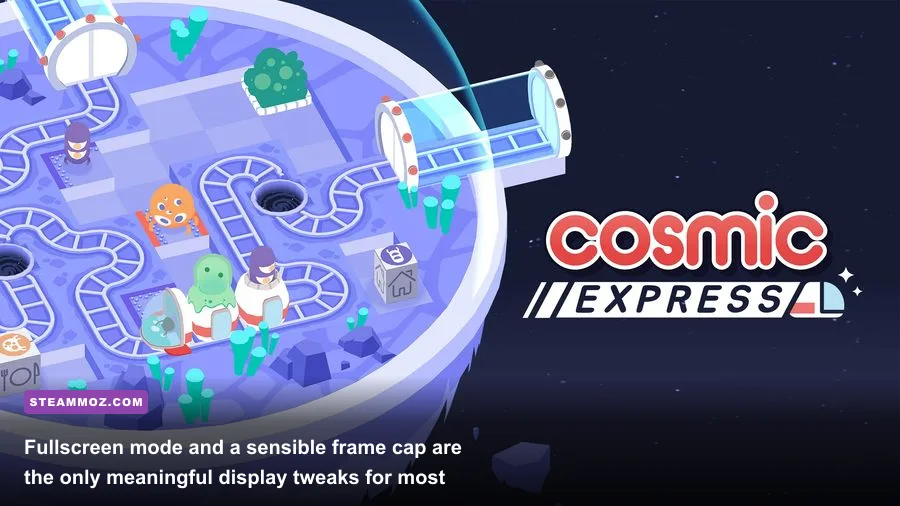
Cosmic Express is built around a deliberately focused visual language. You place railway segments, guide a small train, and deliver alien passengers to their destinations. The scene contains animated objects and colorful environmental art, but it doesn't stream a huge 3D world or simulate advanced lighting. That workload is tiny compared with a game such as Deadfall Adventures, where resolution, effects, and geometry can create genuine GPU bottlenecks.
The game's official PC requirements are correspondingly modest. The Steam listing has historically specified roughly a 1.5 GHz processor, 2 GB of RAM, a graphics adapter with around 512 MB of video memory, and only a small amount of storage. Treat those figures as a baseline for launching the game, not a promise that every ancient integrated GPU will deliver flawless frame pacing at every desktop resolution.
| Hardware Area | Practical Baseline | Recommended for Smooth Play | Likely Limitation |
|---|---|---|---|
| CPU | Dual-core processor around the game's listed 1.5 GHz baseline | Modern 4-core laptop or desktop CPU | Very old CPUs can struggle with operating-system overhead rather than the game scene. |
| Memory | 2 GB system RAM listed by Steam | 8 GB or more total system RAM | Low RAM causes paging when browsers and launchers remain open. |
| GPU | Older DirectX-compatible adapter with approximately 512 MB VRAM | Any recent integrated GPU or entry-level dedicated GPU | Driver problems and power-saving modes are more likely than raw GPU limits. |
| Storage | Small free-space requirement listed on Steam | Any healthy SSD or hard drive with room for Windows | Storage speed rarely changes in-game FPS, though a failing drive can cause stutter. |
| Display | 720p or higher | Native 1080p at 60Hz or above | High desktop scaling can make menus look soft without affecting rendering performance. |
That low workload also explains why lowering graphics quality may appear to do nothing. If your frame rate is limited by V-Sync, the operating system, or a frame cap, switching from high to low won't create extra FPS because the game is already reaching the limit. Use a counter such as Steam's in-game FPS display to verify what is actually happening instead of judging performance by fan noise.
Best Resolution, Fullscreen, and V-Sync Choices
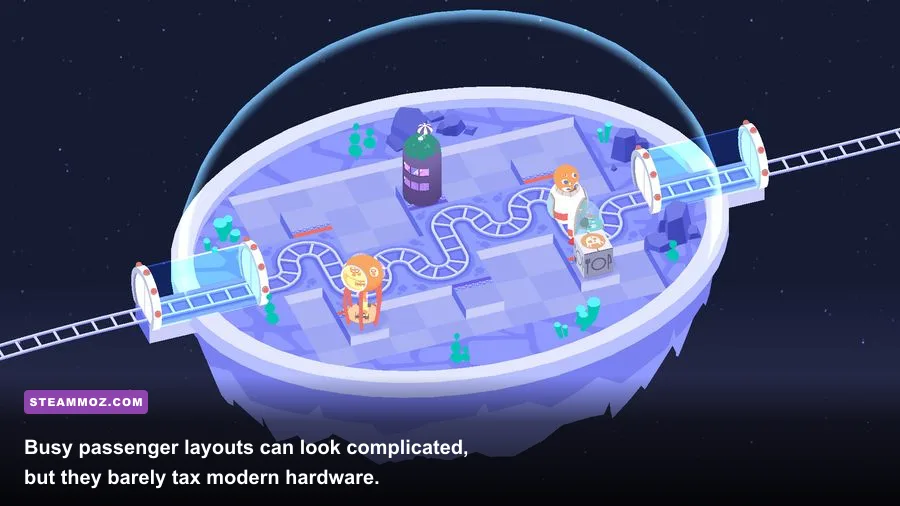
Resolution is the one setting that can create a noticeable visual difference. Run Cosmic Express at your display's native resolution whenever possible. At 1920×1080, the interface, rail lines, station shapes, and passenger icons stay crisp. Dropping to 1280×720 may help a genuinely weak integrated GPU, but it also makes the game's clean artwork look softer and can create scaling artifacts.
If your computer is struggling at 1080p, test 1600×900 before jumping all the way to 720p. On a 4K monitor, 3840×2160 is still an unnecessary target for a lightweight puzzle game if your laptop is older. A 2560×1440 desktop resolution or 1080p output will usually look excellent and reduce the number of pixels the system has to present.
Fullscreen versus borderless window
Exclusive fullscreen is worth trying first on an older Windows machine because it can reduce desktop-compositor overhead and prevent notifications from competing with the game. Borderless windowed mode is the better comfort choice if you regularly switch to a guide, music player, or browser. On modern Windows systems, the performance gap is often negligible, especially for a game this light.
If fullscreen produces a black screen, incorrect scaling, or a strange refresh rate, switch to borderless and then verify Windows display settings. Don't force a non-native aspect ratio. Stretching a 16:9 game across an ultrawide display can make the scene look wrong, while keeping the correct aspect ratio preserves the intended layout.
When V-Sync should be on or off
Turn V-Sync on if you see horizontal tearing as the train moves across the board. A stable 60 FPS with V-Sync feels much better than an unstable 200 FPS counter with visible tearing. Turn it off temporarily when diagnosing stutter or input delay, then compare the result in the same level.
Players with a variable-refresh-rate display can try V-Sync off alongside FreeSync or G-SYNC, but the result depends on the monitor and driver. For a simple, reliable setup, use V-Sync on and a 60 FPS cap. If your display runs at 120Hz or 144Hz, you can test a matching cap, but only keep it if frame pacing remains smooth. Cosmic Express doesn't reward chasing a triple-digit frame rate the way a twitch-based FPS does.
Low-End PC Profile for Cosmic Express
Even though the game is easy to run, older PCs can still suffer from inconsistent animation. The most effective low-end profile is not a blurry “everything low” preset. Keep the game at 720p or 900p only if native resolution causes drops, use fullscreen, cap the frame rate at 60, and close anything consuming CPU time in the background.
On Windows, switch the laptop to its performance power mode while plugged in. Battery-saving modes can lower CPU clocks and make a lightweight game feel oddly uneven. Also check that the game is using the intended GPU in Windows Graphics settings if your laptop has both integrated and dedicated graphics. Cosmic Express doesn't need a powerful GPU, but a driver selecting the wrong power profile can still cause presentation issues.
| Low-End Scenario | Resolution | Display Mode | Frame Strategy |
|---|---|---|---|
| Older integrated graphics at 1080p | 1600×900, then 1280×720 if needed | Fullscreen | V-Sync on and 60 FPS target |
| Basic office laptop | Native resolution if stable | Borderless or fullscreen | Close browser tabs and cap at 60 |
| Steam Deck-style handheld | Native panel resolution | Fullscreen | 60 FPS cap; lower refresh only to extend battery life |
| 4K monitor with older GPU | 1920×1080 or 2560×1440 | Fullscreen | V-Sync on; avoid rendering 4K without a reason |
| Severe stutter despite high FPS | Keep current resolution | Try borderless after fullscreen | Test overlays, controller software, and frame caps one at a time |
For handhelds, a 40 FPS or 45 FPS cap can be a useful battery-saving experiment if the display supports the required refresh relationship, but 60 FPS is the cleanest default. The game is ideal for portable play because its visual demands are low and its puzzle structure makes short sessions easy. You can also look at Steamoz's broader Drawful 2 PC performance breakdown for another example of why lightweight games benefit more from system cleanup than aggressive quality cuts.
Fixes for Stutter, Input Delay, and Random FPS Drops
If Cosmic Express reports 60 FPS but still feels choppy, the problem is probably frame pacing rather than average performance. Work through these checks in order so you know which change helped.
1. Test without overlays
Disable the Steam overlay temporarily, then test again. Do the same with Discord, Xbox Game Bar, GPU recording software, and laptop manufacturer overlays. These tools normally work fine, but old drivers and older Unity-based games can react badly to injected overlays. If the stutter disappears, re-enable tools one by one instead of lowering the game's resolution.
2. Verify files and update the correct driver
Use Steam's file-verification tool if animations, menus, or resolution changes behave strangely. Update the Intel, AMD, or NVIDIA graphics driver directly through the manufacturer's official software or support page. Don't assume a Windows update installed the best gaming driver. If the issue began immediately after a driver update, rolling back to the previous stable version is also worth testing.
3. Check the frame cap and refresh rate
A mismatch can create uneven pacing. For example, a 60 FPS cap on a display running at an awkward 75Hz may look less consistent than expected, especially with V-Sync. Test the monitor at 60Hz first. Then compare V-Sync on and off, keeping every other variable unchanged. On a high-refresh display, use a stable cap rather than letting the frame rate swing wildly.
4. Remove power and thermal limits
Plug in the laptop, disable battery saver, and check temperatures if the problem appears after several minutes. Cosmic Express itself shouldn't heavily load the GPU, but a system stuck in a low-power state can make even simple games feel sluggish. If only this title has trouble, the cause is more likely compatibility or frame pacing than overheating.
5. Reset unusual display scaling
Custom DPI scaling, forced driver sharpening, integer scaling, and third-party resolution tools can interfere with a small 2D game's presentation. Return scaling to the display's normal setting, launch the game at native resolution, and only add custom scaling back after you have a stable baseline. This is especially useful on ultrawide monitors and multi-display setups.
Don't confuse puzzle complexity with rendering load. A late-game board with many stations and passengers may demand more from your attention, but it shouldn't suddenly behave like a graphics benchmark. If performance drops only when a browser video or recording program is open, the background task is the better suspect.
Final Cosmic Express Performance Setup
For almost every PC, the winning configuration is native resolution, fullscreen or borderless mode, maximum available visual quality, V-Sync on, and a locked 60 FPS. That preserves the game's crisp illustrated look while making train movement and route construction feel completely stable. On a capable high-refresh monitor, test a higher cap only after 60 FPS is flawless.
If you own an older laptop, reduce resolution in small steps rather than destroying image clarity with the lowest possible preset. Close overlays, use plugged-in performance mode, verify the graphics driver, and monitor frame pacing. Those changes address the real causes of poor Cosmic Express performance far more often than lowering an option that barely affects the game's 2D workload.
Cosmic Express is a refreshing case where “max FPS” doesn't require an ugly compromise. Its official Draknek developer site and official Cosmic Express website reflect that focused design: compact puzzles, readable art, and no bloated graphics stack. Set a sensible cap, eliminate background interference, and spend your time solving the route instead of staring at performance sliders.
For more practical PC tuning, Steamoz's Death Howl progression guide and Din's Curse tips guide offer the same kind of targeted advice: remove the friction first, then focus on the game itself. With Cosmic Express, that friction is usually a bad frame cap, an overlay, or an unnecessary high-resolution output—not the game's graphics settings.