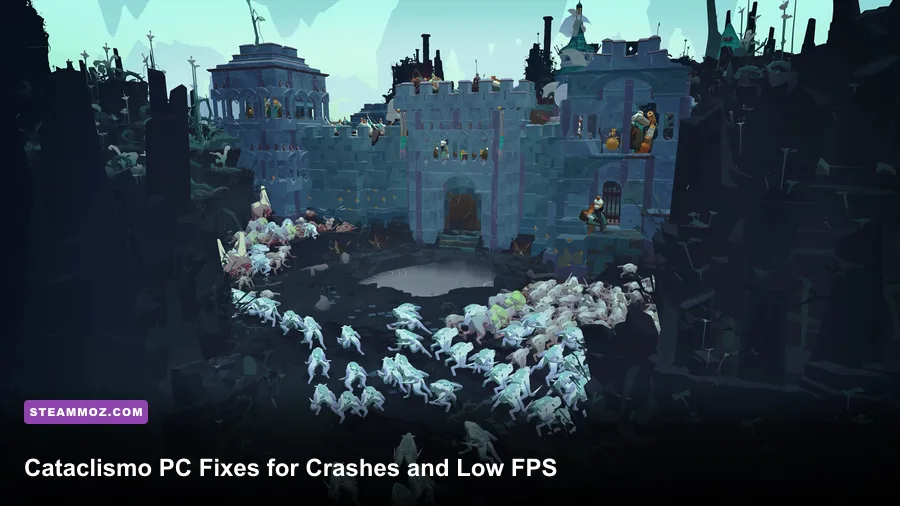
If Cataclismo keeps crashing or dropping into the 20s on PC, start with the official system requirements, update your GPU driver, disable overlays, and use a 60 FPS cap with shadows and effects reduced. The biggest late-game slowdown usually comes from CPU-heavy siege simulation and densely packed fortresses, so lowering resolution alone won't solve every stutter.
Cataclismo is unusually demanding for a stylized strategy game because it is rendering a living fortress while simulating huge monster attacks, destructible structures, pathfinding, physics, lighting, and dozens of defensive units. That means the right fix depends on whether your GPU is full, your processor is overloaded, or the game is crashing before it can finish loading.
Before changing files or downloading third-party “FPS boosters,” close the game, restart Windows, and make a manual save copy. If you use mods or launch options, remove them temporarily. The latest updates and known issues are best checked through the official Cataclismo Steam page and Digital Sun's developer website.

Check Whether Your PC Is Actually Strong Enough
Cataclismo's minimum specification is a useful warning, not a promise of locked 60 FPS. The listed minimum hardware includes an Intel Core i5-8400 or AMD Ryzen 5 2600, 8 GB of RAM, and a GeForce GTX 1060 6GB or Radeon RX 580. The recommended target rises to an Intel Core i7-9700 or Ryzen 7 3700X, 16 GB of RAM, and an RTX 3060 or RX 6600 XT, with roughly 20 GB of storage required.
If your PC is below the minimum GPU or has only 8 GB of system memory, expect compromises. If it matches the recommended GPU but uses an older four-core CPU, the game may run beautifully while exploring and then collapse during a major night attack. That is a simulation bottleneck, not necessarily a graphics-card failure.
| Component | Minimum | Recommended | Practical Expectation |
|---|---|---|---|
| CPU | Core i5-8400 / Ryzen 5 2600 | Core i7-9700 / Ryzen 7 3700X | Recommended CPUs handle large sieges more consistently |
| GPU | GTX 1060 6GB / RX 580 | RTX 3060 / RX 6600 XT | 6GB VRAM is safer than 4GB at 1080p |
| Memory | 8 GB RAM | 16 GB RAM | 16 GB reduces background-memory pressure and hitching |
| Storage | 20 GB available | SSD strongly preferred | An SSD improves loading and streaming stutter |
For a second opinion on PC targets, compare the approach in our PC specifications guide. The same rule applies here: minimum hardware means the game should launch, while recommended hardware is much closer to a comfortable baseline.
🎮 Cataclismo
Looking to experience this game? Grab your digital key directly on our store for $14.99.
View on Steammoz Store →Use This FPS Profile Before Lowering Resolution
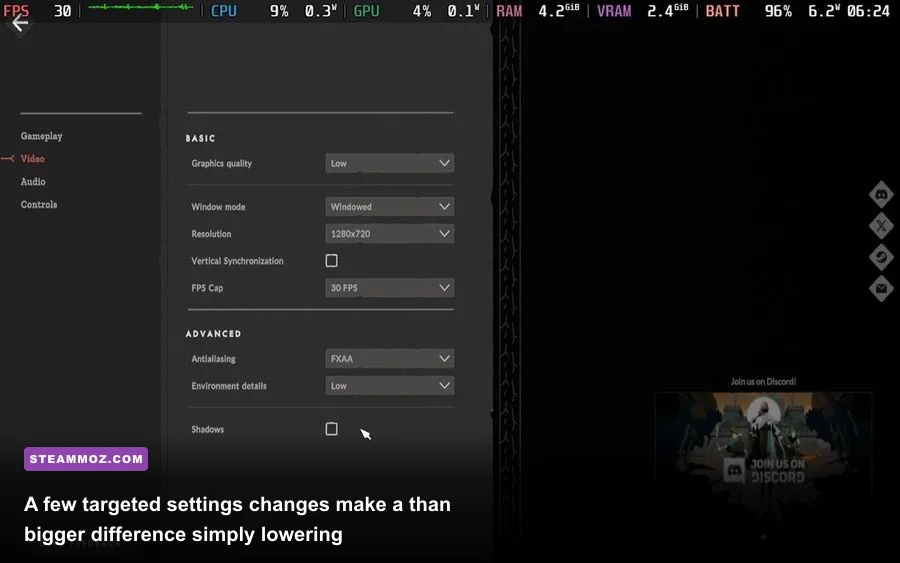
Open Cataclismo's video options and begin at 1080p, fullscreen or borderless fullscreen, with V-Sync enabled only if you see tearing. Set a 60 FPS limit if your display supports it. An uncapped frame rate makes menus and quiet maps look fast, but it gives the renderer no headroom for the exact moment a siege fills the screen with enemies, particles, shadows, and collapsing wall sections.
Don't immediately choose the lowest preset. Cataclismo's textures are relatively cheap compared with shadows, effects, and the number of objects visible across a fortress. Reducing textures too aggressively can make buildings look muddy without fixing a processor-limited battle.
| Setting | Recommended Value | FPS Impact | Visual Trade-Off |
|---|---|---|---|
| Resolution | 1920×1080 | High if reduced | Lower to 1600×900 only when the GPU is at 95–100% |
| Texture Quality | High with 6GB+ VRAM | Low to medium | Lowering it mostly helps VRAM-limited cards |
| Shadow Quality | Medium | Medium to high | Less distant shadow definition during sieges |
| Effects Quality | Medium | High during monster waves | Reduces smoke, impact effects, and lighting clutter |
| Anti-Aliasing | Medium or High | Medium | Lower settings produce more shimmering on walls |
| View Distance | Medium | Medium, CPU-dependent | Fewer distant objects are drawn and simulated |
| V-Sync and FPS Cap | 60 FPS cap | Stability benefit | Less heat and fewer sudden frame-time spikes |
Use the GPU usage graph as your detective tool. If GPU usage sits near 99% during a drop, lower resolution, shadows, and effects first. If the GPU sits around 60–80% while one or more CPU cores are slammed, lowering resolution will barely help. Reduce view distance, cap the frame rate, close background applications, and accept that a 45 or 50 FPS lock may feel smoother than an unstable 60.
For a broader explanation of choosing performance-first options, our settings guide for Dragonkin covers the same useful distinction between GPU load and frame-time consistency.
Fix Cataclismo Crashes on Launch and During Loading
Crashes before the main menu usually point to drivers, corrupted files, permissions, overlays, or an incompatible graphics API. Start with Steam's file check: right-click Cataclismo in your library, choose Properties, open Installed Files, and select “Verify integrity of game files.” Let Steam reacquire anything missing, then launch again without other troubleshooting software running.
- Perform a clean GPU-driver update. Install the current NVIDIA GeForce or AMD Adrenalin driver. If crashes began immediately after a driver update, use the previous stable driver instead. A clean installation is worth trying when normal updating changes nothing.
- Disable overlays. Turn off Steam Overlay, Discord Overlay, Xbox Game Bar, NVIDIA App or GeForce Experience overlay, AMD overlay, MSI Afterburner OSD, and RivaTuner temporarily. Overlays hook into rendering and can trigger crashes, especially after a game patch.
- Remove overclocks and undervolts. Return the GPU, CPU, and RAM to stock settings. An overclock that survives a benchmark can still fail when Cataclismo combines shader compilation, sustained CPU load, and long siege sessions.
- Clear shader and configuration data carefully. Back up saves first, then reset the game's local graphics configuration if a bad resolution or fullscreen mode causes a black screen. Do not delete save folders blindly; use the game's Steam Cloud status and keep a manual copy.
- Run with nothing unnecessary in the background. Close browsers with many tabs, recording tools, RGB utilities, and hardware monitors. On an 8 GB system, memory pressure can look like a random crash rather than a clean out-of-memory message.
If the crash happens at the same mission or save every time, verify files first and test an earlier save. A broken asset or an edge-case simulation state is more likely than a failing GPU when every other game remains stable. Capture the crash time, mission name, GPU driver version, and whether an overlay was active before posting in the official Steam discussions.
Stop Siege-Time Stutters and CPU Bottlenecks
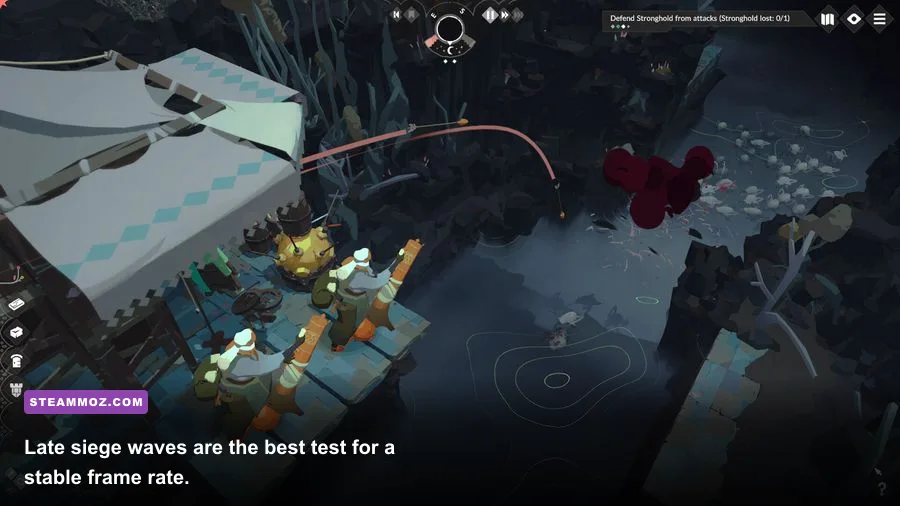
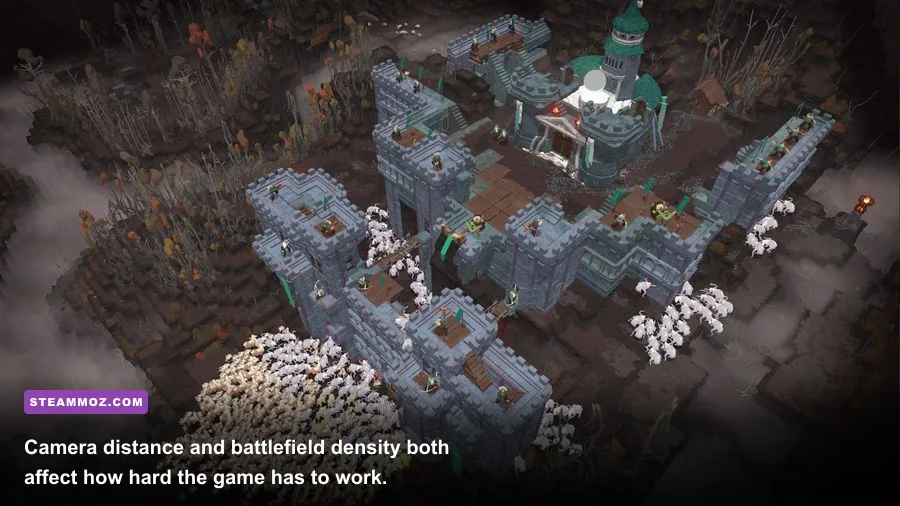
The most important Cataclismo performance tip is to test in the same situation that causes the problem. A quiet daytime map can run at 90 FPS while a night wave tanks to 35 because the game is calculating enemies, collisions, attack targets, wall damage, unit movement, and destruction. That workload follows your fortress design, so two players with identical PCs can see different frame rates in the same mission.
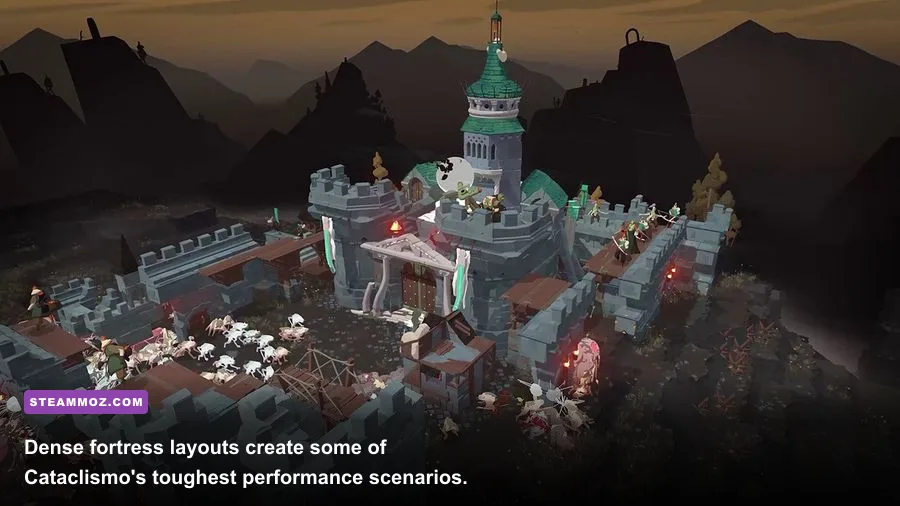
Build compactly rather than spreading dozens of disconnected structures across the entire map. Keep defensive positions close enough that your troops do not constantly cross the battlefield, and avoid filling every available tile with decorative walls. Dense construction is part of the fun, but excessive object count gives both the renderer and simulation more work.
During a siege, zoom out only as far as necessary. A distant camera can expose more units and effects at once. Pause before rebuilding a large section, avoid repeatedly dragging the camera across the whole settlement, and use a 45 or 50 FPS cap if your processor cannot sustain 60. Stable frame pacing matters more than a peak number that disappears when the first wave hits.
| Symptom | Likely Cause | Best First Fix | What Not to Do |
|---|---|---|---|
| Low FPS everywhere | GPU or hardware below target | Use 1080p, medium shadows, medium effects | Expect a CPU upgrade from a resolution drop |
| Only sieges slow down | CPU simulation and object count | Cap FPS and reduce view distance | Blame textures immediately |
| Brief hitches when panning | Asset streaming or background apps | Move the game to an SSD and close overlays | Run an uncapped frame rate |
| Black screen on launch | Display mode or driver conflict | Reset graphics settings and update driver | Delete saves without a backup |
| Crash after long sessions | Heat, memory pressure, or unstable tuning | Check temperatures and return hardware to stock | Use aggressive overclocks as a fix |
This is the same frame-time mindset highlighted in our real-world PC performance coverage: a steady cap is often the smart choice, not a concession. If your PC can hold 45 FPS through the heaviest attack, that profile is more playable than 70 FPS in the opening minutes followed by repeated stutter.
Run a Clean Final Test After Every Change
Change one group of settings at a time, then reproduce the problem using the same save, camera position, and siege phase. Write down average FPS and the worst one-percent feel rather than relying on a single number. If you change drivers, graphics options, Windows power settings, and overlays together, you won't know which fix worked.
- Restart the PC and launch Cataclismo from Steam.
- Confirm the game is using the dedicated NVIDIA or AMD GPU, not integrated graphics.
- Run the 1080p medium profile with a 60 FPS cap.
- Load a save that previously stuttered or crashed.
- Watch GPU usage, CPU usage, temperatures, and RAM consumption.
- Raise textures or anti-aliasing one step at a time only after the siege remains stable.
Keep Windows, chipset drivers, and the game updated, but don't assume every new driver improves every title. If Cataclismo still crashes after file verification, a clean driver installation, disabled overlays, stock hardware settings, and a configuration reset, report the exact reproduction steps through Steam's Cataclismo support community. Include your CPU, GPU, RAM, Windows version, driver number, mission, and crash timing.
For most players, the winning combination is simple: install on an SSD, use 16 GB of RAM if possible, run the recommended 1080p medium profile, cap at 60 or 45 FPS, and lower shadows, effects, and view distance before sacrificing texture quality. Cataclismo's spectacular sieges are also its hardest benchmark, so judge the fix at the walls when the monsters arrive—not while your fortress is sitting quietly in daylight.