For the best Blood II: The Chosen and Nightmare Levels performance, use the native 3D-accelerated renderer, cap the game to a stable 60 FPS through your wrapper or driver, keep texture detail and color depth high, and lower resolution, dynamic lighting, shadows, and particle effects first. Blood II is light by modern standards, but its late-1990s LithTech engine is far more sensitive to compatibility layers, bad refresh-rate behavior, and frame pacing than to raw GPU horsepower.
Use This Max-FPS Blood II Settings Profile
Start with a clean baseline rather than immediately chasing the highest resolution your monitor supports. Blood II was designed around old Direct3D and 3D accelerator behavior, so a modern PC can run into stutter, incorrect brightness, or crashes even when the hardware is barely working. The goal is a stable render path first, then sharper image quality.
Choose the game's accelerated 3D mode instead of software rendering. Software mode is useful as a troubleshooting fallback, but it usually produces the worst performance and visual quality. If the game offers multiple hardware renderers, test Direct3D first. If that produces broken textures or startup failures, a compatibility wrapper such as dgVoodoo2 or DDrawCompat can translate the old calls more reliably. Keep the wrapper specific to the game's executable and avoid stacking several wrappers at once.
For a modern 1080p monitor, 1280×720 or 1280×960 is the safest starting point. 1280×960 preserves the classic 4:3 composition, while 1280×720 fills a widescreen display more naturally if your wrapper handles the aspect ratio correctly. Higher resolutions can look cleaner, but they don't fix the game's texture detail. They can also expose stretched HUD elements and unstable menus.
| Setting | Recommended Value | FPS Impact | Visual Note |
|---|---|---|---|
| Renderer | 3D accelerated Direct3D | Very high if misconfigured | Much faster than software mode with proper compatibility |
| Resolution | 1280×720 or 1280×960 | Low to medium | Use 4:3 for the most authentic framing |
| Color depth | 32-bit | Low | Reduces banding in dark areas |
| Texture detail | High | Low | Modern systems can leave this enabled |
| Dynamic lighting | Medium, then High if stable | Medium to high | Important for muzzle flashes and dark rooms |
| Shadows | Medium | Medium | Lower this before textures or resolution |
| Particles and effects | Medium | Medium to high | Explosions and fire can trigger short drops |
| V-Sync | Off in game; cap externally if needed | Variable | Avoid old-engine input lag and uneven pacing |
For a low-end laptop or handheld, drop to 1024×768, keep textures at High, and set lighting, shadows, and particles to Medium or Low. Texture quality generally costs less than lighting calculations, so don't turn everything down indiscriminately. That trade-off is also useful in other retro PC games; Steamoz's Dragonkin settings guide follows the same principle of protecting image clarity while cutting expensive effects.
🎮 Blood II: The Chosen + Expansion
Looking to experience this game? Grab your digital key directly on our store for $0.99.
View on Steammoz Store →Which Settings Actually Cost the Most FPS?
Blood II's biggest performance swings come from effects that multiply across a room: dynamic lights, translucent particles, smoke, fire, and multiple shadow casters. A quiet corridor may run perfectly with every option enabled, then lose smoothness when Caleb fires the Shotgun into a group of enemies near lamps, flames, or glass. Test the game in a busy combat area rather than standing in an empty hallway.
Lighting and shadows
Dynamic lighting is the setting worth protecting if you care about atmosphere. It makes Caleb's muzzle flashes, explosions, and illuminated surfaces feel far more convincing, especially in the dark industrial spaces that define the campaign. If frame time becomes uneven, lower lighting one step before touching textures. Shadows are less essential and can usually sit at Medium without making the game look noticeably worse.
Particles and transparency
Particle-heavy fights are where a maximum-FPS profile earns its keep. The Shotgun's blast, explosive effects, fire, and enemy impact effects can all overlap. Lower effects to Medium if you see brief hitching during combat. This won't change weapon damage, enemy behavior, or projectile speed; it only reduces the amount of visual work the renderer performs.
Texture detail and filtering
Leave texture detail at High on practically any PC released in the last decade. Blood II's original textures are small, and lowering them creates muddy walls without solving most frame-time problems. If your wrapper exposes anisotropic filtering, 4x is a sensible middle ground. Higher values may sharpen floors and walls, but the improvement is subtle because the source assets are built for a much older renderer.
| Performance Problem | First Change | Why It Works | Keep Enabled |
|---|---|---|---|
| Stutter during explosions | Lower particles to Medium | Reduces overdraw from smoke, fire, and flashes | High textures |
| Slowdown near lamps | Lower dynamic lighting | Fewer light calculations per surface | 32-bit color |
| Uneven movement | Disable in-game V-Sync | Avoids old synchronization behavior | External frame cap |
| Menu or level crashes | Change wrapper or renderer | Fixes legacy API conflicts | 3D acceleration |
| Blurry image | Raise texture detail | Restores original texture resolution | Lower lighting instead |
Don't expect a graphics slider to repair a broken compatibility layer. If the game crashes when loading a level, shows black surfaces, or locks to an unusable refresh rate, solve that problem separately. The official Steam listing is the right place to verify the current package, while the GOG release page can help you compare the alternate distribution and included files.
Best Compatibility Setup for Modern PCs
Modern Windows versions can run Blood II, but the original executable doesn't understand today's display stacks perfectly. Before changing visual quality, make the game predictable. Install it outside protected folders if you plan to edit configuration files, back up the original executable, and launch it once to generate its settings. Then change one variable at a time.
Use Windows compatibility options only when you have a specific symptom. Windows 98 or Windows XP compatibility modes can help certain installations, but they can also introduce permission and timing quirks. Run the game as administrator only if it genuinely cannot write its configuration; don't make that the default fix. Disable fullscreen optimizations if fullscreen produces flicker, and try borderless windowed mode through a trusted wrapper when exclusive fullscreen behaves badly.
Frame limiting is especially valuable. A modern GPU may report hundreds of frames per second, but that doesn't mean Blood II will feel smooth. The old engine can deliver inconsistent frame times, and an uncapped loop may cause rapid camera motion, heat, or strange timing. A 60 FPS cap is the dependable target. If your display is 120 Hz or higher, test 90 FPS or 120 FPS only after the campaign is stable, because some legacy games tie small pieces of behavior to frame timing.
Keep the GPU control panel profile simple: prefer maximum performance for the game's executable, disable forced sharpening, and don't force modern anti-aliasing modes unless you have tested the result. External anti-aliasing can blur Blood II's already-low-resolution textures or create halos around sprites. If you want a cleaner image, integer scaling or a modest shader is usually less destructive than aggressive smoothing.
The practical rule is the same one used in Steamoz's Drawful 2 performance guide: confirm the actual executable, renderer, resolution, and frame cap before judging the hardware. Classic games often fail at the setup layer, not because the machine is underpowered.
Nightmare Levels Needs a Slightly Safer Profile
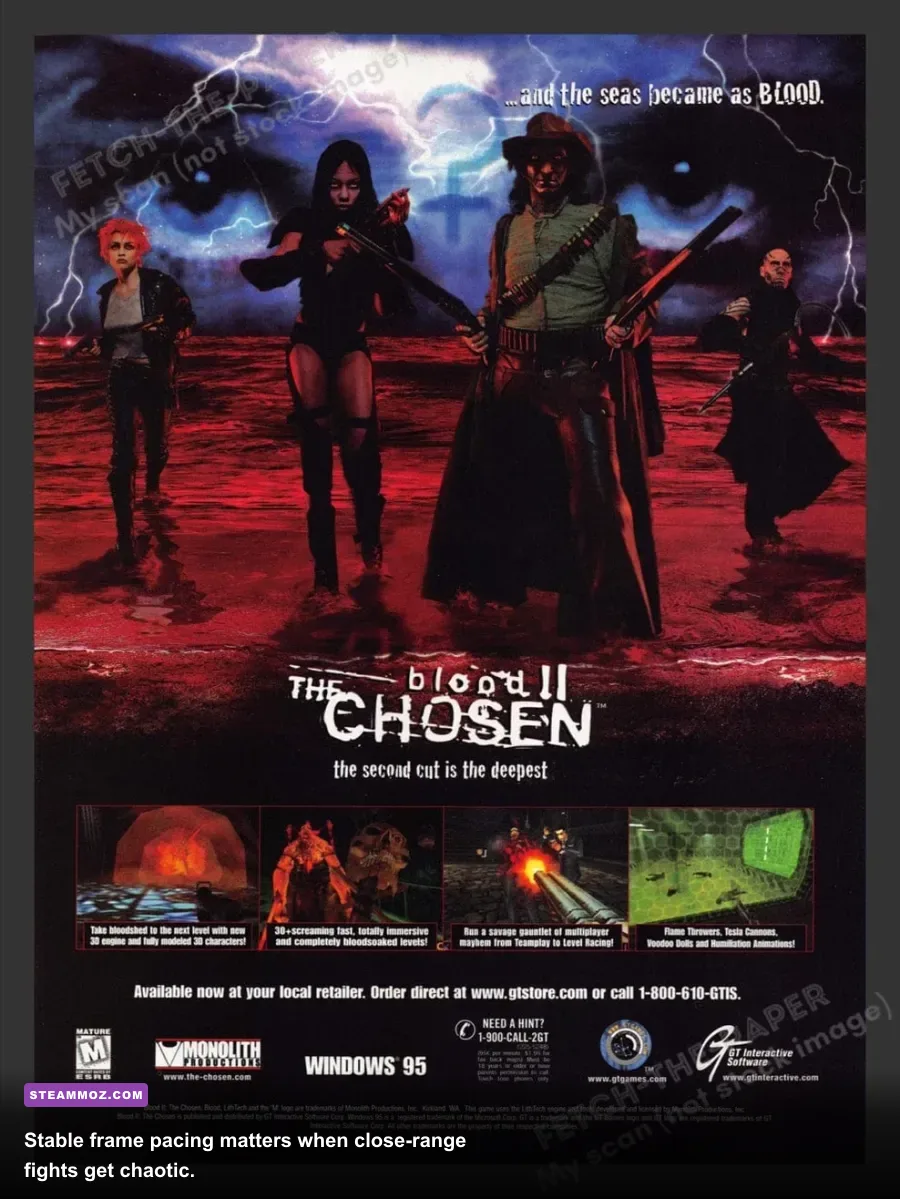
Blood II: The Chosen's expansion, commonly known as Nightmare Levels, uses the same core renderer and gameplay technology, so there isn't a separate graphics preset you must install. Still, the expansion is a useful stress test because darker environments, denser enemy encounters, and stacked effects make lighting and particles more noticeable.
For the base campaign, High textures, High lighting, Medium shadows, and High particles may be perfectly comfortable on a modern desktop. For Nightmare Levels, begin with High textures, Medium lighting, Medium shadows, and Medium particles. Then raise lighting if your frame-time graph stays flat during an explosive fight. This approach preserves the details that make Caleb's weapons readable while trimming the settings most likely to spike.
| Profile | Resolution | Lighting | Shadows | Particles | Best Use |
|---|---|---|---|---|---|
| Maximum Quality | 1280×960 or higher | High | High | High | Modern desktop, stable renderer |
| Recommended | 1280×720 or 1280×960 | Medium | Medium | Medium | Most PCs and the full expansion |
| Maximum FPS | 1024×768 | Low | Low | Medium | Handhelds, laptops, or compatibility troubleshooting |
| Visual Clarity | 1280×960 | Medium | Low | Medium | Sharper 4:3 image with fewer combat dips |
Don't lower the resolution first just because the frame rate dips. If enemies or weapons look stable but combat hitches, effects are the likely culprit. If the whole game feels slow even in an empty room, investigate the renderer, wrapper, V-Sync, and frame cap. The expansion's official Steam entry can be checked through the Blood II product page, including its listed package details and community troubleshooting links.
How to Test Your FPS Without Guessing
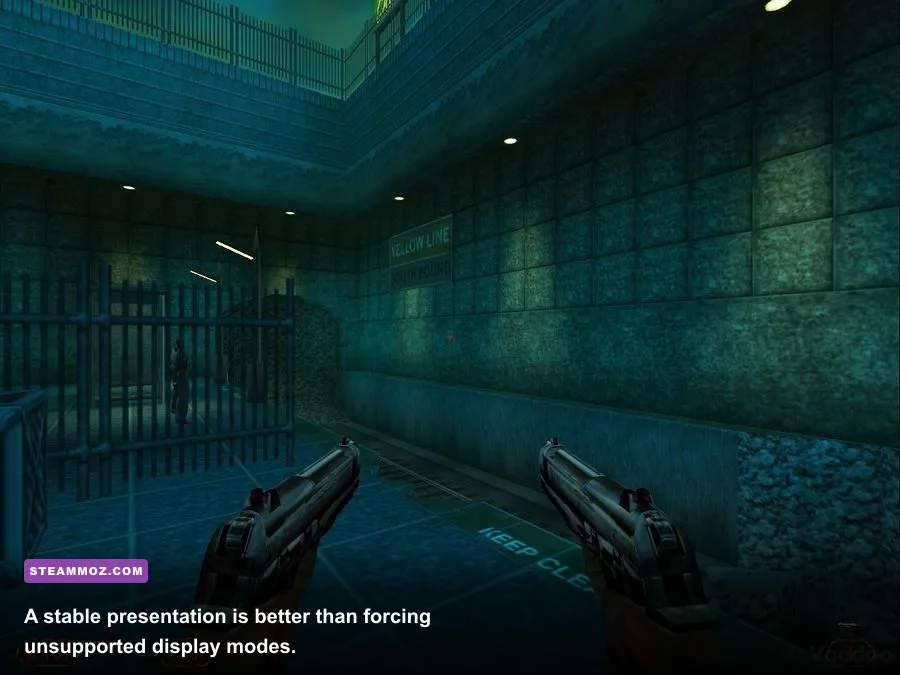
Use a repeatable route instead of relying on a single FPS number in a quiet room. Load a save with several enemies nearby, move through an area containing dynamic lights, fire the Shotgun repeatedly, and trigger an explosive weapon if available. Repeat the same route after each setting change. The worst moment matters more than the peak number: a locked 60 FPS that briefly dips to 55 usually feels better than an uncapped result that swings wildly.
Use a three-pass test
Pass one checks idle performance. Stand still, look across a detailed room, and watch for texture corruption, flicker, or abnormal frame pacing. Pass two checks traversal. Run through doors and turns quickly, because streaming and old-level transitions can expose stutter that a static benchmark misses. Pass three checks combat. Use the Shotgun, explosive effects, and close-range enemy encounters to stress transparency and dynamic lighting.
Change only one setting per pass. If you lower resolution, lighting, and particles together, you won't know which option fixed the problem. Record the result in three categories: average smoothness, worst combat dip, and visual defects. The best Blood II settings are the ones that remove the worst dip without making the campaign look like a software-rendered museum piece.
Finally, keep a backup of your working configuration. Old games can reset video options after a crash or a failed mode switch. If you later experiment with widescreen fixes, wrappers, or community patches, return to that known-good profile first. For more classic-PC perspective, Steamoz's Dungeon Siege performance coverage and Desperados III review are useful reminders that presentation and playability matter more than chasing a meaningless benchmark number.
That leaves a reliable final setup: accelerated Direct3D, 1280×720 or 1280×960, 32-bit color, High textures, Medium lighting, Medium shadows, Medium particles, and a stable 60 FPS cap. Raise lighting and effects one at a time if your system stays smooth. Blood II's brutal gunfights deserve clean frame pacing, and this profile gives Caleb the responsive feel the LithTech engine rarely delivers when left to modern defaults.