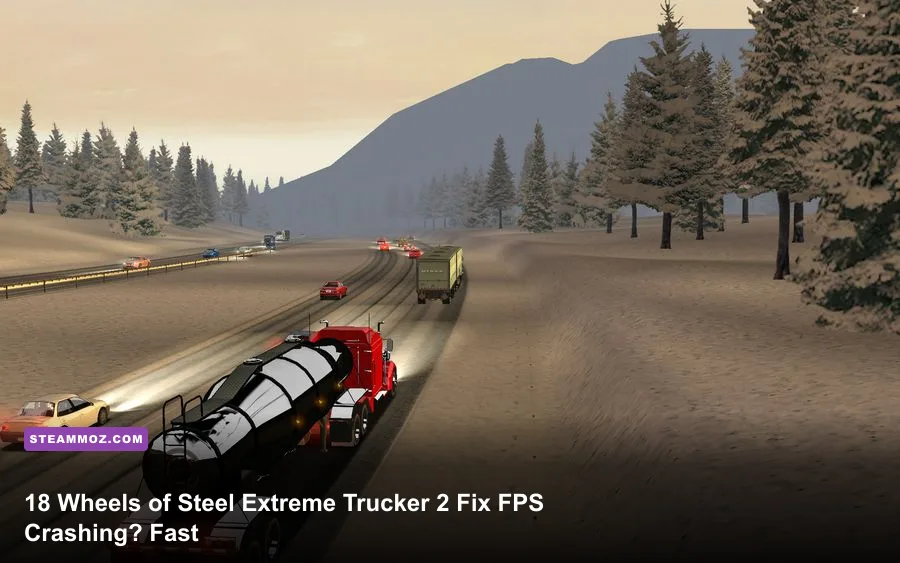
If 18 Wheels of Steel: Extreme Trucker 2 keeps crashing or running at low FPS on PC, the fastest reliable fix is to reset its configuration, verify the Steam installation, run the game with Windows compatibility settings, and use a low-resolution performance profile. This 2011 SCS Software truck sim is light on modern hardware, but its old 32-bit Prism3D-based engine can dislike modern overlays, unusual display modes, corrupted config files, and aggressive driver features.
Work through the fixes in order rather than changing everything at once. First create a clean baseline, then solve launch crashes, and only after that tune resolution, shadows, reflections, vegetation, and filtering. That approach tells you whether the problem is damaged game data, Windows compatibility, a graphics setting, or a genuine frame-rate limit. If you also troubleshoot older PC games regularly, our guide to City of Gangsters crash and FPS problems covers a similar generation of Windows quirks.
Start With a Clean Extreme Trucker 2 Baseline
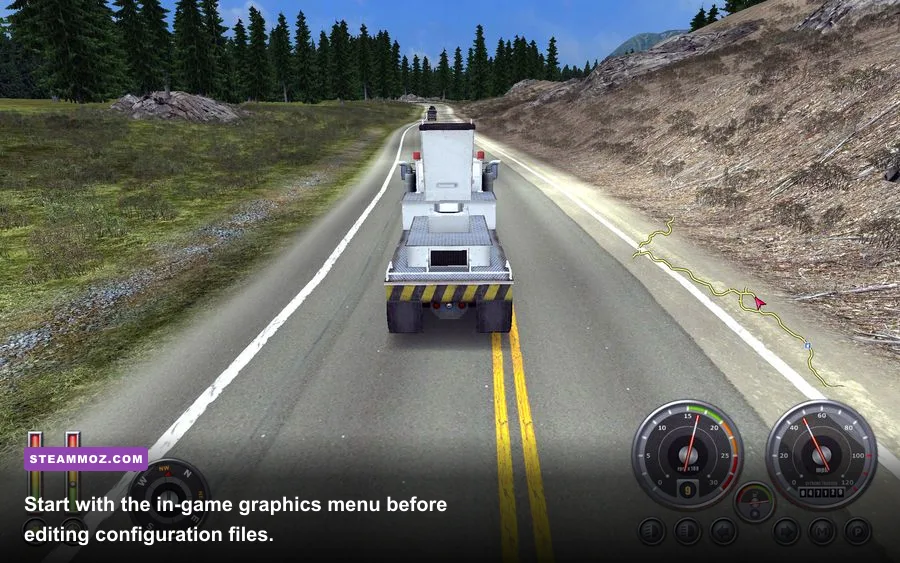
Before touching drivers or Windows settings, remove variables. Exit Steam completely, including its system-tray process, and disconnect any unnecessary USB controller, wheel, or gamepad. Extreme Trucker 2 normally saves user data in a Documents folder named 18 WoS Extreme Trucker 2 or 18 Wheels of Steel Extreme Trucker 2, depending on the release and installer. Open Documents and back up that folder to your desktop.
Do not delete your backup. Rename the original folder to something like Extreme Trucker 2_backup, then launch the game. The title should generate fresh settings and profile files. If it now starts, the crash was probably caused by a malformed resolution, renderer option, damaged profile, or leftover mod data. Copy save files back one at a time instead of restoring the entire folder, because an old profile can bring the fault straight back.
Next, open Steam, right-click the game, choose Properties, select Installed Files, and click Verify integrity of game files. This is especially important if the game crashes during the splash screen, after a Steam update, or immediately after installing a map, truck, traffic, or sound mod. Extreme Trucker 2 is old enough that a single altered archive can cause a hard exit without a useful error message.
| Symptom | Most Likely Cause | First Test |
|---|---|---|
| Crash before the main menu | Bad config, overlay conflict, or compatibility issue | Rename the Documents game folder and disable overlays |
| Crash when loading a profile | Corrupt save or incompatible mod | Launch with a fresh profile and test an unmodded route |
| Black screen with sound | Unsupported resolution or fullscreen mode | Reset config and launch in windowed mode |
| Stutter after several minutes | Background overlay, driver profile, or thermal throttling | Use a clean boot and monitor GPU clocks |
| Low FPS everywhere | Resolution, shadows, reflections, or frame pacing | Apply the low-end profile below and compare the same route |
Keep a consistent test route. Drive the same short delivery with the same truck, weather, and camera view. Frame rate can dip naturally near traffic, junctions, and scenery, so a single glance at a crowded city is not enough to judge the whole game. Use an overlay such as Steam's FPS counter only after testing; if disabling the overlay fixes the crash, leave it disabled for this title.

🎮 18 Wheels of Steel: Extreme Trucker 2
Looking to experience this game? Grab your digital key directly on our store for $3.99.
View on Steammoz Store →Fix Launch Crashes, Black Screens, and Instant Exits
The most common launch fix is Windows compatibility. Find the installed executable through Steam's Browse local files command, locate the main game executable, right-click it, open Properties, and use the Compatibility tab. Test Windows 7 compatibility first. If that does not help, try Windows XP Service Pack 3, but use only one compatibility mode at a time. Enable Run this program as an administrator only if the game cannot create or update its Documents files.
Do not enable every compatibility checkbox blindly. High-DPI scaling overrides and reduced-colour modes can introduce their own display problems. Start with compatibility mode alone, then add administrator access only when permissions are clearly involved. Windows 10 and Windows 11 can also block an old executable through security software, so add the game's installation folder as an exception temporarily for testing. Restore your normal protection settings after the test.
Disable every overlay before launching: Steam Overlay, Discord, Xbox Game Bar, AMD Software overlay, NVIDIA overlay, MSI Afterburner/RivaTuner statistics, and recording tools. Older Prism3D games can crash when an overlay hooks into the renderer, even when newer DirectX games run perfectly. If disabling overlays solves the issue, re-enable them individually to identify the offender.
For a black screen or a crash after changing resolution, reset the configuration folder again and start in a window. A 16:9 resolution such as 1280x720 or 1600x900 is a safer first test than a modern ultrawide resolution. Once the game reaches the menu, apply fullscreen and your native resolution separately. If the game has a launcher with a renderer choice, select the default renderer first; exotic compatibility wrappers should be a last resort, not the opening move.
Mods deserve their own warning. Remove custom trucks, trailers, maps, sound packs, and traffic files from the mod directory, then verify files. A mod made for 18 Wheels of Steel: American Long Haul or Extreme Trucker 1 is not automatically compatible with Extreme Trucker 2. Test the vanilla game through a complete load and a short delivery before restoring modifications. The official Steam support pages are also useful for checking library and launch troubleshooting basics.
Best Graphics Settings for Higher FPS
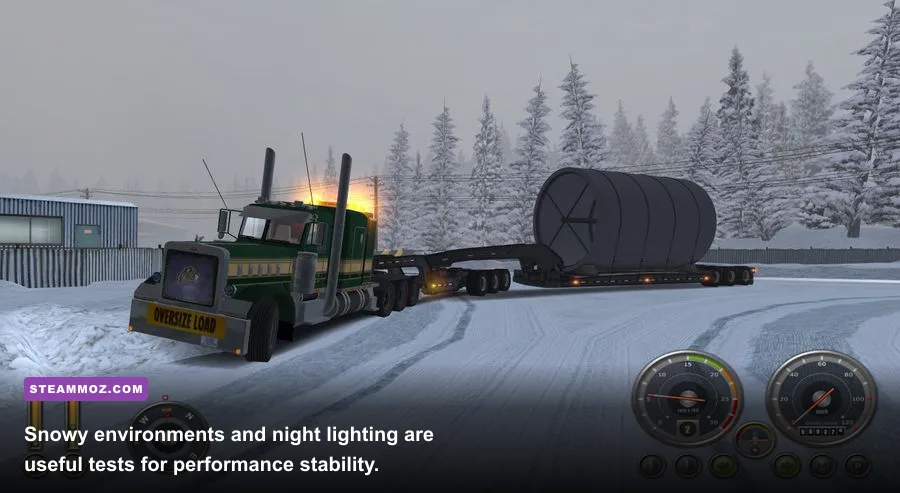
Extreme Trucker 2 rarely needs a powerful modern GPU. The real performance traps are resolution scaling, shadows, reflections, vegetation density, and driver-level overrides. The engine can become CPU-limited when it draws traffic, roadside objects, and a busy urban scene, so lowering resolution alone may not cure a crowded-city slowdown. Use the profile below as a starting point, then raise one setting at a time.
| Setting | Recommended Value | FPS Impact | Visual Trade-Off |
|---|---|---|---|
| Resolution | 1280x720 or 1600x900 | High | Lower image sharpness, but the largest immediate gain |
| Display mode | Windowed for testing; fullscreen when stable | Low to medium | Windowed mode can improve compatibility, fullscreen can reduce distractions |
| Shadow detail | Low | High | Less-defined truck and roadside shadows |
| Reflection detail | Low or medium | Medium | Cab mirrors and wet-road reflections look simpler |
| Vegetation detail | Low | Medium | Fewer trees and less dense roadside scenery |
| Texture detail | Medium or high | Low on modern GPUs | Keep this higher if VRAM is available; it affects clarity more than raw FPS |
| Anti-aliasing | Off or the lowest option | Medium | More jagged edges, especially on signposts and guardrails |
| Anisotropic filtering | Application-controlled or 2x | Low | Road and terrain textures become softer at distance |
| V-Sync | Off for diagnosis | Variable | May introduce tearing, but removes a possible frame-pacing cap |
For an older laptop, begin at 1280x720, low shadows, low reflections, low vegetation, medium textures, and no anti-aliasing. On a modern desktop, 1920x1080 with medium shadows and reflections should be a reasonable target, but do not assume a high refresh-rate lock will be stable. The engine may deliver a high average FPS while producing uneven frame times during scenery streaming.
If the game reports 60 FPS but feels jerky, test a 30 FPS cap through your GPU control panel or a frame limiter. A consistent 30 FPS is often smoother than an unstable 45-60 FPS on this old engine. Try this only after disabling V-Sync for diagnosis. If tearing is severe, use a driver-level half-refresh option or a conservative cap rather than stacking multiple limiters.
Never force modern enhancements such as FXAA, sharpening, super-resolution, image scaling, or forced anisotropic filtering until the game is stable. Driver overrides can improve image quality in some titles, but old engines sometimes react badly to injected features. The SCS Software website remains the best official reference for the developer's truck-simulation history, although support for this retired title is limited.
Stop Stutter Caused by Windows and Drivers
Once crashes are gone, tackle inconsistent frame pacing. Start with your GPU driver. If the problem began immediately after a driver update, install the latest stable driver using a clean installation, or roll back to the previous version. Do not use a driver cleaner automatically unless normal uninstall and reinstall steps fail; aggressive cleanup can create a second problem on a working system.
Open your GPU control panel and create a profile for the game's executable. Set power management to a normal or maximum-performance mode for testing, leave texture filtering application-controlled, and disable forced anti-aliasing. Restore the profile after testing if the game is stable, because an always-on maximum-performance setting wastes power and increases laptop heat.
Close browsers with video tabs, launchers, RGB utilities, hardware monitoring tools, and cloud-sync clients. The game uses very little memory by modern standards, but a background process can still steal CPU time from its older single-thread-heavy workload. On Windows 11, turn off Xbox Game Bar and background recording in Gaming settings. On Windows 10, check the same recording options under Game Bar and Captures.
For laptops, confirm that the game is using the dedicated GPU rather than integrated graphics. Windows Settings, System, Display, Graphics lets you add the executable and choose a high-performance GPU. This is less common as a problem with such an old game than with modern 3D titles, but it is quick to verify. Also play while plugged in and set the laptop power mode to performance during testing.
Watch temperatures and clock speeds rather than trusting FPS alone. A CPU or GPU that drops clocks after five minutes can look like a game bug. Dust, a quiet fan curve, or an overheating laptop will cause the same stutter in other games. If only Extreme Trucker 2 stutters while temperatures remain normal, the issue is more likely frame pacing, an overlay, or the engine's scenery streaming.
Repair Saves, Mods, and Configuration Files
A crash tied to one delivery, profile, or truck usually is not a graphics problem. It points toward corrupted user data or an incompatible add-on. Back up the Documents folder, then remove the mod directory and start a new profile. Drive a short route with a default truck. If that works, restore your saves first and mods last. This isolates whether the save or the add-on is responsible.
Never overwrite your only save while troubleshooting. Copy the complete profile folder and use clear names such as profile_before_reset and profile_vanilla_test. If a particular save crashes during loading but a fresh profile works, that save may contain an invalid cargo assignment, missing mod asset, or damaged progression data. There is no guaranteed repair tool for every old profile, so protecting the backup matters more than experimenting with random file edits.
Configuration errors often come from an interrupted write, a forced shutdown, or a resolution the game cannot display. Rename the whole folder instead of editing individual values unless you already know the file structure. A clean regeneration takes less time and avoids leaving behind contradictory options. After the game starts, change one setting, exit normally, and relaunch. That confirms the game can save the new value.
Keep the installation path simple if you reinstall. Use Steam's default library or a short path without unusual permissions. If verification repeatedly reacquires the same files, check whether antivirus software or a cloud-synced Documents folder is restoring an older version. Pause synchronization while testing. Avoid downloading random DLL files from unofficial “fix” sites; they can introduce malware and rarely solve a genuine Prism3D configuration issue.
A Stable Low-FPS Fix Profile That Actually Works
Use this order for a dependable repair: back up saves, rename the Documents configuration folder, verify files in Steam, disable every overlay, launch in windowed 1280x720, and test a vanilla profile. If the game is stable, move to fullscreen and native resolution. Then raise textures, reflections, and vegetation individually. Leave shadows and anti-aliasing for last because they often cost more performance than they add visual value in this engine.
| Stage | Action | What a Successful Result Looks Like | Next Move |
|---|---|---|---|
| 1. Protect data | Back up Documents game folder and saves | You can restore profiles if testing fails | Rename the active folder |
| 2. Clean install | Verify Steam files and remove mods | No missing or altered files are reported | Launch the vanilla game |
| 3. Compatibility | Disable overlays and test Windows 7 mode | Game reaches the menu without crashing | Test a fresh profile |
| 4. Performance | Use 1280x720, low shadows, low reflections, low vegetation | Stable frame pacing on a repeatable route | Increase resolution first |
| 5. Customization | Restore saves, then mods one at a time | The culprit can be identified instead of guessed | Keep only compatible add-ons |
If nothing changes after the clean-folder test, try a full reinstall: uninstall through Steam, manually check that the installation directory is gone, restart Windows, reinstall, and launch before adding mods or changing settings. Keep Windows and your GPU driver current, but remember that “latest” does not always mean “best” for a 2011 game. A stable driver version and a clean compatibility setup matter more than chasing every new graphics feature.
Extreme Trucker 2 will never behave like a modern, perfectly frame-paced simulator, and some short stutters are simply part of its old engine. But repeated crashes, black screens, and genuinely low FPS are usually fixable. The winning combination is conservative display settings, a regenerated config, disabled overlays, verified files, and patient one-change-at-a-time testing. For more older-PC troubleshooting, compare these guides to Cossacks 3 PC requirements, Brothers in Arms: Earned in Blood compatibility, and Deadfall Adventures performance fixes. The official Extreme Trucker 2 Steam page is the correct place to confirm the current store build and installation ownership.